
AOGITKE AOGITKEv5-2
AOGITKE Audio Video Capture Card User Manual
Model: AOGITKEv5-2
Introduction
The AOGITKE Audio Video Capture Card is a versatile device designed for high-definition acquisition, streaming, recording, and live broadcasting. It allows you to connect HDMI output devices such as game consoles, DSLR cameras, camcorders, and action cameras to your computer via USB 2.0. This plug-and-play device supports 4K input and output resolutions, making it ideal for gaming, video conferencing, teaching, and various recording occasions.
What's in the Box
- 1 x AOGITKE Audio Video Capture Card
Specifications
| Feature | Detail |
|---|---|
| Brand | AOGITKE |
| Model Number | AOGITKEv5-2 |
| Hardware Interface | USB, USB 2.0 |
| Input Resolution (HDMI) | Max 3840x2160@60Hz |
| Output Resolution (USB) | Max 3840x2160@60Hz |
| Video Capture Resolution | 1080p, 4K |
| Operating System Compatibility | Windows, Android, MacOS |
| Dimensions | 22.61 x 9.5 x 2.69 cm |
| Weight | 41 g |
| Power Supply | No external power supply required |
Setup
The AOGITKE Audio Video Capture Card is designed for plug-and-play operation, requiring no driver installation.
- Connect HDMI Input: Connect your HDMI source device (e.g., game console, DSLR camera, camcorder) to the HDMI input port on the capture card using an HDMI cable.
- Connect USB Output: Plug the USB 2.0 connector of the capture card into an available USB port on your computer (Windows, Android, or MacOS).
- Software Setup: Open your preferred acquisition software on your computer (e.g., OBS Studio, VLC, Amcap). Configure the software to recognize the capture card as a video and audio input device.

Figure 1: Connection Diagram. This image illustrates how to connect various HDMI source devices (projector, phone, camcorder, Xbox, Apple TV) to the capture card's HDMI input, and then connect the capture card's USB output to a laptop, PC, or TV for display and recording.
Operating Instructions
Once connected and recognized by your software, the capture card will transmit the HDMI signal to your computer for various applications.
- Real-time Preview: The capture card provides real-time preview of the HDMI input without significant delay, allowing for live monitoring.
- Recording: Use your chosen software (e.g., OBS Studio) to record the video and audio stream directly to your computer's hard drive. Ensure your software settings match the desired resolution and frame rate.
- Live Broadcasting: Integrate the capture card's feed into live streaming platforms (e.g., Twitch, YouTube Live, Facebook Live) through your broadcasting software.
- Video Conferencing/Screen Sharing: Utilize the capture card to share content from an external HDMI source (like a presentation from a separate device) in online meetings via software like OBS or other compatible applications.
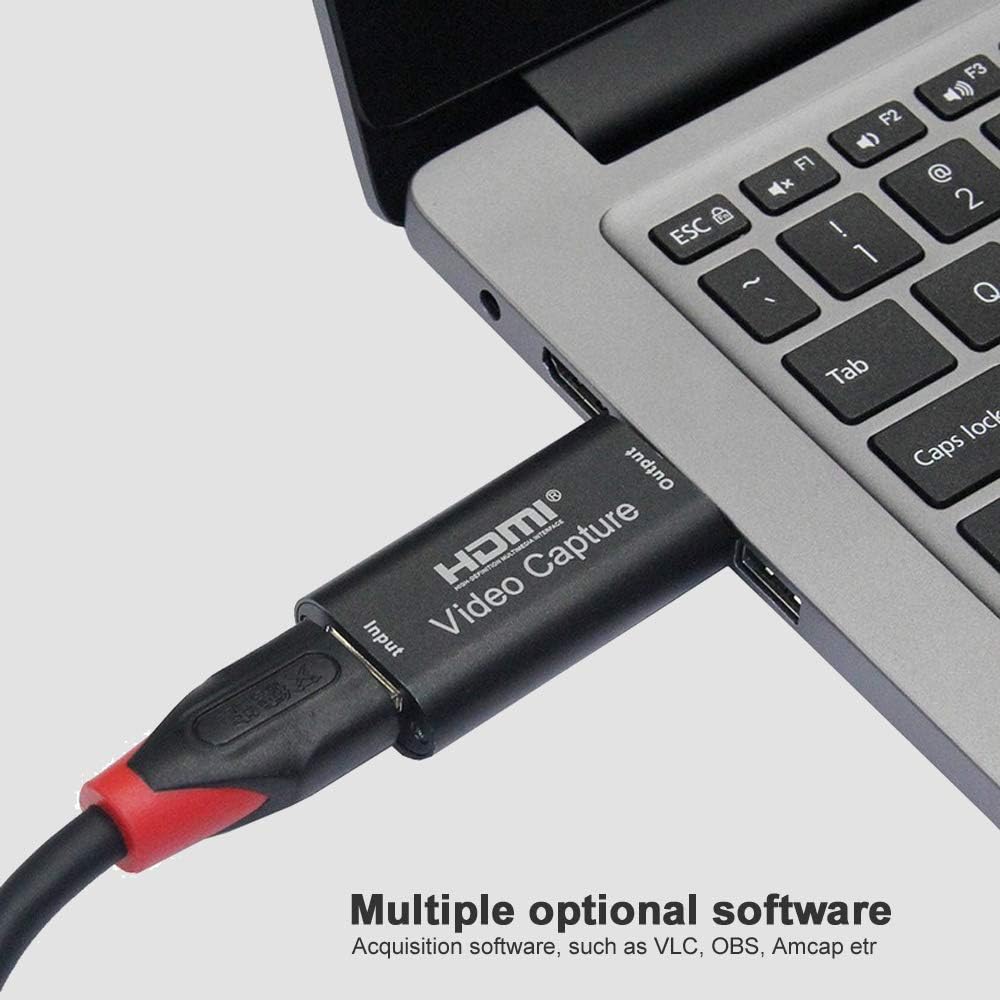
Figure 2: Software Compatibility. This image shows the capture card connected to a laptop, highlighting its compatibility with various acquisition software such as VLC, OBS, and Amcap, which are commonly used for video capture and streaming.
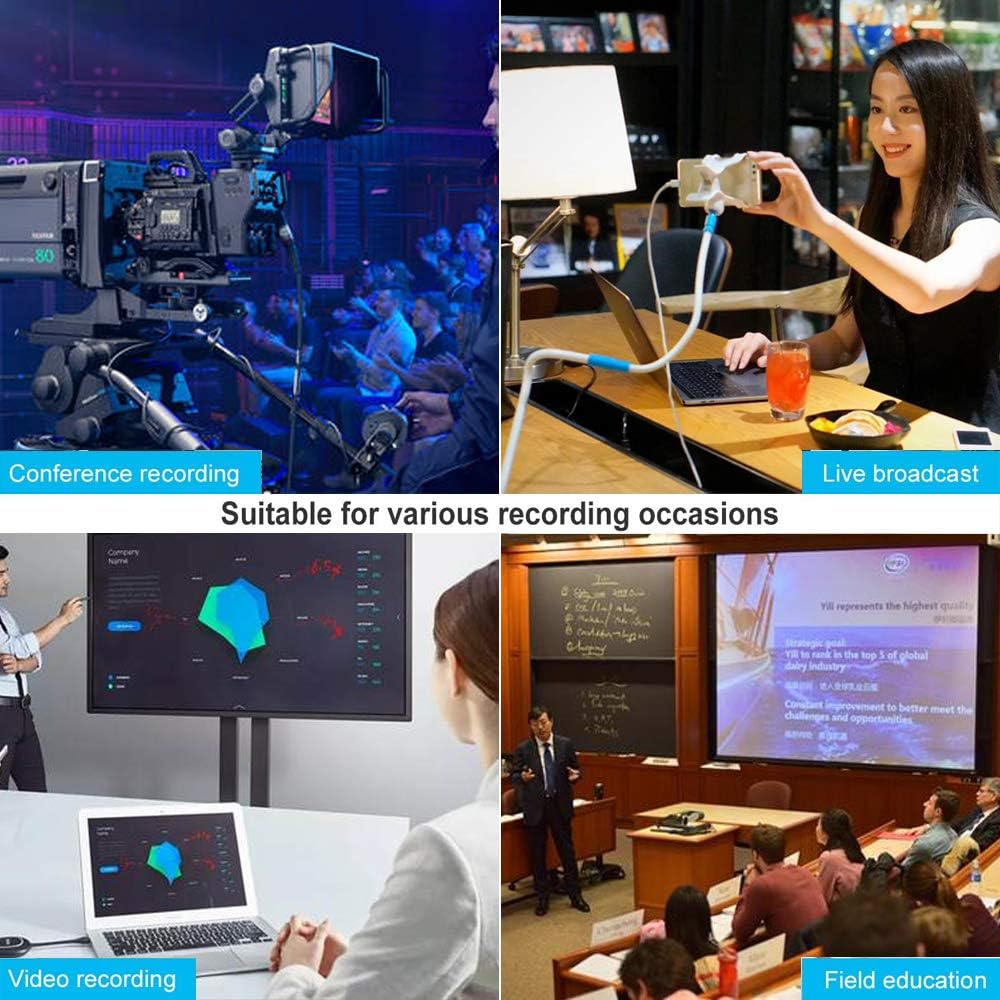
Figure 3: Versatile Applications. This image displays four common scenarios where the capture card can be used: recording conferences, conducting live broadcasts, general video recording, and for educational purposes in the field.
Troubleshooting
| Problem | Possible Cause / Solution |
|---|---|
| No video signal |
|
| No audio signal |
|
| Poor video quality / Lag |
|
| Device not recognized by computer |
|
Maintenance
- Cleaning: Use a soft, dry cloth to clean the exterior of the capture card. Do not use liquid cleaners or aerosols.
- Storage: Store the device in a cool, dry place away from direct sunlight and extreme temperatures when not in use.
- Handling: Handle the capture card with care. Avoid dropping it or exposing it to excessive force.
- Connectivity: Always ensure cables are inserted and removed gently to prevent damage to the ports.
Warranty and Support
Specific warranty information for the AOGITKE Audio Video Capture Card is not provided in this manual. Please refer to the product packaging or the retailer's website for details regarding warranty coverage and support options.
For technical support or further inquiries, please contact AOGITKE customer service through the contact information provided with your purchase or on the official AOGITKE website.
Ask a question about this manual
Ask about setup, troubleshooting, compatibility, parts, safety, or missing instructions. Manuals+ will review the question and use this page’s manual context to help answer it.