
Lenovo 20SUS34900
Lenovo ThinkPad P15 Mobile Workstation User Manual
Model: 20SUS34900
1. Introduction
This manual provides comprehensive instructions for the setup, operation, maintenance, and troubleshooting of your Lenovo ThinkPad P15 Mobile Workstation. Please read this manual thoroughly to ensure proper use and to maximize the lifespan of your device.

Figure 1: Front view of the Lenovo ThinkPad P15 Mobile Workstation, showing the display with the Windows operating system interface.
2. Initial Setup
2.1 Unpacking and Inspection
- Carefully remove the workstation and all accessories from the packaging.
- Verify that all components listed in the packaging information are present.
- Inspect the workstation for any physical damage. If damage is found, contact your vendor immediately.
2.2 Connecting to Power
Connect the power adapter to the workstation's power input port and then plug the power cord into a grounded electrical outlet. It is recommended to fully charge the battery before initial use.
2.3 First Power On and Windows Setup
- Press the power button located on the keyboard deck to turn on the workstation.
- Follow the on-screen prompts to complete the Windows 10 Pro setup process. This includes selecting your region, language, accepting license terms, and creating a user account.
- Connect to a Wi-Fi network when prompted to enable updates and online features.

Figure 2: Side view of the Lenovo ThinkPad P15, illustrating its profile and open display.
3. Operating Your Workstation
3.1 Keyboard and TrackPoint/Touchpad
The ThinkPad P15 features a full-sized backlit keyboard with a number pad. The TrackPoint pointing device (red dot in the center of the keyboard) and the multi-touch touchpad provide precise cursor control.
- TrackPoint: Use your index finger to push the TrackPoint in the desired direction to move the cursor. Use the three buttons below the spacebar for left-click, right-click, and middle-click (for scrolling).
- Touchpad: Use gestures for navigation. Tap to click, two-finger scroll, pinch-to-zoom, etc. Refer to Windows settings for customization.
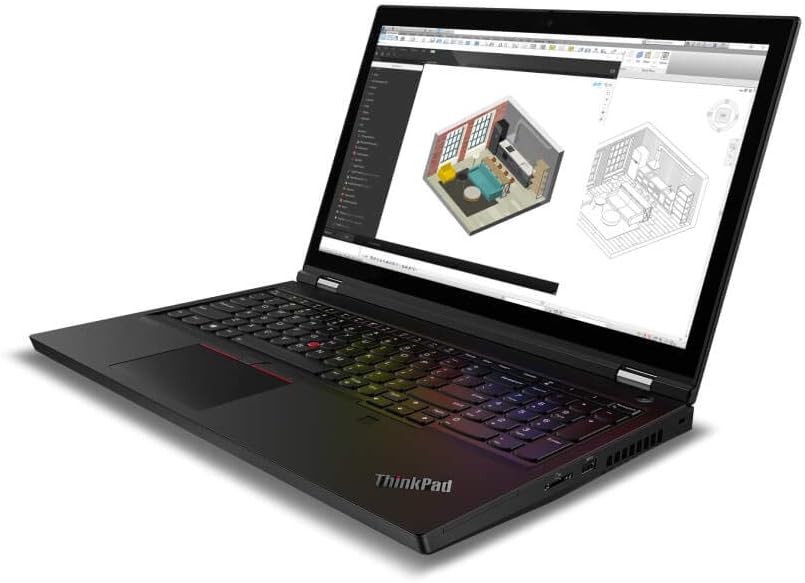
Figure 3: The ThinkPad P15 in use, showcasing its capability to display complex 3D models, highlighting its workstation features.
3.2 Ports and Connectivity
Your workstation is equipped with various ports for connecting external devices:
- USB-A 3.2 Gen 1: For connecting standard USB devices. One port is always on for charging.
- USB Type-C Thunderbolt 3 / USB 3.2 Gen 2: High-speed data transfer, display output, and power delivery.
- USB-C 3.2 Gen 1 (DP 1.4): Data transfer and DisplayPort output.
- HDMI 2.0: For connecting to external displays or projectors.
- Headphone / mic combo jack: For audio input/output.
- RJ-45 Gigabit Ethernet: For wired network connection.
- SD card reader: For reading SD memory cards.
- Optional Smart card reader: For secure authentication.
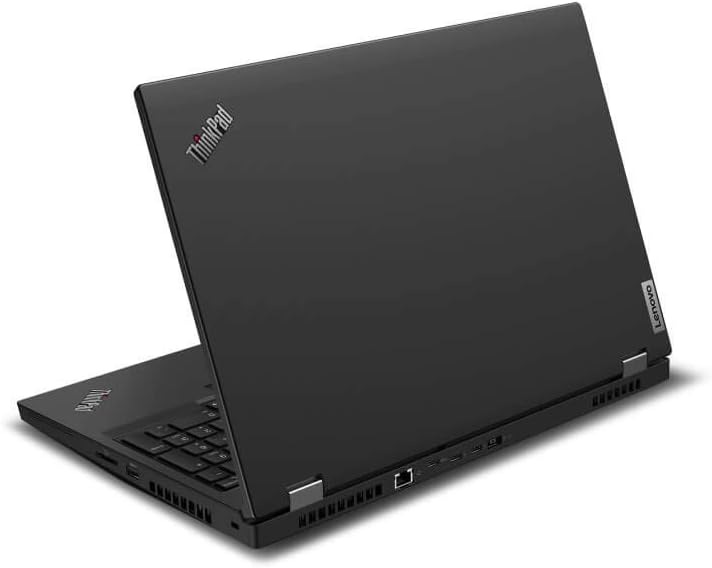
Figure 4: Rear view of the ThinkPad P15, illustrating the various connectivity ports available on the device.
3.3 Fingerprint Reader
The integrated fingerprint reader allows for secure and convenient login. To set up, navigate to Windows Settings > Accounts > Sign-in options and follow the instructions for Windows Hello Fingerprint.
4. Maintenance and Care
4.1 Cleaning Your Workstation
- Screen: Use a soft, lint-free cloth slightly dampened with water or a non-abrasive screen cleaner. Do not spray liquid directly onto the screen.
- Keyboard and Chassis: Use a soft cloth dampened with mild soap and water. Avoid excessive moisture. For dust, use compressed air.
- Always power off and unplug the workstation before cleaning.
4.2 Battery Care
- Avoid extreme temperatures.
- For optimal battery longevity, avoid constantly keeping the battery at 100% charge or letting it fully discharge frequently.
- If storing the workstation for an extended period, charge the battery to approximately 50-60%.
4.3 Software Updates
Regularly update your Windows operating system and Lenovo drivers to ensure optimal performance, security, and compatibility. You can check for Windows updates via Settings > Update & Security > Windows Update. For Lenovo-specific drivers and firmware, use the Lenovo Vantage application or visit the official Lenovo support website.
5. Troubleshooting
This section addresses common issues you might encounter. For more complex problems, refer to the Lenovo support website or contact technical support.
| Problem | Possible Cause | Solution |
|---|---|---|
| Workstation does not power on. | No power, discharged battery, faulty power adapter. | Ensure power adapter is securely connected and outlet is functional. Charge battery for at least 30 minutes. Try a different power outlet. |
| Display is blank or black. | Sleep mode, external display connected, display driver issue. | Press any key or move mouse to wake. Disconnect external displays. Restart the workstation. Update graphics drivers. |
| Wi-Fi connection issues. | Wi-Fi disabled, incorrect password, router issue, driver issue. | Ensure Wi-Fi is enabled in Windows settings. Verify password. Restart router. Update wireless drivers. |
| Workstation runs slowly. | Too many applications open, low disk space, malware, outdated drivers. | Close unnecessary applications. Free up disk space. Run antivirus scan. Update drivers. |
6. Product Specifications
Below are the key technical specifications for the Lenovo ThinkPad P15 Mobile Workstation (Model: 20SUS34900).
- Processor: 10th Generation Intel Core i7-10750H (2.60 GHz, up to 5.00 GHz with Turbo Boost, 6 Cores, 12 Threads, 12 MB Cache)
- Display: 15.6" FHD (1920 x 1080) IPS, anti-glare with Dolby Vision, HDR 400, 500 nits
- Operating System: Windows 10 Pro (64Bit)
- Memory (RAM): 32 GB DDR4 2933MHz (2 x 16 GB)
- Storage: 1TB PCIe Solid State Drive (SSD)
- Graphics Card: NVIDIA Quadro T1000 4GB
- Battery: 6-Cell, 94 WHr Battery
- Wireless Connectivity: Intel Wi-Fi 6 AX201 802.11AX (2 x 2) & Bluetooth 5.1 with vPro
- Keyboard: Backlit - US English with Number Pad
- Ports:
- 2 x USB A 3.2 Gen 1 (1 always on)
- 2 x USB Type-C Thunderbolt 3 USB 3.2 Gen 2
- USB-C 3.2 Gen 1 (DP 1.4)
- HDMI 2.0
- Headphone / mic combo jack
- RJ-45 Gigabit Ethernet
- Optional: Smart card reader
- SD card reader
- Dimensions (LxWxH): 14.78” x 9.93” x 1.24”
- Weight: 6.05 lb / 2.74 kg (depending on configuration)
- Color: Black
- Special Features: Fingerprint Reader, Anti Glare Coating, 720p HD Camera
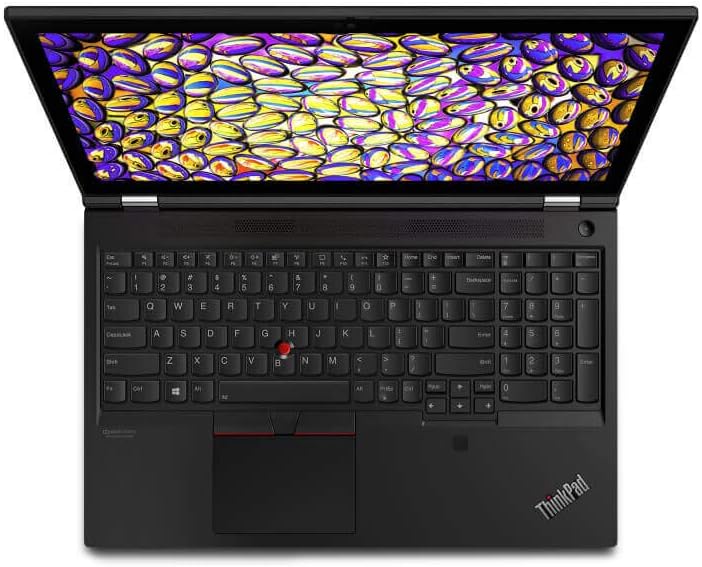
Figure 5: Top-down view of the ThinkPad P15, highlighting the keyboard layout, TrackPoint, and touchpad.
7. Warranty and Support
7.1 Warranty Information
Your Lenovo ThinkPad P15 Mobile Workstation comes with a standard manufacturer's warranty. The specific terms and duration of the warranty may vary by region and purchase agreement. Please refer to the warranty card included with your product or visit the official Lenovo support website for detailed warranty information.
7.2 Technical Support
For technical assistance, driver downloads, or further troubleshooting, please visit the official Lenovo Support website:
You may also find helpful resources and community forums on the Lenovo website.
Ask a question about this manual
Ask about setup, troubleshooting, compatibility, parts, safety, or missing instructions. Manuals+ will review the question and use this page’s manual context to help answer it.