
1. Introduction
The Satechi R2 Multimedia Remote Control is designed to provide convenient wireless control for your media and presentations. This manual provides detailed instructions on how to set up, operate, and maintain your remote control.

Image 1.1: Front view of the Satechi R2 Multimedia Remote Control.
2. Package Contents
Verify that all items are present in your package:
- Satechi R2 Multimedia Remote Control
- USB-C Charging Cable
- User Manual (this document)
3. Product Overview
Familiarize yourself with the buttons and ports on your Satechi R2 remote control.

Image 3.1: Button layout and functions in Multimedia Mode.
- Volume Up/Down: Adjusts audio volume.
- Play/Pause: Controls media playback.
- Forward/Backward: Skips tracks or navigates media.
- Home: Returns to the home screen of the connected device.
- Siri Activation: Activates Siri on compatible Apple devices.
- Mute: Mutes audio output.
- Virtual Keyboard: Toggles the virtual keyboard on the connected device.

Image 3.2: Bottom view of the remote control, highlighting the USB-C charging port, Bluetooth pairing button, and power button.
- USB-C Port: For charging the remote control.
- Bluetooth Pairing Button: Initiates pairing mode.
- Power Button: Turns the remote control on or off.
- Mode Switch (M/P): Toggles between Multimedia (M) and Presentation (P) modes, located on the side.
4. Setup: Pairing Your Remote Control
Follow these steps to pair your Satechi R2 remote control with your device:
- Ensure the remote control is charged.
- Turn on the remote control using the power button.
- Press and hold the Bluetooth pairing button (located on the bottom of the remote) until the LED indicator starts blinking, indicating it is in pairing mode.
- On your host device (e.g., MacBook, iPad, iPhone), navigate to the Bluetooth settings.
- Select "Satechi R2 Remote" from the list of available devices to complete the pairing process. The LED indicator on the remote will stop blinking once successfully paired.

Image 4.1: Visual guide for locating the Bluetooth pairing button and mode switch.
5. Operating Modes
The Satechi R2 remote control features two distinct operating modes: Multimedia Mode (M) and Presentation Mode (P). Switch between modes using the physical toggle switch on the side of the remote.
5.1. Multimedia Mode (M)
In Multimedia Mode, the remote is optimized for controlling audio and video playback. Functions include volume adjustment, play/pause, track skipping, Siri activation, and virtual keyboard access.

Image 5.1: Multimedia Mode functions and supported applications.
Supported Applications: Apple Music, Spotify, Pandora, YouTube (note: YouTube app does not support fast-forward/rewind; in-browser use is supported).
5.2. Presentation Mode (P)
Presentation Mode is designed for navigating presentations and controlling on-screen elements. It provides four-way arrow navigation, mouse functions (on/off, left/right click), and an on-screen laser pointer (requires activation in presentation software settings).

Image 5.2: Button layout and functions in Presentation Mode.
Supported Applications: PowerPoint, Keynote, Prezi, Google Slides, PDF viewers.
6. Charging and Battery Life
The Satechi R2 remote control features a rechargeable USB-C port. Use the included USB-C charging cable to charge the device. A full charge can provide up to six months of battery life based on one hour of daily usage.

Image 6.1: Charging the Satechi R2 remote control via USB-C.
7. Compatibility
The Satechi R2 remote control is compatible with most Bluetooth-enabled devices from 2012 and newer.
- MacBook Pro 14/16-inch (2024 M4/M3/M2/M1)
- MacBook Air 13/15-inch (2025 M4/M3/M2/M1)
- iPad Pro 11/13-inch (2024 M4/M2/M1)
- iPad Air 11/13-inch (2025 M3/M2/M1)
- iPad Mini (2024 A17/6th Gen)
- iPhone 17, iPhone Air, iPhone 17 Pro, iPhone 17 Pro Max, iPhone 16/15/14/13/12 Series
- Mac Mini (2024 M4/M2/M1)
- iMac (2024 M4/M3/M1)
- Mac Studio (2025 M4/M3/M2/M1)
- Google Pixel Pro 8/9
- Samsung S24/Z Flip 5
Note: Not compatible with Windows 10/11 or Apple TV. Future OS updates may impact app compatibility.
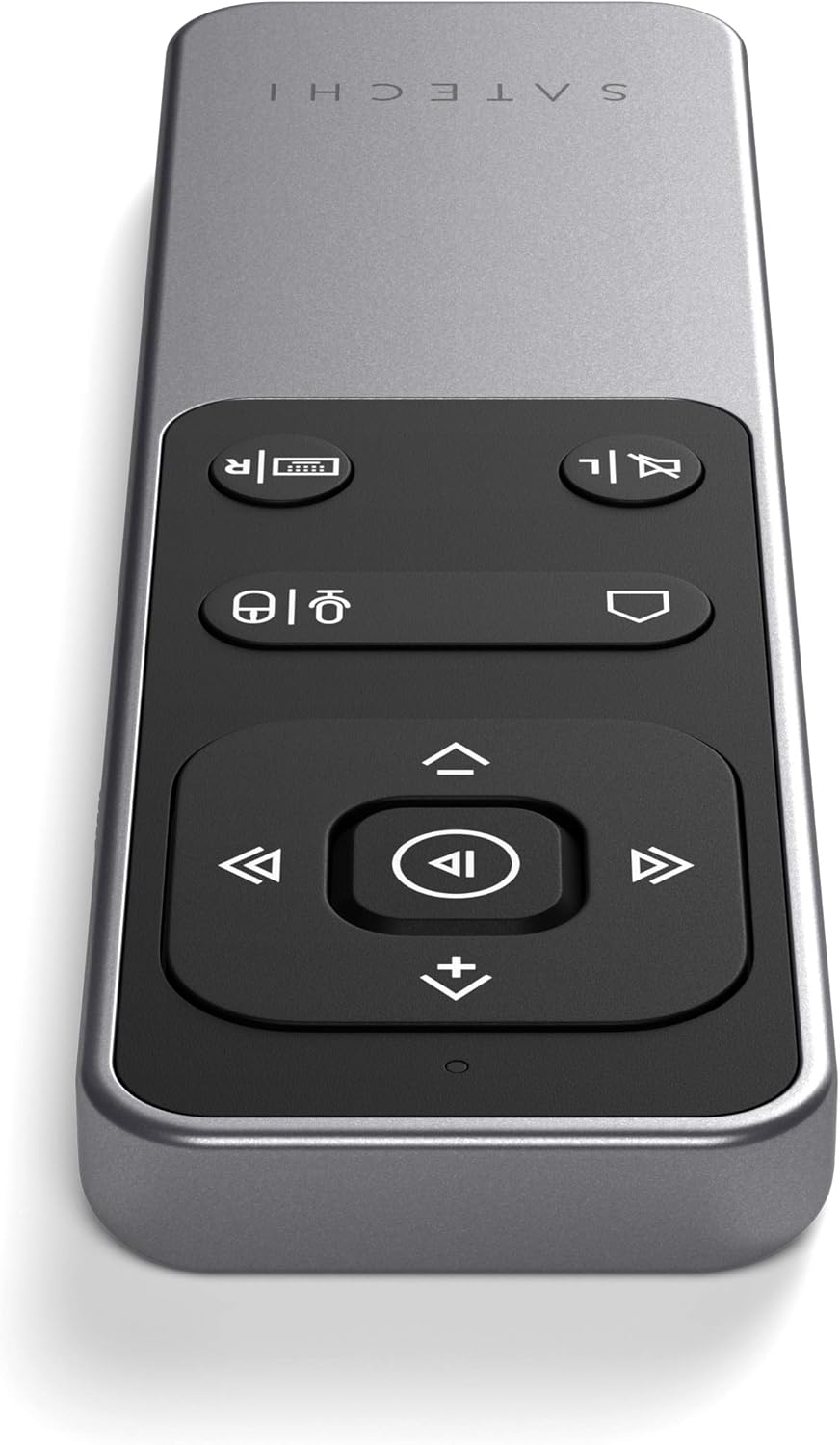
Image 7.1: The Satechi R2 remote control used with an iPad and MacBook.
8. Troubleshooting
- Remote not responding: Ensure the remote is powered on and fully charged. Re-pair the remote with your device if necessary.
- Connection issues: Verify Bluetooth is enabled on your device. Move the remote closer to your device (within 32ft/10m).
- Specific app functions not working: Check the compatibility section for supported applications and any known limitations (e.g., YouTube app fast-forward/rewind). Ensure your device's operating system and apps are up to date.
- Laser pointer not visible: Ensure the on-screen laser pointer feature is enabled within your presentation software (e.g., PowerPoint, Keynote) settings.
9. Specifications
| Product Dimensions | 4.93 x 1.42 x 0.35 inches |
| Item Weight | 2.16 ounces |
| Model Number | ST-BTMR2M |
| Batteries | 1 Lithium Polymer battery (included) |
| Connectivity | Bluetooth 5.0 |
| Wireless Range | Up to 32ft (10m) |
| Color | Space Gray |
| Manufacturer | Satechi |
10. Warranty and Support
Satechi products are covered by a 2-year limited warranty against defects in materials and workmanship under normal use. For further assistance or to access the official user guide PDF, please visit the Satechi support website or refer to the link below:


