
1. Introduction
The VTech KidiZoom PrintCam is a digital camera designed for children aged 4-11 years. It allows users to capture photos and videos, apply creative effects, and instantly print black and white images on thermal paper. This manual provides essential information for setting up, operating, maintaining, and troubleshooting your KidiZoom PrintCam.

2. What's Included
Your VTech KidiZoom PrintCam package includes the following items:
- KidiZoom PrintCam
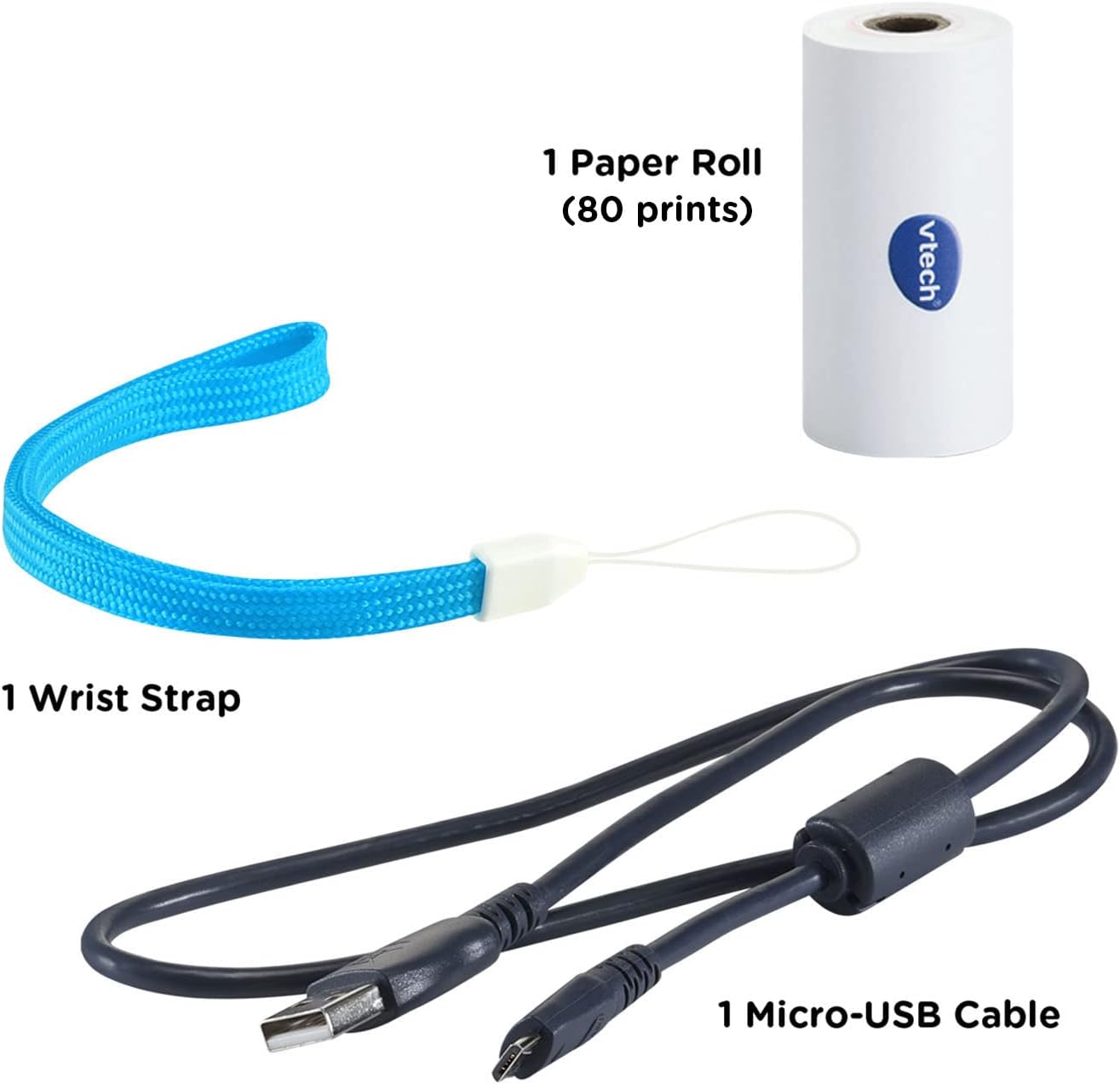
- 1 Paper Roll (for approximately 80 prints)
- 1 Micro-USB Cable (for charging and data transfer)
- 1 Wrist Strap
- Quick Start Guide
3. Setup
3.1 Charging the Battery
The KidiZoom PrintCam includes a non-removable, rechargeable lithium-ion battery. Before first use, fully charge the camera using the included Micro-USB cable. Connect the small end of the Micro-USB cable to the camera's USB port and the larger end to a computer's USB port or a compatible USB wall adapter (not included). The charging indicator light will show the charging status.
3.2 Inserting Paper Roll
To insert a new paper roll:
- Locate the paper compartment on the side of the camera.
- Open the compartment cover.
- Place the paper roll into the compartment, ensuring the paper feeds out from the top.
- Gently pull a small length of paper out of the slot.
- Close the compartment cover securely.
3.3 Expanding Storage (Optional)
The camera has internal storage. To expand storage for more photos and videos, insert a microSD card (not included) into the microSD card slot on the side of the camera. The camera supports up to 32GB microSD cards.
4. Operating Instructions
4.1 Power On/Off
Press and hold the Power button to turn the camera on or off.
4.2 Taking Photos and Videos
Use the 2.4-inch color screen to preview your shots. The camera features a rotatable lens for taking regular photos or flipping up for selfies.


4.3 Printing Images
After taking a photo, you can choose to print it instantly. The camera prints black and white images. You can also select images from your gallery to print. The included paper roll prints up to 80 images.


4.4 Creative Features
The KidiZoom PrintCam offers various creative options:
- Stickers, Filters, and Borders: Add fun effects to your photos and videos.
- Coloring Pages: Convert photos into drawings that can be colored manually.
- Templates and Activities: Explore over 110 templates for creating comic strips, play money, greeting cards, and printable games.


4.5 Games
The camera includes three video games for entertainment between photo sessions.
4.6 Parental Controls
Parents can set daily time limits for usage and printing limits. Games can also be turned off via parental controls.
4.7 Language Settings
The camera's language can be set to English or Spanish.
4.8 Transferring Files
Connect the camera to a computer using the Micro-USB cable to transfer full-color photos and videos for backup.
Video 1: A detailed demonstration of the VTech KidiZoom PrintCam's features, including photo taking, filter application, printing, and selfie mode.
Video 2: A demonstration video showcasing the VTech KidiZoom PrintCam's functionalities for children.
5. Maintenance
5.1 Paper Refills
The KidiZoom PrintCam uses thermal paper. When the included paper roll is depleted, you can purchase the KidiZoom PrintCam Paper Refill Pack (sold separately). The camera is also compatible with most 2.2-inch W x 1.2-inch D thermal paper refills.
5.2 Cleaning
Wipe the camera with a slightly damp cloth. Do not use harsh chemicals or abrasive cleaners.
6. Troubleshooting
6.1 Blank Prints
If your photos are printing blank, ensure the paper roll is inserted with the correct orientation. Try turning the paper roll around.
6.2 Camera Not Turning On/Charging
Ensure the battery is fully charged. Connect the camera to a power source using the Micro-USB cable. If the issue persists, contact customer support.
6.3 Poor Print Quality
Thermal print quality can be affected by lighting conditions. Ensure adequate lighting when taking photos. Replace the paper roll if prints remain unclear.
7. Specifications
| Feature | Detail |
|---|---|
| Product Dimensions | 1.89 x 5.28 x 3.62 inches |
| Item Weight | 13.1 ounces |
| Model Number | 80-549100 |
| Manufacturer Recommended Age | 4 - 11 years |
| Battery | 1 Lithium Polymer battery (included, non-removable) |
| Screen | 2.4-inch Color Screen |
| Print Type | Instant Black and White Thermal Prints |
| Print Capacity | Up to 80 images per roll |
| Special Features | 100+ customizable templates, 40+ effects/stamps/borders, Parental controls, Three video games |
| Expandable Memory | microSD card slot (up to 32GB, not included) |
8. Warranty and Support
8.1 Warranty Information
The VTech KidiZoom PrintCam typically comes with a limited warranty. Please refer to the packaging or the official VTech website for the most current warranty details. Note that charging the device with a wall outlet not specifically designed for it may void the warranty.
8.2 Customer Support
For further assistance, technical support, or to inquire about replacement parts, please visit the official VTech website or contact their customer service department. Contact information can usually be found in the Quick Start Guide or on the VTech website.


