
1. Product Overview
The Logitech MK295 Silent Wireless Keyboard & Mouse Combo is designed for comfort, precision, and quiet operation. It features Logitech's SilentTouch technology, significantly reducing typing and clicking noises. This combo connects wirelessly via a tiny USB Nano receiver, offering a reliable connection and extended battery life for both the keyboard and mouse.
Key Features
- Innovative SilentTouch technology for same typing and clicking feel with 90% less noise.
- Full-size keyboard with 8 convenient shortcuts and a full numpad for efficient data entry and easier navigation.
- Contoured and portable mouse with smooth, precise clicking and pointing on most surfaces.
- Strong, reliable 2.4 GHz wireless connection with a 10-meter range and a tiny USB receiver.
- Compatible with Windows or Chrome OS for plug-and-play simplicity.
- Spill-proof keyboard design, durable keys, and sturdy tilt legs with adjustable height.
- Extended battery life: up to 36 months for the keyboard and 18 months for the mouse, with on/off switches.
- One-touch access to media controls (play/pause, volume, mute) and internet.
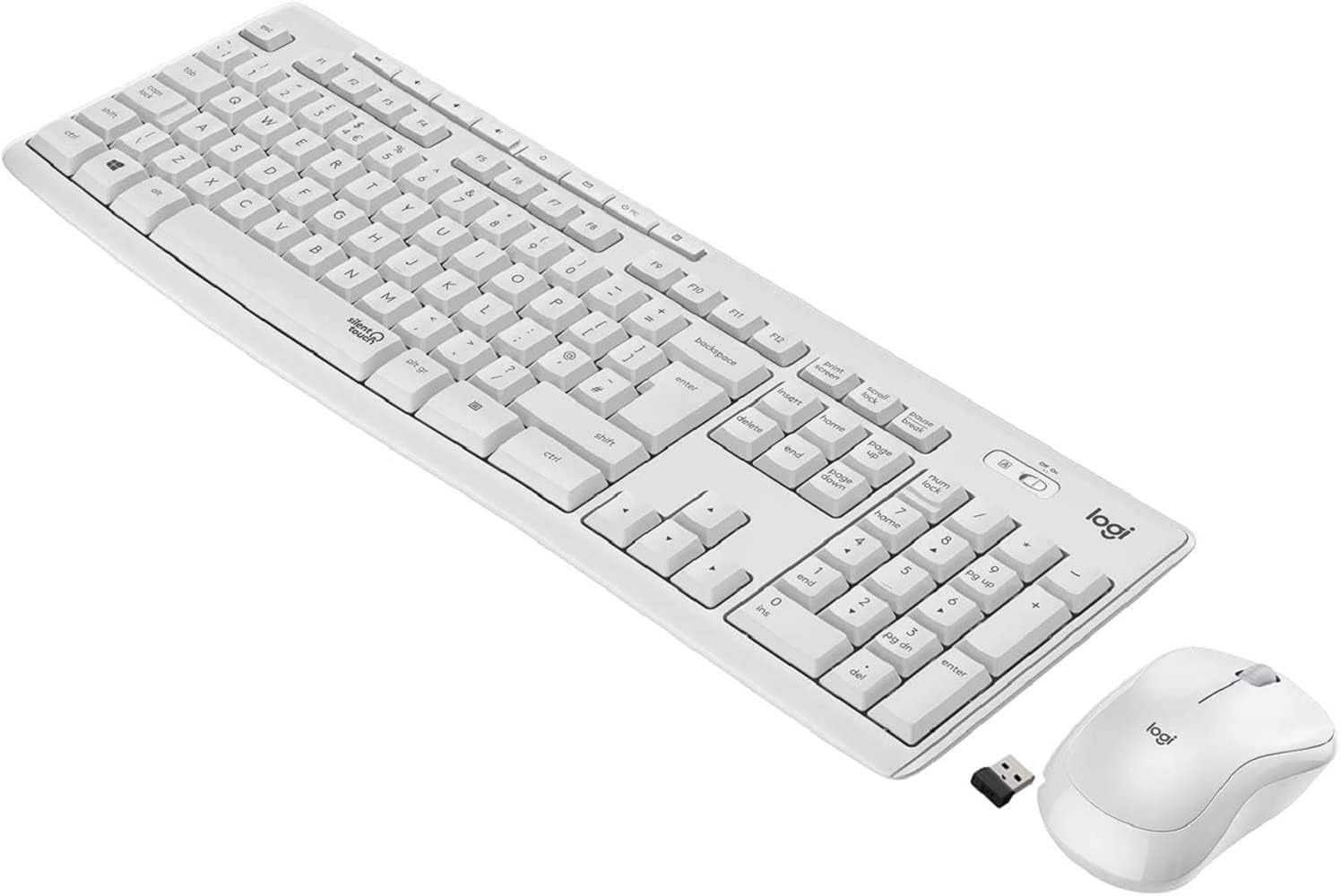
Figure 1.1: The Logitech MK295 Wireless Keyboard and Mouse Combo, including the USB receiver.
2. Setup Guide
2.1 Package Contents
- Logitech MK295 Wireless Keyboard
- Logitech MK295 Wireless Mouse
- USB Nano Receiver
- 2 AAA Batteries (pre-installed in keyboard)
- 1 AA Battery (pre-installed in mouse)
- User Documentation (this manual)
2.2 Battery Installation
The keyboard requires two AAA batteries, and the mouse requires one AA battery. Batteries are typically pre-installed. If replacement is needed:
- Locate the battery compartment on the underside of the keyboard and mouse.
- Slide open the battery compartment cover.
- Insert the batteries, ensuring correct polarity (+ and - ends).
- Close the battery compartment cover securely.
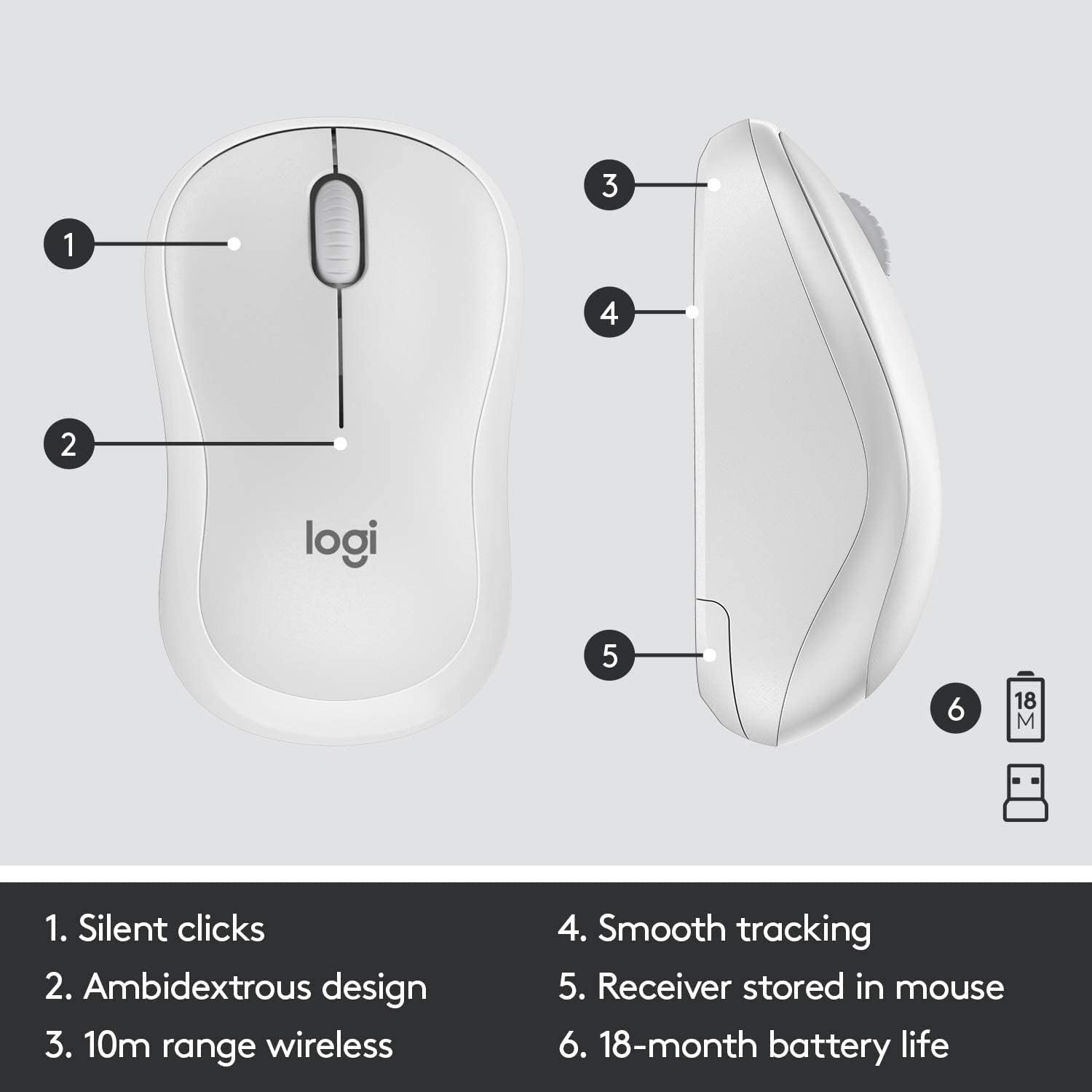
Figure 2.1: The underside of the mouse, showing the battery compartment and the storage slot for the USB receiver.
2.3 Connecting the Devices
The keyboard and mouse connect to your computer using a single USB Nano receiver.
- Remove the USB Nano receiver from its storage slot in the mouse (if stored there).
- Plug the USB Nano receiver into an available USB port on your computer.
- Turn on the keyboard and mouse using their respective On/Off switches. The switches are located on the top right of the keyboard and the underside of the mouse.
- Your computer should automatically detect and install the necessary drivers. The devices are ready for use once detected.

Figure 2.2: The keyboard's On/Off switch, located above the numpad, and an indicator for its 10m (33ft) wireless range.
3. Operating Your MK295 Combo
3.1 Keyboard Functions
The MK295 keyboard features a full-size layout for comfortable typing, including a dedicated numeric keypad for efficient data entry. It also includes several convenient shortcut keys:
- Media Controls: Play/Pause, Volume Up, Volume Down, Mute.
- Application Shortcuts: Home, Mail, Calculator, PC Sleep.
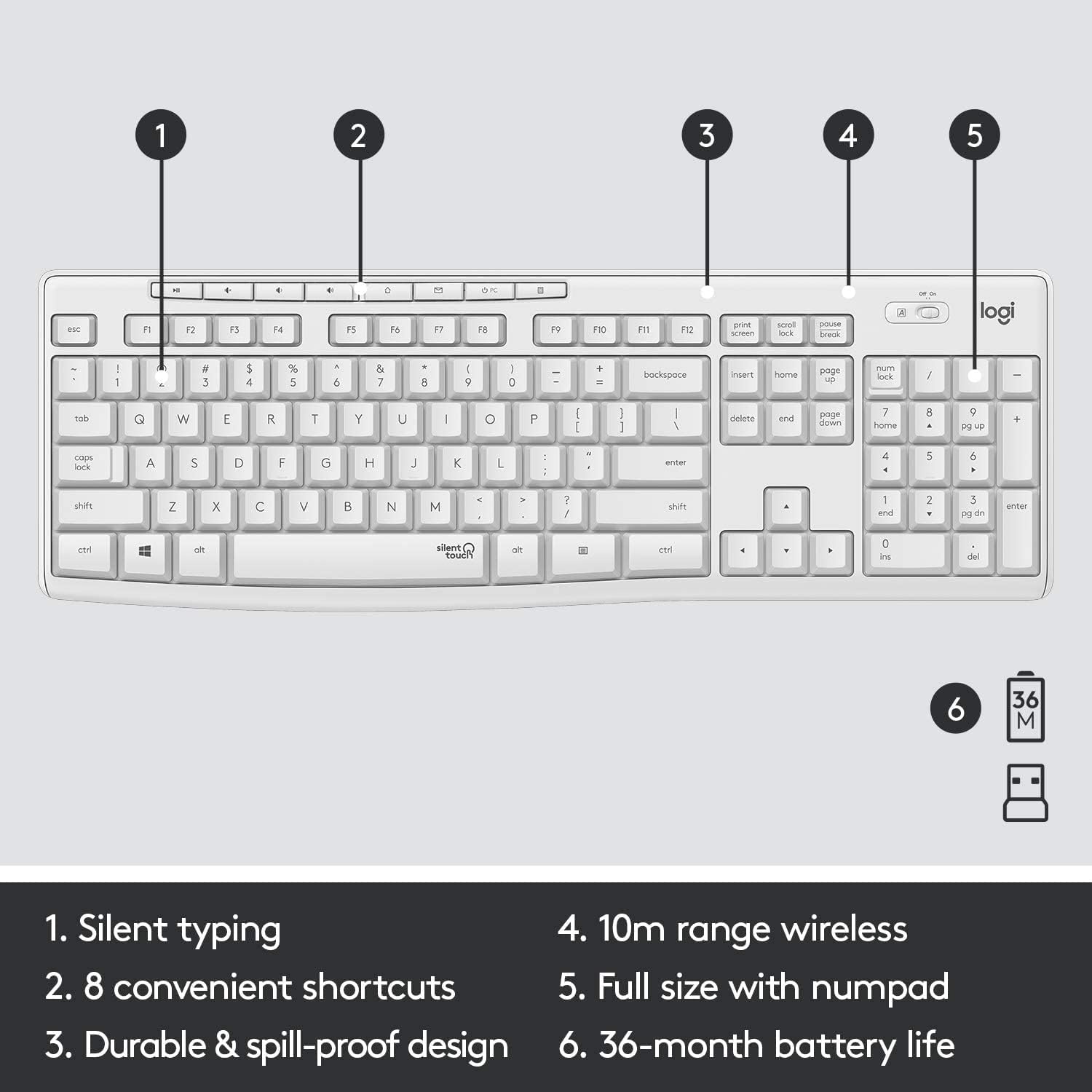
Figure 3.1: Key features of the MK295 keyboard, including its full-size layout with numpad and shortcut keys.
3.2 Mouse Functions
The MK295 mouse is designed with a comfortable, contoured shape that fits well in either hand (ambidextrous design). It provides smooth and precise tracking on most surfaces, making navigation effortless.

Figure 3.2: The comfortable and compact design of the MK295 mouse in use.
3.3 SilentTouch Technology
Logitech's SilentTouch technology significantly reduces the noise from keyboard typing and mouse clicks by over 90% compared to traditional Logitech keyboards and mice. This allows for a quieter work environment without compromising the familiar typing and clicking feel.

Figure 3.3: SilentTouch technology provides a quiet user experience with 90% less noise from typing and clicking.
4. Care and Maintenance
- Cleaning: Use a soft, damp cloth to clean the surfaces of the keyboard and mouse. Avoid harsh chemicals or abrasive materials.
- Spill Resistance: The keyboard features a spill-resistant design. In case of accidental spills, quickly wipe off the liquid. Do not immerse the keyboard in water.
- Battery Conservation: Utilize the On/Off switches on both the keyboard and mouse when not in use for extended periods to conserve battery life.
- Storage: When transporting or storing the combo, you can store the USB Nano receiver inside the mouse's battery compartment to prevent loss.
5. Troubleshooting Common Issues
- No Connection/Lag:
- Ensure the USB Nano receiver is securely plugged into a working USB port on your computer.
- Verify that both the keyboard and mouse are turned On.
- Check the battery levels and replace them if necessary.
- Move the keyboard and mouse closer to the USB receiver to ensure they are within the 10-meter wireless range.
- Avoid placing the receiver near other electronic devices that might cause interference (e.g., Wi-Fi routers, cordless phones).
- Keys Not Responding/Mouse Not Tracking:
- Replace the batteries in the affected device.
- Try plugging the USB receiver into a different USB port on your computer.
- Restart your computer.
- Unexpected Behavior:
- If the keyboard or mouse behaves erratically, try turning it Off and On again.
- Ensure your operating system (Windows or Chrome OS) is up to date.
6. Technical Specifications
| Feature | Specification |
|---|---|
| Product Dimensions | 20.08 x 6.22 x 1.81 inches |
| Item Weight | 2.05 pounds |
| Manufacturer | Logitech |
| ASIN | B08V5LPFLZ |
| Date First Available | January 27, 2021 |
| Color | Off White |
| Connectivity Technology | USB (2.4 GHz wireless via Nano receiver) |
| Special Feature | Portable, SilentTouch Technology, Spill-resistant keyboard |
| Compatible Devices | Personal Computer (Windows, Chrome OS) |
| Keyboard Battery Life | Up to 36 months (2 AAA batteries) |
| Mouse Battery Life | Up to 18 months (1 AA battery) |
| Wireless Range | 10 meters (33 feet) |
7. Warranty Information
Logitech products typically come with a limited hardware warranty. For specific warranty terms and conditions applicable to your MK295 combo, please refer to the warranty card included with your product or visit the official Logitech website. Keep your proof of purchase for warranty claims.
8. Customer Support
For further assistance, technical support, or to download the latest software and drivers for your Logitech MK295 Wireless Keyboard and Mouse Combo, please visit the official Logitech support website:
You may also find helpful FAQs and community forums on the support site.


