
1. Introduction
This manual provides comprehensive instructions for the setup, operation, maintenance, and troubleshooting of your Lenovo Tab 4 Plus 8" Tablet. Designed for portability and performance, this tablet features an 8-inch Full HD display, a Qualcomm Snapdragon processor, and runs on the Android operating system, making it ideal for entertainment, productivity, and everyday use.

Figure 1.1: Front view of the Lenovo Tab 4 Plus 8" Tablet.
2. Setup
2.1 Unboxing and Initial Charge
Carefully remove all components from the packaging. Before first use, fully charge your tablet using the provided USB cable and power adapter. The battery indicator on the screen will show charging status.
2.2 Powering On/Off
- To Power On: Press and hold the Power button (located on the side) until the Lenovo logo appears.
- To Power Off: Press and hold the Power button, then select "Power off" from the options that appear on the screen.
2.3 Initial Setup Wizard
Upon first power-on, the tablet will guide you through an initial setup wizard. Follow the on-screen prompts to:
- Select your preferred language.
- Connect to a Wi-Fi network.
- Sign in with your Google account or create a new one.
- Set up screen lock (PIN, pattern, or password).
2.4 Inserting a MicroSD Card (Optional)
To expand storage, locate the MicroSD card slot (usually on the side or top edge, covered by a small tray). Use the provided SIM ejector tool (if applicable) or a paperclip to open the tray. Insert the MicroSD card with the gold contacts facing down, then close the tray securely.
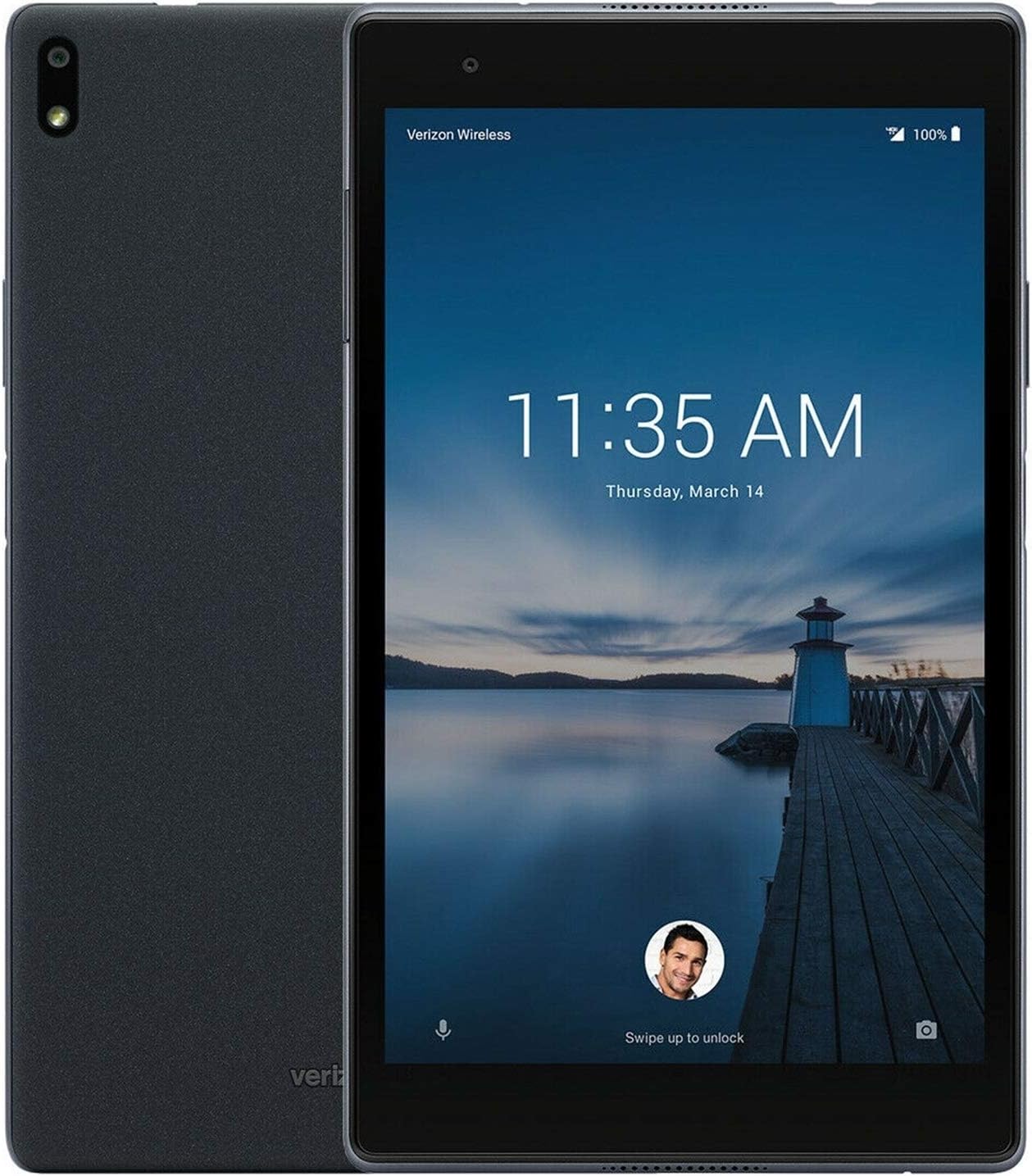
Figure 2.1: Front and back view of the Lenovo Tab 4 Plus 8" Tablet.
3. Operating the Tablet
3.1 Navigating the Android Interface
The Lenovo Tab 4 Plus 8" runs on the Android operating system. Navigation is primarily touch-based:
- Tap: Select an item or open an app.
- Swipe: Scroll through screens, lists, or content.
- Pinch: Zoom in or out on images and web pages.
- Long Press: Access contextual menus or move icons.
3.2 Connecting to Wi-Fi
To connect to a Wi-Fi network:
- Go to Settings > Network & Internet > Wi-Fi.
- Toggle Wi-Fi On.
- Select your desired network from the list and enter the password if prompted.
3.3 Using the Camera
The tablet is equipped with front and rear cameras. Open the Camera app to capture photos and videos. Tap the screen to focus, and press the shutter button to take a picture.
3.4 Audio Features
The Lenovo Tab 4 Plus 8" features Dolby Audio technology for an enhanced sound experience. Adjust volume using the volume buttons on the side of the device or through the system settings.
4. Maintenance
4.1 Cleaning Your Tablet
Use a soft, lint-free cloth to clean the screen and body of your tablet. For stubborn smudges, slightly dampen the cloth with water or a screen cleaner specifically designed for electronics. Avoid harsh chemicals or abrasive materials.
4.2 Battery Care
To prolong battery life:
- Avoid extreme temperatures.
- Do not let the battery fully discharge frequently.
- Use the original charger or a certified compatible charger.
4.3 Software Updates
Regularly check for system updates to ensure optimal performance and security. Go to Settings > System > System update.
4.4 Storage Management
To manage internal storage and free up space, go to Settings > Storage. You can clear cached data, uninstall unused apps, or move files to a MicroSD card.
5. Troubleshooting
5.1 Common Issues and Solutions
| Issue | Solution |
|---|---|
| Tablet not turning on | Ensure the battery is charged. Press and hold the Power button for at least 10-15 seconds to perform a forced restart. |
| Wi-Fi connection issues | Restart your tablet and Wi-Fi router. Forget the network in Wi-Fi settings and reconnect. |
| Apps crashing or freezing | Clear the app's cache (Settings > Apps > select app > Storage & cache > Clear cache). Update the app or reinstall it. |
| Slow performance | Close unused apps, clear storage, and restart the tablet regularly. |
5.2 Factory Reset
If issues persist, a factory reset can resolve many software-related problems. Warning: This will erase all data on your tablet. Back up important data before proceeding. Go to Settings > System > Reset options > Erase all data (factory reset).
6. Specifications
Below are the key technical specifications for the Lenovo Tab 4 Plus 8" Tablet:
| Feature | Detail |
|---|---|
| Display | 8 Inches, 1920 x 1200 pixels (Full HD) |
| Processor | Qualcomm Snapdragon 625 (2 GHz) |
| RAM | 2 GB |
| Internal Storage | 16 GB |
| Graphics Coprocessor | Adreno 506 |
| Operating System | Android |
| Item Weight | 1.32 pounds (approx. 0.6 kg) |
| Package Dimensions | 11.46 x 8.35 x 2.44 inches |
| Batteries | 1 Nonstandard Battery (included) |

Figure 6.1: Angled view of the Lenovo Tab 4 Plus 8" Tablet.
7. Warranty and Support
As a renewed product, specific warranty terms may vary. Please refer to the warranty information provided by your seller at the time of purchase or contact the seller directly for details regarding your product's warranty coverage.
For additional support, technical assistance, or to find updated drivers and software, please visit the official Lenovo support website:
You may also find helpful resources and community forums on the Lenovo support portal.