
1. Product Overview
The FTes RFKits Smart Fingerprint Door Lock offers advanced security and convenient access methods for your home. This manual provides detailed instructions for installation, operation, and maintenance.

Figure 1: Main components of the Smart Fingerprint Door Lock.
Key Features:
- 5-in-1 Unlocking Methods: WeChat App, Fingerprint, Password, IC Card, and Mechanical Key.
- High Capacity: Supports up to 100 fingerprints, 100 passwords, and 100 user cards.
- Virtual Password Function: Enter random digits before and after your actual password to prevent unauthorized viewing.
- Emergency Power: USB interface for emergency power bank in case of low battery.
- Automatic Locking: Provides hands-free security.
2. Installation Guide
This section outlines the steps for installing your smart door lock. Installation typically takes approximately 20 minutes with basic tools like a screwdriver and drill. The lock is compatible with most standard residential wooden doors.
2.1 Component Identification

Figure 2: Internal components of the lock's back panel. Key interfaces include the rear panel interface, door opening button interface, video intercom interface, 12V power supply interface, reset button, fingerprint access control front, remote control interface, lock bolt, locking by magnet induction, door sensor with wire, external 6V power interface, and battery compartment (for 4 AAA batteries).
2.2 Installation Steps
Follow these steps carefully for proper installation:
- Prepare the Door: Ensure your door is clean and the existing lock mechanism is removed. Refer to the provided diagram for drilling and cutting lines based on door thickness.
- Install the Front Panel: Insert the spindle and cylinder into the front panel. Secure them with screws.
- Mount the Front Panel: Pass the connecting cable through the door and position the front panel.
- Install the Back Panel: Connect the cable from the front panel to the back panel. Secure the back panel to the door using screws, ensuring the spindle aligns correctly.
- Install the Strike Plate: Attach the strike plate to the door frame, aligning it with the lock bolt.
- Insert Batteries: Open the battery compartment on the back panel and insert 4 AAA dry batteries (not included).
- Test Functionality: After installation, test all unlocking methods and ensure the lock operates smoothly.

Figure 3: Installation diagram showing the lock assembly and door preparation.
2.3 Installation Video
Watch this video for a visual guide on the installation process.
Video 1: Detailed installation guide for the FTes RFKits Smart Fingerprint Door Lock, demonstrating each step from component assembly to final mounting.
3. Operating Instructions
Your smart lock offers multiple ways to access your property. This section details how to use each method and manage user settings.
3.1 Unlocking Methods

Figure 4: Overview of the 5 available unlocking methods.
- Fingerprint Unlock: Place your registered finger on the sensor. The lock will unlock if the fingerprint is recognized.
- Password Unlock: Enter your registered password on the keypad.
- IC Card Unlock: Present your registered IC card to the card reader area.
- Mechanical Key Unlock: Use the physical key as a backup.
- WeChat App Unlock: Use the WeChat application on your smartphone to unlock the door remotely.


Figure 5: Various unlocking methods in use.
3.2 Virtual Password Function
To enhance security, you can use a virtual password. This involves entering random digits before and after your actual password. For example, if your correct password is 123456, you can enter 00000 + 123456 + 000 to unlock the door. The lock will recognize the correct sequence within the longer input.

Figure 6: Virtual Password Unlock demonstration.
3.3 Automatic Locking
The lock features an automatic locking system for added convenience and security. After closing the door, the lock will engage automatically.

Figure 7: Automatic Locking feature.
3.4 Programming and Settings Video
This video demonstrates how to program the lock, including adding administrators and users, setting virtual passwords, and configuring other options.
Video 2: Programming guide for the FTes RFKits Smart Fingerprint Door Lock. Covers adding administrators (press *#, enter initial admin data 123456, press 1, 1; then enter new admin data: fingerprint 4 times, password (6-8 digits) twice, key fob once, press * to exit). Also covers adding users (press *#, enter admin info, press 2, 1; then enter user info: fingerprint 4 times, password (6-8 digits) twice, remote control button once, press * to exit). Demonstrates virtual password unlock (enter 3 random digits + correct password + 3 random digits). Explains how to delete single users or all users (press *#, enter admin info, press 2, 2, follow prompts). Shows voice setting (press *#, admin info, press 3, 1, 2 to disable voice, press * to exit). Details unlock mode setting (press *##, admin info, press 3, 2, follow prompts for single or combination unlock). Explains time setting (press *#, admin info, press 3, 4, enter time in YYYYMMDDHHMM format, e.g., 202207061436). Finally, covers room number setting (press *#, admin info, press 3, 5, enter 4-digit room number, press # to confirm).
4. Maintenance
Proper maintenance ensures the longevity and optimal performance of your smart lock.
4.1 Battery Replacement
The lock is powered by 4 AAA batteries. A low battery warning will be issued when the batteries are running low. Replace all four batteries promptly when this occurs.

Figure 8: USB port for emergency backup power.
4.2 Cleaning
Wipe the lock's exterior with a soft, dry cloth. Avoid using abrasive cleaners or solvents that could damage the finish or electronic components.
5. Troubleshooting
This section addresses common issues you might encounter with your smart lock.
- Lock not responding: Check battery levels. Use the emergency USB power or mechanical key if batteries are depleted.
- Fingerprint not recognized: Ensure your finger is clean and dry. Try re-registering your fingerprint if the issue persists.
- Password not working: Verify the correct password is being entered. Ensure no random digits are accidentally included unless using the virtual password function.
- IC Card not working: Ensure the card is correctly presented to the reader. Try re-registering the card.
5.1 Factory Reset
If you experience persistent issues, a factory reset can restore the lock to its original settings. All user data will be erased.
Video 3: Factory Reset guide for the FTes RFKits Smart Fingerprint Door Lock. Method 1: Press *#, enter program password, then 4, then program password again. Voice prompt: "Initialization successful." Method 2: Press and hold the RST button located behind the lock for 5 seconds. The button will flash, and initialization will be successful.
6. Specifications
| Manufacturer | FTSTech |
| Model Number | GYS |
| Dimensions | 27.3 x 21.3 x 8.7 cm |
| Weight | 1.4 Kilograms |
| Color | Silver Black |
| Material | Metal, Zinc |
| Power Source | 4 x AA Batteries (not included) |
| Special Features | Fingerprint Recognition, Virtual Password, Auto-Locking, Emergency USB Power |
| Recommended Use | Indoor Use Only |
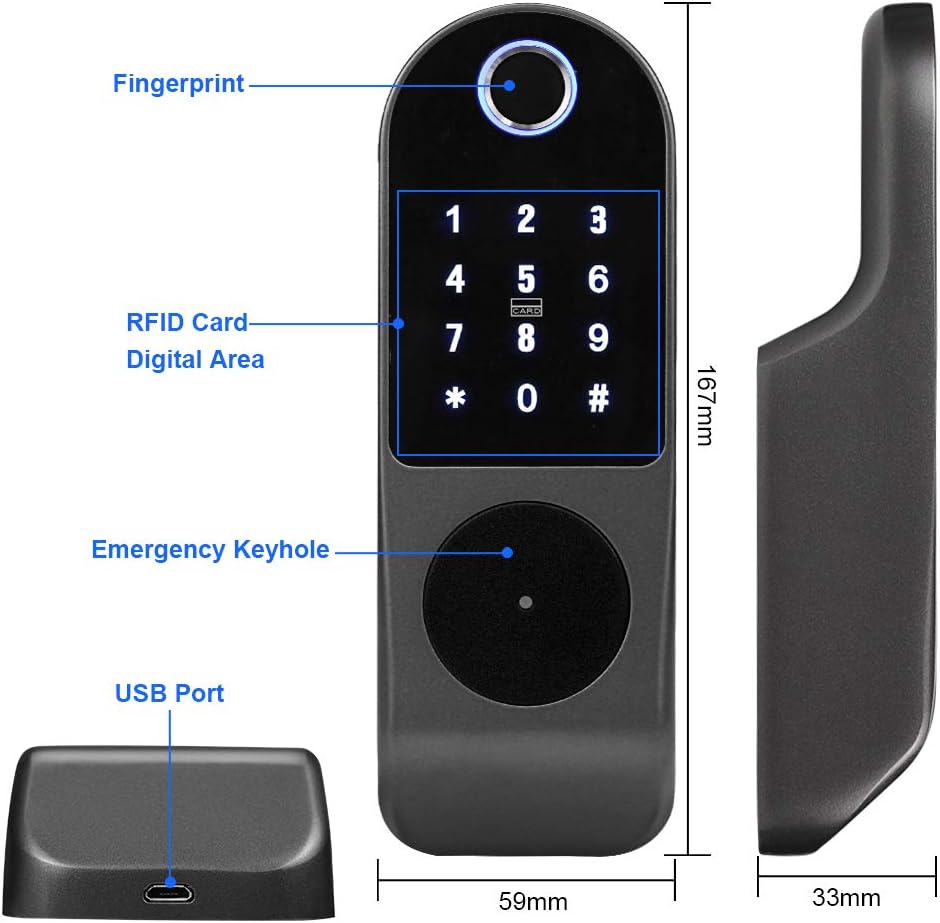

Figure 9: Front and internal mechanism dimensions.
7. Warranty and Support
Your FTes RFKits Smart Fingerprint Door Lock comes with a 1-year warranty and a 45-day money-back guarantee. For customer service or technical support, please refer to the contact information provided with your purchase.

Figure 10: Package contents.