1. Introduction
Thank you for choosing the HP OneShred 15CC Cross-Cut Shredder. This manual provides essential information for the safe and efficient operation, maintenance, and troubleshooting of your new shredder. Please read this manual thoroughly before using the device and keep it for future reference.

Figure 1: HP OneShred 15CC Cross-Cut Shredder. This image shows the shredder from an angled perspective, highlighting its white body, dark grey top panel with controls, and the transparent viewing window for the waste bin.
2. Important Safety Information
To ensure safe operation and prevent injury or damage, please observe the following safety precautions:
- Keep hands, hair, and loose clothing away from the paper entry slot.
- Do not insert more than the recommended number of sheets (15 sheets) at once to prevent jams.
- Keep children and pets away from the shredder.
- Unplug the shredder before moving, cleaning, or emptying the waste bin.
- Do not use aerosol products near the shredder.
- Do not shred metallic items other than staples and small paper clips.
- Operate the shredder on a flat, stable surface.
- Do not expose the shredder to water or moisture.
- If the shredder overheats, allow it to cool down for the recommended period before resuming operation.
3. Setup
- Unpacking: Carefully remove the shredder from its packaging. Ensure all protective materials, such as Styrofoam and plastic wraps, are removed.
- Placement: Place the shredder on a stable, level surface. Ensure there is adequate space around the unit for ventilation and access to the power outlet.
- Power Connection: Locate the power cable and plug it into the power inlet on the back of the shredder. Then, plug the other end into a standard electrical outlet.
- Waste Bin: Ensure the waste bin is correctly inserted into the shredder body. The shredder will not operate if the bin is not properly seated.

Figure 2: The HP OneShred 15CC shredder positioned in an office setting, demonstrating its compact size and suitability for office use.
4. Operating Instructions
4.1 Controls and Indicators

Figure 3: Close-up view of the shredder's top panel, showing the control buttons (REV, Power, FWD) and indicator lights for overload and overheat status.
- Power Button (Center): Turns the shredder on/off and sets it to standby mode.
- FWD (Forward) Button: Manually activates the shredding mechanism in forward direction.
- REV (Reverse) Button: Reverses the shredding mechanism to clear paper jams.
- Overload Indicator (Red Flashing): Illuminates when too much paper is inserted.
- Overheat Indicator (Red/Blue): Red indicates overheating; blue indicates standby.
4.2 Shredding Documents
- Power On: Press the power button to turn on the shredder. The standby indicator (blue) will light up.
- Insert Material: Insert up to 15 sheets of A4 paper, credit cards, or documents with staples into the paper entry slot. The shredder will automatically start shredding.
- Automatic Stop: The shredder will automatically stop once the shredding process is complete.
- Duty Cycle: The shredder is designed for a continuous operation of approximately 10 minutes. After this period, allow the shredder to cool down for about 50 minutes to prevent overheating.
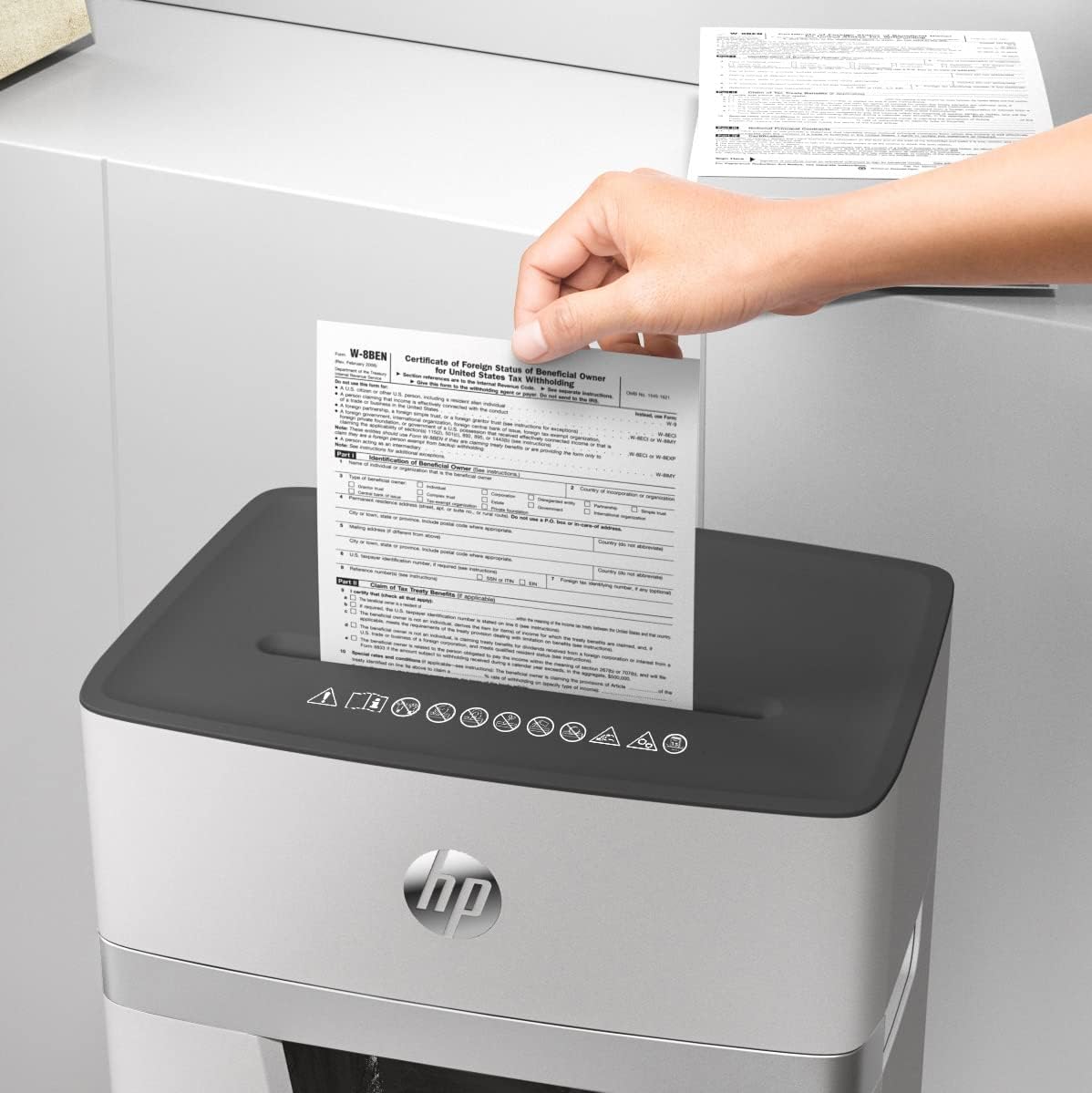
Figure 4: A hand feeding multiple sheets of paper into the shredder's entry slot, demonstrating its paper handling capability.
5. Maintenance
5.1 Emptying the Waste Bin
The HP OneShred 15CC features a 20-liter waste bin with a viewing window, allowing you to monitor the fill level.
- Power Off: Always unplug the shredder from the power outlet before emptying the waste bin.
- Remove Bin: Pull the collection container straight out from the shredder body.
- Empty Contents: Dispose of the shredded material.
- Reinsert Bin: Slide the empty bin back into the device until it clicks securely into place.
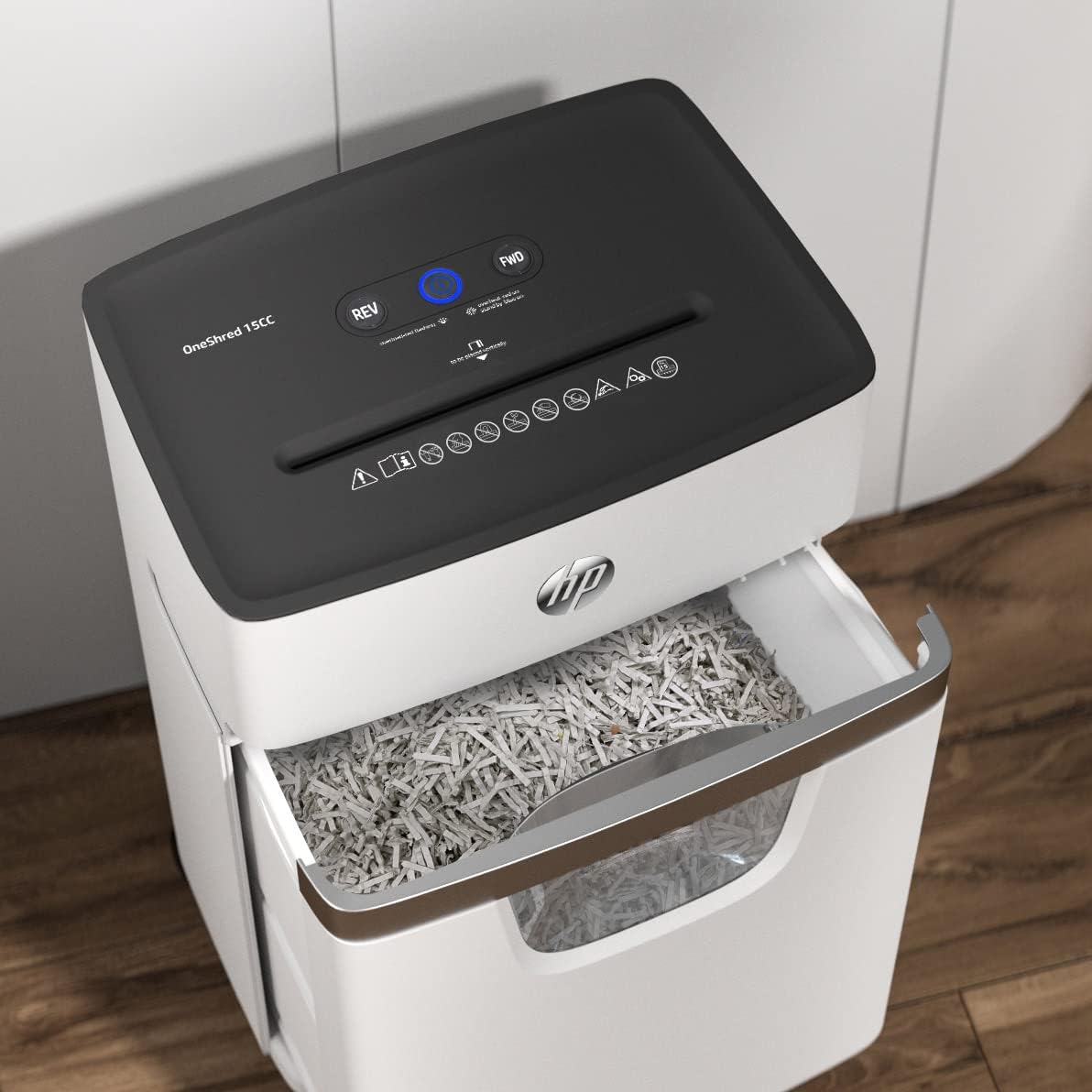
Figure 5: The shredder with its waste bin partially pulled out, revealing the shredded paper inside and demonstrating the ease of emptying.
5.2 Oiling the Cutters
Regular oiling of the shredder's cutting mechanism is crucial for maintaining optimal performance and extending the lifespan of the device. Use a shredder oil sheet or liquid shredder oil.
- Using Oil Sheets: Insert one shredder oil sheet into the paper entry slot as you would with regular paper. The shredder will process the sheet, lubricating the cutters.
- Using Liquid Oil: Apply a thin line of shredder oil across the paper entry slot. Then, run a few sheets of paper through the shredder to distribute the oil.
- Frequency: Oil the shredder after every 30 minutes of cumulative shredding or when you notice a decrease in performance or increased noise.
6. Troubleshooting
| Problem | Possible Cause | Solution |
|---|---|---|
| Shredder does not turn on. |
|
|
| Paper jam. |
|
|
| Shredder stops during operation (Overheat). |
|
|
| Reduced shredding performance or increased noise. |
|
|
7. Specifications
| Feature | Detail |
|---|---|
| Model Number | 2803 |
| Shred Type | Cross Cut |
| Security Level | P-4 |
| Sheet Capacity | 15 sheets (A4, 80 gsm) |
| Shreds | Paper, staples, credit cards |
| Waste Bin Capacity | 20 Liters |
| Continuous Operation (Duty Cycle) | 10 minutes |
| Cool-down Time | 50 minutes |
| Noise Level | 65 Decibels |
| Product Dimensions (D x W x H) | 35.3D x 24W x 53.4H cm (13.9D x 9.4W x 21H inches) |
| Item Weight | 9.4 kg (20.7 lbs) |
| Special Features | Quiet Operation, Overheat/Overload Protection, Automatic Start/Stop, Reverse Function, Viewing Window |

Figure 6: Diagram illustrating the dimensions of the HP OneShred 15CC shredder: 53.4 cm (21 in) height, 24 cm (9.4 in) width, and 35.4 cm (13.9 in) depth.
8. Warranty and Support
For warranty information and technical support, please refer to the warranty card included with your product or visit the official HP support website. Keep your purchase receipt as proof of purchase.
HP Official Website: www.hp.com