
Mackie Onyx12
Contents
Mackie Onyx12 12-channel Analog Mixer with Multi-Track USB User Manual
Model: Onyx12
Introduction
The Mackie Onyx12 is a 12-channel premium analog mixer designed for live audio, home recording, and content creation. It features 24-bit/96kHz multitrack recording capabilities, high-gain Onyx mic preamps, and an ultra-low-noise design. This manual provides detailed instructions for setting up, operating, and maintaining your Onyx12 mixer.
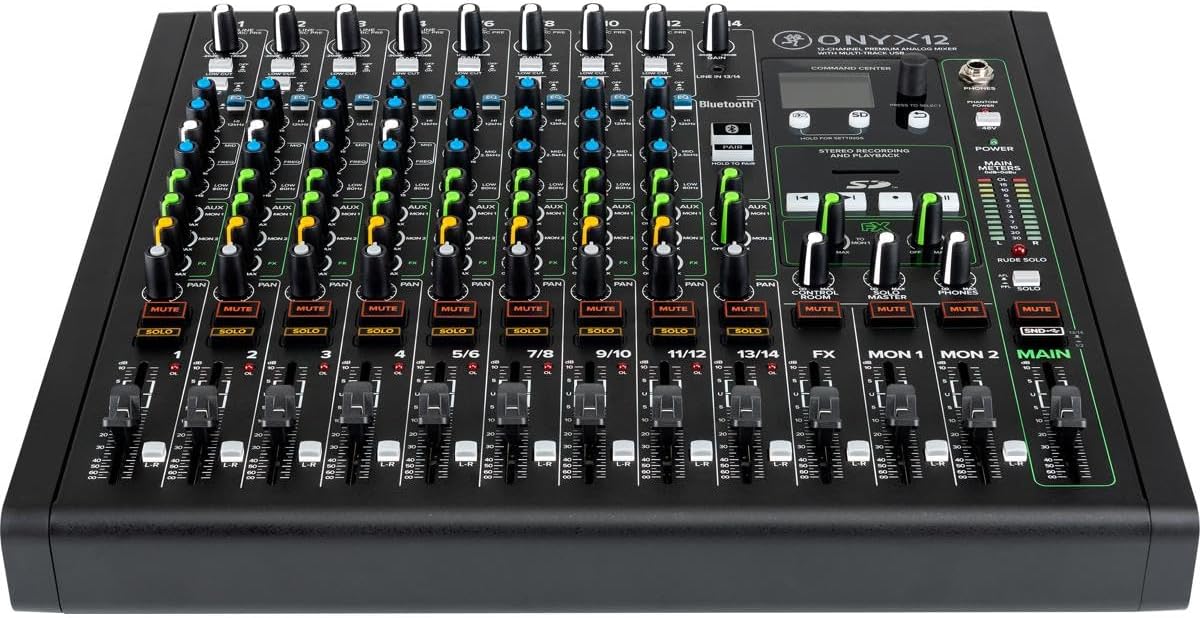
Figure 1: Front view of the Mackie Onyx12 mixer, showing all channels, faders, and control surface.
Setup
1. Unpacking and Inspection
Carefully remove the mixer from its packaging. Inspect the unit for any signs of damage that may have occurred during transit. Ensure all included accessories are present: power cord, USB cable, and quick start guide.
2. Power Connection
Connect the supplied power cord to the AC inlet on the rear panel of the Onyx12 mixer and then to a suitable AC power outlet. The mixer operates on 100-240V, 50-60Hz AC power.

Figure 2: Rear panel connections, including the power inlet, main outputs, and channel inputs.
3. Audio Connections
- Microphone/Line Inputs (Channels 1-8): Connect microphones via XLR cables or line-level instruments/devices via 1/4" TRS/TS cables.
- Stereo Line Inputs (Channels 9/10, 11/12, 13/14): Connect stereo line-level sources such as keyboards or media players using 1/4" TS cables.
- Main Outputs: Connect the Main L/R outputs to your power amplifier or powered speakers using XLR or 1/4" TRS cables.
- Control Room Outputs: Connect to studio monitors for critical listening.
- Monitor Sends (MON 1, MON 2): Connect to stage monitors or headphone amplifiers.
- FX Send: Connect to external effects processors if desired.
4. USB Connection
Connect the Onyx12 to your computer using the supplied USB cable for multitrack recording and playback. Ensure the necessary drivers are installed on your computer (refer to the Mackie website for the latest drivers).
Operating Instructions
1. Channel Controls
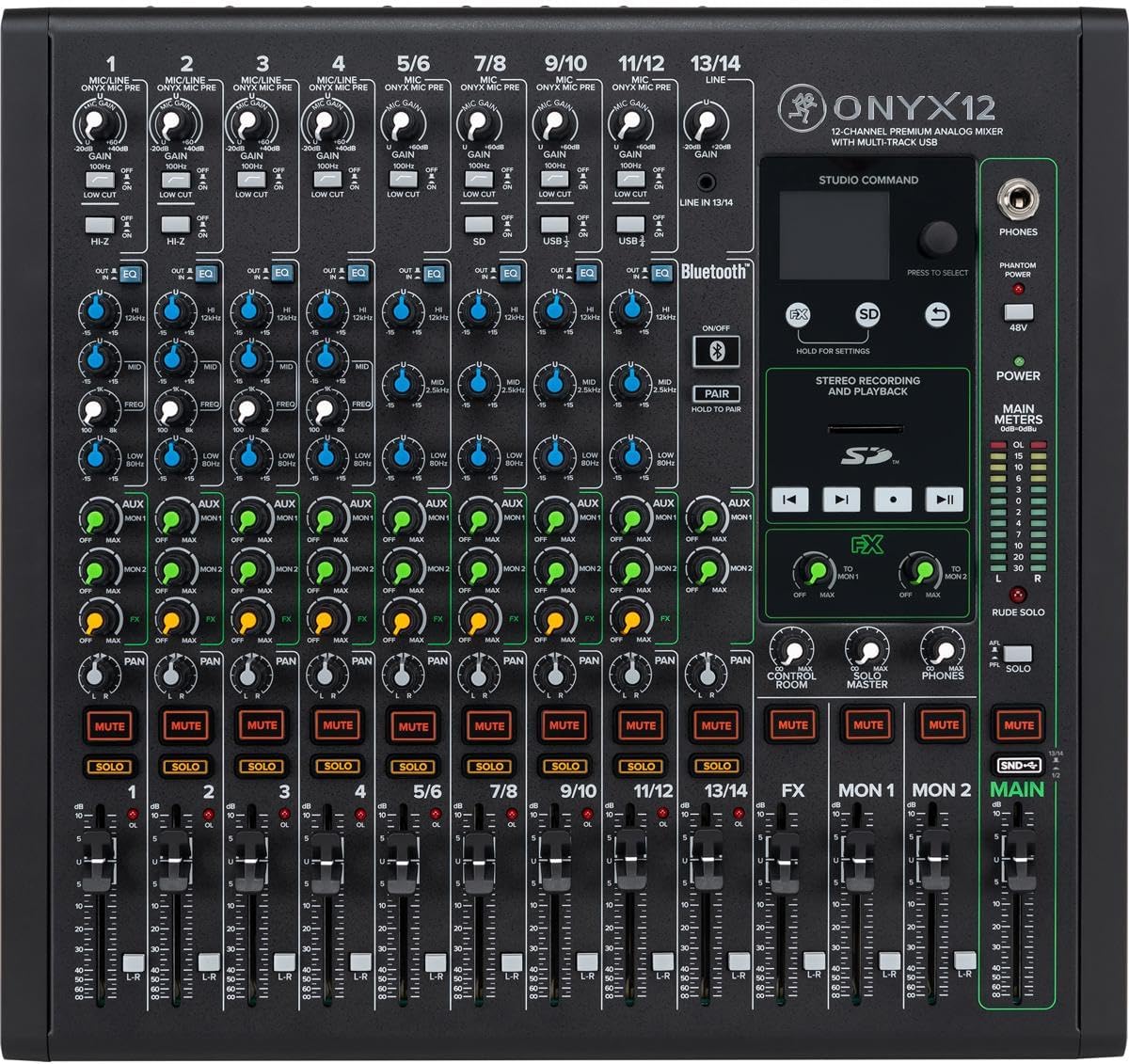
Figure 3: Detailed view of the mixer's control surface, highlighting channel controls.
- Gain Knob: Adjusts the input sensitivity for each channel. Set to achieve a healthy signal level without clipping.
- Low Cut Button: Engages a high-pass filter at 100Hz to remove unwanted low-frequency rumble.
- EQ Section: Each mono channel features a 3-band Perkins EQ (High, Mid, Low) for tone shaping. Stereo channels have a 3-band standard EQ.
- Aux Sends (MON 1, MON 2, FX): Control the amount of signal sent from each channel to the monitor mixes or internal/external effects.
- Pan Knob: Positions the channel's signal within the stereo field (left to right).
- Mute Button: Silences the channel's output to the main mix, monitor sends, and FX send.
- Solo Button: Isolates the channel's signal for monitoring through headphones or control room outputs without affecting the main mix.
- Channel Fader: Adjusts the overall volume level of the channel in the main mix.
2. Effects Processor
The Onyx12 includes a built-in effects processor. Use the FX send knobs on each channel to route signal to the effects. Select effects programs using the Studio Command display and rotary encoder.

Figure 4: Studio Command display for selecting and adjusting built-in effects.
3. SD Card Recording and Playback
Insert an SD card into the slot on the mixer's control panel. The Onyx12 can record the main stereo mix directly to the SD card. Use the transport controls (Record, Play, Pause, Stop) for operation. Recorded files can also be played back through the mixer.

Figure 5: SD card slot and dedicated transport controls for recording and playback functions.
4. Bluetooth Connectivity
The Onyx12 features built-in Bluetooth for wireless audio streaming. Press the ON/OFF button to activate Bluetooth, then press and hold PAIR to enter pairing mode. Connect your Bluetooth-enabled device (e.g., smartphone, tablet) to the mixer. Audio streamed via Bluetooth will be routed to a dedicated stereo channel.

Figure 6: Bluetooth control buttons for wireless audio streaming.
Maintenance
1. Cleaning
Regularly clean the mixer's surface with a soft, dry, lint-free cloth. For stubborn dirt, a slightly damp cloth can be used, followed immediately by a dry cloth. Avoid using abrasive cleaners, solvents, or waxes, as these can damage the finish and controls.
2. Storage
When not in use for extended periods, store the mixer in a cool, dry place, away from direct sunlight and extreme temperatures. It is recommended to cover the unit to protect it from dust accumulation.
3. Ventilation
Ensure proper ventilation around the mixer to prevent overheating. Do not block any ventilation openings. Maintain adequate space around the unit for airflow.
Troubleshooting
| Problem | Possible Cause | Solution |
|---|---|---|
| No power | Power cord not connected; Power switch off; Faulty outlet | Ensure power cord is securely connected. Turn on the power switch. Test the outlet with another device. |
| No sound output | Main fader down; Mute engaged; Incorrect connections; Gain too low | Raise the Main fader. Disengage any Mute buttons. Verify all audio connections. Increase channel gain. |
| Distorted audio | Input gain too high; Output level too high; Faulty cable | Reduce input gain. Lower output levels. Check and replace cables if necessary. |
| USB recording not working | Driver not installed; Incorrect DAW settings; USB cable issue | Install the latest Mackie USB drivers. Configure your DAW to recognize the Onyx12 as an audio interface. Try a different USB cable or port. |
| Bluetooth pairing issues | Device too far; Pairing mode not active; Interference | Ensure device is within range. Press and hold the PAIR button on the mixer. Reduce interference from other wireless devices. |
Specifications
| Feature | Detail |
|---|---|
| Model | Onyx12 |
| Channels | 12 |
| Mic Preamps | Onyx (High-Gain) |
| USB Interface | 24-bit/96kHz Multi-track (14x4) |
| EQ | Perkins EQ (Mono Channels), 3-Band Standard EQ (Stereo Channels) |
| Effects | Built-in DSP Effects |
| SD Card Recording | Stereo Mixdown |
| Bluetooth | Yes |
| Dimensions (H x W x D) | 5.39 x 14.02 x 14.8 inches (approx.) |
| Weight | 12.98 pounds (approx.) |
| Power Source | Corded Electric (100-240V, 50-60Hz) |
Warranty and Support
Warranty Information
Mackie products typically come with a limited warranty covering defects in materials and workmanship. Please refer to the warranty card included with your product or visit the official Mackie website for specific warranty terms and registration details. Keep your proof of purchase for warranty claims.
Technical Support
For technical assistance, troubleshooting beyond this manual, or service inquiries, please contact Mackie customer support. Support contact information can typically be found on the Mackie website or in the quick start guide provided with your mixer.
You can also find additional resources, FAQs, and driver downloads on the official Mackie website: www.mackie.com
Documents and downloads
Ask a question about this manual
Ask about setup, troubleshooting, compatibility, parts, safety, or missing instructions. Manuals+ will review the question and use this page’s manual context to help answer it.