1. Introduction
The Mackie Onyx8 8-Channel Premium Analog Mixer with USB is a compact solution designed for live audio, home recording, and content creation. It features 24-Bit / 96kHz multitrack recording capabilities, award-winning Onyx mic preamps, and an ultra-low-noise design for high-fidelity sound. This mixer includes powerful DSP effects, British-style Perkins EQ, a full-color display, and integrated recording and playback from an SD card. The Onyx8 is engineered to provide the necessary tools for capturing high-quality audio performances.
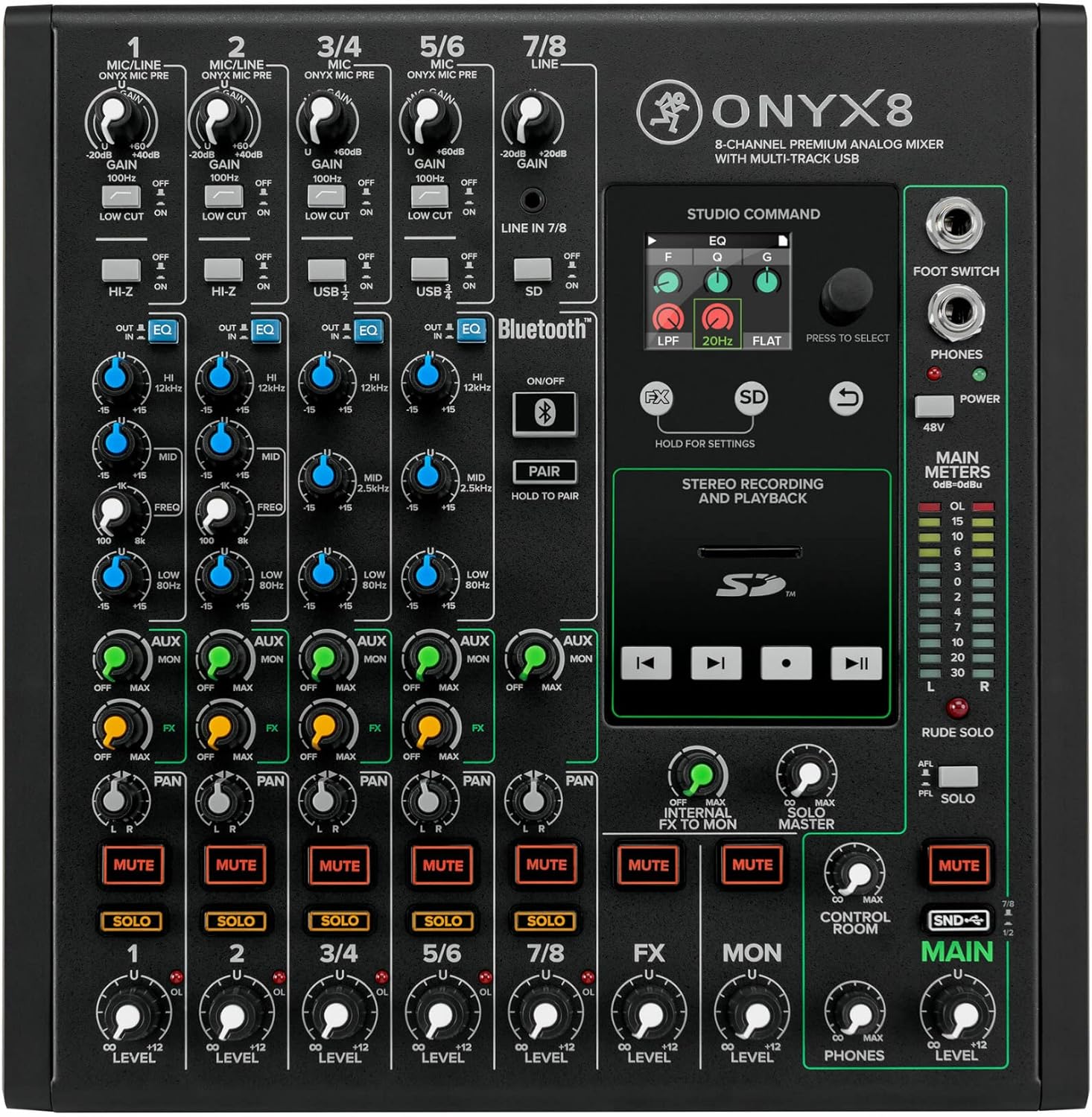
Figure 1.1: Top-down view of the Mackie Onyx8 mixer, highlighting its comprehensive control layout.
2. Setup
2.1 Unpacking and Inspection
Carefully remove the mixer from its packaging. Inspect the unit for any signs of damage that may have occurred during shipping. Retain the packaging for future transport or storage.
2.2 Power Connection
Connect the supplied power cord to the mixer's power input on the rear panel and then to a suitable AC power outlet. Ensure the power switch is in the OFF position before connecting.

Figure 2.1: Rear panel connections of the Onyx8, including the power input and main outputs.
2.3 Audio Connections
Connect your microphones, instruments, and other audio sources to the appropriate input channels. The Onyx8 features XLR/TRS combo jacks for microphone and line inputs, as well as dedicated line inputs for stereo channels.
- Microphone Inputs (Channels 1-4): Use XLR cables for microphones.
- Line Inputs (Channels 1-8): Use 1/4-inch TRS or TS cables for line-level devices. Channels 1 and 2 also feature Hi-Z inputs for direct instrument connection.
- Main Outputs: Connect your studio monitors or PA system to the Main Outputs using XLR or 1/4-inch TRS cables.
- Control Room Outputs: Connect secondary monitors or headphones amplifier to these outputs.

Figure 2.2: Detail of the input jacks, including XLR/TRS combo inputs and insert points.
2.4 USB Connection
For multitrack recording and playback with a computer, connect a USB cable from the mixer's USB port to your computer. Install any necessary drivers as prompted by your operating system or as directed by Mackie's official support website.
3. Operating the Mixer
3.1 Channel Controls
Each input channel on the Onyx8 features a set of controls for adjusting the audio signal:
- Gain: Adjusts the input sensitivity for microphones or line-level signals.
- Low Cut: Engages a high-pass filter to remove unwanted low-frequency rumble.
- EQ (Equalizer): Provides control over the high, mid (with sweepable frequency), and low frequencies to shape the tone of each channel.
- Aux Send: Routes a portion of the channel signal to external effects processors or monitor mixes.
- FX Send: Routes a portion of the channel signal to the internal effects processor.
- Pan: Positions the channel signal within the stereo field (left to right).
- Mute: Silences the channel output.
- Solo: Isolates the channel for monitoring through headphones or control room outputs without affecting the main mix.
- Level: Adjusts the overall output level of the channel to the main mix.

Figure 3.1: Detail of the British-style Perkins EQ section.
3.2 Internal Effects Processor
The Onyx8 includes a built-in DSP effects engine. Use the FX send controls on each channel to route signal to the effects. The full-color display allows selection and adjustment of various effects such as delay, echo, reverb, chorus, and flanger.

Figure 3.2: The Studio Command display for selecting and adjusting internal effects.
3.3 Bluetooth Connectivity
The mixer features integrated Bluetooth for wireless audio playback. To pair a device, press and hold the "PAIR" button until the indicator flashes, then select "Onyx8" from your device's Bluetooth settings.

Figure 3.3: Bluetooth controls for wireless audio streaming.
3.4 SD Card Recording and Playback
The Onyx8 allows direct stereo recording and playback to/from an SD card. Insert a formatted SD card into the slot. Use the transport controls (Play, Record, Stop) on the mixer's control surface to manage audio files.

Figure 3.4: SD card slot and transport controls for recording and playback.
3.5 Main Mix and Monitoring
Adjust the Main Level fader to control the overall output volume. Monitor your mix using headphones connected to the PHONES jack or through studio monitors connected to the Control Room outputs. The main meters provide visual feedback of the output levels.
4. Maintenance
To ensure the longevity and optimal performance of your Mackie Onyx8 mixer, follow these maintenance guidelines:
- Cleaning: Use a soft, dry cloth to clean the exterior of the mixer. Avoid abrasive cleaners, solvents, or waxes.
- Dust Protection: Keep the mixer covered when not in use to prevent dust accumulation, especially on faders and knobs.
- Ventilation: Ensure proper airflow around the unit. Do not block ventilation openings.
- Storage: If storing for an extended period, disconnect power and store in a cool, dry place, preferably in its original packaging.
5. Troubleshooting
This section addresses common issues you might encounter with your Onyx8 mixer. For more detailed troubleshooting, refer to the full user manual available online.
5.1 No Sound Output
- Check Power: Ensure the mixer is powered on and the power LED is illuminated.
- Volume Levels: Verify that all channel levels, main fader, and monitor levels are turned up appropriately.
- Connections: Confirm all audio cables are securely connected to the correct inputs and outputs.
- Mute/Solo: Check that no channels or the main mix are muted or in solo mode inadvertently.
5.2 USB Interface Issues
- Driver Installation: Ensure the correct USB drivers for the Onyx8 are installed on your computer. Visit the Mackie website for the latest drivers.
- USB Cable: Try a different USB cable and ensure it is securely connected.
- Computer Settings: Verify that the Onyx8 is selected as the audio input/output device in your computer's sound settings and DAW software.
- Restart: Try restarting both the mixer and your computer.
5.3 Effects Not Working as Expected
- FX Send Levels: Check that the FX send knobs on the individual channels are turned up.
- FX Master Level: Ensure the FX master level control is adjusted.
- Effect Selection: Verify that an effect is selected on the display and its parameters are set correctly. Note that the effects may default to a specific setting upon power-up.
6. Specifications
| Feature | Detail |
|---|---|
| Model Number | Onyx8 |
| Number of Channels | 8 |
| Item Weight | 9.6 pounds |
| Product Dimensions | 10.98 x 10.51 x 4.49 inches |
| Hardware Interface | Bluetooth, Secure Digital Card, USB 2.0 |
| Power Source | Corded Electric |
| Connectivity Technology | USB |
| First Available Date | January 25, 2021 |
7. Warranty and Support
For detailed warranty information and technical support, please refer to the official Mackie website or the full user manual. A PDF version of the user manual is available for download.
- Official User Manual (PDF): Download Here
- Mackie Store: Visit the Mackie Store on Amazon