
Introduction
The Nixplay 10.1 inch Smart Digital Photo Frame (W10F) provides a modern way to display and share your cherished memories. This Wi-Fi enabled frame allows you to instantly share photos and videos with family and friends via email or the Nixplay app, no matter where they are. Designed for ease of use, it features automatic content rotation, a smart sensor to conserve energy, and intelligent face framing for optimal display.
This manual provides comprehensive instructions for setting up, operating, maintaining, and troubleshooting your Nixplay Smart Digital Photo Frame.
Package Contents
Please verify that all items listed below are included in your package:
- Nixplay 10.1 inch Smart Digital Photo Frame (W10F)
- Power Adapter
- Remote Control
- Wall Mounting Guide
- Wall Mounting Screws

Figure 1: Contents of the Nixplay Smart Digital Photo Frame package.
Setup
1. Unboxing and Placement
Carefully remove the frame and all accessories from the packaging. The Nixplay frame can be positioned in either portrait or landscape orientation, and is suitable for both tabletop display and wall mounting. The content displayed on the frame will automatically rotate to match its orientation.
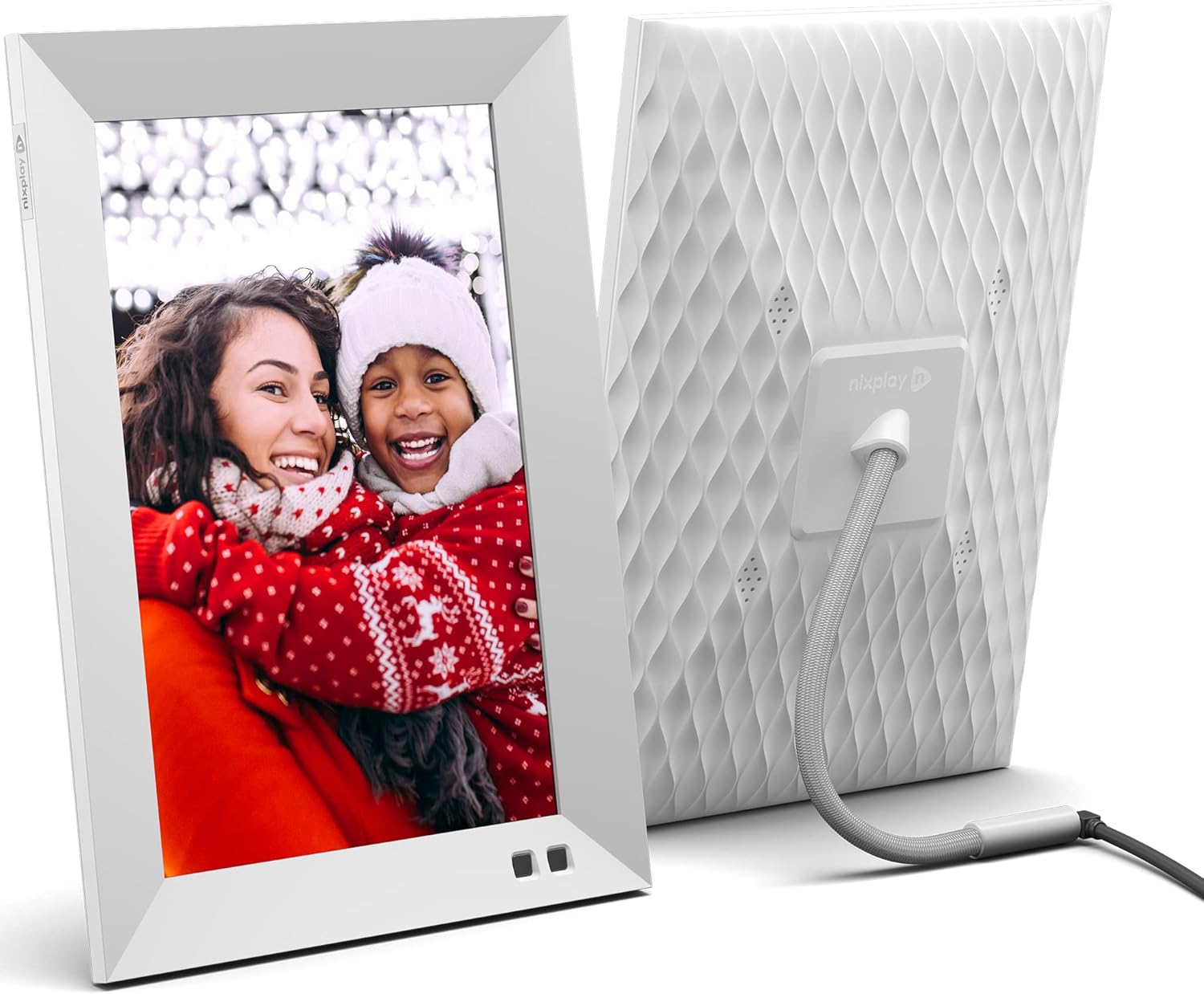
Figure 2: Front and rear view of the Nixplay Smart Digital Photo Frame.
2. Powering On
Connect the provided power adapter to the frame's power port and then plug it into a wall outlet. The frame will automatically power on.
3. Network Connection
Follow the on-screen prompts to connect your Nixplay frame to your Wi-Fi network. A stable internet connection is required for full functionality, including receiving new photos and videos.
4. Account Creation and Content Upload
To manage your frame and upload content, download the Nixplay mobile app (available for iOS and Android) or visit the Nixplay web app on your computer. Create a Nixplay account or log in if you already have one. From the app, you can:
- Link your frame to your account.
- Create and manage playlists.
- Upload photos and videos directly from your device.
- Import photos from cloud services like Google Photos, Facebook, and Instagram.
- Invite family and friends to contribute to your frame's playlists via email.

Figure 3: Sharing photos and videos instantly via the Nixplay app or email.
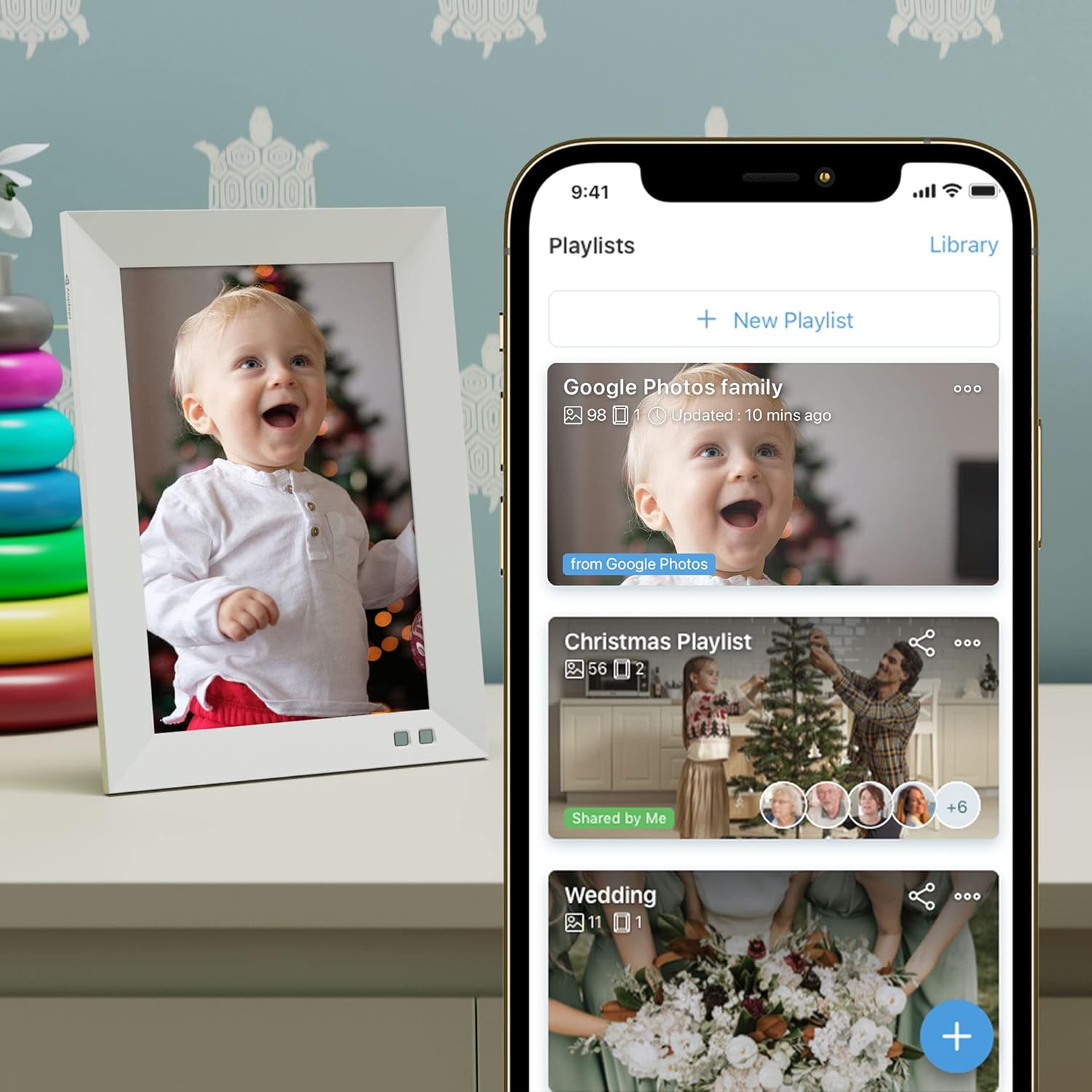
Figure 4: Managing playlists and content through the Nixplay mobile application.
Operating the Frame
Remote Control Functions
Use the included remote control to navigate menus, adjust settings, and control playback on your frame. Point the remote directly at the frame's sensor for optimal response.
Display Settings
- Brightness: Adjust the screen brightness to suit your environment.
- niX-SenseMe Smart Sensor: This sensor detects motion and presence. The frame will automatically wake up when you enter the room and go to sleep when no motion is detected, saving energy.
- Orientation: The frame automatically detects its orientation (portrait or landscape) and adjusts the display accordingly.
Content Playback
- Playlists: Content is organized into playlists. You can switch between playlists using the remote or the Nixplay app.
- niX-SmartFace Framing: Proprietary software uses Artificial Intelligence to automatically position people closer to the center of the frame for an enhanced viewing experience.
- Video Playback: The frame supports video clips. Note that videos may be automatically trimmed to a certain length for optimal playback.
Voice Control (Amazon Alexa)
The Nixplay Smart Digital Photo Frame is compatible with Amazon Alexa. You can use voice commands to control your frame, such as asking it to play a specific playlist.
Maintenance
Cleaning the Frame
To clean the screen, gently wipe it with a soft, lint-free cloth. For stubborn smudges, slightly dampen the cloth with water. Avoid using harsh chemicals or abrasive materials. Clean the frame's body with a dry, soft cloth.
Software Updates
Nixplay regularly releases software updates to improve performance and add new features. Ensure your frame is connected to Wi-Fi to receive automatic updates. You can also manually check for updates through the frame's settings menu or the Nixplay app.
Cloud Storage
Your photos and videos are stored securely on Nixplay's cloud servers. This allows you to access and manage your content from anywhere and ensures your frame can display content even if your local network is temporarily unavailable.
Troubleshooting
| Problem | Possible Cause | Solution |
|---|---|---|
| Frame does not power on. | Power adapter not connected or faulty outlet. | Ensure the power adapter is securely connected to the frame and a working electrical outlet. Try a different outlet. |
| Cannot connect to Wi-Fi. | Incorrect Wi-Fi password, weak signal, or router issue. | Double-check the Wi-Fi password. Move the frame closer to the router. Restart your Wi-Fi router. |
| Photos/Videos not appearing on frame. | Content not uploaded, not assigned to a playlist, or frame not connected to internet. | Verify content is uploaded and assigned to an active playlist in the Nixplay app. Ensure the frame has a stable internet connection. |
| Frame is unresponsive. | Temporary software glitch. | Unplug the power adapter from the frame, wait 10 seconds, then plug it back in to restart the device. |
| Image quality appears poor. | Low resolution source image or display settings. | Ensure you are uploading high-resolution images. Check the frame's brightness settings. The frame features an HD IPS display for crisp visuals. |
Specifications
| Feature | Detail |
|---|---|
| Model Number | W10F - White |
| Screen Size | 10.1 Inches |
| Resolution | WXGA |
| Product Dimensions | 7.36 x 1.22 x 10.55 inches |
| Item Weight | 2.99 pounds |
| Connectivity | Wi-Fi |
| Compatible Devices | Smartphone (iOS/Android), Web App |
| Power Source | AC Adapter (included) |
| Special Features | niX-SenseMe Smart Sensor, niX-SmartFace Framing, Automatic Orientation, Cloud Storage |
Warranty and Support
Nixplay is committed to providing excellent customer service. If you encounter any issues or have questions regarding your Nixplay Smart Digital Photo Frame, please contact our customer support team.
Support is available via phone, email, or chat. Please refer to the Nixplay official website (www.nixplay.com/support) for the most up-to-date contact information and support resources.


