
1. Introduction
The Synology RackStation RS4021xs+ is a robust 16-bay 3U storage solution engineered for high throughput and data integrity, featuring built-in redundant power supplies. This unit is equipped with an 8-core processor and supports memory upgrades up to 64 GB, making it suitable for demanding services such as virtualization, mail, office collaboration, and surveillance in enterprise environments.
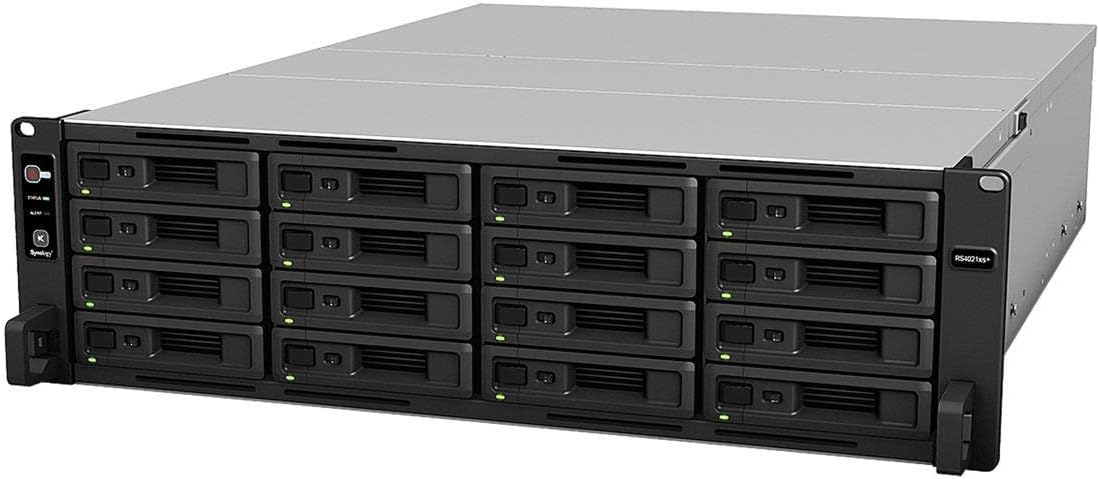
Figure 1: Front view of the Synology RackStation RS4021xs+.
2. Setup
2.1 Unboxing and Inspection
Carefully remove the RackStation from its packaging. Inspect the unit for any signs of damage during transit. Ensure all components listed in the packing list are present, including the NAS unit, power cords, and any included accessories.
2.2 Rack Mounting
The RS4021xs+ is designed for standard 19-inch rack installations. Install the rack rails (sold separately) into your server rack according to the rail kit's instructions. Slide the RackStation onto the installed rails until it clicks into place. Secure the unit to the rack using the provided screws.

Figure 2: Synology RackStation RS4021xs+ mounted in a server rack.
2.3 Drive Installation
The RS4021xs+ supports 16 hot-swappable drive bays. To install a drive, slide the drive into an empty drive tray and secure it with the provided screws. Insert the loaded drive tray into an available bay until it locks into place. Repeat for all desired drives. Ensure drives are compatible with Synology systems for optimal performance and support.
2.4 Power and Network Connection
Connect the power cords to the redundant power supply units at the rear of the RackStation and then to appropriate power outlets. Connect the network cables from the RackStation's network ports to your network switch or router. It is recommended to use multiple network connections for link aggregation or failover.
3. Operating the Synology RackStation
The Synology RackStation RS4021xs+ operates using Synology's DiskStation Manager (DSM) operating system, a web-based interface that allows for comprehensive management of your NAS. After initial power-on, access DSM via a web browser on a computer connected to the same network.
3.1 Initial DSM Setup
Upon first access, DSM will guide you through the initial setup process, including creating an administrator account, installing the latest DSM version, and configuring storage pools and volumes. Follow the on-screen instructions carefully.
3.2 Core Functions
- File Management: Organize and access files through File Station or network protocols (SMB, NFS, FTP).
- Data Protection: Configure RAID levels for data redundancy and set up backup tasks using Hyper Backup.
- User and Group Management: Create user accounts, assign permissions, and manage access to shared folders.
- Application Installation: Install various applications from the Package Center to extend functionality, such as media servers, surveillance stations, and office suites.
Video 1: This video highlights the purpose-built design of Synology systems for enterprise use, emphasizing stability, data integrity, and compatibility.
4. Maintenance
Regular maintenance ensures the longevity and optimal performance of your Synology RackStation.
4.1 Drive Health Monitoring and Replacement
Monitor the health of your drives through DSM's Storage Manager. If a drive fails or shows signs of degradation, replace it promptly. The hot-swappable design allows for replacement without powering down the unit, provided your storage pool is configured with redundancy (e.g., RAID 1, 5, 6, 10, SHR).

Figure 3: Synology Enterprise Series SSDs and HDDs, designed for compatibility and performance with Synology systems.
4.2 DSM and Package Updates
Regularly update DSM and installed packages to benefit from new features, security patches, and performance improvements. Navigate to Control Panel > Update & Restore for DSM updates and Package Center for package updates.
4.3 System Backup
While RAID provides data redundancy against drive failure, it is not a backup solution. Implement a comprehensive backup strategy using Hyper Backup to external storage, another Synology NAS, or cloud services to protect against data loss from accidental deletion, ransomware, or catastrophic hardware failure.
5. Troubleshooting
This section addresses common issues you might encounter with your Synology RackStation RS4021xs+.
5.1 Power Issues
- No Power: Ensure both power cords are securely connected to the RackStation and active power outlets. Check the power supply status indicators.
- Unexpected Shutdowns: Verify proper ventilation and operating temperature. Check the system logs in DSM for any error messages related to power or hardware.
5.2 Network Connectivity Problems
- Cannot Access DSM: Verify network cable connections. Ensure the RackStation has a valid IP address (check your router's DHCP client list). Try using Synology Assistant to locate the device on the network.
- Slow Network Performance: Check network cable quality, switch configuration, and ensure network ports on the RackStation are functioning correctly. Consider link aggregation if multiple network interfaces are available.
5.3 Drive and Storage Pool Warnings
- Drive Status Warning: This often indicates a failing drive. Check the drive's S.M.A.R.T. information in Storage Manager and replace the drive if necessary.
- Storage Pool Degraded: One or more drives in a redundant storage pool have failed. Replace the faulty drive(s) and initiate a repair process in Storage Manager.
- Incompatible Drive Warning: While some non-Synology drives may function, Synology recommends using drives from their compatibility list for guaranteed performance and support. This warning typically does not prevent operation but indicates potential limitations.
6. Specifications
Key technical specifications for the Synology RackStation RS4021xs+.
| Feature | Detail |
|---|---|
| Brand | Synology |
| Model Number | RS4021XS |
| Form Factor | 3U Rackmount |
| Drive Bays | 16 |
| Memory | 16GB DDR4 (Upgradable to 64GB) |
| Processor | 8-core Intel processor |
| Expansion Slots | Two PCIe (for M.2 NVMe cache adapters and high-bandwidth network cards) |
| Redundant Power | Yes |
| Max Drive Bays (with expansion) | Up to 40 (using two RX1217(RP)) |
| Dimensions (LxWxH) | 9.45 x 27.17 x 0.98 inches |
| Item Weight | 38.4 pounds |
| Compatible Devices | Server |
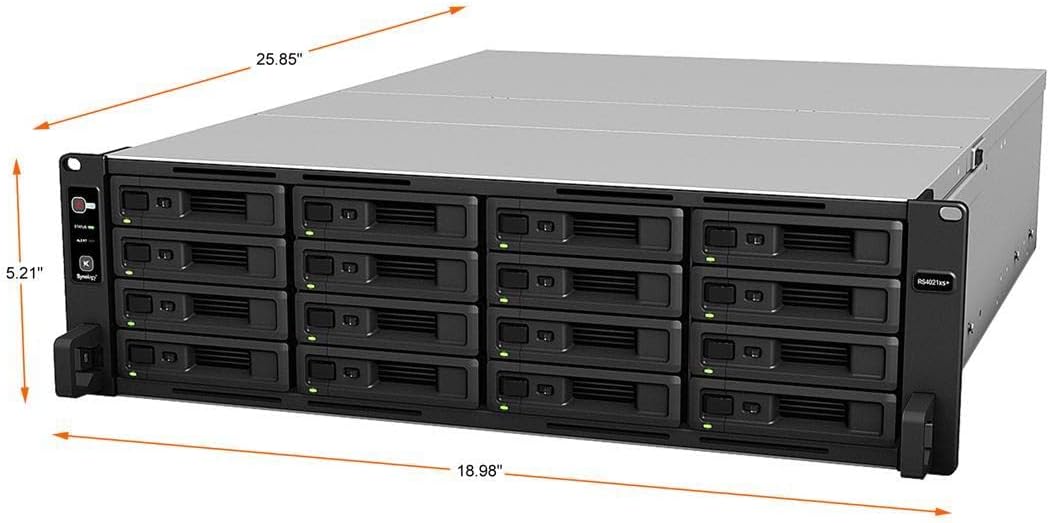
Figure 4: Dimensions of the Synology RackStation RS4021xs+.
7. Warranty Information
The Synology RackStation RS4021xs+ comes with a 5-year warranty. For detailed terms and conditions, please refer to the official Synology warranty policy available on their website or contact Synology support directly.
8. Support
For further assistance, technical support, or to access additional resources, please visit the official Synology support website. You can find comprehensive documentation, FAQs, and contact options for customer service.
- Online Knowledge Base: Access articles and guides for common issues and configurations.
- Community Forums: Engage with other Synology users for peer-to-peer support.
- Technical Support Tickets: Submit a support request directly to Synology's technical team for personalized assistance.


