
1. Introduction
The AEOTEC Smart Home Hub GP-AEOHUBV3US serves as a central controller for your smart home ecosystem. It facilitates communication between a wide range of compatible smart devices, enabling automation, remote control, and integration with various voice assistants. This manual provides essential information for setting up, operating, maintaining, and troubleshooting your device.

Image: The Aeotec Smart Home Hub, designed to integrate seamlessly into your home environment.
2. Product Overview
The AEOTEC Smart Home Hub is a compact, white device designed for discreet placement. It acts as a gateway, connecting various smart devices using multiple wireless protocols.
2.1. What's in the Box
- AEOTEC Smart Home Hub (GP-AEOHUBV3US)
- Power Adapter
- Ethernet Cable
2.2. Physical Appearance
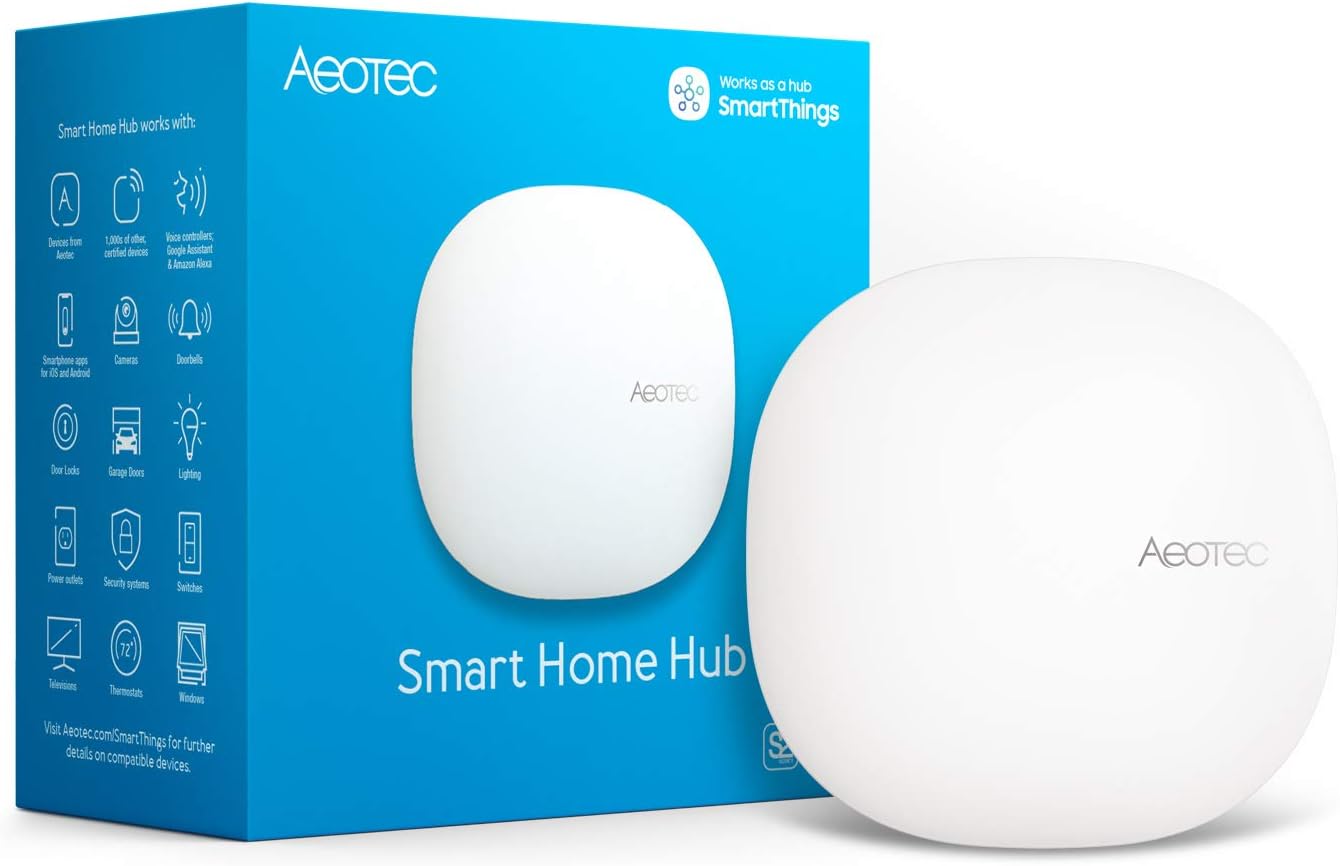
Image: The Aeotec Smart Home Hub and its retail packaging.
The hub features a minimalist design, with a single LED indicator for status. Connectivity ports for power and Ethernet are located on the rear of the device.

Image: The compact Aeotec Smart Home Hub on a wooden surface, highlighting its discreet design.
3. Setup
Follow these steps for the initial setup of your AEOTEC Smart Home Hub.
3.1. Initial Installation
- Connect to Power: Plug the power adapter into the hub and then into a wall outlet.
- Connect to Network: Connect the hub to your router using the provided Ethernet cable, or ensure your Wi-Fi network is ready for wireless setup.
- Download SmartThings App: Download the SmartThings app on your Android, iOS, or iPadOS device.
- Follow In-App Instructions: Open the SmartThings app and follow the on-screen instructions to complete the hub setup.

Image: Visual guide for the three-step setup process: power connection, app download, and in-app guidance.

Image: Simplified diagram illustrating the process of downloading the app, installing the hub, and adding smart devices.
4. Operation
The AEOTEC Smart Home Hub allows you to connect, control, and automate a diverse range of smart devices.
4.1. Connecting Devices
The hub supports multiple connectivity protocols including Matter, SmartThings, Z-Wave Plus (V3 model only), Zigbee, and Wi-Fi. This wide compatibility allows you to integrate thousands of devices from various brands.
- Open the SmartThings app.
- Navigate to the 'Devices' section.
- Select 'Add device' and follow the on-screen instructions to pair your smart devices.

Image: The hub acts as a central point, connecting wirelessly to a wide range of compatible smart devices.

Image: The hub is compatible with thousands of smart devices from various leading brands.

Image: A selection of SmartThings compatible brands that work with the Aeotec Smart Home Hub.
4.2. Creating Automations
Automate your routines by building custom automations within the SmartThings app. These automations can coordinate lights, sensors, switches, and other compatible devices. Many automations run locally for improved speed and reliability.
- In the SmartThings app, go to the 'Automations' tab.
- Create new routines based on conditions (e.g., time of day, device status) and actions (e.g., turn on lights, adjust thermostat).

Image: The SmartThings app provides easy smart control and automation settings.

Image: The SmartThings app interface for setting up custom automations.
4.3. Voice Assistant Integration
The hub is compatible with popular voice assistants such as Amazon Alexa and Google Home, allowing for voice control of your connected devices and routines.
- Link your SmartThings account to your Amazon Alexa or Google Home app.
- Discover devices and create routines using voice commands.

Image: The hub integrates with major voice assistants and wireless protocols.
4.4. Notifications
Receive notification alerts on your smartphone for status changes of connected sensors, such as humidity levels or door open/close events.

Image: Example of a notification alert received from a connected sensor.
4.5. Advanced Z-Wave Connectivity (Home Assistant)
For users interested in advanced Z-Wave configurations, the Aeotec Z-Stick 7 can be integrated with Home Assistant. This video demonstrates the setup process.
Video: Instructions for setting up Z-Wave with Home Assistant using an Aeotec Z-Stick 7. This demonstrates advanced Z-Wave integration possibilities.
5. Maintenance
The AEOTEC Smart Home Hub is designed for minimal maintenance. Keep the device in a clean, dry environment and avoid exposing it to extreme temperatures or moisture. Ensure the firmware is updated regularly through the SmartThings app to benefit from the latest features and security enhancements.
6. Troubleshooting
If you encounter issues with your AEOTEC Smart Home Hub, consider the following common troubleshooting steps:
- No Power: Ensure the power adapter is securely connected to the hub and a working power outlet.
- No Network Connection: Verify that the Ethernet cable is properly connected to both the hub and your router, or check your Wi-Fi settings in the SmartThings app. Restarting your router may also resolve connectivity issues.
- Device Pairing Issues: Ensure your smart device is in pairing mode and within range of the hub. Refer to the device's specific instructions for pairing.
- App Not Responding: Close and reopen the SmartThings app. If the issue persists, restart your smartphone.
- Hub Not Responding: Disconnect the power from the hub, wait 10 seconds, and then reconnect it. Allow a few minutes for the hub to restart.
For more detailed troubleshooting or persistent issues, consult the official Aeotec support website or the SmartThings community forums.
7. Specifications
| Feature | Detail |
|---|---|
| Model Number | GP-AEOHUBV3US |
| Brand | AEOTEC |
| Product Dimensions | 5 x 5 x 1 inches |
| Item Weight | 1.1 pounds |
| Color | White |
| Connectivity Protocol | Matter, SmartThings, Z-Wave, ZigBee, Wi-Fi |
| Control Method | App, Voice |
| Controller Type | Amazon Alexa, Android, Google Assistant, Ring, SmartThings, iOS |
| Operating Voltage | 120 Volts (AC) |
| Wattage | 240 watts |
| Operation Mode | Automatic |
| Included Components | Adapter, Ethernet Cable |
8. Warranty and Support
8.1. Warranty Information
The AEOTEC Smart Home Hub GP-AEOHUBV3US comes with a 1 Year Manufacturer Warranty. Please retain your proof of purchase for warranty claims.
8.2. Customer Support
For technical assistance, product inquiries, or warranty support, please visit the official AEOTEC website or contact their customer service department. You can also find extensive resources and community support through the SmartThings platform.


