Introduction
The CyberpowerPC Gamer Supreme Liquid Cool SLC10820 is a high-performance desktop computer designed for demanding applications and gaming. It features an AMD Ryzen 9 5900X processor, NVIDIA GeForce RTX 3080 graphics card, 32GB DDR4 RAM, a 1TB PCI-E NVMe SSD, and a 2TB HDD. This system includes a liquid cooling solution for the CPU and comes with Windows 10 Home pre-installed.
What's Included
- CyberpowerPC Gamer Supreme Liquid Cool SLC10820 Desktop
- Keyboard
- Mouse
- Power Cord
Initial Setup Guide
Follow these steps to set up your new desktop computer.
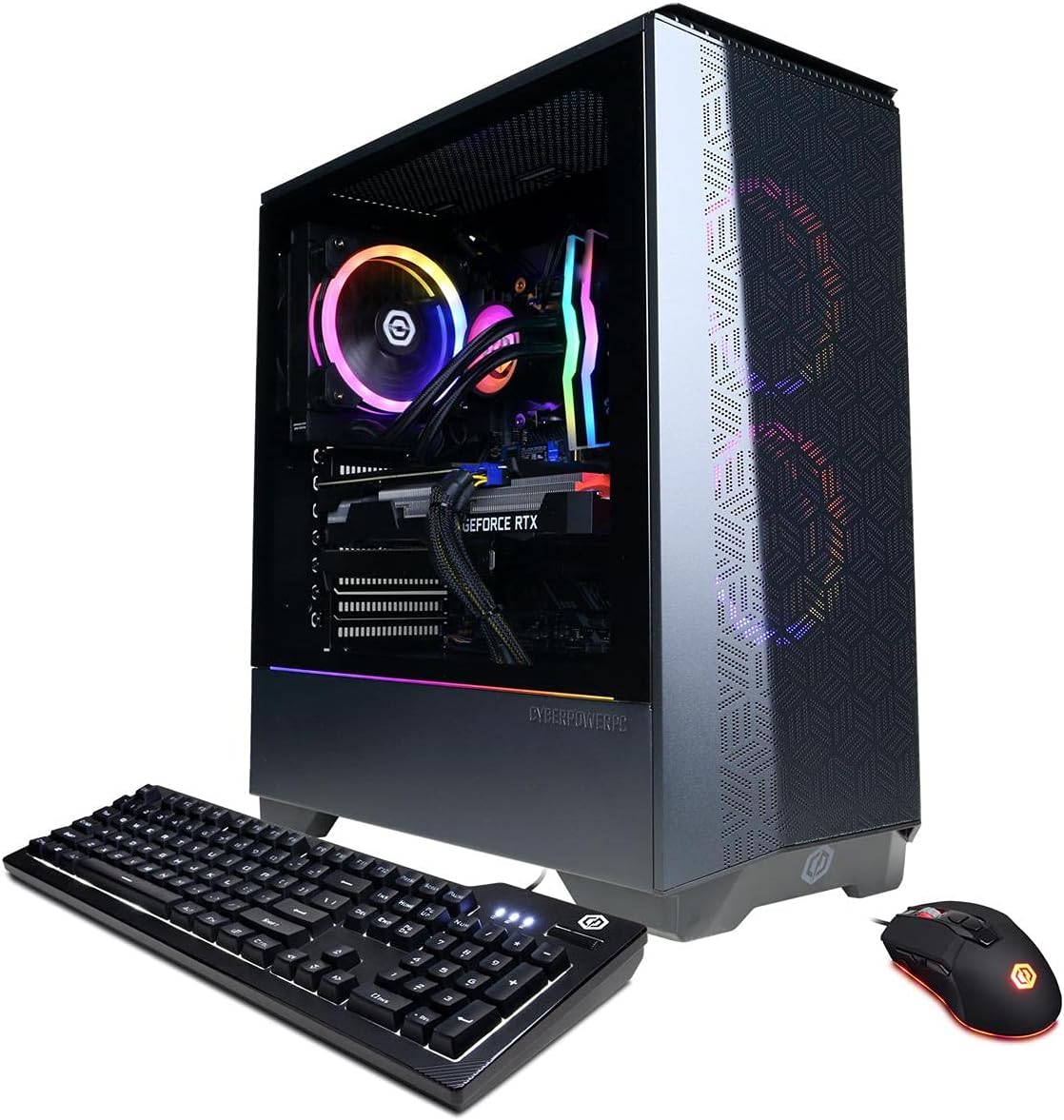
Image: The CyberpowerPC Gamer Supreme Liquid Cool SLC10820 desktop, accompanied by its included keyboard and mouse.
Unpacking: Carefully remove the desktop, keyboard, mouse, and power cord from their packaging. Place the desktop on a stable, flat surface with adequate ventilation.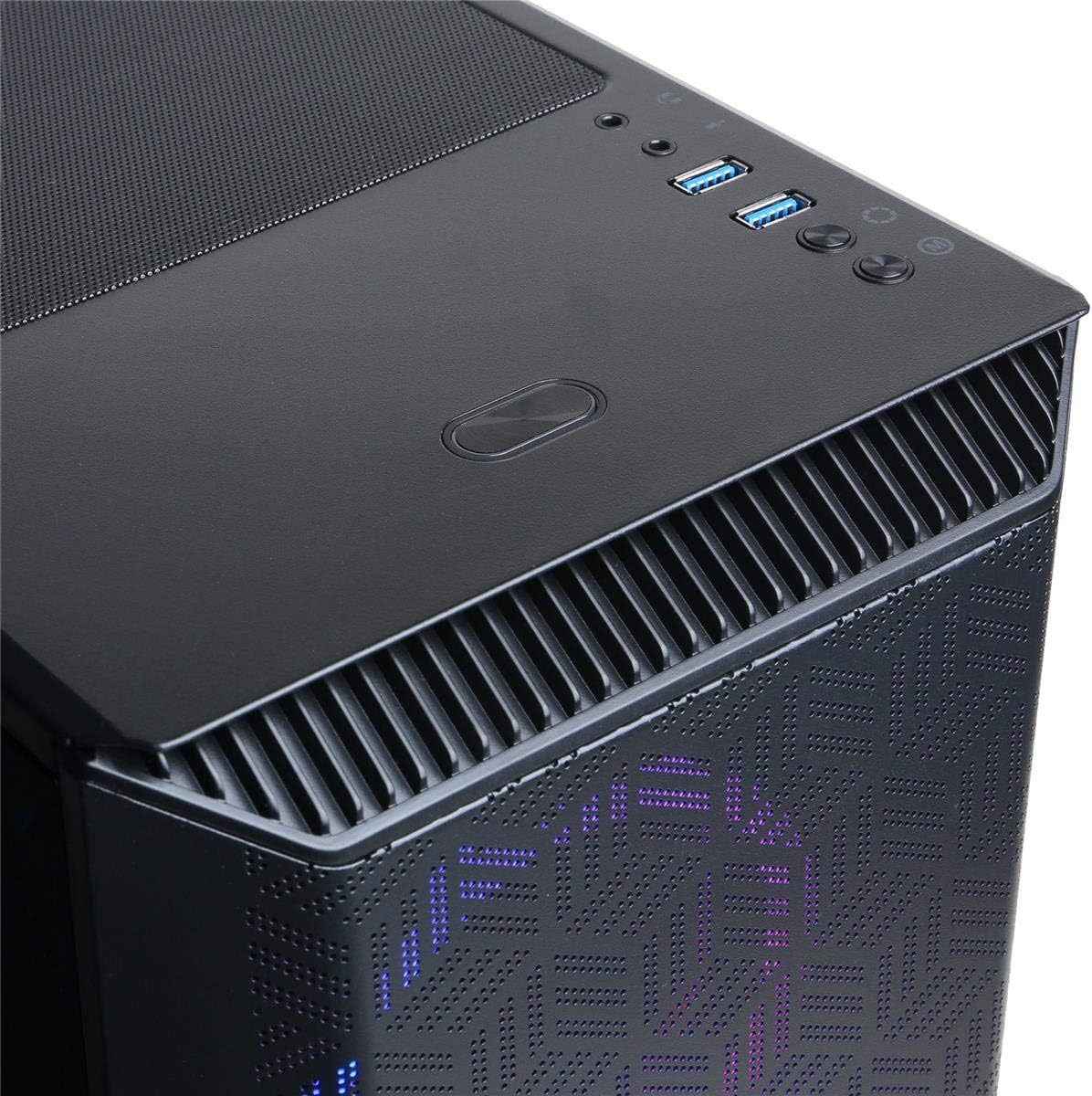
Image: Rear panel of the desktop, illustrating the available connectivity ports including USB, Ethernet, and display outputs.
Connect Peripherals: Connect the included keyboard and mouse to the available USB ports on the rear or top of the desktop.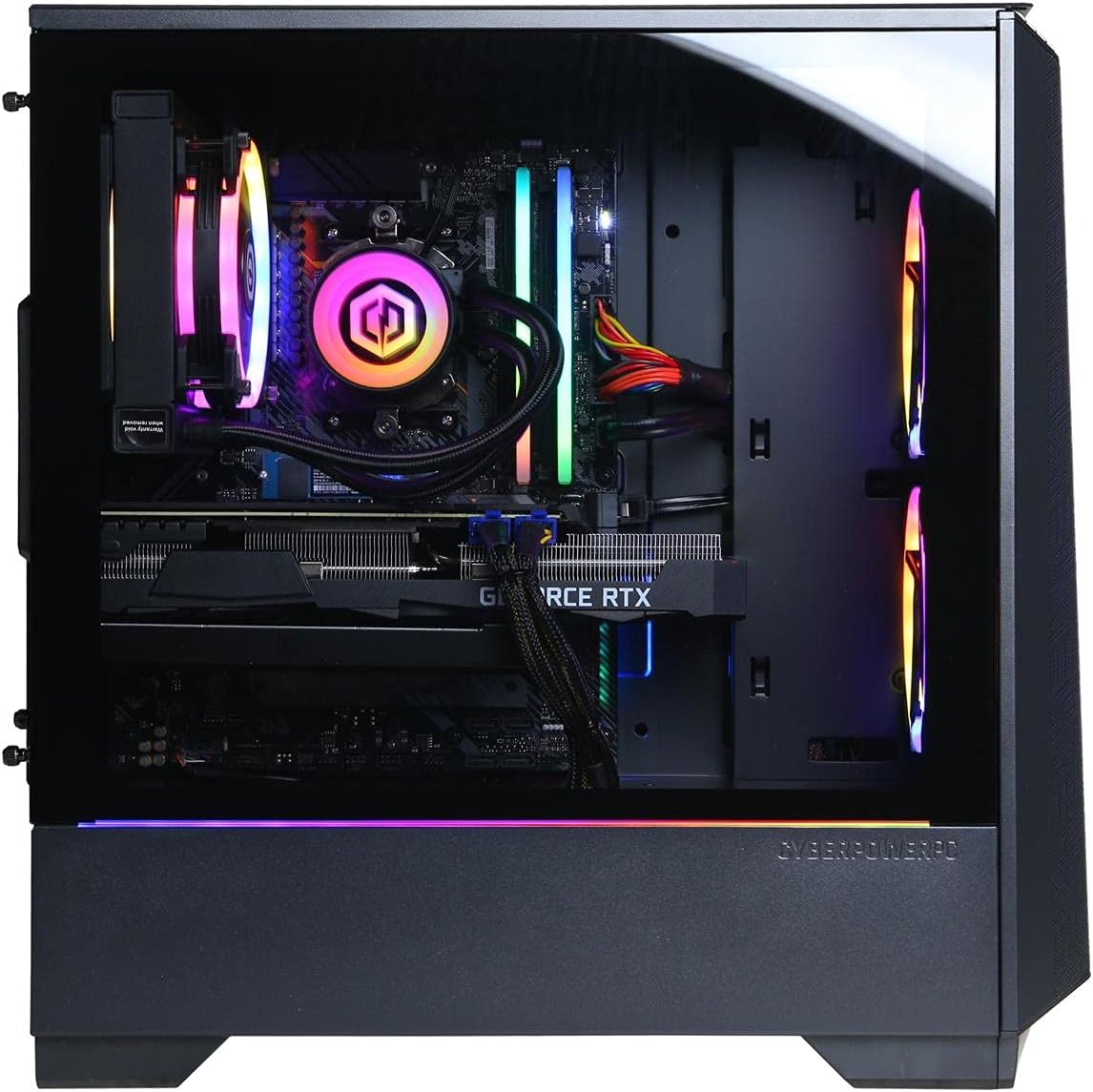
Image: Top-front view of the desktop, highlighting the easily accessible USB and audio ports.
Connect Display: Connect your monitor to one of the display output ports (HDMI or DisplayPort) on the graphics card located at the rear of the desktop. Ensure the cable is securely fastened.- Connect Power: Plug the power cord into the power supply unit (PSU) at the rear of the desktop, then plug the other end into a grounded electrical outlet.
- Network Connection: For wired internet, connect an Ethernet cable from your router or modem to the RJ-45 port on the rear of the desktop. For wireless internet, ensure the Wi-Fi antenna (if included) is attached.
Operating Instructions
- Power On: Press the power button located on the top-front of the desktop. The system will begin to boot up.
- Initial Windows Setup: Upon first boot, you will be guided through the Windows 10 Home setup process. Follow the on-screen prompts to configure your region, language, network, and user account.
- Software Installation: Install any necessary drivers or software for your peripherals or applications. Drivers for the graphics card are typically pre-installed but can be updated from the NVIDIA website.
- Power Off: To properly shut down the system, click the Start button, then Power, and select "Shut down." Avoid directly unplugging the power cord while the system is running.
System Maintenance
Regular maintenance helps ensure optimal performance and longevity of your computer.
- Dust Cleaning: Periodically clean dust from the interior of the case, especially around fans and heatsinks. Use compressed air for best results. Ensure the system is powered off and unplugged before opening the case.
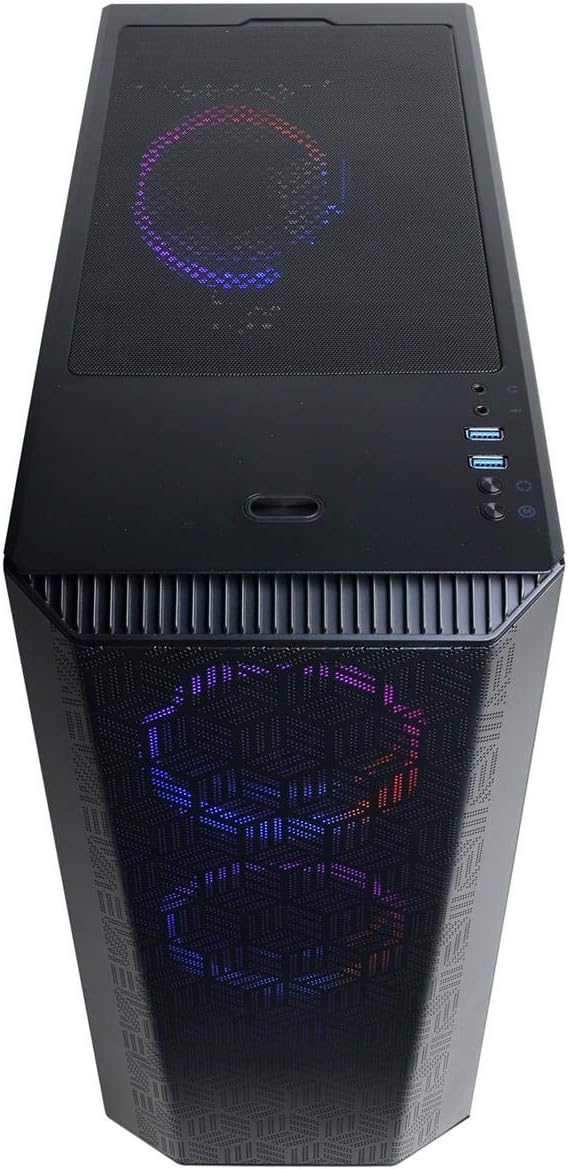
Image: Internal view of the desktop, showcasing the liquid cooling system, RGB fans, and main components.
- Software Updates: Keep your operating system and drivers updated. Windows Update can manage OS updates, and graphics card drivers can be updated via NVIDIA's official software.
- Liquid Cooling: The CPU liquid cooling system is generally maintenance-free for its lifespan. Avoid tampering with the sealed unit. Monitor temperatures using system monitoring software to ensure proper function.
- Ventilation: Ensure the desktop has adequate airflow around it. Do not block the intake or exhaust vents.

Image: Close-up of the desktop's front panel, featuring a perforated design and illuminated RGB fans for airflow and aesthetics.
Troubleshooting Common Issues
- No Power:
- Ensure the power cord is securely connected to both the desktop and the electrical outlet. Verify the power outlet is functional. Check the power switch on the PSU at the rear of the desktop.
- No Display on Monitor:
- Confirm the monitor is powered on and connected to the graphics card's display output, not the motherboard's integrated graphics ports (if present). Try a different display cable or monitor if available.
- System is Slow or Unresponsive:
- Check for background applications consuming resources. Ensure Windows and drivers are up to date. Run a virus scan. Monitor system temperatures to prevent thermal throttling.
- Peripherals Not Working:
- Try connecting the keyboard or mouse to a different USB port. Ensure drivers for specialized peripherals are installed. Restart the computer.
Technical Specifications
| Component | Detail |
|---|---|
| Processor | AMD Ryzen 9 5900X 3.7GHz (12-Core) |
| Graphics Card | NVIDIA GeForce RTX 3080 10GB |
| RAM | 32GB DDR4 |
| Storage (SSD) | 1TB PCI-E NVMe SSD |
| Storage (HDD) | 2TB HDD |
| Operating System | Windows 10 Home |
| Cooling | Liquid Cool CPU |
| Connectivity | 802.11AC Wi-Fi, Gigabit Ethernet, USB 3.1, USB 2.0 |
| Audio | 7.1 Channel |
| Dimensions (LxWxH) | 17.9 x 7.8 x 17.7 inches |
| Weight | 33 pounds |
Warranty and Technical Support
Your CyberpowerPC Gamer Supreme Liquid Cool SLC10820 desktop comes with the following:
- 1 Year Parts & Labor Warranty: Covers defects in materials and workmanship for one year from the date of purchase.
- Free Lifetime Technical Support: Access to technical assistance for the lifespan of your product.
For support, please refer to the contact information provided with your product documentation or visit the official CyberpowerPC website.


