
1. Product Overview
The ZOOZ ZEN34 is a battery-powered Z-Wave Long Range Remote Control and Scene Controller. It functions as a wireless switch, allowing you to trigger scenes and control other Z-Wave smart home devices without the need for existing wiring. Its design allows for flexible installation, either within a standard switch box or mounted on any flat surface.

Image 1.1: The Zooz ZEN34 Remote Switch, its accompanying wall plate, and product packaging.
This device utilizes the latest 800 series Z-Wave chip for enhanced signal coverage, faster communication, S2 authenticated security, and SmartStart for simplified pairing. A compatible Z-Wave hub is required for operation.
2. Setup and Installation
2.1 Battery Installation
The ZEN34 remote requires two CR2032 batteries, which are included. Ensure correct polarity when inserting the batteries.
2.2 Z-Wave Inclusion (Pairing)
- Initiate the inclusion (pairing) mode on your Z-Wave hub. Refer to your hub's instruction manual for specific steps.
- On the ZEN34 remote, quickly click the top button six (6) times. The device will attempt to pair with your Z-Wave network.
- Confirm successful inclusion on your Z-Wave hub interface. For SmartStart compatible hubs, scan the QR code located on the back of the device or its packaging.
2.3 Placement Options
The ZEN34 offers versatile installation options:
- Surface Mount: Use the included double-sided tape to adhere the magnetic base to any clean, flat surface. The remote can then be magnetically attached to this base.
- In-Wall Mount: Install the magnetic base into a standard electrical switch box. The remote can then be magnetically attached, appearing as a traditional wall switch. This allows for integration into multi-gang wall plates.

Image 2.1: Demonstrating the placement of the ZEN34 remote into a wall plate.

Image 2.2: The ZEN34 remote installed directly onto a wall surface.
2.4 Hub Compatibility
The ZEN34 is designed for advanced Z-Wave systems that support scene control programming. Compatible hubs include:
- Z-Box Hub (recommended)
- HomeSeer
- Hubitat
- Home Assistant
Note: Basic Z-Wave systems may not fully recognize or support the ZEN34's functionality. Your smart speaker is not a Z-Wave hub.
3. Operating Instructions
3.1 Remote Control Functionality
The ZEN34's paddles act as remote control buttons. Once paired with a compatible Z-Wave hub, you can program them to:
- Trigger specific scenes.
- Turn other smart home devices on or off.
- Control smart bulbs or switches.

Image 3.1: The ZEN34 remote being used to control a device, such as a ceiling fan.
3.2 Scene Control and Multi-Tap Actions
The ZEN34 supports various button press actions, allowing for flexible scene programming:
- Single Tap: Press and release a paddle once.
- Double Tap: Press and release a paddle twice quickly.
- Triple Tap: Press and release a paddle three times quickly.
- Hold: Press and hold a paddle.
- Release: Release a paddle after holding it.
These actions can be assigned to different functions within your Z-Wave hub's automation rules. Consult your hub's documentation for programming scene control and multi-tap events.
3.3 Z-Wave Long Range
Equipped with Z-Wave Long Range technology, the ZEN34 offers extended signal coverage, providing more reliable connectivity over greater distances (up to 1300 feet with a compatible Z-Wave Long Range hub).
4. Maintenance
4.1 Battery Replacement
The ZEN34 is powered by two CR2032 coin cell batteries. When the battery level is low, your Z-Wave hub may report a low battery status. To replace the batteries:
- Carefully remove the remote from its magnetic base or wall plate.
- Locate the battery compartment on the back of the device.
- Replace the old CR2032 batteries with new ones, ensuring correct orientation.
- Reattach the remote to its base.
Battery life can vary depending on usage frequency and environmental factors. Some users have reported a battery life of approximately two months with frequent use.
5. Troubleshooting
5.1 Device Not Pairing
- Ensure your Z-Wave hub is in inclusion mode.
- Verify the batteries are correctly installed and have sufficient charge.
- Try performing an exclusion (removal) process on your Z-Wave hub first, then attempt inclusion again. To exclude, put your hub in exclusion mode and click the top button on the ZEN34 six times.
- Bring the ZEN34 closer to your Z-Wave hub during the pairing process.
5.2 Short Battery Life
- Frequent use of the remote can deplete batteries faster.
- Ensure you are using fresh, high-quality CR2032 batteries.
- Extreme temperatures can affect battery performance.
5.3 Delay in Response
Some Z-Wave hubs may introduce a slight delay (e.g., 0.5 seconds) after a button press. This delay allows the system to detect potential double or triple tap actions. This behavior is often configurable within your Z-Wave hub's device settings or automation rules. Consult your hub's documentation for options to adjust or disable this delay if immediate response is preferred over multi-tap functionality.
6. Specifications
- Model Number:
- ZEN34 800LR
- Power:
- 2 x CR2032 Batteries (included)
- Z-Wave Frequency:
- 908.42 MHz (US)
- Z-Wave Series:
- 800 Series
- Connectivity Technology:
- Z-Wave
- Color:
- White
- Item Weight:
- 3.2 ounces
- Package Dimensions:
- 4.76 x 2.95 x 1.73 inches
- Indoor Use:
- For use in dry locations only
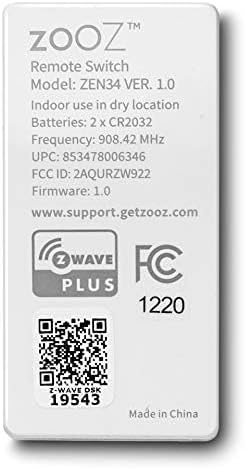
Image 6.1: The back of the ZEN34 remote, displaying model information, battery type, Z-Wave frequency, and Z-Wave Plus certification.
7. Warranty and Support
ZOOZ products are known for their quality and customer support. While specific warranty periods may vary, ZOOZ generally provides excellent assistance for product-related issues.
For technical support, troubleshooting assistance, or warranty inquiries, please visit the official ZOOZ support website:
When contacting support, please have your product model (ZEN34) and any relevant purchase information ready.


