
Logitech C505/C505e
Logitech C505/C505e HD Wired Business Webcam User Manual
Model: C505/C505e
1. Overview
The Logitech C505/C505e HD Wired Business Webcam is designed to enhance your video communication experience. It provides crisp, smooth, and colorful widescreen HD 720p video with a 60° diagonal field of view. The webcam features fixed focus and automatic light correction, adapting to various lighting conditions. Its single, omnidirectional microphone incorporates noise-reduction technology, supporting clear conversations up to 3 meters away, even in noisy environments. The extra-long USB-A cable and universal clip offer flexible placement options on your computer or up to 7 feet away.
2. Setup Instructions
Setting up your Logitech C505/C505e webcam is a straightforward plug-and-play process. No additional software installation or charging is required.
- Connect the Webcam: Plug the USB-A cable from the webcam into an available USB port on your desktop or laptop computer.
- Position the Webcam: Use the universal clip to securely mount the webcam on your monitor, laptop screen, or place it on a flat surface. The extra-long cable allows for flexible positioning.
- Select the Webcam: Your computer should automatically detect the webcam. If you have multiple cameras or microphones, you may need to select the "Logitech C505/C505e" in your application's settings (e.g., video conferencing software, recording applications) or your operating system's device settings.

Image: The Logitech C505/C505e webcam easily clips onto a monitor for convenient placement.
3. Operating the Webcam
Once connected, the Logitech C505/C505e is ready for use with most video conferencing and recording applications.
- Video Quality: The webcam delivers HD 720p video at 30 frames per second, providing clear visuals for your calls and recordings.
- Field of View: A 60° diagonal field of view ensures you are framed appropriately without capturing excessive background.
- Fixed Focus: The fixed focus lens maintains sharpness for subjects within its optimal range, simplifying operation.
- Automatic Light Correction: The webcam automatically adjusts to the lighting conditions of your environment, helping to ensure you appear well-lit even in varying light. Optimal lighting conditions will yield the best video quality.
- Microphone: The integrated omnidirectional microphone with noise-reduction technology is designed to capture your voice clearly from up to 3 meters away, minimizing background distractions.

Image: The Logitech C505/C505e provides HD 720p widescreen video for clear communication.
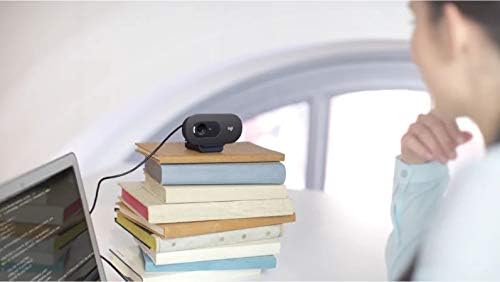
Image: Flexible placement options allow the webcam to be positioned on various surfaces.
4. Maintenance
To ensure optimal performance and longevity of your Logitech C505/C505e webcam, follow these simple maintenance guidelines:
- Cleaning the Lens: Gently wipe the webcam lens with a soft, lint-free cloth. Avoid using harsh chemicals or abrasive materials that could scratch the lens.
- Storage: When not in use, store the webcam in a clean, dry place away from extreme temperatures and direct sunlight.
- Cable Care: Avoid sharply bending or crimping the USB cable to prevent internal damage.
5. Troubleshooting
If you encounter issues with your Logitech C505/C505e webcam, try the following troubleshooting steps:
- No Video/Audio:
- Ensure the USB cable is securely plugged into both the webcam and your computer.
- Try plugging the webcam into a different USB port.
- Check your application's settings (e.g., Zoom, Microsoft Teams) to confirm the Logitech C505/C505e is selected as the active camera and microphone.
- Verify your operating system's privacy settings allow applications to access the camera and microphone.
- Poor Video Quality:
- Ensure adequate lighting in your environment. The webcam performs best with good illumination.
- Clean the webcam lens with a soft cloth.
- Check for any obstructions in front of the lens.
- Poor Audio Quality:
- Ensure the webcam's microphone is selected in your application and system audio settings.
- Reduce background noise in your environment.
- Ensure you are within the 3-meter optimal range of the microphone.
- Webcam Not Recognized:
- Restart your computer.
- Check your computer's Device Manager (Windows) or System Information (macOS) to see if the webcam is listed. You may need to update or reinstall drivers, though typically the webcam is plug-and-play.
6. Specifications
| Brand | Logitech |
| Model Number | Logitech C505/C505e |
| Video Capture Resolution | 720p |
| Video Resolution | 720p |
| Connectivity Technology | Wired (USB-A) |
| Focus Type | Fixed Focus |
| Viewing Angle | 60 Degrees |
| Microphone | Omnidirectional with Noise-Reduction |
| Operating System | Multiple (Windows 8 or later, macOS 10.10 or later, ChromeOS) |
| Built-In Media | USB Cable, Universal Clip |
| Features | Automatic Light Correction, Low Light Performance |
7. Warranty and Support
For detailed warranty information and technical support, please visit the official Logitech support website. You can find drivers, FAQs, and contact information for customer service there.
Related documentsC505/C505e


Ask a question about this manual
Ask about setup, troubleshooting, compatibility, parts, safety, or missing instructions. Manuals+ will review the question and use this page’s manual context to help answer it.