
1. Introduction
This user manual provides comprehensive instructions for the LVWIT Smart Light Bulb, Model LV-5.3WB10-E12-ZF. This smart candelabra LED bulb features color changing capabilities, dimmable functions, and seamless integration with voice assistants like Alexa and Google Home. It operates on a 2.4 GHz Wi-Fi network and requires no additional hub.
Please read this manual thoroughly before installation and operation to ensure proper use and to maximize the product's features.
2. Safety Information
- Electrical Safety: Ensure power is turned off at the switch before installing or removing the bulb.
- Indoor Use Only: This bulb is designed for indoor use in dry locations.
- Voltage Compatibility: Use only with 100-120V, 60Hz power supply.
- Dimmer Switches: Do not use with traditional dimmer switches. The bulb is dimmable via the app or voice control.
- Ventilation: Ensure adequate ventilation around the bulb. Do not enclose in fixtures that restrict airflow.
- Disposal: Dispose of electronic waste responsibly according to local regulations.
3. Package Contents
The package for the LVWIT Smart Light Bulb (Model LV-5.3WB10-E12-ZF) typically includes:
- LVWIT Smart Light Bulb(s) (B11-4.9w, 2 Count)
- User Manual (this document)

Figure 3.1: LVWIT Smart Light Bulbs (2-pack).
4. Setup Guide
4.1 Physical Installation
- Ensure the power to the light fixture is turned off at the wall switch before installation.
- Carefully screw the LVWIT Smart Light Bulb into a standard E12 candelabra base socket.
- Turn on the power to the light fixture. The bulb should flash rapidly, indicating it is in pairing mode. If not, turn the bulb off and on 3 times until it flashes.
4.2 App Installation and Wi-Fi Connection
The LVWIT Smart Light Bulb works with the Tuya Smart or Smart Life app.
- Download the "Tuya Smart" or "Smart Life" app from the Apple App Store or Google Play Store.
- Register or log in to your account.
- Ensure your mobile device is connected to a 2.4 GHz Wi-Fi network. The bulb does not support 5 GHz Wi-Fi.
- In the app, tap the "+" icon in the top right corner to add a device.
- Select "Lighting" > "Light Source (Wi-Fi)".
- Confirm that the bulb is flashing rapidly. If it is not, turn the bulb off and on 3 times until it flashes rapidly.
- Enter your 2.4 GHz Wi-Fi network password and confirm.
- The app will begin connecting to the bulb. Once connected, you can rename the bulb for easier control.
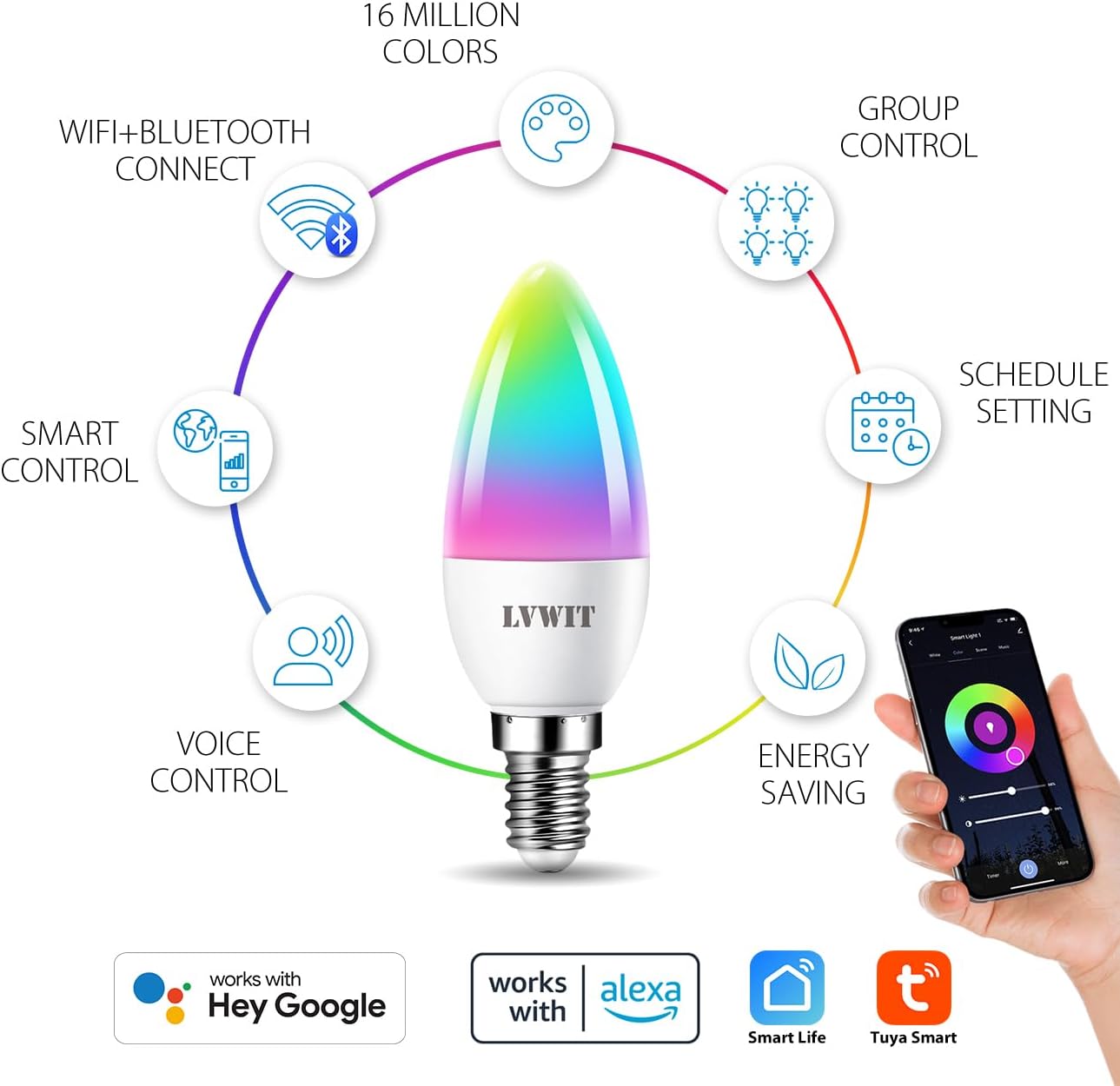
Figure 4.1: Overview of smart bulb features and app compatibility.
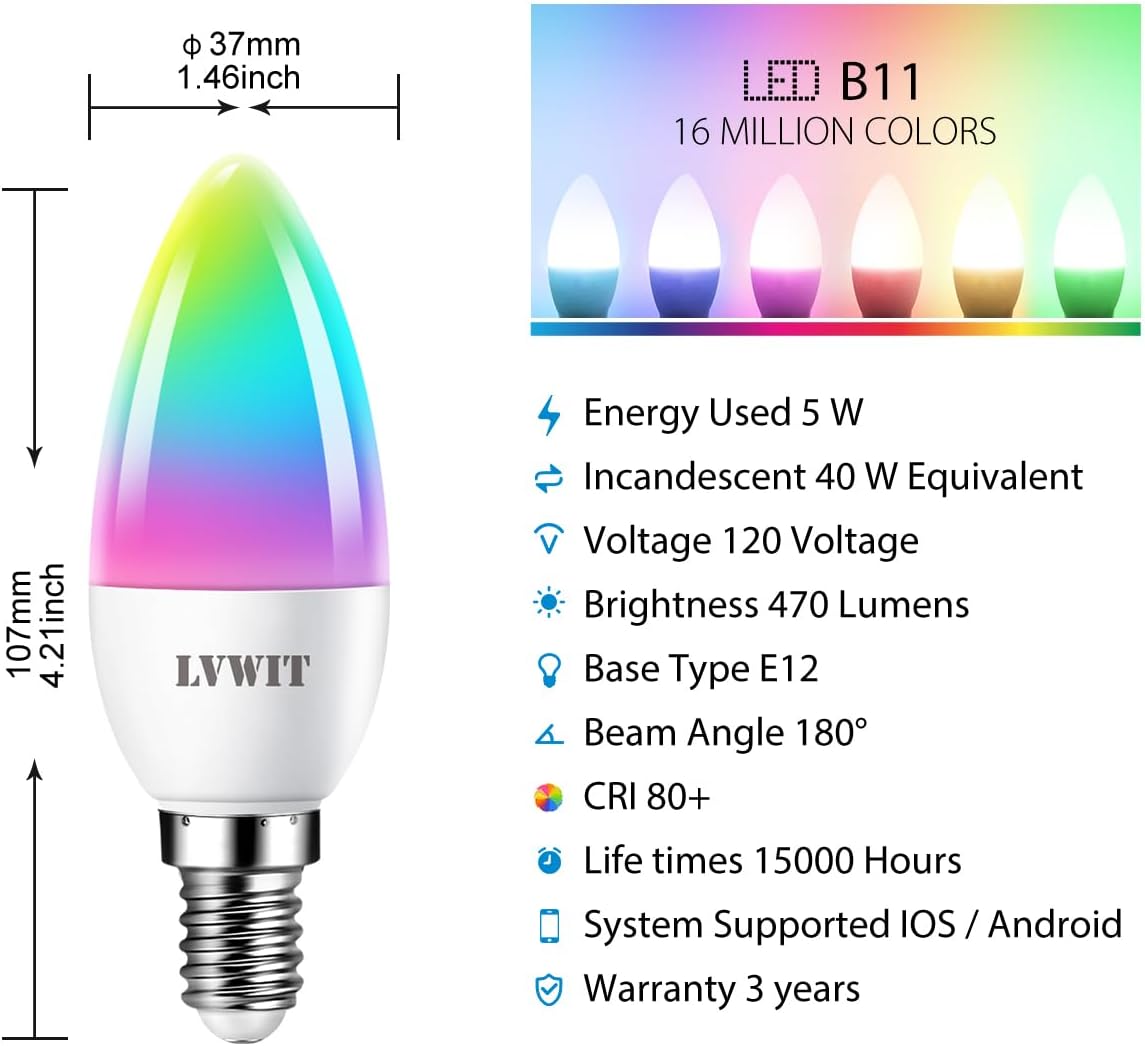
Figure 4.2: Detailed specifications and dimensions of the smart bulb.
4.3 Voice Assistant Integration (Alexa/Google Home)
To control your LVWIT Smart Light Bulb with voice commands, link your Smart Life/Tuya Smart account to your Amazon Alexa or Google Home app.
For Amazon Alexa:
- Open the Alexa app.
- Tap "More" (hamburger menu) > "Skills & Games".
- Search for "Smart Life".
- Select "Smart Life" and tap "ENABLE TO USE".
- Enter your Smart Life account credentials (email/phone and password) and select your region. Tap "Link Now".
- Once linked, tap "DISCOVER DEVICES". Alexa will find your smart bulb(s).
- You can now control your bulb(s) with voice commands (e.g., "Alexa, turn on [Bulb Name]", "Alexa, set [Bulb Name] to pink").
For Google Home:
- Open the Google Home app.
- Tap "+" > "Set up device" > "Works with Google".
- Search for "Smart Life".
- Select "Smart Life" and link your account using your Smart Life credentials.
- Assign your bulb(s) to a room for easier control.
- You can now control your bulb(s) with voice commands (e.g., "Hey Google, turn on [Bulb Name]", "Hey Google, change [Bulb Name] to blue").

Figure 4.3: Voice control with smart home hubs.
Video 4.1: Demonstration of voice control for the smart light bulb, showing how to change light color and brightness using voice commands.
5. Operating Instructions
5.1 Basic Control (On/Off, Brightness, Color Temperature)
Once connected, you can control your smart bulb directly from the Tuya Smart or Smart Life app:
- On/Off: Tap the power icon in the app to turn the bulb on or off.
- Brightness: Adjust the brightness slider to dim or brighten the light.
- Color Temperature: Change the color temperature from 2700K (warm white) to 6500K (daylight white) using the dedicated slider or preset options.
5.2 Color Changing (RGB)
The bulb offers 16 million colors. In the app, navigate to the "Color" tab to select your desired hue from the color wheel or choose from predefined color scenes.
5.3 Group Control
If you have multiple LVWIT Smart Light Bulbs, you can group them together in the app to control them simultaneously.
- In the app, select one of the bulbs you wish to group.
- Tap the "..." or "Settings" icon (usually top right).
- Look for "Create Group" or "Group Management".
- Select the bulbs you want to include in the group and confirm.
- You can now control the entire group (e.g., turn on/off, change color, adjust brightness) with a single command.

Figure 5.1: Grouping smart bulbs for unified control across different areas.
5.4 Scheduling and Timers
Set schedules for your bulbs to turn on/off or change settings automatically at specific times.
- In the app, select the bulb or group you want to schedule.
- Look for the "Schedule" or "Timer" option.
- Set the desired time, action (on/off, color, brightness), and repetition (daily, specific days).
- Save the schedule.

Figure 5.2: Setting automated schedules for your smart light bulbs.
5.5 Scene Modes
The app provides various preset scene modes (e.g., Working, Leisure, Soft, Colorful, Dazzling) to instantly change the ambiance of your room. You can also create custom scenes.

Figure 5.3: Exploring and applying multi-access scene modes.
6. Maintenance
- Cleaning: Ensure the bulb is off and cool before cleaning. Wipe with a soft, dry cloth. Do not use liquid cleaners or abrasive materials.
- Storage: If storing the bulb for an extended period, keep it in a cool, dry place away from direct sunlight.
- Firmware Updates: Periodically check the Smart Life/Tuya Smart app for firmware updates to ensure optimal performance and security.
7. Troubleshooting
| Problem | Possible Cause | Solution |
|---|---|---|
| Bulb not connecting to Wi-Fi / App cannot find bulb. |
|
|
| Bulb is unresponsive to voice commands (Alexa/Google Home). |
|
|
| Bulb does not dim or change color. |
|
|
8. Product Specifications
| Feature | Detail |
|---|---|
| Brand | LVWIT |
| Model Number | LV-5.3WB10-E12-ZF |
| Light Type | LED |
| Bulb Shape Size | B11 (Candle) |
| Bulb Base | E12 |
| Wattage | 4.9W (5 watts) |
| Incandescent Equivalent | 40 Watts |
| Brightness | 470 Lumens |
| Color Temperature | 2700K - 6500K (Warm White to Daylight) |
| Color Options | 16 Million Colors (RGB) |
| Voltage | 100-120 Volts, 60 Hertz |
| Connectivity Technology | Wi-Fi (2.4 GHz only) |
| Controller Type | App (Tuya Smart/Smart Life), Google Assistant, Amazon Alexa |
| Special Features | Dimmable, Color Changing, Group Control, Scheduling |
| Average Life | 15,000 Hours |
| Material | Plastic |
| Product Dimensions | 0.01"W x 4.41"H |
| Item Weight | 3.2 ounces (0.09 Kilograms) |
9. Warranty & Support
9.1 Warranty Information
The LVWIT Smart Light Bulb (Model LV-5.3WB10-E12-ZF) comes with a 3-year warranty from the date of purchase. This warranty covers defects in materials and workmanship under normal use. It does not cover damage caused by misuse, accidents, unauthorized modifications, or improper installation.
Please retain your proof of purchase for warranty claims.
9.2 Customer Support
For technical assistance, troubleshooting, or warranty inquiries, please contact LVWIT customer support. You can typically find contact information on the product packaging, the official LVWIT website, or through the retailer where the product was purchased.
LVWIT aims to provide outstanding products and services. For technical or service support, they typically reply within 24 hours.
For more information, visit the official LVWIT store: LVWIT Store on Amazon