
1. Product Overview
The lexvss 4L Automatic Pet Feeder is designed to provide a convenient and controlled feeding solution for your pets. This device features Wi-Fi connectivity for remote control via a smartphone application, programmable meal times and portions, and a voice recording function to call your pets for meals. It supports both adapter power and battery backup for reliable operation.
Key Features:
- APP Remote Control: Manage feeding schedules, portions, and monitor food levels from anywhere using the "Tuya Smart" app on your 2.4GHz Wi-Fi connected smartphone.
- Voice Recording: Record a 10-second message to play during meal dispensations, encouraging your pet to eat.
- Precise Feeding: Schedule up to 8 meals per day, with 1 to 12 portions per meal. Each portion is approximately 7g (1/10 cup). Suitable for dry food kibble sizes 2-10mm (0.07-0.4in).
- Safety Design: Features a translucent food hopper for easy monitoring of food levels and secure lock buttons on the lid to prevent pets from accessing the food.
- Dual Power Supply: Operates via a DC 5V adapter or 3 D-cell alkaline batteries (not included) for backup power, ensuring continuous feeding even during power outages or Wi-Fi disconnection.

Image: Overview of the lexvss 4L WiFi Smart Pet Feeder highlighting its key features such as programmable timer, manual feeding, schedule feeding, 10-second voice recorder, locking keys design, and auto & manual modes.
2. Important Safety Information
Please read and observe all important notices listed below to ensure safe and proper use of the pet feeder.
- Do NOT allow pets to chew on or swallow any parts of the feeder.
- If an extension cord is necessary, use one with a proper rating.
- Do NOT install or store the pet feeder where it will be exposed to weather or temperatures below -20°C / -4°F.
- Use alkaline D batteries ONLY for power backup. Do NOT use rechargeable batteries.
- Check the batteries regularly. Replace batteries with new ones before leaving for extended periods.
- Do NOT lift the pet feeder by the lid, food tank, or food tray. Lift and carry it using both hands and the base, keeping the unit upright.
- Suitable for dry food ONLY, with kibble size ranging from 2-10mm (0.07-0.4in) in diameter. Larger kibble may get stuck at the food outlet.
3. Product Components
Familiarize yourself with the different parts of your lexvss Automatic Pet Feeder.
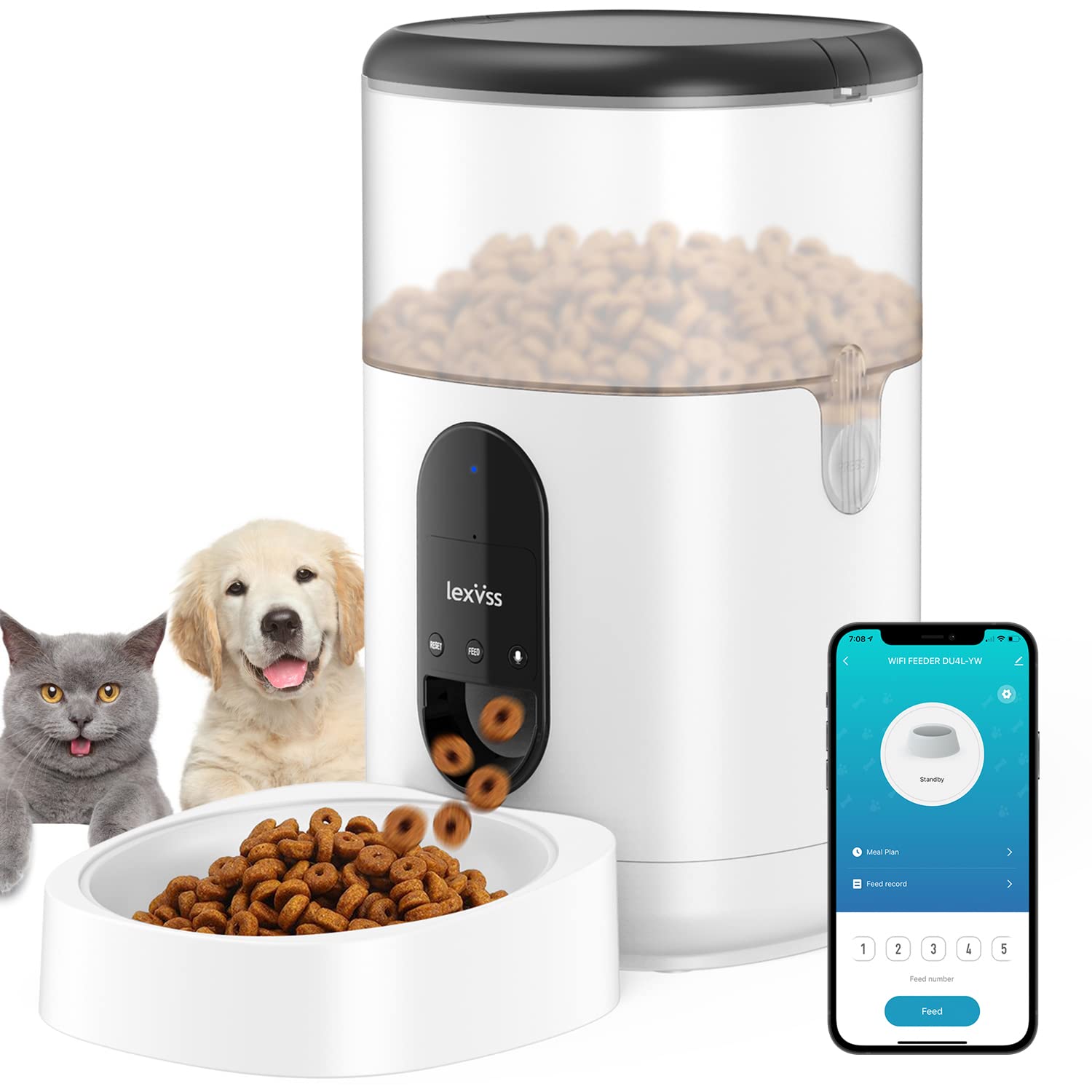
Image: Detailed diagram illustrating the components of the lexvss Automatic Pet Feeder, including Lid Buckles, Lid, Desiccant Tray, Food Container, Food Container Buckles, Base, Control Panel, Food Outlet, Food Tray, Battery Compartment, Speaker, and Power Socket.
- Lid: Top cover of the food container.
- Lid Buckles: Secure the lid in place.
- Desiccant Tray: Holds a desiccant bag to keep food fresh.
- Food Container: Transparent reservoir for dry pet food (4L capacity).
- Food Container Buckles: Secure the food container to the base.
- Base: Main unit housing the electronics and dispensing mechanism.
- Control Panel: Buttons for manual feeding, recording, and reset.
- Food Outlet: Where food is dispensed into the tray.
- Food Tray: Removable bowl for pets to eat from.
- Battery Compartment: Located at the bottom for D-cell batteries.
- Speaker: For playing recorded voice messages.
- Power Socket: For connecting the DC 5V power adapter.
4. Setup Guide
4.1 Power Supply Connection
The feeder can be powered by the included DC 5V adapter or by 3 D-cell alkaline batteries (not included) for backup.
- Adapter Power: Connect the DC 5V power adapter to the power socket on the back of the feeder and plug it into a wall outlet.
- Battery Backup: Open the battery compartment at the bottom of the feeder. Insert 3 new D-cell alkaline batteries, ensuring correct polarity. Close the compartment securely.
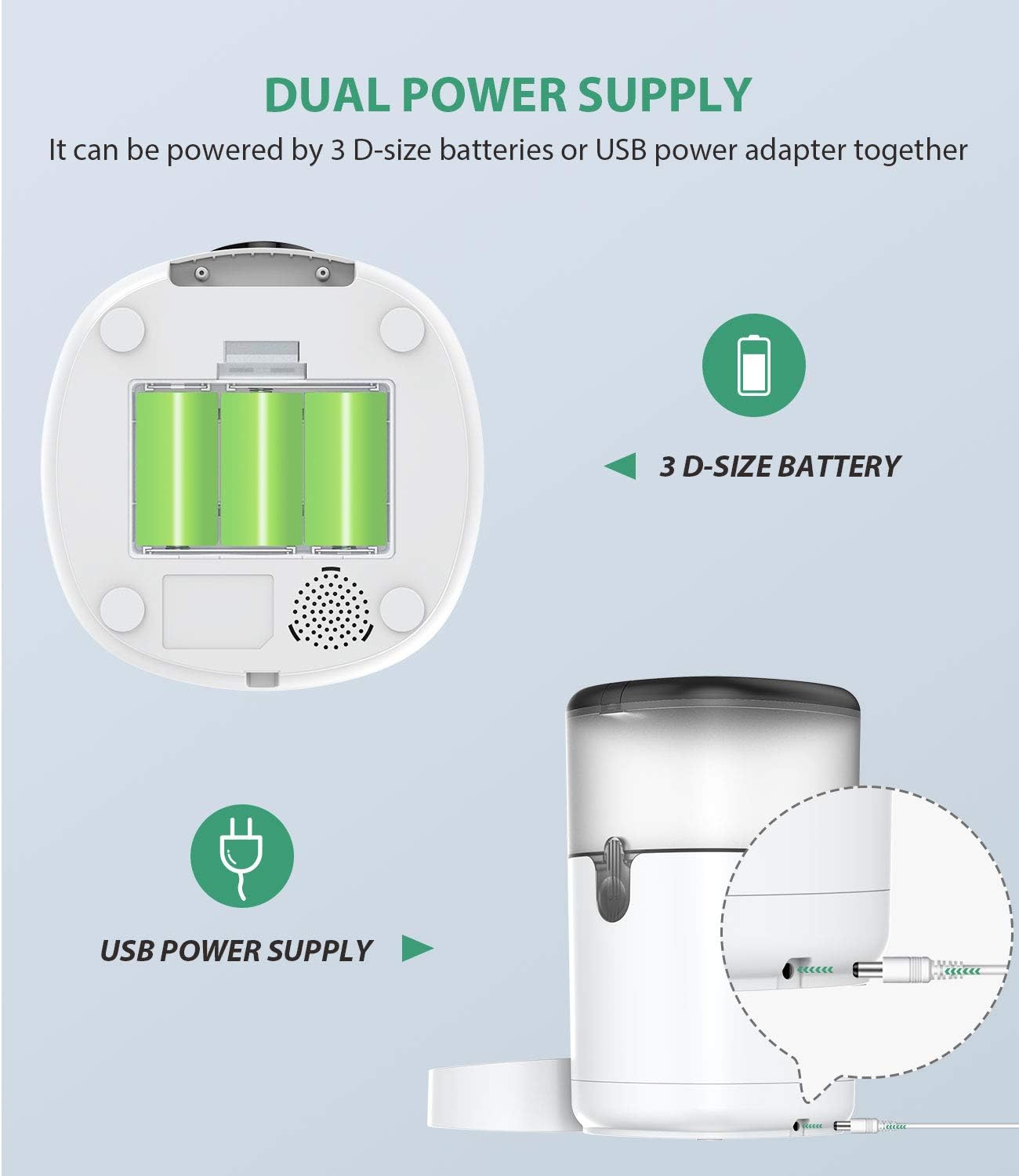
Image: Illustration of the dual power supply options for the lexvss pet feeder, showing the USB power supply connection and the 3 D-size battery compartment.
4.2 Filling the Food Container
- Unlock the lid buckles and remove the lid.
- Place a desiccant bag into the desiccant tray (if not already installed) to maintain food freshness.
- Pour dry pet food into the food container. Ensure kibble size is between 2-10mm (0.07-0.4in).
- Replace the lid and secure the lid buckles.
4.3 App Installation and Wi-Fi Connection
The lexvss pet feeder connects to your smartphone via the "Tuya Smart" app.
- Download the "Tuya Smart" app from your smartphone's app store (iOS or Android).
- Register or log in to your Tuya Smart account.
- Ensure your phone is connected to a 2.4GHz Wi-Fi network. The feeder does not support 5GHz Wi-Fi.
- On the app, tap "Add Device" or the "+" icon. Select "Small Home Appliances" then "Pet Feeder (Wi-Fi)".
- Follow the on-screen instructions in the app to connect the feeder to your Wi-Fi network. This typically involves putting the feeder into pairing mode (often by pressing and holding a reset button until an indicator light flashes).
- Once connected, you can control the feeder remotely via the app.

Image: Screenshots of the Tuya Smart app interface demonstrating how to schedule up to 8 meals a day with 1 to 12 portions per meal for the automatic pet feeder.
5. Operating Instructions
5.1 Programming Meal Schedules
Use the "Tuya Smart" app to set up automated feeding schedules.
- Open the "Tuya Smart" app and select your pet feeder device.
- Navigate to the "Schedule" or "Feeding Plan" section.
- Tap "Add" to create a new feeding event.
- Set the desired feeding time (up to 8 meals per day).
- Select the number of portions for each meal (1 to 12 portions). Each portion is approximately 7g.
- Choose the days of the week for this schedule to be active.
- Save the schedule. The feeder will now dispense food automatically at the programmed times.
5.2 Recording a Voice Message
Record a personalized 10-second message to play during each feeding.
- Locate the "Record" button on the feeder's control panel.
- Press and hold the "Record" button. The indicator light may change to signal recording is active.
- Speak your message (e.g., "Dinner time, [Pet's Name]!") into the microphone for up to 10 seconds.
- Release the "Record" button to save the message.
- The recorded message will play automatically before each scheduled meal.

Image: A pet feeder with a dog and cat, illustrating the voice recording feature with a speech bubble saying "Dinner time is up".
5.3 Manual Feeding
To dispense food immediately, use the manual feed button.
- Press the "Feed" button on the control panel.
- Each press will dispense one portion of food.
- Alternatively, use the "Feed" option within the "Tuya Smart" app for remote manual feeding.
6. Maintenance and Cleaning
Regular cleaning ensures hygiene and optimal performance of your pet feeder.
- Disassembly: Unplug the feeder from power. Remove the food tray, then unlock the food container buckles and lift off the food container.
- Cleaning Components: The food tray and food container can be washed with mild soap and water. Rinse thoroughly and dry completely before reassembly.
- Base Unit: Wipe the base unit with a soft, damp cloth. Do NOT immerse the base unit in water or any other liquid, as it contains electronic components.
- Desiccant Bag: Replace the desiccant bag every 1-2 months to maintain food freshness.
- Reassembly: Ensure all parts are completely dry. Reattach the food container to the base, securing the buckles. Place the food tray back into position.
7. Troubleshooting
If you encounter issues with your lexvss Automatic Pet Feeder, refer to the following common solutions:
| Problem | Possible Cause | Solution |
|---|---|---|
| Feeder not dispensing food. |
|
|
| App cannot connect to feeder. |
|
|
| Voice message not playing. |
|
|
| Scheduled feedings are inconsistent or deleted. |
|
|
8. Product Specifications
| Feature | Detail |
|---|---|
| Brand | lexvss |
| Model | B08TBDGYY5 |
| Capacity | 4 Liters |
| Target Species | Cat, Dog |
| Operation Mode | Automatic |
| Special Features | Voice Recording, Programmable Feeding, Wi-Fi Control |
| Power Supply | DC 5V Adapter, 3 x D-cell Alkaline Batteries (backup, not included) |
| Kibble Size Compatibility | 2-10mm (0.07-0.4in) diameter |
| Product Dimensions | 19 x 19 x 32.99 cm; 1.81 kg |
| Connectivity | 2.4GHz Wi-Fi |

