1. Introduction
This manual provides detailed instructions for the installation, operation, and maintenance of your Jennov Outdoor WiFi PTZ Security Camera. Please read this manual thoroughly before using the product to ensure proper functionality and safety. This camera features 5x optical zoom, 5MP resolution, 360-degree wide-angle monitoring, auto-tracking, two-way audio, night vision, and motion detection, offering comprehensive surveillance for various environments.
2. Key Features
- AI Human Detection & Sound Alarm: Equipped with advanced human detection technology to minimize false alarms. When an intruder is detected, the camera initiates recording and can trigger a dog barking sound or an alarm to deter them. This feature is suitable for various applications including home, office, and commercial surveillance.
- 5x Optical Zoom & 360-Degree All-Direction Monitoring: This cost-effective PTZ camera features a 5-megapixel SONY CMOS sensor, supporting 1920P HD high-quality video. It offers Pan 355° and Tilt 120° rotation, along with 5x optical zoom. Control lens direction, zoom, image quality, and PTZ functions remotely via PC or smartphone with a single touch.
- 30M Long-Distance Night Vision & Anti-Theft Measures: The Jennov outdoor security camera includes night vision capabilities, automatically switching between day and night shooting modes. With 6 infrared LEDs, it provides clear night vision up to approximately 30 meters. Ideal for monitoring unlit warehouses, factories, banks, shops, parking lots, farms, commercial buildings, residential areas, and barns. The built-in light sensor detects ambient brightness and automatically switches to night vision mode in low light conditions, requiring no special operation.
- Two-Way Talk & 64GB SD Card Recording: The Jennov wireless security camera is equipped with a built-in speaker and microphone, enabling two-way communication and audio recording. You can listen to audio from the camera's location in real-time. The camera includes a 64GB SD card, allowing for 24-hour continuous recording. When the storage capacity is full, older footage is automatically overwritten. The H.264+ recording compression format allows for approximately twice the recording time compared to traditional H.264, without compromising image quality.
- Technical Compliance & Support: This product is certified to meet Japanese wireless specifications. It comes with a 12-month quality warranty and customer support. In case of initial defects or natural failures, returns or exchanges are possible within 30 days without requiring a reason. Lifetime technical support, including technical setup assistance, is available via email (jpsupport01@jennov.com, 24-hour response) and phone (050-5050-9046, Monday-Friday, 10:00-17:00 JST).
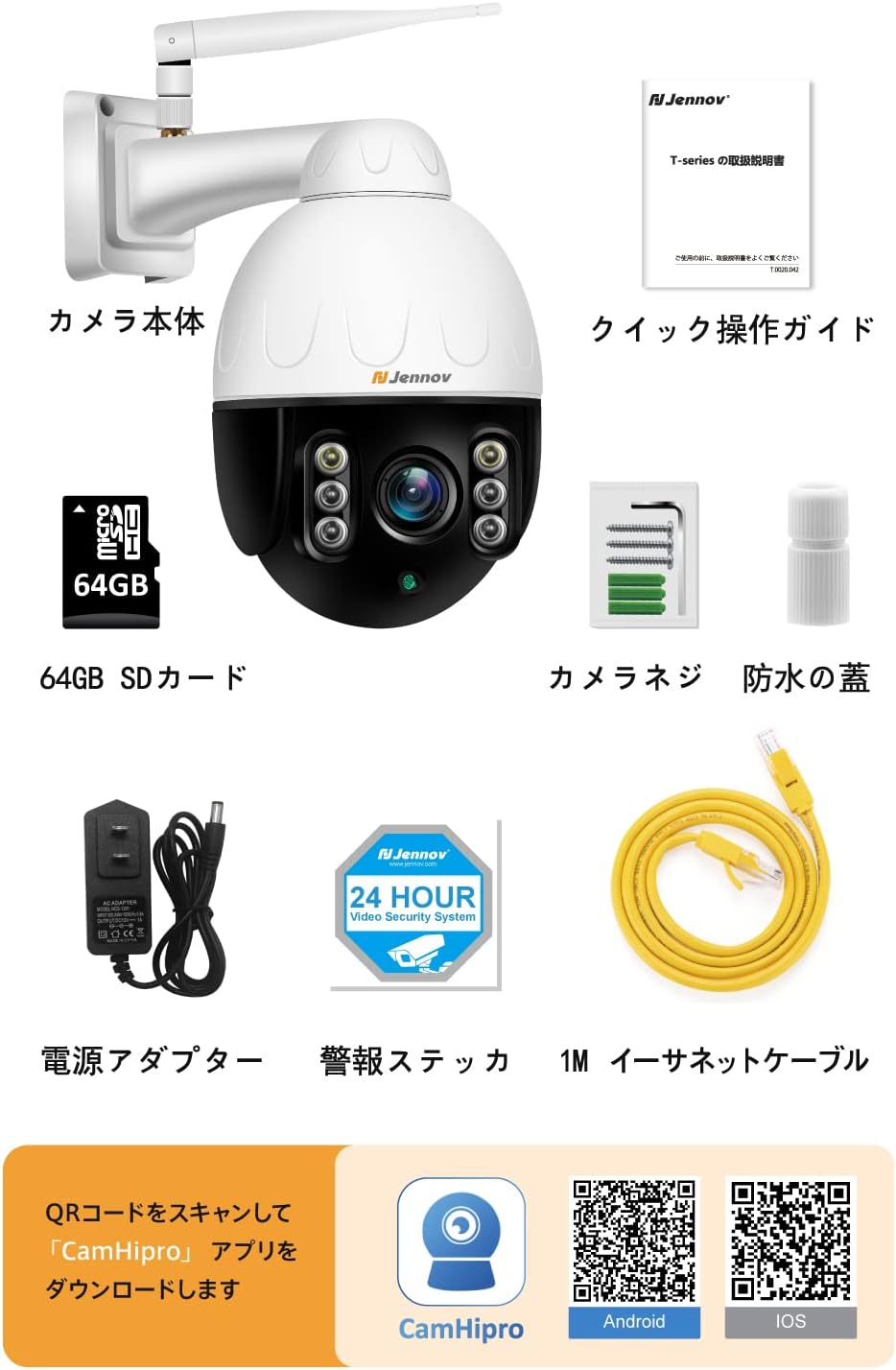
3. Package Contents
Please check that all items are included in the package:
- Jennov Outdoor WiFi PTZ Security Camera
- 64GB SD Card (pre-installed)
- Power Adapter
- Instruction Manual
- Screw Pack for installation
- Waterproof Cap for connections
- Ethernet Cable (1M)
- Alarm Sticker
4. Product Overview
Familiarize yourself with the different parts and features of your Jennov security camera.


5. Setup
5.1 App Download and Installation
The camera supports the CamHi or CamHiPro application for smartphone and tablet control. For PC, the HiP2P Client software is available.

- For Smartphones/Tablets: Scan the QR code on the camera body or packaging to download the "CamHiPro" app from the App Store (iOS) or Google Play Store (Android).
Download CamHiPro for iOS
Download CamHiPro for Android - For PC: Download the HiP2P Client software from the official Jennov website or the provided installation disc (if included).
5.2 Initial Connection
- Connect the camera to power using the provided power adapter.
- For initial setup, it is recommended to connect the camera to your router via the Ethernet cable.
- Open the CamHiPro app or HiP2P Client software.
- Add the camera by scanning the QR code (containing the camera's UID) located on the camera body or packaging, or by manually entering the UID and the default password.
- Follow the on-screen prompts to connect the camera to your WiFi network. Once connected, you can disconnect the Ethernet cable if desired.
5.3 Physical Installation
The camera is designed for wall mounting. Use the provided screw pack for secure installation.
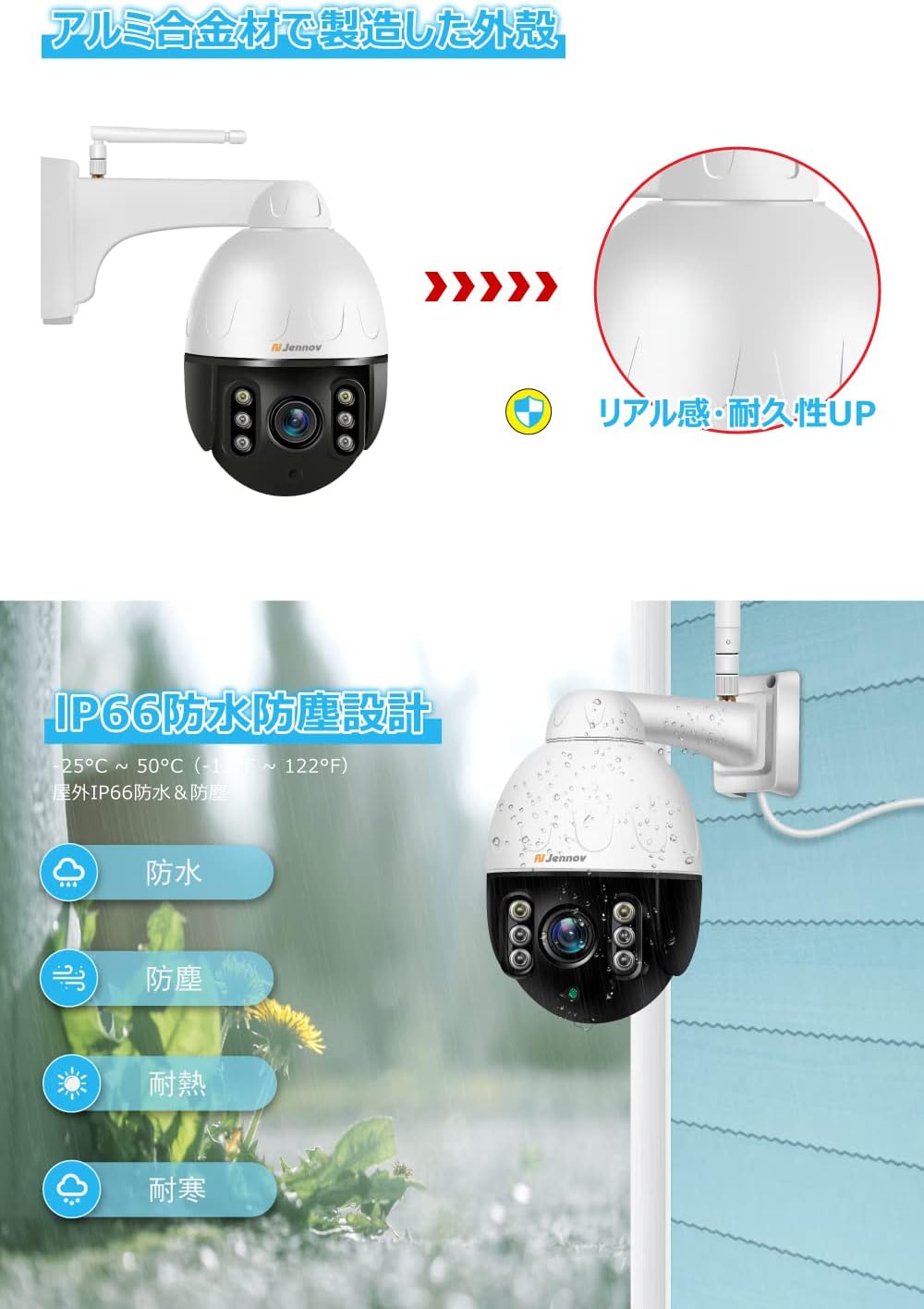
- Choose a suitable location for mounting, ensuring a clear view of the area you wish to monitor and proximity to a power source.
- Mark the drilling points using the camera's mounting bracket as a template.
- Drill holes and insert the wall plugs (if necessary).
- Secure the mounting bracket to the wall using the provided screws.
- Attach the camera to the bracket.
- Ensure all cable connections are secure and use the waterproof cap for the RJ45 port if using a wired connection outdoors.
6. Operation
6.1 Remote Monitoring and PTZ Control
Access live video feeds and control the camera's movement from your smartphone, tablet, or PC.

- Open the CamHiPro app or HiP2P Client.
- Select your camera from the device list.
- Use the on-screen joystick or directional arrows to pan (horizontal rotation up to 355°) and tilt (vertical rotation up to 120°) the camera.
- Use the zoom controls to adjust the 5x optical zoom for closer inspection of details.
- You can save preset positions for quick navigation to frequently monitored areas.
6.2 AI Human Detection and Auto-Tracking
The camera can intelligently detect human figures and track their movement.

- Enable AI Human Detection in the app settings.
- When a human is detected, the camera will automatically track their movement within its field of view.
- You will receive instant notifications on your smartphone or PC, and the camera can trigger an audible alarm.
6.3 Two-Way Audio
Communicate with people near the camera using the built-in microphone and speaker.
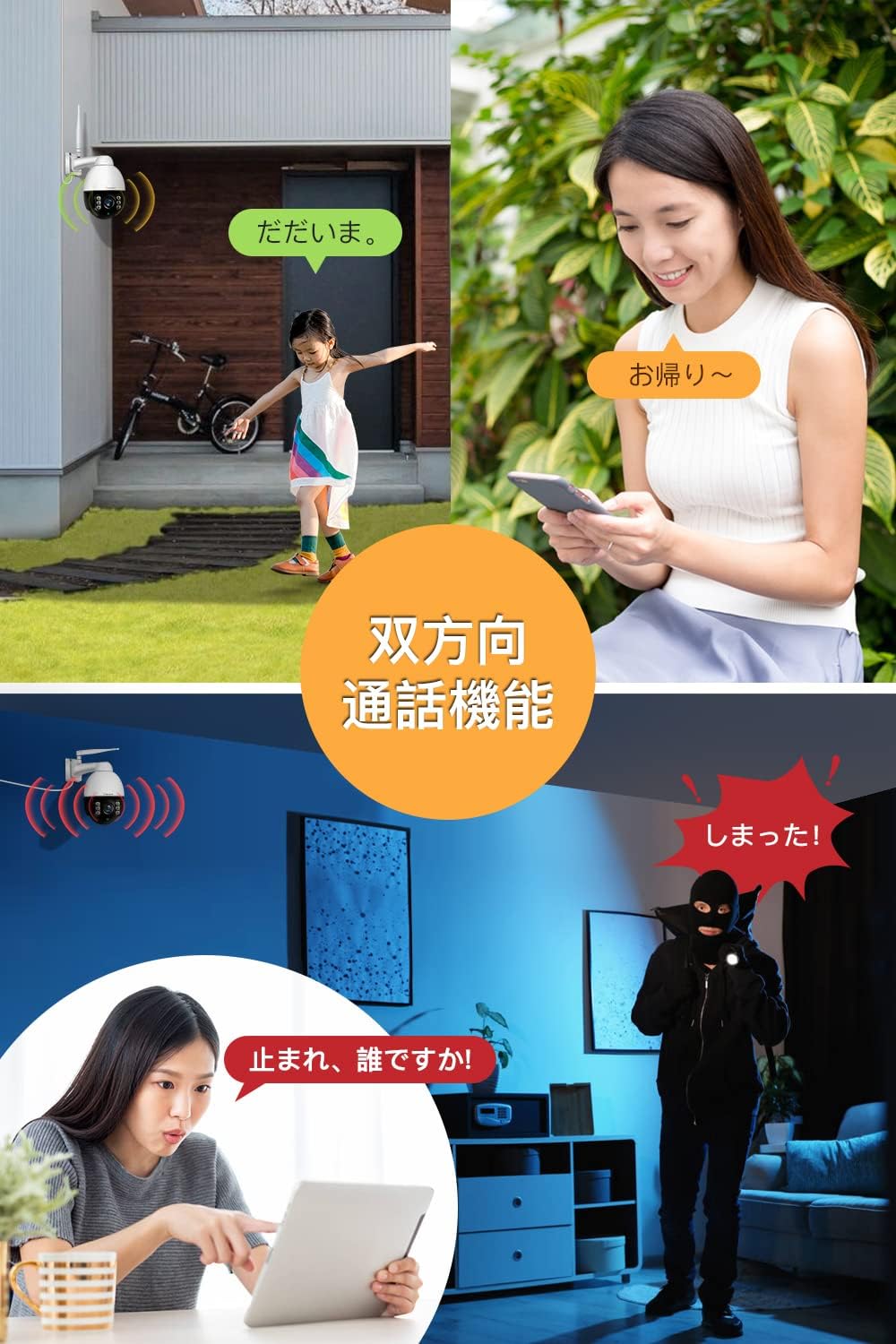
- Tap the microphone icon in the app to speak through the camera's speaker.
- The camera's microphone will pick up audio from its surroundings, allowing you to listen in real-time.
6.4 Night Vision
The camera automatically adapts to low-light conditions for continuous surveillance.

- The camera automatically switches to infrared night vision mode when ambient light is low.
- It provides clear black and white images up to 30 meters in complete darkness.
6.5 Recording and Playback
The camera supports various recording modes and easy playback of stored footage.


- Scheduled Recording: Set specific times for the camera to record.
- 24-Hour Recording: Continuous recording to the 64GB SD card. Older data is automatically overwritten when the card is full.
- Motion Detection Recording: Records only when motion is detected, saving storage space.
- Playback: Use the CamHiPro app or HiP2P Client to access and review recorded videos from the SD card.
7. Maintenance
- Cleaning: Regularly wipe the camera lens and housing with a soft, damp cloth to remove dust and dirt. Do not use harsh chemicals.
- Firmware Updates: Check the Jennov official website or the CamHiPro app for available firmware updates to ensure optimal performance and security.
- SD Card Management: While the camera overwrites old footage, it's good practice to periodically back up important recordings and format the SD card to maintain performance.
- Power Supply: Ensure the power adapter and cable are free from damage and properly connected.
8. Troubleshooting
| Problem | Possible Cause | Solution |
|---|---|---|
| Camera not powering on. | Power adapter disconnected or faulty; power outlet issue. | Check power connections. Try a different power outlet. Ensure the power adapter is working. |
| Cannot connect to Wi-Fi. | Incorrect Wi-Fi password; camera too far from router; Wi-Fi signal interference. | Double-check Wi-Fi password. Move camera closer to the router. Reduce interference from other devices. Try wired connection for initial setup. |
| Frequent false alarms. | Motion detection sensitivity too high; non-human movement triggering alerts. | Adjust motion detection sensitivity in the app. Utilize AI Human Detection feature to filter out non-human triggers. Define specific monitoring areas to exclude irrelevant zones. |
| SD card not recording or recognized. | SD card full or corrupted; incorrect format; card not inserted properly. | Check SD card status in the app. Format the SD card via the app. Reinsert the SD card. Replace with a new SD card if corrupted. |
| PTZ control unresponsive. | Network connectivity issues; camera motor malfunction. | Check network connection. Restart the camera. If the issue persists, contact customer support. |
| AC adapter cable length is too short. | Standard cable length may not suit all installation locations. | Consider purchasing a compatible extension cable or a longer AC adapter with the correct specifications (Outer diameter 5.5mm, Inner diameter 2.1mm, Center positive, 12V/2A). |
9. Specifications
| Feature | Detail |
|---|---|
| Model Name | AJ1-P22HT55-5X-FAS-64 |
| Brand | Jennov |
| Mounting Type | Wall Mount |
| Video Capture Resolution | 5 Megapixels (1920P HD) |
| Color | White/Black |
| Number of Items | 1 |
| Included Components | 64GB SD Card, Power Adapter, Instruction Manual, Screw Pack, Waterproof Cap |
| Wireless Communication Technology | Wi-Fi |
| Form Factor | Dome |
| Field of View | 85 Degrees |
| Installation Type | Wall Mount |
| Night Vision Range | 15 Meters |
| Material | Metal |
| Voltage | 12 Volts |
| Product Dimensions (LxWxH) | 18 x 11 x 20 cm |
| Product Weight | 1.29 Kilograms |
| Light Source | Infrared |
| Special Features | PTZ Technology, Motion Sensor, Night Vision, Two-Way Switch, Durable, Smartphone Compatible |
| Indoor/Outdoor Use | Outdoor |
| Compatible Devices | Notebook PC |
| Power Source | Corded Electric |
| Connectivity Protocol | Wi-Fi |
| Controller Type | Android |
10. Warranty and Support
Jennov provides comprehensive support for your product:
- Warranty: 1-year manufacturer's warranty from the date of purchase.
- Returns/Exchanges: For initial defects or natural failures, returns or exchanges are possible within 30 days of purchase without requiring a reason.
- Technical Support: Lifetime technical support is available.
- Email Support: jpsupport01@jennov.com (24-hour response)
- Phone Support: 050-5050-9046 (Monday-Friday, 10:00-17:00 JST)


