Introduction
The Hunter NODE-BT-100 is a Bluetooth-enabled, battery-operated sprinkler controller designed for efficient and reliable irrigation management in various outdoor environments. This manual provides comprehensive instructions for setup, operation, and maintenance of your NODE-BT-100 controller.

Image: Front view of the Hunter NODE-BT-100 Battery Controller, showing the blue face with Bluetooth logo, Hunter branding, and control buttons.
Safety Information
- Always disconnect power before installing or servicing the controller.
- Ensure all wiring connections are secure and properly insulated to prevent electrical hazards.
- Use only the specified 9V alkaline batteries. Do not mix old and new batteries or different battery types.
- Keep the controller and its components out of reach of children.
- Do not submerge the controller in water beyond its intended waterproof design.
- If any damage is observed, discontinue use and contact customer support.
Package Contents
Verify that all items are present in the package:
- Hunter NODE-BT-100 Battery Controller
- Hunter Solenoid
- 9V Alkaline Batteries (2 included)
- Mounting Hardware
- Instruction Manual (this document)
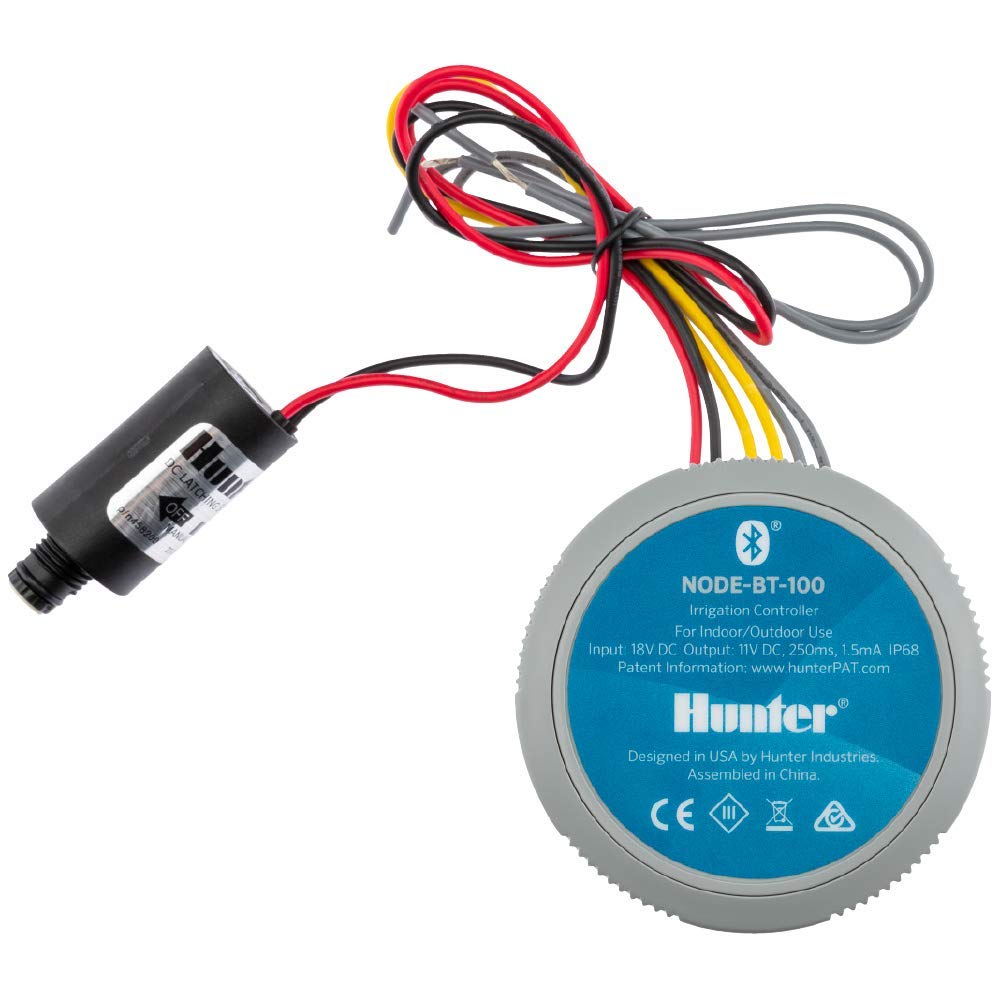
Image: The Hunter NODE-BT-100 controller shown alongside the included solenoid, illustrating the main components.
Setup
1. Battery Installation
The NODE-BT-100 operates on two 9V alkaline batteries. Ensure correct polarity when inserting.
- Twist the top blue cap of the controller counter-clockwise to remove it.
- Insert two 9V alkaline batteries into the battery compartment, observing the polarity markings (+/-).
- Replace the top cap by aligning it and twisting clockwise until secure.
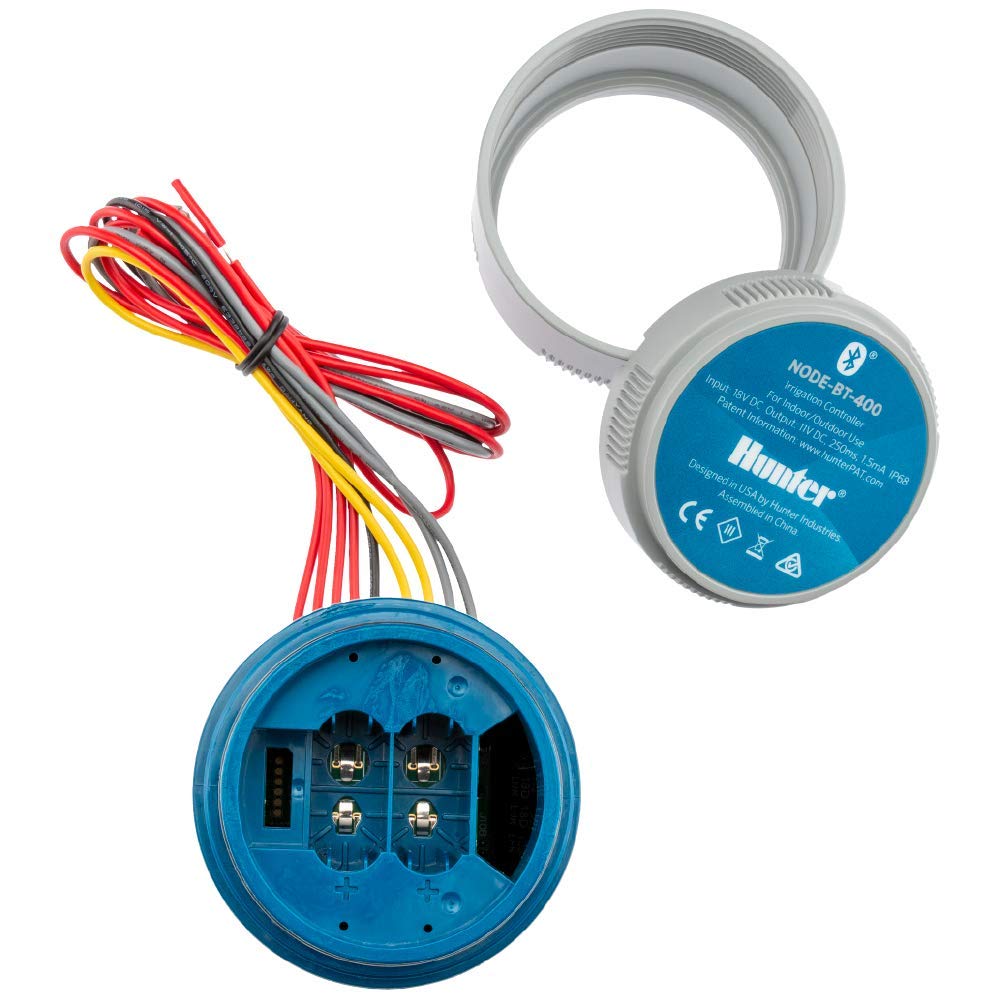
Image: The Hunter NODE-BT-100 controller with its top cap removed, revealing the battery compartment designed for two 9V batteries.
2. Mounting Options
The controller offers five flexible mounting options for various installations:
- Solenoid Mount: Directly attach to the solenoid.
- Wall Mount: Use screws to secure to a flat surface.
- Pipe Mount: Attach to a pipe using appropriate clamps (not included).
- Stake Mount: Secure to a stake in the ground.
- Valve Box Mount: Place inside a valve box.

Image: The Hunter NODE-BT-100 controller mounted directly onto an irrigation solenoid, demonstrating a common installation method.
3. Wiring
Connect the controller to your irrigation valve's solenoid. The NODE-BT-100 comes with an included Hunter solenoid for secure connection.
- Connect the two wires from the NODE-BT-100 controller to the two wires of the solenoid. Polarity is not critical for solenoid connection.
- For rain or soil moisture sensors (optional), connect them to the designated sensor terminals if available on your model.
- Ensure all connections are waterproof and secure, especially in outdoor environments.
4. App Installation and Pairing
The Hunter NODE-BT app is required for full control and scheduling. It is available for both iOS and Android devices.
- Download the "Hunter NODE-BT" app from your device's app store (Apple App Store or Google Play Store).
- Enable Bluetooth on your smartphone.
- Open the Hunter NODE-BT app. The app will guide you through the process of discovering and pairing with your controller.
- Ensure you are within 50 feet (15 meters) line of sight of the controller for optimal Bluetooth connection.
Operating Instructions
1. App Interface Overview
The Hunter NODE-BT app provides an intuitive interface for managing your irrigation system.

Image: Screenshot of the Hunter NODE-BT app dashboard, showing current watering status, next start time, and zones.
- Connect: Establishes Bluetooth connection to the controller.
- Dashboard: Provides an overview of current watering status, next scheduled run, and quick access to manual operations.
- Schedule: Allows creation, modification, and deletion of irrigation programs.
- More: Access to settings, controller information, event logs, and battery status.
2. Scheduling Programs
The controller supports up to three independent programs with eight start times each.
- Navigate to the "Schedule" tab in the app.
- Select an existing program or create a new one.
- Set the start times, run times (from 1 second to 12 hours), and watering days for each program.
- Assign specific zones to each program.
- Save your changes.

Image: Screenshot of the Hunter NODE-BT app's scheduling screen, displaying various saved schedules and options.
3. Manual Operation
You can manually start or stop irrigation cycles directly from the controller or via the app.
- Via App: From the Dashboard, tap "Run" to initiate a manual cycle for selected zones. You can also stop active cycles.
- Via Controller: Use the physical buttons on the controller for basic manual operations. Refer to the button icons for specific functions (e.g., start/stop, cycle through zones).
4. Water-Saving Features
- Cycle and Soak: This feature minimizes runoff by breaking long watering times into shorter cycles with soak periods in between. Enable and configure this in the app's scheduling section.
- Monthly Seasonal Adjustments: Adjust watering times globally by a percentage to account for seasonal changes without reprogramming each schedule.
- Suspend Irrigation: Temporarily suspend all irrigation for up to 99 days, useful for rainy seasons or when away.
5. Sensor Integration (Optional)
The NODE-BT-100 can integrate with rain or soil moisture sensors to further optimize watering.
- Connect compatible sensors to the controller's sensor terminals.
- Configure sensor settings within the Hunter NODE-BT app to enable or disable their influence on irrigation schedules.
Maintenance
1. Battery Replacement
The app will send battery replacement reminders. Replace batteries promptly to ensure continuous operation.
- Follow the battery installation steps outlined in the Setup section.
- Always use fresh, high-quality 9V alkaline batteries.
2. Cleaning
Periodically clean the exterior of the controller with a damp cloth. Do not use harsh chemicals or abrasive cleaners.
3. Firmware Updates
Hunter may release firmware updates to improve performance or add features. The app will notify you if an update is available and guide you through the process.
Troubleshooting
| Problem | Possible Cause | Solution |
|---|---|---|
| Controller not responding to app. | Bluetooth out of range; low battery; app not connected. | Move closer to the controller (within 50 ft line of sight); check and replace batteries; ensure app is connected. |
| Zones not watering. | Solenoid wiring issue; valve problem; schedule not active; rain sensor active. | Check solenoid connections; manually test valve; verify schedule in app; check rain sensor status. |
| Short battery life. | Frequent communication; poor quality batteries. | Reduce frequency of app checks if not needed; use high-quality alkaline batteries. |
| App not finding controller. | Bluetooth off; controller off/no power; app permissions. | Ensure Bluetooth is enabled on phone; check controller batteries; verify app has Bluetooth permissions. |
Specifications
- Model Number: NODE-BT-100
- Product Dimensions: 3.5 x 3.5 x 2.5 inches
- Item Weight: 1.9 Pounds (0.86 Kilograms)
- Power Source: 2 x 9V Alkaline Batteries (included)
- Voltage: 9 Volts
- Material: Plastic
- Color: Gray
- Connectivity: Bluetooth
- Run Times: 1 second to 12 hours
- Programs: 3 independent programs
- Start Times: 8 per program
- Manufacturer: Hunter Industries
Warranty and Support
For warranty information and technical support, please visit the official Hunter Industries website or contact their customer service department. Keep your purchase receipt as proof of purchase.
Hunter Industries Official Website: www.hunterindustries.com
For app-related support, refer to the "More" section within the Hunter NODE-BT app for FAQs and contact options.


