
Introduction
Welcome to your new TELLUR Dash Patrol DC1 Car Camera. This manual provides instructions for installation, operation, and maintenance to ensure optimal performance and longevity of your device. Please read this manual thoroughly before using the product.
Safety Information
- Ensure the dash camera is securely mounted and does not obstruct the driver's view or interfere with vehicle controls.
- Do not operate the device while driving. Adjust settings only when the vehicle is safely parked.
- Avoid exposing the device to extreme temperatures, direct sunlight for prolonged periods, or moisture.
- Use only the provided power adapter and cables to prevent damage and ensure proper operation.
- Keep the lens clean to ensure clear video recordings.
- Do not attempt to disassemble or repair the device yourself. Contact qualified service personnel for assistance.
Package Contents
- 1 x Dash Patrol Dashcam DC1
- 1 x Magnetic Bracket
- 1 x MicroUSB cable
- 1 x Dual USB Car Charger
- 1 x User Manual
Product Overview
Components


Controls and Indicators
- Power Button: Press and hold to turn the device on or off. Short press to toggle screen display.
- M (Mode) Button: Switches between video recording, still photo, and playback modes.
- Up/Down Buttons: Navigate through menu options or adjust settings.
- OK Button: Confirms selections or starts/stops recording in video mode.
- TF Card Slot: Insert a microSD card for storing recordings.
- MicroUSB Port: Connects to the car charger for power.
- Microphone: Records audio.
Setup
1. Insert Memory Card
Before first use, insert a Class 10 or higher microSD card (not included) into the TF Card slot. Ensure the card is inserted correctly until it clicks into place.
2. Mount the Dash Camera
Clean the windshield area where the camera will be mounted. Attach the magnetic bracket to the windshield using its adhesive. Ensure the camera's position does not obstruct your view. Once the bracket is secured, attach the dash camera to the magnetic bracket.
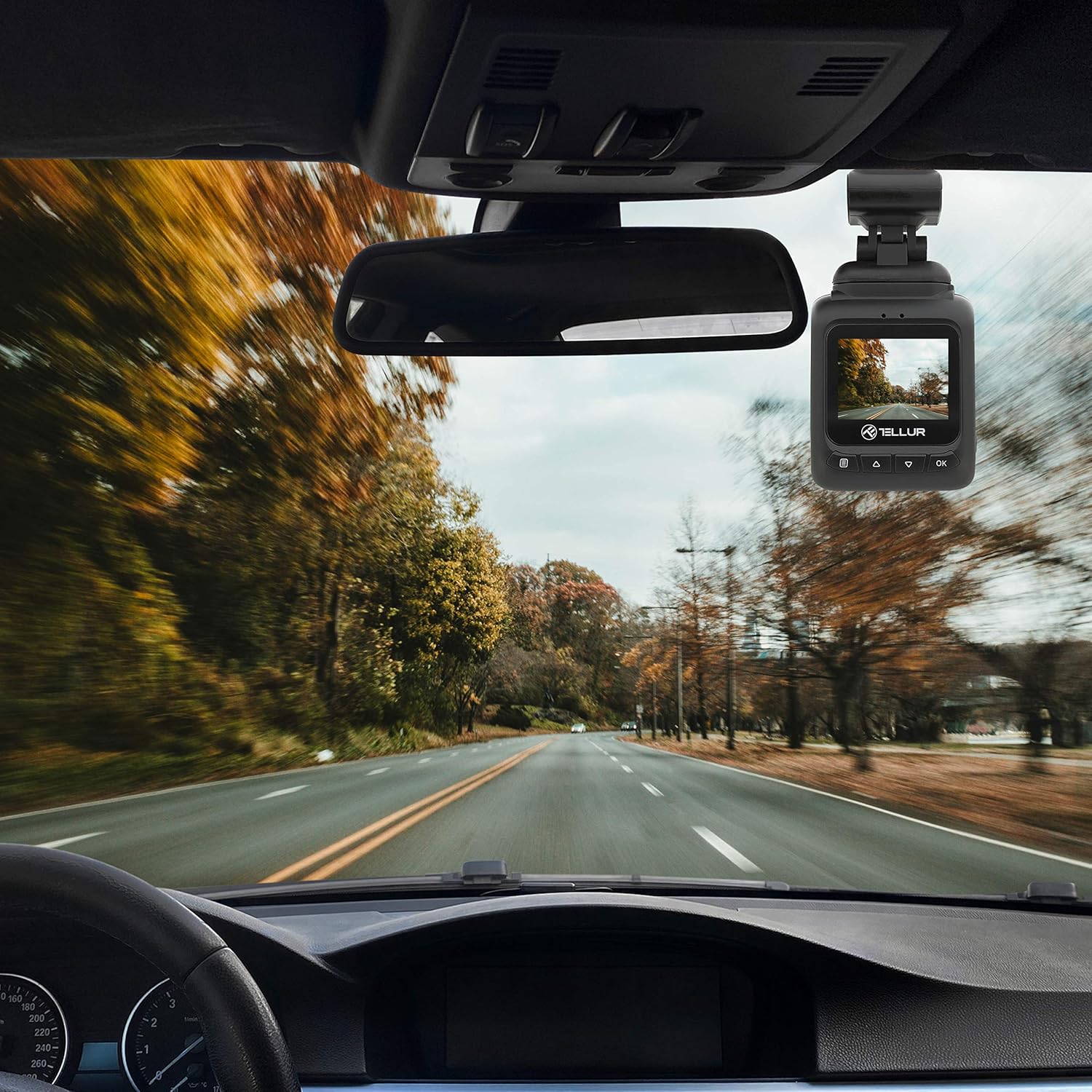
3. Connect Power
Connect the MicroUSB cable to the dash camera's MicroUSB port and the other end to the Dual USB Car Charger. Plug the car charger into your vehicle's 12V power outlet (cigarette lighter socket). The camera will automatically power on and begin recording when the vehicle starts.
Operating Instructions
Basic Recording
Once powered on, the camera automatically starts recording in a continuous loop. The recording indicator (usually a red dot) will flash on the screen. Videos are recorded in FullHD 1080P resolution with a 140-degree wide-angle lens.
G-Sensor Function
The built-in G-sensor detects sudden impacts or collisions. When an event is detected, the current video segment is automatically locked and saved to prevent it from being overwritten by loop recording. This ensures critical footage is preserved.

Parking Monitoring Function
When the parking monitoring function is enabled, the camera will automatically start recording if it detects motion or an impact while the vehicle is parked and the engine is off. This feature provides surveillance for your vehicle when unattended.

Menu Navigation
Press the M button to enter the menu. Use the Up/Down buttons to navigate through options and the OK button to select. Press M again to exit the menu.
Video Playback
In playback mode (accessed via the M button), use the Up/Down buttons to select a video file and OK to play it. Press M to return to the file list.
Maintenance
Cleaning the Lens
Regularly clean the camera lens with a soft, lint-free cloth to ensure clear video quality. Do not use abrasive cleaners.
Memory Card Management
It is recommended to format the microSD card periodically (e.g., once a month) within the camera's settings to maintain optimal performance and prevent data corruption.
Troubleshooting
- Camera not powering on: Check the power connection to the car charger and the vehicle's 12V outlet. Ensure the vehicle's ignition is on.
- Recording stops unexpectedly: Ensure the microSD card is properly inserted and is a Class 10 or higher. Format the card if issues persist.
- Poor video quality: Clean the camera lens. Check menu settings to ensure 1080P resolution is selected.
- G-Sensor not triggering: Adjust the G-sensor sensitivity in the camera's settings.
- Parking Monitor not working: Ensure the parking monitoring function is enabled in the settings.
Specifications
| Feature | Detail |
|---|---|
| Model Name | DC1 |
| Item Model Number | TLL711001 |
| Video Capture Resolution | 1080p |
| Field Of View | 140 Degrees |
| Special Feature | Automatic Incident Detection (G-Sensor), Parking Monitoring |
| Connectivity Technology | USB |
| Mounting Type | Magnetic Mount with Adhesive |
| Product Dimensions | 1.72 x 1.47 x 2.17 inches |
| Item Weight | 8.4 ounces |
| Batteries | 1 Lithium Polymer battery required |
| Color | Black |
| Manufacturer | TELLUR |
Warranty and Support
TELLUR products are designed for reliability and performance. For warranty information, technical support, or service inquiries, please refer to the contact details provided on the official TELLUR website or your purchase documentation. Keep your proof of purchase for warranty claims.


