
1. Product Overview
The ViewSonic VB-CAM-201 is a 4K video conferencing camera designed for medium to large-sized conference rooms and boardrooms. It features 4K Ultra HD resolution and a 120° super wide-angle lens to capture all participants with clarity. The camera incorporates voice-tracking technology and 5x digital zoom to keep the speaker in focus. An integrated 8W speaker and a four-microphone array with noise and echo cancellation ensure clear audio for all participants. This device offers plug-and-play connectivity, making it compatible with ViewSonic ViewBoard interactive displays and commercial displays.
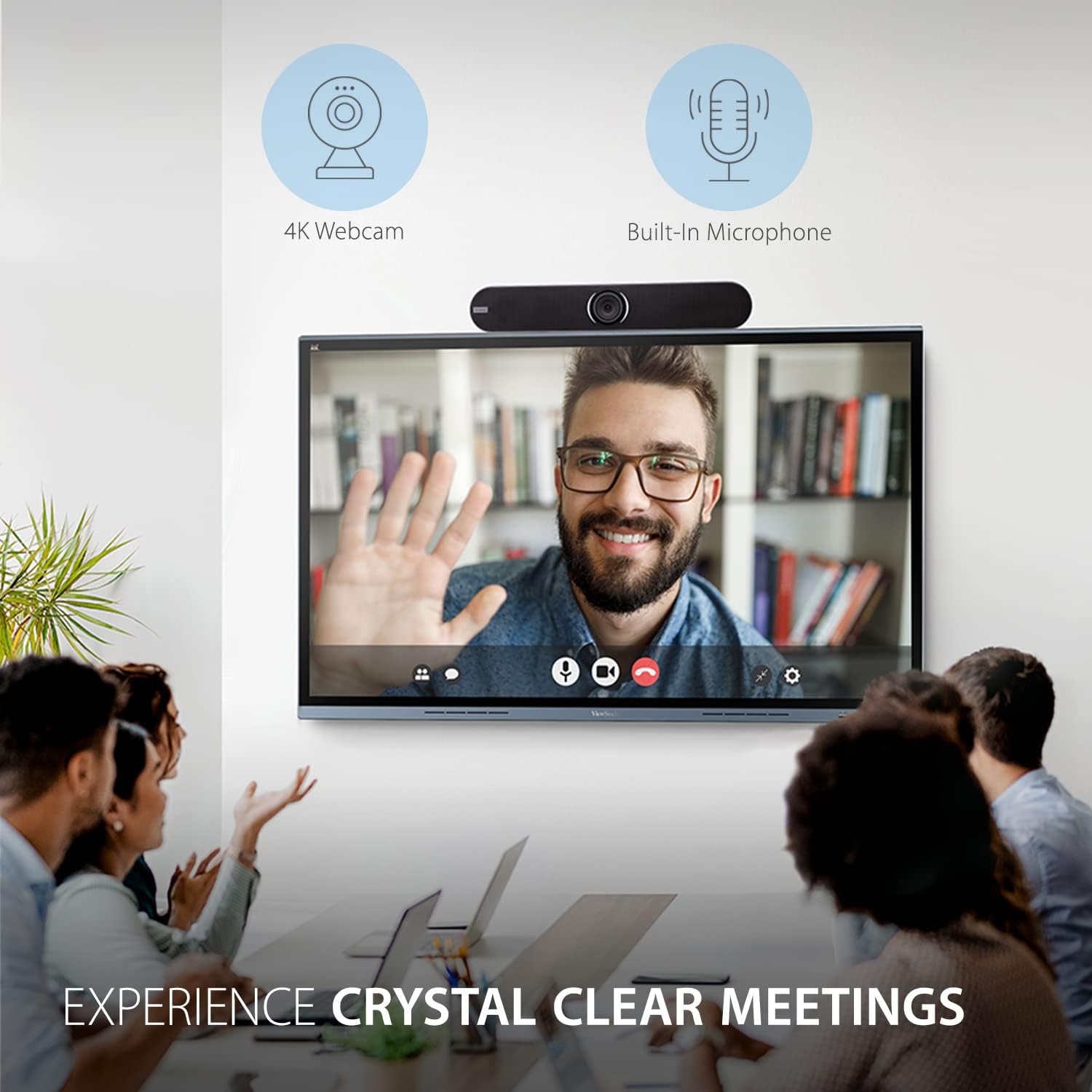
Image: The VB-CAM-201 camera positioned above a large display in a conference room, showing a clear video conference in progress.
2. What's in the Box
Carefully unpack the contents of your VB-CAM-201 package. The following items should be included:
- VB-CAM-201 Webcam Unit
- Power Adapter (with multiple regional adapters)
- USB-C Cable
- Remote Control
- Mounting Bracket
- Bracket Screws (x6)
- Wall Anchors (x6)
- Documentation (Quick Start Guide, Warranty Card)

Image: All components included with the VB-CAM-201, neatly arranged: the camera, remote control, power adapter, USB-C cable, and mounting accessories.
Video: An unboxing video demonstrating the contents of the ViewSonic VB-CAM-201 package and initial setup steps.
3. Setup and Installation
The VB-CAM-201 offers versatile mounting options and plug-and-play connectivity for easy setup.
3.1 Mounting Options
The camera can be installed in several ways to suit your conference room layout:
- Table Stand: Place the camera on a flat surface using its integrated stand.
- Wall Mount: Use the provided mounting bracket, screws, and wall anchors to secure the camera directly to a wall.
- Display Mount: Attach the camera to the top of a large digital display or interactive whiteboard using the bracket.

Image: Visual representation of the flexible mounting solutions for the VB-CAM-201 camera, including wall, table, and display placements.
3.2 Connecting the Camera
- Connect the power adapter to the camera's DC 12V input and plug it into a power outlet.
- Connect the supplied USB-C cable from the camera's USB 3.0 port to your computer or compatible display.
- For network connectivity, connect an Ethernet cable to the LAN port (optional).
- The camera is plug-and-play and should be automatically recognized by your operating system.
The VB-CAM-201 is compatible with Windows 7/8.1/10, MacOS 10.10 or higher, Linux, and Google Chromebook version 29.0.1547.70 or higher.
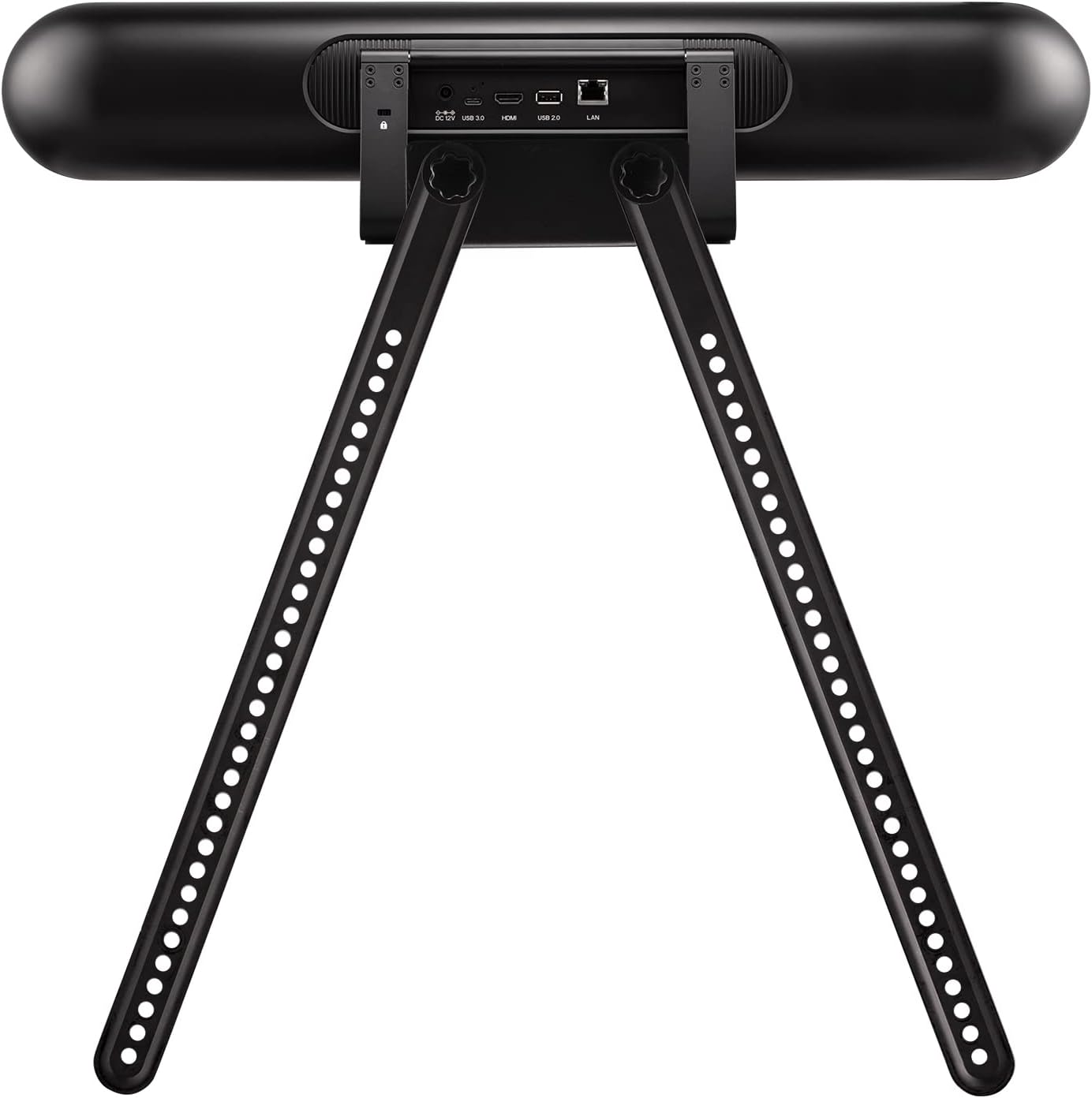
Image: Close-up of the rear panel of the VB-CAM-201, highlighting the power input, USB-C, HDMI, USB 2.0, and LAN ports for connectivity.
4. Operating Instructions
The VB-CAM-201 is designed for intuitive operation, enhancing your video conferencing experience.
4.1 Camera Features
- 4K UHD Resolution: Delivers crystal clear video quality for meetings and calls.
- 120-Degree Wide-Angle Lens: Captures a broad field of view, ensuring all participants in a medium to large room are visible.
- Voice Tracking: The motorized lens automatically adjusts to follow the active speaker, keeping them in focus.
- 5x Digital Zoom: Allows for closer views of participants or specific areas of the room.
- Integrated Microphones: A built-in beamforming microphone array with automatic noise reduction captures voices from up to 10 feet away.
- Built-in Speaker: An 8W speaker provides clear audio output for meeting participants.

Image: A top-down view of a conference table with participants, showing the 120-degree wide-angle coverage of the VB-CAM-201 camera.

Image: An icon symbolizing the voice and camera tracking capability, showing a person's face within a tracking frame.
4.2 Using the Remote Control
The included wireless remote control allows you to manage various camera functions, especially useful when the camera is mounted out of reach. Functions include pan, tilt, and zoom adjustments to ensure optimal framing of participants.
5. Specifications
| Feature | Specification |
|---|---|
| Model Number | VB-CAM-201 |
| Max Screen Resolution | UHD Pixels (4K UHD) |
| Video Capture Resolution | 1080p, 4K |
| Rear Webcam Resolution | 8.51 MP |
| Photo Sensor Technology | CMOS |
| Maximum Aperture | 3.5 f |
| Special Features | Bluetooth, Face Detection, Microphone Input, Voice tracking, Wind Noise Reduction |
| Connectivity Technology | HDMI, USB |
| Wireless Type | Bluetooth |
| Supported Audio Format | AAC, PCM |
| Operating System Compatibility | Windows 7/8.1/10, MacOS 10.10+, Linux, Google Chromebook 29.0.1547.70+ |
| Item Weight | 4.86 pounds |
| Product Dimensions (LxWxH) | 4.53 x 23.62 x 5.31 inches |

Image: Detailed dimensions of the VB-CAM-201 camera, indicating its length, height, and depth in both centimeters and inches.
6. Maintenance
To ensure the longevity and optimal performance of your ViewSonic VB-CAM-201 camera, follow these maintenance guidelines:
- Cleaning: Use a soft, dry cloth to clean the camera's exterior. For the lens, use a specialized lens cleaning cloth and solution to avoid scratches. Do not use harsh chemicals or abrasive cleaners.
- Storage: When not in use for extended periods, store the camera in a cool, dry place away from direct sunlight and extreme temperatures.
- Firmware Updates: Periodically check the ViewSonic website for any available firmware updates to ensure your camera has the latest features and performance enhancements.
7. Troubleshooting
If you encounter issues with your VB-CAM-201, try the following basic troubleshooting steps:
- No Power: Ensure the power adapter is securely connected to both the camera and a working power outlet. Check if the power indicator light on the camera is on.
- No Video/Audio: Verify that the USB-C cable is firmly connected to both the camera and your computer/display. Try a different USB port or cable. Ensure the camera is selected as the active video and audio device in your conferencing software settings.
- Poor Video Quality: Check your internet connection speed. Ensure the camera lens is clean and free from obstructions. Confirm that your conferencing software is set to use 4K resolution if supported.
- Remote Control Not Working: Check the batteries in the remote control. Ensure there are no obstructions between the remote and the camera's IR receiver.
- Voice Tracking Issues: Ensure the room is adequately lit and there are no excessive background noises that might interfere with the microphone array.
For more advanced troubleshooting or persistent issues, please refer to the full user manual available on the ViewSonic support website or contact customer support.
8. Warranty and Support
For detailed warranty information, please refer to the warranty card included in your product packaging or visit the official ViewSonic website. ViewSonic provides customer support for product inquiries, technical assistance, and service requests.
Online Support: Visit the ViewSonic website for FAQs, driver downloads, and support resources.
Contact Support: Refer to your product documentation for regional contact information for customer service.


