
Grandstream GRP2604
Grandstream GRP2604 IP Phone User Manual
Model: GRP2604
1. Introduction
This manual provides instructions for the installation, operation, and maintenance of the Grandstream GRP2604 IP Phone. The GRP2604 is a 3-line, 6-SIP account IP phone designed for ease of use and advanced functionality, featuring a 2.7-inch LCD display and dual-port Gigabit Ethernet.
2. Safety Information
- Use only the power adapter supplied with the phone.
- Do not expose the device to water or moisture.
- Avoid placing the phone near heat sources or direct sunlight.
- Do not attempt to open or repair the device yourself. Refer all servicing to qualified personnel.
- Ensure proper ventilation around the phone.
3. Package Contents
Verify that your package contains the following items:
- GRP2604 IP Phone Unit
- Handset with Cord
- Phone Stand
- Ethernet Cable
- Power Adapter
- Quick Installation Guide (this manual serves as the full guide)
4. Product Overview
4.1. Phone Layout

Figure 4.1: Front view of the Grandstream GRP2604 IP Phone. This image displays the phone's main body, handset, 2.7-inch LCD display, numeric keypad, function keys, and programmable line keys.
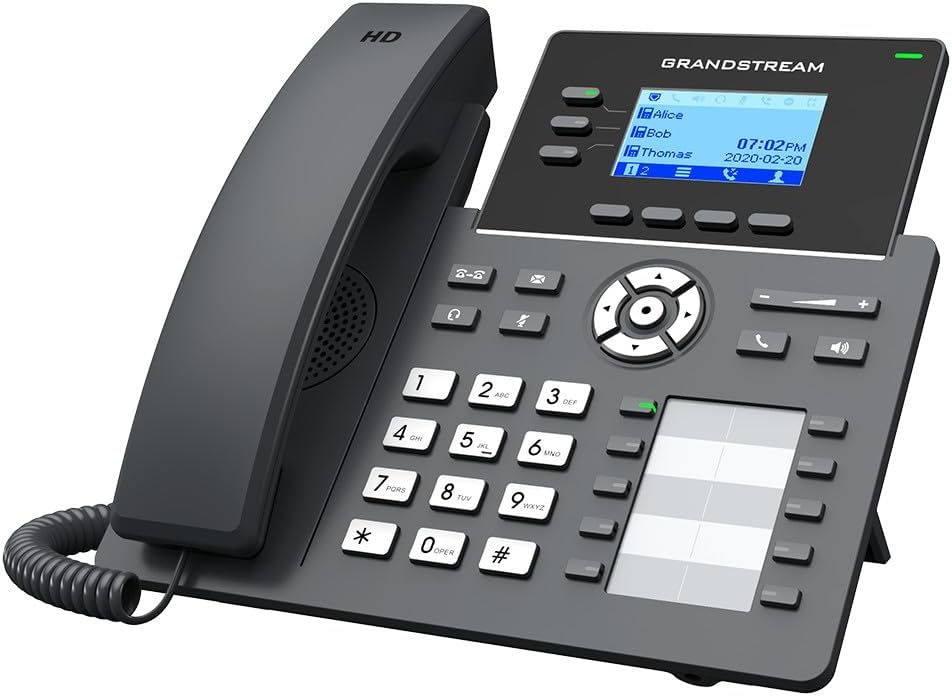
Figure 4.2: Angled view of the Grandstream GRP2604 IP Phone. This perspective highlights the ergonomic design of the handset and the slight tilt of the main unit, providing a clearer view of the display and keypad.

Figure 4.3: Side view of the Grandstream GRP2604 IP Phone with its stand attached. This image illustrates how the phone is positioned for desktop use, showing the angle provided by the stand.
4.2. Rear Panel and Ports

Figure 4.4: Rear view of the Grandstream GRP2604 IP Phone, showing the various ports and connections. From left to right, these include the handset port, headset port, two Gigabit Ethernet ports (LAN and PC), and the DC 5V power input.
The rear panel of the GRP2604 features essential connection ports:
- Handset Port: Connects the coiled handset cord.
- Headset Port: For connecting a wired headset.
- PC Port (LAN Out): Connects to a computer or other network device.
- LAN Port (Network In): Connects to your network switch or router.
- DC 5V Power Input: Connects the power adapter.
5. Setup
- Attach the Phone Stand: Align the stand with the slots on the back of the phone and slide it into place until it clicks securely.
- Connect the Handset: Plug one end of the coiled handset cord into the handset and the other end into the handset port on the rear of the phone.
- Connect to Network:
- Connect one end of the Ethernet cable to the LAN port on the phone.
- Connect the other end of the Ethernet cable to a network switch or router.
- If connecting a computer, use another Ethernet cable to connect the PC port on the phone to your computer.
- Connect Power: Plug the DC 5V power adapter into the power input port on the phone, then plug the adapter into a power outlet. The phone will automatically power on and begin the boot-up sequence.
- Initial Configuration: Once the phone boots up, it will attempt to obtain an IP address via DHCP. You may need to access the phone's web interface for further SIP account configuration, as instructed by your VoIP service provider or network administrator.
6. Operating Instructions
6.1. Making Calls
- Off-hook Dialing: Pick up the handset or press the Speakerphone button. Dial the number and press the Dial soft key or wait a few seconds.
- On-hook Dialing: Dial the number first, then pick up the handset or press the Speakerphone button.
- Using Line Keys: Press an available line key, dial the number, and press the Dial soft key.
6.2. Receiving Calls
- Answer with Handset: Pick up the handset.
- Answer with Speakerphone: Press the Speakerphone button.
- Answer with Headset: Press the Headset button (if a headset is connected).
6.3. Call Features
- Hold: During an active call, press the Hold button. Press it again to resume the call.
- Transfer: During an active call, press the Transfer button. Dial the transfer destination number and press the Transfer soft key again (attended transfer) or hang up (blind transfer).
- Conference: During an active call, press the Conference button. Dial the second party's number and press the Conference soft key to join all parties. The GRP2604 supports 5-way voice conferencing.
- Voicemail: Press the Message button to access your voicemail.
6.4. Adjusting Volume
Use the Volume +/- buttons located on the phone to adjust the ringer volume when idle, or the handset/speaker/headset volume during a call.
7. Maintenance
- Cleaning: Use a soft, dry cloth to clean the phone's surface. Do not use liquid cleaners or aerosol sprays.
- Storage: If storing the phone for an extended period, disconnect it from power and network, and store it in a cool, dry place.
- Firmware Updates: Regularly check the Grandstream website for firmware updates to ensure optimal performance and security.
8. Troubleshooting
| Problem | Possible Solution |
|---|---|
| Phone does not power on. |
|
| No dial tone. |
|
| Cannot make or receive calls. |
|
| Display is blank or frozen. |
|
9. Specifications
- Model: GRP2604
- Lines: 3
- SIP Accounts: 6
- Display: 2.7-inch (132x48) LCD
- Ethernet Ports: Dual-port Gigabit Ethernet
- Voice Conferencing: 5-way
- Dimensions (L x W x H): 3.94 x 3.94 x 3.94 inches
- Item Weight: 1.1 pounds (500 Grams)
- Material: Plastic
- Power Source: Corded Electric (DC 5V)
- Color: Black
10. Warranty and Support
The Grandstream GRP2604 IP Phone comes with a manufacturer's warranty. For detailed warranty information, please refer to the warranty card included with your product or visit the official Grandstream website. For technical support, product inquiries, or service, please contact Grandstream customer support through their official channels.
Grandstream Networks Inc.
www.grandstream.com
Related documentsGRP2604


Ask a question about this manual
Ask about setup, troubleshooting, compatibility, parts, safety, or missing instructions. Manuals+ will review the question and use this page’s manual context to help answer it.