
BIGFUN BF-630B2
BIGFUN 61-Key Multifunction Electric Piano Keyboard User Manual
Model: BF-630B2
Introduction
Thank you for purchasing the BIGFUN 61-Key Multifunction Electric Piano Keyboard. This educational instrument toy is designed for children aged 3-12 years, offering a fun and engaging way to learn music. With 61 keys, multiple tones, rhythms, and recording functions, it provides a comprehensive musical experience. Please read this manual carefully before use to ensure proper operation and maintenance.
Safety Instructions
- Do not expose the keyboard to water or moisture.
- Avoid dropping or subjecting the keyboard to strong impacts.
- Use only the specified power adapter or batteries.
- Keep out of reach of very young children to prevent choking hazards from small parts.
- Do not attempt to disassemble or repair the keyboard yourself. Contact customer support if issues arise.
- Ensure proper ventilation when in use.
Package Contents
Please check the package to ensure all items are present:
- 1 x BIGFUN 61-Key Electric Piano Keyboard
- 1 x Microphone
- 1 x USB Power Cable
- 1 x Audio Cable (3.5mm Jack)
- 1 x Small Screwdriver (for battery compartment, if applicable)
- 1 x User Manual (this document)

Image: The BIGFUN 61-Key Electric Piano Keyboard shown with its packaging and included accessories: a microphone, USB power cable, audio cable, and a small screwdriver.
Product Overview
Familiarize yourself with the different parts of your BIGFUN keyboard:

Image: A top-down view of the BIGFUN 61-Key Electric Piano Keyboard, highlighting the 61 keys, control panel, and integrated speakers.
- Power Button: Turns the keyboard on/off.
- Volume Control: Adjusts the overall sound output.
- Tone Selection Buttons: Allows selection of various instrument sounds (e.g., Piano, Organ, Violin). The keyboard features 16 tones.
- Rhythm Selection Buttons: Allows selection of various rhythm patterns (e.g., Disco, March, Waltz). The keyboard features 5 rhythms.
- LED Display: Shows the currently selected tone, rhythm, or other settings.
- Record/Play Buttons: For recording and playing back your melodies.
- Demo Button: Plays pre-programmed demonstration songs.
- Microphone Input: Jack for connecting the included microphone.
- USB Power Port: For connecting the USB power cable.
- Speakers: Integrated stereo speakers for sound output.
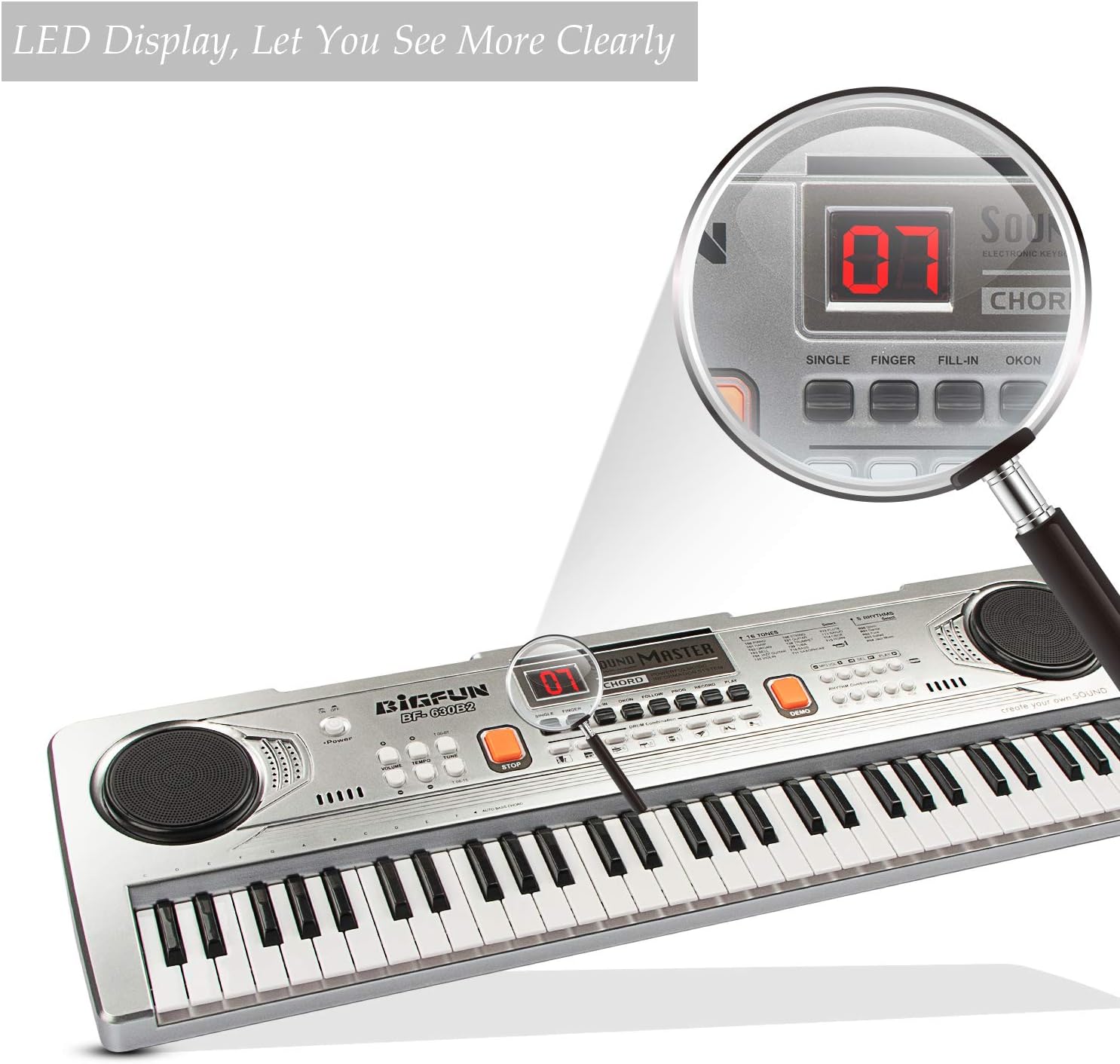
Image: A magnified view of the LED display on the keyboard's control panel, showing a clear digital readout for selected functions.

Image: A child enthusiastically playing the BIGFUN keyboard, with a graphic overlay emphasizing the "HI-FI SPEAKERS DESIGN" and its ability to produce amazing sound and clearer scales.

Image: A visual comparison illustrating the "Large piano keys" feature of the BIGFUN keyboard (2.7x0.63in key size) compared to a keyboard with smaller keys, indicating a more comfortable playing experience.
Setup
Powering the Keyboard
The keyboard can be powered in two ways:
- USB Power: Connect the provided USB power cable to the USB port on the keyboard and plug the other end into a compatible USB power adapter (not included) or a computer USB port.
- Battery Power: (If applicable, check battery compartment) Insert 4 x AA batteries (not included) into the battery compartment located on the underside of the keyboard. Ensure correct polarity.
Connecting the Microphone
Plug the microphone's 3.5mm jack into the microphone input port on the keyboard. The microphone allows you to sing along while playing.
Operating Instructions
Turning On/Off and Volume Adjustment
- Press the Power button to turn the keyboard on.
- Rotate the Volume knob to adjust the sound level.
- Press the Power button again to turn the keyboard off.
Selecting Tones (Instrument Sounds)
- Press the Tone Select buttons to cycle through the 16 available instrument sounds. The selected tone number will be displayed on the LED screen.
- Experiment with different tones to find your favorite sounds.
Selecting Rhythms
- Press the Rhythm Select buttons to choose from the 5 built-in rhythm patterns. The selected rhythm number will appear on the LED screen.
- Use the Tempo control (if available) to adjust the speed of the rhythm.
Recording and Playback
- Press the Record button to start recording your performance. The keyboard will record the notes you play.
- Press the Play button to listen to your recorded melody.
- To record a new melody, simply press Record again. The previous recording will be overwritten.
Demonstration Songs
- Press the Demo button to play through the pre-programmed demonstration songs.
- Press Demo again to stop playback or cycle to the next song.
Maintenance
- Cleaning: Wipe the keyboard with a soft, dry cloth. Do not use abrasive cleaners or solvents.
- Storage: Store the keyboard in a cool, dry place away from direct sunlight and extreme temperatures.
- Battery Care: If not using the keyboard for an extended period, remove the batteries to prevent leakage.
Troubleshooting
| Problem | Possible Cause | Solution |
|---|---|---|
| Keyboard does not turn on. | No power, low batteries, or faulty connection. | Ensure USB cable is securely connected or replace batteries. |
| No sound from speakers. | Volume too low, mute function active, or speaker issue. | Increase volume. Check if any mute button is pressed (if applicable). |
| Microphone not working. | Microphone not plugged in correctly or faulty microphone. | Ensure microphone is fully inserted into the jack. Test with another microphone if possible. |
| Keys are unresponsive. | Internal malfunction or debris under keys. | Turn off and on again. If problem persists, contact customer support. |
Specifications
- Brand: BIGFUN
- Model: BF-630B2
- Number of Keys: 61
- Material Type: Acrylonitrile Butadiene Styrene, Plastic
- Power Source: Electric (USB)
- Connectivity Technology: Auxiliary (for microphone)
- Item Weight: 2.29 pounds
- Package Dimensions: 25 x 8 x 2.75 inches
- Skill Level: Beginner
- Age Range (Description): Kid (3-12 Years Old)
- Special Feature: Portable
Warranty and Support
BIGFUN products are manufactured with high quality standards. For any questions, technical support, or warranty claims, please contact our customer service team. Please have your product model and purchase date ready when contacting support.
For more information, visit the official BIGFUN store: BIGFUN Store on Amazon
Related documentsBF-630B2


Ask a question about this manual
Ask about setup, troubleshooting, compatibility, parts, safety, or missing instructions. Manuals+ will review the question and use this page’s manual context to help answer it.