
1. Introduction
This manual provides essential information for the safe and efficient operation of your iProda 2 in 1 Laptop, Model M1169YM. Please read this manual thoroughly before using the device and retain it for future reference. This convertible laptop features an 11.6-inch touchscreen, powered by an Intel N4100 processor, and runs on Windows 10 Pro.

Image: The iProda 2 in 1 Laptop can be used in multiple configurations, including traditional laptop, tent, stand, and tablet modes, showcasing its versatility.
2. Safety Information
Observe the following safety precautions to prevent damage to your device or injury to yourself:
- Do not expose the device to extreme temperatures, direct sunlight, or high humidity.
- Avoid dropping or subjecting the device to severe impact.
- Use only the provided or approved power adapter for charging.
- Keep the device away from water and other liquids.
- Do not attempt to disassemble or repair the device yourself. Refer to qualified service personnel.
3. Package Contents
Verify that all items are present in your package:
- iProda 2 in 1 Laptop (Model M1169YM)
- Power Adapter
- User Manual (this document)
4. Product Overview
The iProda 2 in 1 Laptop is designed for versatility, offering multiple usage modes and essential connectivity options.
4.1. Key Features
- 11.6-inch IPS Touchscreen: A responsive 10-point precision touchscreen with 1920x1080 resolution for interactive use.
- Convertible Design: 360-degree hinge allows seamless transition between laptop, tablet, tent, and stand modes.
- Intel N4100 Processor: Provides efficient performance for daily tasks.
- Windows 10 Pro: Pre-installed operating system for productivity and security.
- Expandable Storage: Supports M.2 2242 SSD for additional storage capacity.

Image: Key features of the iProda laptop, including its touchscreen, operating system, display specifications, and camera resolution.

Image: The laptop's 360-degree hinge allows it to convert into a tablet, enabling direct interaction via its precision touchscreen.
4.2. Ports and Buttons
Familiarize yourself with the various ports and buttons on your laptop:
- Type-C Port: Used for power supply and data transfer.
- Micro HDMI: For connecting to external displays.
- Micro USB: For connecting USB devices.
- TF Card Slot: For expanding storage with a TF (MicroSD) card.
- Power Button: To turn the device on/off or put it to sleep.
- Volume Buttons: To adjust audio output.
- Earphone Jack: For connecting headphones or external speakers.

Image: A detailed view of the laptop's side panels, indicating the location and function of each port and button for easy identification.
5. Setup
5.1. Charging the Battery
Before first use, fully charge the laptop's battery. Connect the provided power adapter to the Type-C port on the laptop and plug it into a power outlet. The charging indicator light will illuminate.
5.2. First Boot and Windows Setup
- Press and hold the Power Button until the screen turns on.
- Follow the on-screen instructions to complete the Windows 10 Pro initial setup, including language selection, network connection, and user account creation.
6. Operating Your Laptop
6.1. Using the Touchscreen
The 10-point precision touchscreen allows for intuitive interaction with Windows 10 Pro. Use gestures such as tapping, swiping, pinching, and stretching to navigate, zoom, and interact with applications.
6.2. Keyboard and Touchpad
The integrated keyboard and touchpad provide traditional input methods. The touchpad supports multi-touch gestures for scrolling, zooming, and switching applications.

Image: The laptop's full-size American keyboard and responsive touchpad, designed for comfortable typing and navigation.
6.3. Convertible Modes
The 360-degree hinge allows you to switch between various modes:
- Laptop Mode: Standard configuration for typing and productivity.
- Tablet Mode: Fold the screen back completely for a tablet experience, ideal for browsing or drawing.
- Tent Mode: Position the laptop like a tent for media consumption or presentations.
- Stand Mode: Flip the keyboard face down to use the screen as a display, suitable for watching videos.

Image: The laptop configured in tent mode, demonstrating its flexibility for viewing content without the keyboard in the way.
7. Storage Expansion
The laptop comes with 64GB eMMC storage. You can expand the storage capacity by installing an M.2 2242 SSD (128GB/256GB/512GB, not included).
7.1. Installing an M.2 2242 SSD
To install an M.2 2242 SSD:
- Power off the laptop and disconnect the power adapter.
- Carefully open the back cover of the laptop.
- Locate the M.2 slot.
- Insert the M.2 2242 SSD into the slot and secure it with the appropriate screw (if provided).
- Replace the back cover.
- Upon booting, you may need to initialize and format the new SSD through Windows Disk Management.
Note: If you are unsure about this procedure, it is recommended to seek professional assistance.

Image: Visual representation of the M.2 SSD slot, illustrating how additional storage can be integrated into the laptop.
8. Connectivity
8.1. Wi-Fi Connection
The laptop supports dual-frequency 2.4GHz/5GHz Wi-Fi. To connect to a wireless network:
- Click the Wi-Fi icon in the system tray.
- Select your desired network from the list.
- Enter the network password if prompted and click 'Connect'.
8.2. External Display (Micro HDMI)
Connect an external monitor or TV using a Micro HDMI to HDMI cable. Once connected, you can configure display settings (duplicate, extend, second screen only) through Windows display settings.
8.3. USB Devices
Use the Micro USB port or the Type-C port (with an appropriate adapter) to connect peripherals such as a mouse, keyboard, or external storage devices.
9. Maintenance
9.1. Cleaning
To clean the laptop, power it off and disconnect the power adapter. Use a soft, lint-free cloth slightly dampened with water or a screen cleaner for the display. Avoid harsh chemicals or abrasive materials.
9.2. Battery Care
To prolong battery life:
- Avoid fully discharging the battery frequently.
- Do not expose the laptop to high temperatures.
- If storing the laptop for an extended period, ensure the battery is charged to around 50-70%.
10. Troubleshooting
Here are solutions to common issues you might encounter:
| Problem | Solution |
|---|---|
| Laptop does not power on. | Ensure the battery is charged. Connect the power adapter and try again. If still unresponsive, perform a hard reset by holding the power button for 10-15 seconds. |
| Screen is blank or flickering. | Restart the laptop. Check if an external display is connected and interfering. Update display drivers if possible. |
| Wi-Fi connection issues. | Ensure Wi-Fi is enabled. Restart your router and the laptop. Check network settings in Windows. |
| Touchscreen is unresponsive. | Restart the laptop. Ensure the screen is clean. Check for any pending Windows updates or driver updates for the touchscreen. |
11. Specifications
Technical specifications for the iProda 2 in 1 Laptop (Model M1169YM):
| Feature | Detail |
|---|---|
| Brand | iProda |
| Model Number | M1169YM |
| Operating System | Windows 10 Pro |
| Screen Size | 11.6 Inches |
| Screen Resolution | 1920 x 1080 pixels (1080p) |
| Processor | Intel N4100 (up to 2.4 GHz Burst Frequency) |
| RAM | 4 GB DDR4 |
| Hard Drive | 64 GB eMMC |
| Graphics Card | Integrated (UHD 600 Graphics) |
| Wireless Type | 2.4 GHz / 5 GHz Dual-frequency Wi-Fi |
| Average Battery Life | 8 Hours (3500mAh, 27Wh) |
| Item Weight | 3.63 pounds |
| Product Dimensions | 11.99 x 11.6 x 0.5 inches |
| Connectivity Technology | HDMI, USB Type-C, Micro USB |
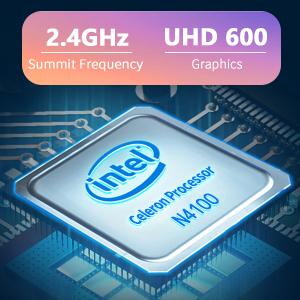
Image: The Intel Celeron N4100 processor, central to the laptop's performance, highlighting its clock speed and integrated graphics capabilities.

Image: The laptop's battery specifications, indicating its power capacity for extended use.
12. Warranty and Support
For warranty information and technical support, please refer to the documentation included with your purchase or visit the official iProda website. Contact information for customer service can typically be found on the manufacturer's support page.