
Amazon 4K50N400A
Amazon Fire TV 50" 4-Series 4K UHD Smart TV User Manual
Model: 4K50N400A
Introduction
This manual provides essential information for setting up, operating, and maintaining your Amazon Fire TV 50-inch 4-Series 4K UHD Smart TV. Please read these instructions carefully before use to ensure proper functionality and safety.

Image: Front view of the Amazon Fire TV 4-Series, displaying the Fire TV logo on screen.
What's Included
Verify that all components are present in the packaging:
- Fire TV 4-Series 50-inch Smart TV
- Alexa Voice Remote Enhanced
- Power cord
- 2 AAA batteries
- 4 screws for TV stand
- TV stand (2 legs)
- Quick Start Guide

Image: All components included in the box: Fire TV 4-Series, TV legs, power cord, 4 screws, 2 AAA batteries, and Alexa Voice Remote.
Setup
1. Attaching the TV Stand Legs
Carefully place the TV screen-down on a soft, clean surface to prevent damage. Align the TV stand legs with the designated slots on the bottom of the TV. Secure each leg using the provided screws.
2. Connecting Power
Connect the power cord to the TV's power input, then plug the other end into a wall outlet. Do not power on the TV yet.
3. Connecting External Devices
The Fire TV 4-Series includes multiple ports for external devices:
- HDMI Ports: 3 HDMI 2.0 ports and 1 HDMI 2.1 port with eARC for connecting gaming consoles, cable boxes, soundbars, and other audio/video equipment.
- Ethernet Port: For a wired internet connection.
- USB Port: For connecting USB devices.
- Digital Optical Audio Output: For connecting to external audio systems.
- Cable/Antenna Input: For connecting an antenna or cable TV.

Image: Close-up view of the TV's side ports, including Ethernet, multiple HDMI inputs (one with eARC), Cable/Antenna, USB, IR Emitter, Headphone, and Optical audio output.
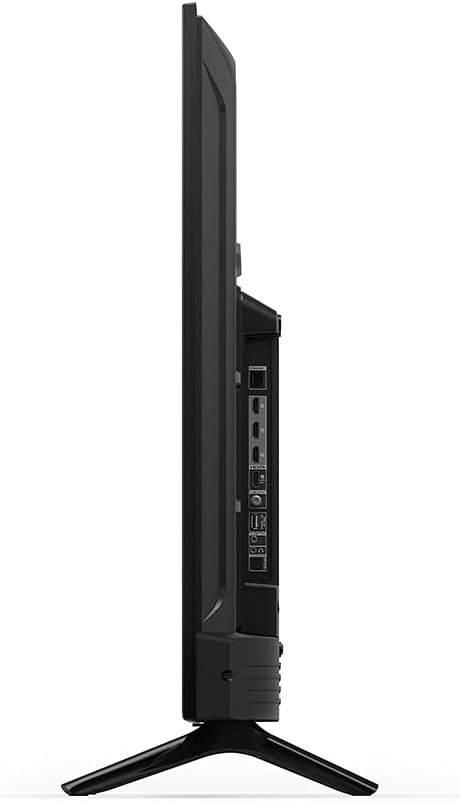
Image: Side profile of the Fire TV 4-Series, showing the arrangement of various input/output ports.

Image: Rear view of the Fire TV 4-Series, showing the mounting points and general back panel design.
4. Initial Setup and Software Updates
After connecting all necessary cables, power on the TV. Follow the on-screen instructions to:
- Select your language.
- Connect to your Wi-Fi network or use the Ethernet connection.
- Sign in with your Amazon account.
- The TV will automatically check for and install software updates. This process may take some time and involve multiple restarts. Ensure the TV remains powered during updates.
Operating Your Fire TV
Alexa Voice Remote Enhanced
The included Alexa Voice Remote Enhanced allows for easy navigation and voice control. Insert the 2 AAA batteries into the remote. Press and hold the voice button to speak commands to Alexa. You can ask Alexa to find content, launch apps, control playback, check weather, and more.
The remote can also control certain functions (power, volume) on compatible IR-enabled devices like soundbars and A/V receivers. Note that some functions may not be available on all devices.
Navigating Fire TV OS
The Fire TV OS provides a user-friendly interface for accessing content. Use the remote's navigation pad to browse the home screen, apps, and settings. The home screen displays recommended content, recently used apps, and various categories.
Streaming Content
Access a wide range of streaming services by downloading apps from the Appstore. Subscriptions may be required for certain services. The TV supports vivid 4K Ultra HD, HDR 10, and HLG for a clearer and more vibrant picture.

Image: A screenshot of the Fire TV interface displaying logos for popular streaming services such as Prime Video, Apple TV, Disney+, Max, and YouTube.
Audio Settings
The TV supports Dolby Digital Plus with passthrough of Dolby-encoded audio. You can adjust audio settings in the TV's menu to optimize sound output for your environment or external audio systems.
Maintenance
General Care
- Clean the screen with a soft, dry, lint-free cloth. Do not use liquid cleaners or sprays directly on the screen.
- Wipe the TV's frame and stand with a soft, damp cloth.
- Ensure proper ventilation around the TV to prevent overheating.
- Avoid exposing the TV to direct sunlight, extreme temperatures, or high humidity.
Software Updates
Your Fire TV automatically receives software security updates. It is important to allow these updates to install to ensure optimal performance and security. Do not unplug the TV during an update process.
Troubleshooting
If you encounter issues with your Fire TV, refer to the following common solutions:
No Power / No Picture
- Ensure the power cord is securely connected to both the TV and a working power outlet.
- Check if the power outlet is functional by plugging in another device.
- Press the power button on the remote or the TV itself.
Poor Picture Quality / Washed Out Colors
- Verify that the input source is set to the correct HDMI port.
- Check the resolution settings of your external device and the TV.
- Adjust picture settings (brightness, contrast, color) in the TV's menu.
- Ensure HDR settings are correctly configured for your content and external devices. Sometimes turning off HDR on both the TV and the source device can improve picture quality if not properly supported.
- Note that viewing angles can affect picture quality. For optimal viewing, position yourself directly in front of the TV.
No Sound / Distorted Audio
- Check the TV's volume level and ensure it is not muted.
- If using external audio equipment (soundbar, receiver), ensure it is powered on and correctly connected.
- Verify the audio output settings on the TV (e.g., internal speakers, optical out, HDMI eARC).
- If audio cuts out during transitions, this might be an app-specific issue. Try restarting the app or the TV.
Remote Control Issues
- Replace the AAA batteries in the Alexa Voice Remote Enhanced.
- Ensure there are no obstructions between the remote and the TV.
- If the remote is unresponsive, try re-pairing it with the TV (refer to the Quick Start Guide for specific instructions).
Connectivity Problems (Wi-Fi / Ethernet)
- Restart your Wi-Fi router and modem.
- Ensure the TV is within range of your Wi-Fi network.
- If using Ethernet, check the cable connection.
- Go to the TV's network settings to re-establish the connection.
App Installation / Performance Issues
- Ensure your internet connection is stable and fast enough for downloads.
- Restart the Fire TV. Sometimes app installation issues resolve after a restart.
- Clear the cache for the Appstore or the problematic app in the TV's settings.
Specifications
| Model Number | 4K50N400A |
| Screen Size | 50 inches (49.5 inches viewable) |
| Resolution | 3840 x 2160 (4K UHD) |
| High Dynamic Range (HDR) Format | HDR 10, HLG |
| Backlight Type | Direct LED |
| Refresh Rate | 60 Hz |
| HDMI Ports | 3 HDMI 2.0 + 1 HDMI 2.1 with eARC |
| Ethernet | 1 Ethernet port |
| USB | 1 USB port |
| Audio Support | Dolby Digital Plus with passthrough of Dolby-encoded audio |
| Audio Power | 8W + 8W |
| Operating System | Fire TV OS |
| Product Size (without stand) | 44.2” x 25.6” x 3.5” |
| Weight (without stand) | 20.6 lb |
| VESA Wall Mount Standard | 300 mm x 300 mm |
| Connectivity | Wi-Fi or Ethernet |
| Alexa Voice Remote Enhanced (Included) | Bluetooth 5.0, 2 AAA batteries (included) |
Accessibility Features
The Fire TV 4-Series includes features to assist users with various needs:
- VoiceView Screen Reader: Enables access to most Fire TV features for users who are blind or visually impaired.
- Screen Magnifier: Allows users to zoom in and out, and pan around the screen.
- Text Banner: Consolidates on-screen text into a compact, customizable banner.
- Closed Captioning: Available for videos and TV shows where supported.
- Audio Description: Provides verbal descriptions of on-screen actions, facial expressions, and scene changes (availability varies by content).
- Bluetooth Hearing Aids/Devices: Supports audio streaming for select compatible Bluetooth hearing aids and devices for a private listening experience. Compatible Bluetooth headphones can also be used.
Note: "Hearing aids" refers to compatible Bluetooth hearing devices such as traditional hearing aids, cochlear implants, and bone conduction hearing devices. Captions and audio descriptions are not available for all content.
Warranty and Support
Warranty
Your Fire TV 4-Series comes with a 1-year limited warranty and service. Optional 3-Year and 4-Year Extended Warranty plans are available for U.S. customers and are sold separately. Use of Fire TV is subject to the terms found here.
Support
For more information, you can explore the User Manual available online. For device-specific information regarding software security updates, visit Manage Your Content and Devices.
Related documents4K50N400A


Ask a question about this manual
Ask about setup, troubleshooting, compatibility, parts, safety, or missing instructions. Manuals+ will review the question and use this page’s manual context to help answer it.