
NIIMBOT D11
NIIMBOT D11 Label Maker User Manual
Wireless Bluetooth Connection Portable Printer
Product Overview
The NIIMBOT D11 is a compact and portable label maker designed for various organizational needs in offices, homes, and small businesses. Utilizing thermal printing technology, it eliminates the need for ink or toner, offering a cost-effective and convenient labeling solution. It connects wirelessly via Bluetooth to your smartphone or tablet, allowing you to design and print labels using the dedicated NIIMBOT app.
This manual provides comprehensive instructions for setting up, operating, maintaining, and troubleshooting your NIIMBOT D11 Label Maker.

Image: The NIIMBOT D11 Label Maker in light blue, shown with a roll of label tape. The printer is compact and designed for portability.
Specifications
| Feature | Detail |
|---|---|
| Product Material | ABS+PS |
| Print Mode | Thermal Line Printing |
| Print Speed | 30-60mm/s |
| Print Head Life | 50KM |
| Data Transfer | Bluetooth 4.0 |
| Resolution | 203dpi |
| Voltage | 5V, 1A |
| Charging Time | 3-4 hours |
| Wireless Distance | 10 meters |
| Battery | Built-in 1200mAh Rechargeable Lithium Battery |
| Item Size | 5.2'' x 3.1'' x 1.1'' (13.2cm x 7.9cm x 2.8cm) |
| Item Weight | 6.6oz (187g) |
| Color | Green (as per product listing, though images show light blue) |

Image: Detailed view of the NIIMBOT D11 Label Maker showing its dimensions (5.11in/130mm height, 2.95in/75mm width, 1.1in/28mm thickness) and key features like the visual window, open key, equipment normal lamp, and non-slip handle.

Image: Illustration highlighting the high-quality printing capabilities of the NIIMBOT D11, including 203dpi resolution, print speed of 30-60mm/s, and monochrome (black text only) output.
Setup Guide
1. Unboxing and Initial Charge
Upon unboxing, ensure all components are present:
- 1 x NIIMBOT D11 Label Printer
- 1 x User Manual
- 1 x Roll of Printer Paper (pre-installed inside the printer)
Before first use, fully charge the device using a 5V, 1A USB power adapter. The charging time is approximately 3-4 hours.
2. App Download and Installation
The NIIMBOT D11 operates exclusively with the NIIMBOT app. It does not support connection to computers.
- Download the "NIIMBOT" app from the App Store (for iOS devices) or Google Play Store (for Android devices).
- Install the app on your smartphone or tablet.
3. Loading Label Paper
The printer supports only official designated consumable paper or label tapes, which contain a chip for recognition.
- Open the label compartment by pressing the designated key (refer to the product diagram for location).
- Insert the label paper roll with the print side facing down. Ensure the label content is positioned in the middle to prevent printing failures.
- Close the label compartment securely.
Operating Instructions
1. Power On/Off
- To Power On: Press and hold the power button for 2 seconds.
- To Power Off: Press and hold the power button for 2 seconds. The device also features an auto power-off function after 15 minutes of inactivity to conserve battery.
2. Bluetooth Connection
The NIIMBOT D11 connects exclusively via Bluetooth 4.0.
- Ensure Bluetooth is enabled on your smartphone or tablet.
- Open the NIIMBOT app.
- Within the app, search for and connect to your D11 printer. The printer's indicator light will confirm a successful connection.
3. Using the NIIMBOT App
The NIIMBOT app provides a rich set of features for label creation:
- Multi-national Languages: Supports various languages for text input.
- Templates: Access a wide range of pre-designed templates for different uses.
- Customization: Create customized labels with text, pictures, icons, and borders.
- Barcode/QR Code: Generate 1D/2D barcodes and QR codes. For example, scan this QR code: Hi I am a QR Code.
- Smart OCR Scanner: Utilize OCR (Optical Character Recognition) to convert images of text into editable text.
- Preview and Save: Preview your label design before printing and save your designs for future use.
- Massive Icons: Access a large library of vivid icons to enhance your labels.

Image: The NIIMBOT D11 Label Maker alongside a smartphone screen displaying the NIIMBOT app interface, emphasizing its ease of use, inkless printing, Bluetooth connectivity, and no carbon requirement.

Image: Examples of "Unlimited Creation" with the NIIMBOT D11, showing various label applications such as text, icons, time stamps, borders, 1D codes, QR codes, forms, pictures, and shapes, applied to items like folders, storage boxes, and food containers.
4. Printing Labels
Once your label design is complete in the app and the printer is connected, select the print option within the app. The label will be printed quickly and efficiently.
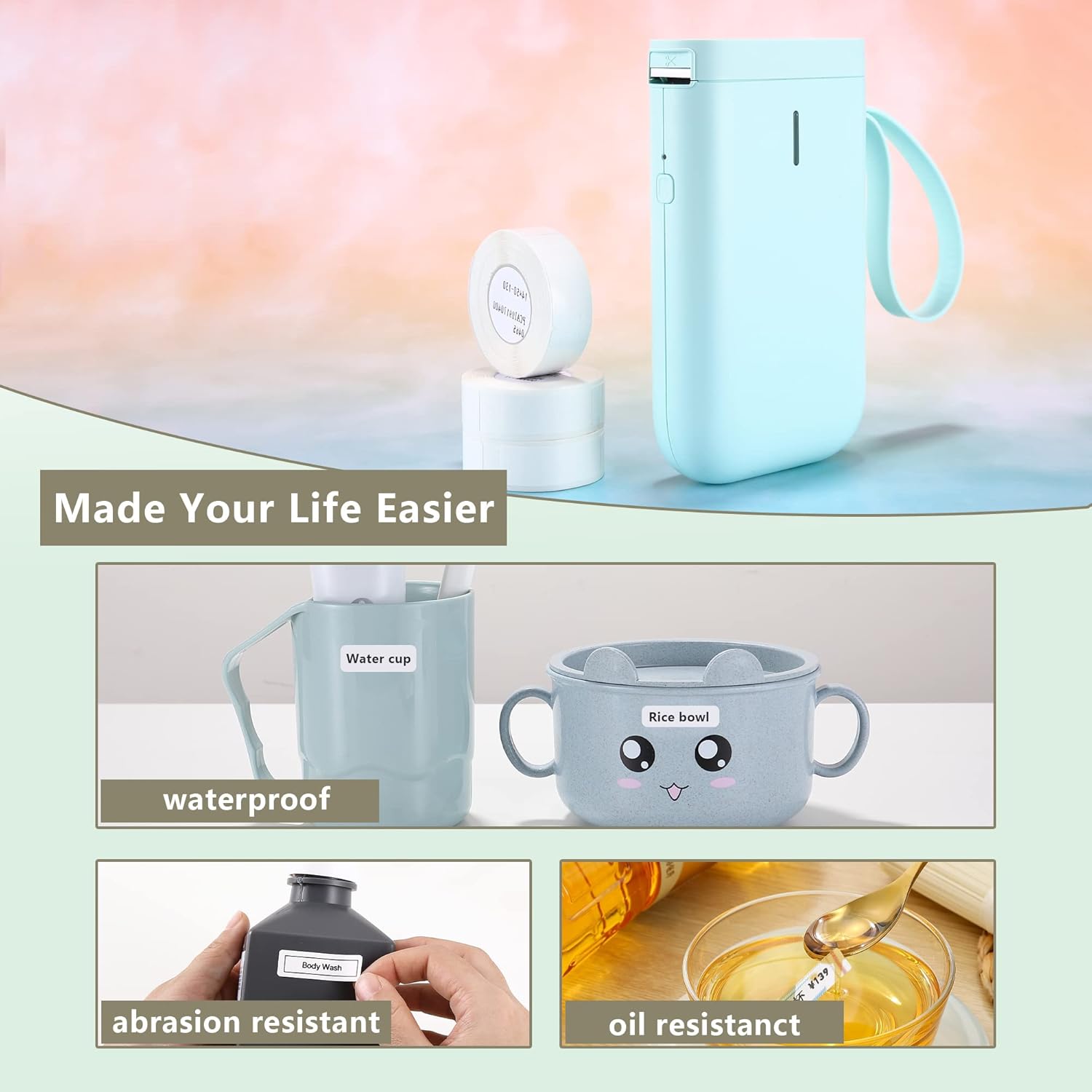
Image: Demonstrates how the NIIMBOT D11 makes life easier with labels that are waterproof (shown on a water cup), abrasion resistant (shown on a body wash bottle), and oil resistant (shown with cooking oil), highlighting the durability of the printed labels.
Maintenance and Care
To ensure the longevity and optimal performance of your NIIMBOT D11 Label Maker, follow these maintenance guidelines:
- Cleaning the Print Head: Regularly check the paper bin for any debris. If debris is present, it can damage the print head. Use a specialized cleaning device or a cotton swab lightly dampened with alcohol to gently clean the paper bin and print head.
- Storage: Store the printer in a cool, dry place away from direct sunlight and extreme temperatures.
- Battery Care: Avoid fully discharging the battery frequently. Charge the device regularly, even if not in constant use, to maintain battery health.
- Consumables: Only use official designated consumable paper or label tapes. Using unofficial tapes may lead to poor print quality or damage to the printer.
Troubleshooting
If you encounter issues with your NIIMBOT D11 Label Maker, refer to the following common problems and solutions:
- Printer not turning on:
- Ensure the battery is charged. Connect the printer to a power source and allow it to charge for a few hours.
- Press and hold the power button for at least 2 seconds.
- Unable to connect via Bluetooth:
- Make sure Bluetooth is enabled on your mobile device.
- Ensure the NIIMBOT app is open and you are attempting to connect from within the app, not directly from your device's Bluetooth settings.
- Restart both the printer and your mobile device.
- Ensure the printer is within the 10-meter wireless distance range.
- Poor print quality or blank labels:
- Check if the label paper is inserted correctly with the print side down.
- Ensure the label paper is official NIIMBOT consumable paper.
- Clean the print head as described in the Maintenance section.
- Check if the label roll is nearly empty.
- Labels not feeding correctly:
- Ensure the label roll is properly seated in the compartment and not jammed.
- Verify that the label paper is not creased or damaged.
- App crashes or freezes:
- Close and restart the NIIMBOT app.
- Ensure your app is updated to the latest version.
- Clear the app's cache on your mobile device.
If the problem persists, please refer to the Support section for further assistance.
Safety Information
Please read and adhere to the following safety guidelines to ensure safe operation and prevent damage to the device or injury:
- Ensure that the paper bin is clean before using the printer. If there is any debris in the paper bin, the printer head may be damaged during printing. In case of any debris, use a special cleaning device or alcohol to clean the paper bin and print head.
- Turn off the power immediately if the printer malfunctions.
- There are complex circuits and devices inside the printer; please do not disassemble the printer without authorization.
- Do not use the printer where there are inflammable substances like gas and fuel warehouses.
- Keep out of reach of children.
Warranty and Support
NIIMBOT provides support for its products. If you have any questions about the Label Printer, please feel free to contact us. We offer:
- Free English app support.
- Technical support.
- Customized services.
For contact information, please refer to the packaging or the official NIIMBOT website.
Related documentsD11


Ask a question about this manual
Ask about setup, troubleshooting, compatibility, parts, safety, or missing instructions. Manuals+ will review the question and use this page’s manual context to help answer it.