1. Introduction
This manual provides detailed instructions for the installation, operation, and maintenance of your hizpo Android 10 8-inch Car Stereo. This unit is designed to enhance your driving experience with advanced features such as GPS navigation, Bluetooth connectivity, multimedia playback, and smartphone integration. Please read this manual thoroughly before using the product to ensure proper operation and to prevent damage.
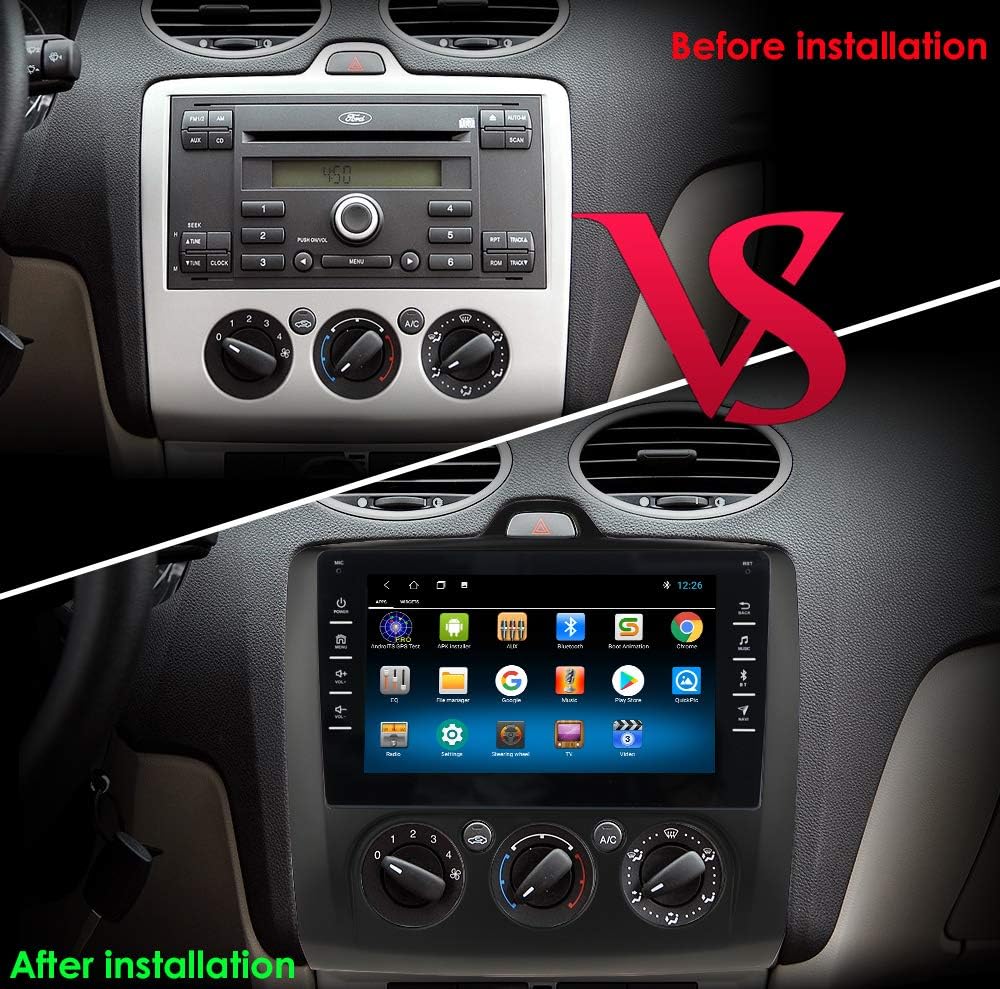
Product Compatibility: This car stereo is specifically designed for Ford Focus Exi MT 2 3 Mk2/Mk3 models manufactured between 2004 and 2011.
2. Safety Information
- Professional Installation Recommended: Due to the complexity of car electrical systems, professional installation is highly recommended to avoid damage to the unit or your vehicle.
- Driving Safety: Do not operate the unit in a way that distracts you from driving. Always prioritize road safety.
- Volume Control: Keep the volume at a level that allows you to hear outside traffic and emergency signals.
- Power Supply: Ensure the unit is connected to a 12V DC power supply with negative grounding.
- Avoid Moisture: Do not expose the unit to water or excessive moisture.
3. Installation
Proper installation is crucial for the optimal performance of your car stereo. It is strongly advised to have the unit installed by a qualified professional.
3.1 Pre-Installation Check
- Verify all components listed in the package contents are present.
- Ensure the vehicle's ignition is off and the battery is disconnected before starting installation.
3.2 General Installation Steps
- Carefully remove the existing car stereo and trim panel from your Ford Focus.
- Connect the provided wiring harness to the vehicle's factory wiring. Ensure all connections are secure.
- Connect the GPS antenna, Wi-Fi antenna, and any other external accessories (e.g., USB cables, reverse camera) to the corresponding ports on the new head unit.
- Mount the hizpo car stereo into the dashboard opening.
- Reconnect the vehicle's battery and test the unit's functionality before fully reassembling the dashboard.
4. Setup and Initial Configuration
4.1 First Power-On
After successful installation, turn on your vehicle's ignition. The hizpo logo will appear, and the system will boot up to the main Android interface.

4.2 Network Connection (Wi-Fi/4G)
To access online features, connect the unit to a Wi-Fi network or insert a 4G SIM card (if supported by your specific model and an external 4G dongle is used).
- Go to Settings > Network & Internet.
- Enable Wi-Fi and select your desired network. Enter the password if prompted.
4.3 Date and Time Settings
The unit typically synchronizes date and time automatically via GPS or network. If manual adjustment is needed:
- Go to Settings > System > Date & Time.
- Disable "Automatic date & time" and "Automatic time zone" to set manually.
5. Operating Instructions
5.1 Bluetooth Functionality
The unit supports Bluetooth for hands-free calling and audio streaming (A2DP).
- Enable Bluetooth on your mobile phone and make it discoverable.
- On the car stereo, open the Bluetooth application.
- Search for available devices and select your phone from the list.
- Confirm the pairing code on both devices.
- Once paired, you can make/receive calls and stream music. The unit has a built-in microphone for calls.

5.2 Steering Wheel Control
The unit supports integration with your vehicle's steering wheel controls, allowing for safer operation while driving.
- Go to Settings > Steering Wheel Control.
- Follow the on-screen instructions to map the functions of your steering wheel buttons (e.g., volume up/down, track skip, answer call) to the car stereo's commands.

5.3 8-inch Capacitive Touch Screen
The unit features an 8-inch multi-touch capacitive screen for responsive and intuitive interaction.
- Tap: Select items or activate functions.
- Swipe: Navigate through menus or scroll lists.
- Pinch-to-Zoom: Adjust zoom levels in maps or images.

5.4 Multimedia Playback
The car stereo supports various audio, video, and picture formats.
- Music Formats: MP3, WMA, AAC, RM, FLAC, etc.
- Video Formats: MPEG-1/2/4, H264, H263, VC1, RMVB, DivX, Sorenson Spark, VP8, AVS Stream, etc.
- Picture Formats: JPG/BMP/JPEG/GIF/PNG.
Access your media files through the Music, Video, or Gallery applications.

5.5 GPS Navigation
The unit features an integrated GPS navigator running on the Android operating system.
- Supported Maps: Compatible with popular navigation applications like IGo, Kudos, Sygic, Google Maps, etc.
- Voice Guidance: Provides turn-by-turn voice instructions.
- 2D/3D Map Views: Offers both two-dimensional and three-dimensional map perspectives.
- Dual Zone Function: Allows navigation to run in the background while other media plays.
- Online Navigation: Supports online navigation with Google Maps or other compatible apps when connected to the internet.

5.6 USB Connection
The unit includes USB ports for connecting external storage devices, supporting up to 2TB.
- Connect your USB drive to the designated USB port.
- Access files through the File Manager or directly from the Music/Video applications.

5.7 Mirror Link (Apple CarPlay / Android Auto)
The unit supports Mirror Link functionality, including wireless Apple CarPlay and Android Auto, allowing seamless integration with your smartphone.
- For iPhone (Wireless CarPlay): Connect your iPhone to the unit via Wi-Fi. Create a Wi-Fi hotspot on your iPhone and connect the car stereo to it. Use the AirPlay (PRO) app on the unit to mirror your iPhone's display.
- For Android (Wireless Android Auto / Mirror Link): Connect your Android smartphone via Wi-Fi or a USB charging cable. Use the Easy-Connect app on the unit to mirror your Android phone's display.
This feature allows you to access your phone's navigation, make calls, send/receive messages, and listen to music/podcasts directly on the car stereo's screen.

5.8 Radio (FM/DAB+)
The unit includes an FM radio tuner and supports DAB+ (Digital Audio Broadcasting) for high-quality digital radio reception.
- Open the Radio application.
- Select FM or DAB+ mode.
- Use the scan function to find available stations or manually tune to a frequency.
6. Troubleshooting
If you encounter issues with your hizpo car stereo, refer to the following common problems and solutions:
| Problem | Possible Cause | Solution |
|---|---|---|
| No power | Incorrect wiring, blown fuse, vehicle battery issue. | Check power connections, inspect fuses, ensure vehicle battery is charged. Consult a professional installer. |
| No sound | Speaker wiring issues, volume too low, mute activated, incorrect audio output settings. | Check speaker connections, increase volume, disable mute, verify audio settings. |
| GPS signal lost or inaccurate | GPS antenna not properly connected or obstructed, poor satellite reception. | Ensure GPS antenna is securely connected and placed in an unobstructed location (e.g., dashboard). Move to an open area for better reception. |
| Bluetooth connection issues | Phone not discoverable, incorrect pairing, interference. | Ensure phone's Bluetooth is on and discoverable. Delete previous pairings and re-pair. Restart both devices. |
| Touch screen unresponsive | System freeze, temporary software glitch. | Perform a soft reset (refer to the unit's reset button, usually a small pinhole). If persistent, disconnect power for a few minutes. |
If the problem persists after attempting these solutions, please contact hizpo customer support or a qualified service technician.
7. Specifications
| Feature | Specification |
|---|---|
| Brand | hizpo |
| Model Number | 1GB+16GB |
| Operating System | Android 10 |
| Screen Size | 8 Inches |
| Screen Type | Capacitive Multi-touch |
| Connectivity Technology | Bluetooth, USB, Wi-Fi |
| Special Features | DAB+, GPS Navigation, Mirror Link, Steering Wheel Control, Apple CarPlay, Android Auto |
| Audio Output Mode | Stereo |
| Number of Channels | 4 |
| Output Power | 180 Watts |
| USB Support | Up to 2TB external memory |
| Compatible Devices | Smartphone |
8. Maintenance
- Screen Cleaning: Use a soft, lint-free cloth to gently wipe the screen. Avoid abrasive cleaners or harsh chemicals.
- Software Updates: Periodically check for software updates through the unit's settings or the manufacturer's website to ensure optimal performance and access to new features.
- Environmental Conditions: Avoid exposing the unit to extreme temperatures, direct sunlight for prolonged periods, or high humidity.
9. Warranty and Support
For warranty information, technical support, or service inquiries, please refer to the documentation provided with your purchase or visit the official hizpo website. Keep your proof of purchase for warranty claims.


