
Coredy G850
Coredy G850 Robot Vacuum User Manual
Model: G850
1. Introduction
The Coredy G850 Robot Vacuum is an advanced cleaning device designed to efficiently clean various floor types, from hard floors to carpets. It features smart navigation, powerful suction, and mopping capabilities, offering a comprehensive solution for automated home cleaning. This manual provides essential information for setting up, operating, maintaining, and troubleshooting your Coredy G850.

Image: The Coredy G850 Robot Vacuum, a circular black device with a blue power button, shown alongside a smartphone displaying the Coredy app interface.
2. Important Safety Instructions
Before using your Coredy G850 Robot Vacuum, please read and understand all safety instructions. Failure to follow these instructions may result in electric shock, fire, or serious injury.
- Do not operate the robot vacuum in wet environments or near water.
- Ensure the charging base is placed on a level surface and away from heat sources.
- Keep loose clothing, hair, and body parts away from moving parts.
- Do not allow children or pets to play with the robot vacuum.
- Only use the original power adapter and charging base provided by Coredy.
- Do not pick up large objects, sharp objects, or liquids with the vacuum.
- Regularly clean the brushes and filters to maintain optimal performance.
- Unplug the charging base when not in use for extended periods.
3. Product Overview
3.1 Key Features
- Optical Flow Sensor: Enhances navigation accuracy, reducing chaotic motion and ensuring large cleaning coverage.
- Geomagnetic Function: Supports random-auto cleaning paths with increased accuracy, complemented by cliff and anti-collision sensors for secure cleaning.
- Smart & Sensitive Voice Identification: Compatible with Alexa and Google Assistant for convenient voice control (2.4Ghz Wi-Fi only).
- Manipulative Water Tank: Electronically controllable with three hydraulic speed modes via the app. Automatically stops watering when recharging. (Water Tank Sold Separately)
- Auto Boost Intellect: Automatically increases suction power to 2500Pa when detecting carpets for deep cleaning.
3.2 Components
The Coredy G850 comes with the main robot unit and a charging base. Additional accessories like the water tank are sold separately.

Image: The Coredy G850 Robot Vacuum demonstrating its interchangeable vacuum and mop function, showing the separate water tank module.
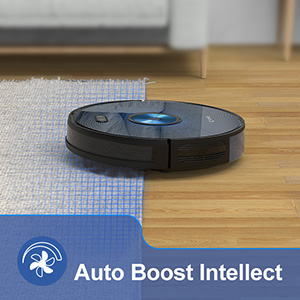
Image: The Coredy G850 Robot Vacuum actively cleaning a hard floor, demonstrating its ability to pick up small debris.
4. Setup
- Unpack and Charge: Remove all packaging materials. Place the charging base against a wall in an open, uncluttered area. Ensure there is at least 0.5 meters of clear space on either side and 1.5 meters in front of the charging base. Connect the power adapter to the charging base and plug it into a wall outlet. Place the Coredy G850 on the charging base to fully charge before first use.
- Power On: Flip the robot vacuum over and push the red ON button to activate it.
- Download the Coredy App: Search for "Coredy Robot" in your smartphone's app store (iOS or Android) and download the application.
- Connect to Wi-Fi: Open the Coredy app and follow the on-screen instructions to connect your robot vacuum to your home Wi-Fi network. Note: The Coredy G850 only supports 2.4Ghz Wi-Fi networks.
- Set Virtual Boundaries (Optional): Use the Coredy app to set up virtual boundaries or no-go zones to restrict the robot from entering specific areas.
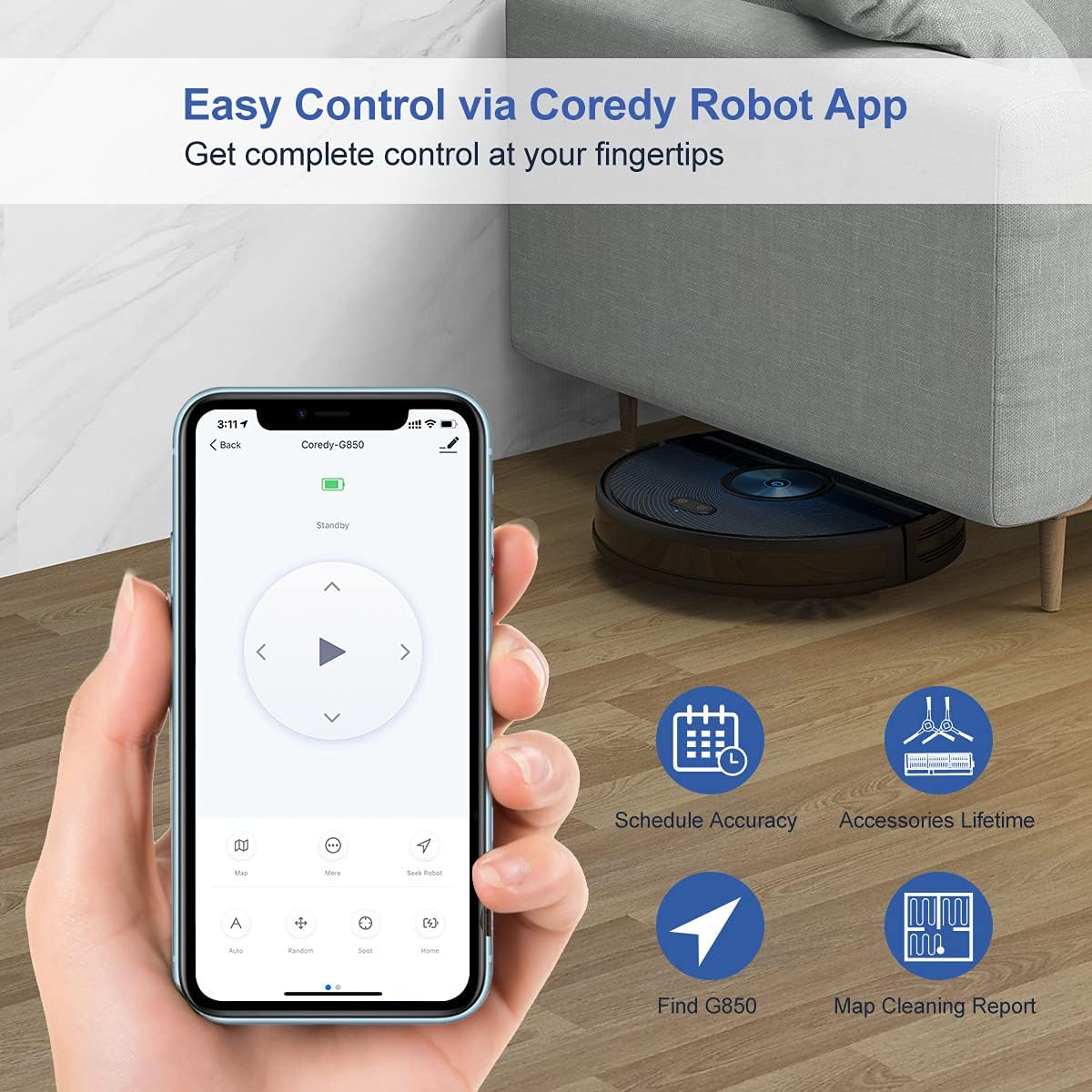
Image: A hand holding a smartphone showing the Coredy Robot App, illustrating easy control and scheduling features.

Image: The Coredy G850 Robot Vacuum approaching a virtual boundary, depicted by a blue grid, demonstrating its ability to avoid restricted areas.
5. Operating Instructions
5.1 Starting a Cleaning Cycle
- Manual Start: Press the power button on the robot or the "Clean" button on the app to start a cleaning cycle.
- Scheduled Cleaning: Use the Coredy app to set up a cleaning schedule for automated cleaning at preferred times.
- Voice Control: Connect your Coredy G850 to Amazon Alexa or Google Assistant. Use simple voice commands like "Alexa, tell Coredy to start cleaning" or "Hey Google, ask Coredy to start cleaning."

Image: The Coredy G850 Robot Vacuum shown with Amazon Alexa and Google Assistant devices, highlighting its convenient voice control capabilities.
5.2 Cleaning Modes
The Coredy G850 offers multiple cleaning modes to suit different needs:
- Auto Cleaning: The robot intelligently navigates and cleans the entire floor area using its optical flow sensor and geomagnetic function.
- Spot Cleaning: Focuses on a specific dirty area, cleaning in a spiral pattern.
- Edge Cleaning: Cleans along walls and furniture edges.
- Mopping Mode: Attach the water tank (sold separately) and select from three water flow levels (Low, Medium, High) via the app for wet cleaning.
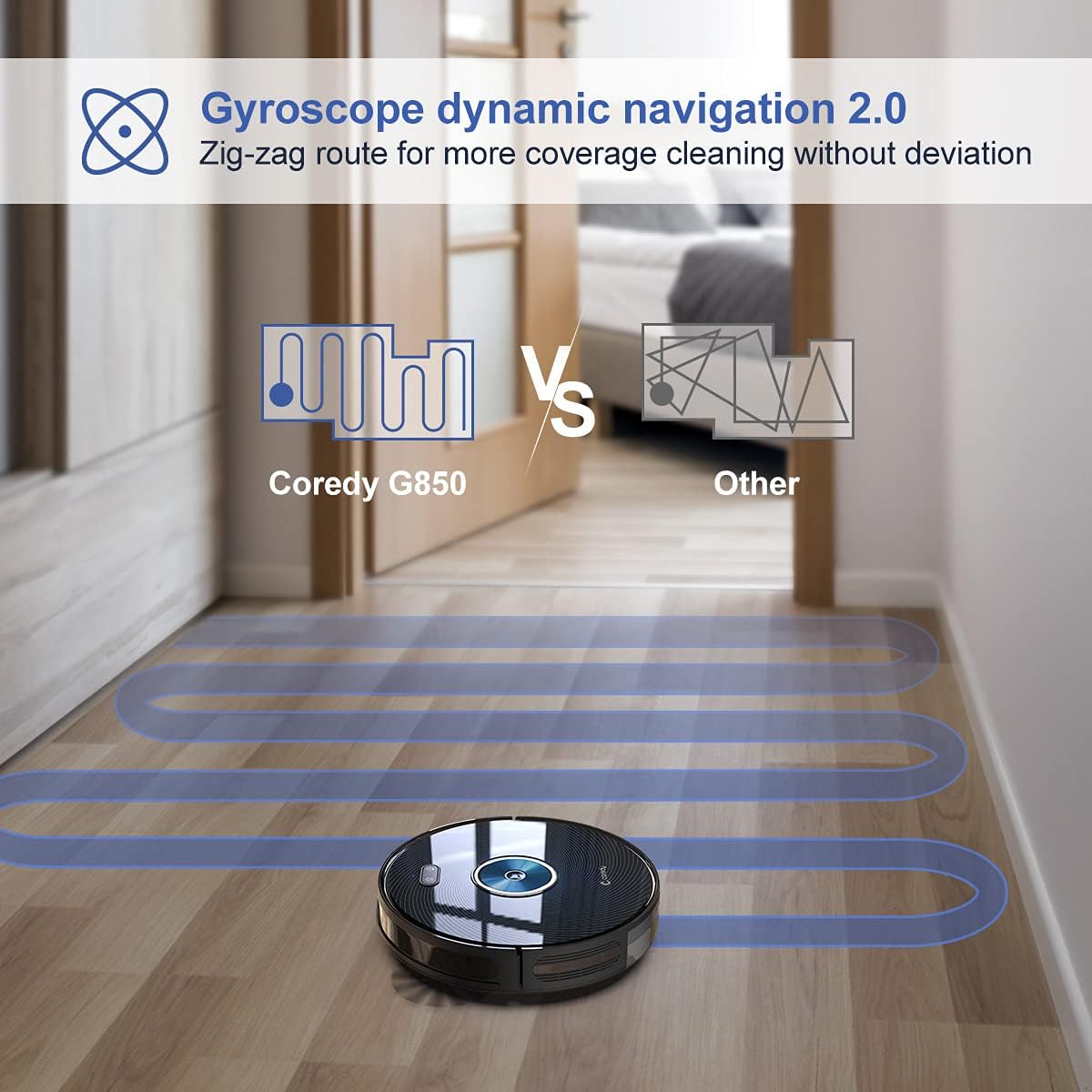
Image: The Coredy G850 Robot Vacuum illustrating its Gyroscope Dynamic Navigation 2.0, showing a zig-zag cleaning route for more comprehensive coverage compared to random patterns.

Image: The Coredy G850 Robot Vacuum demonstrating its Auto-Boost Intellect feature, showing it transitioning from a hard floor to a carpet and increasing suction.
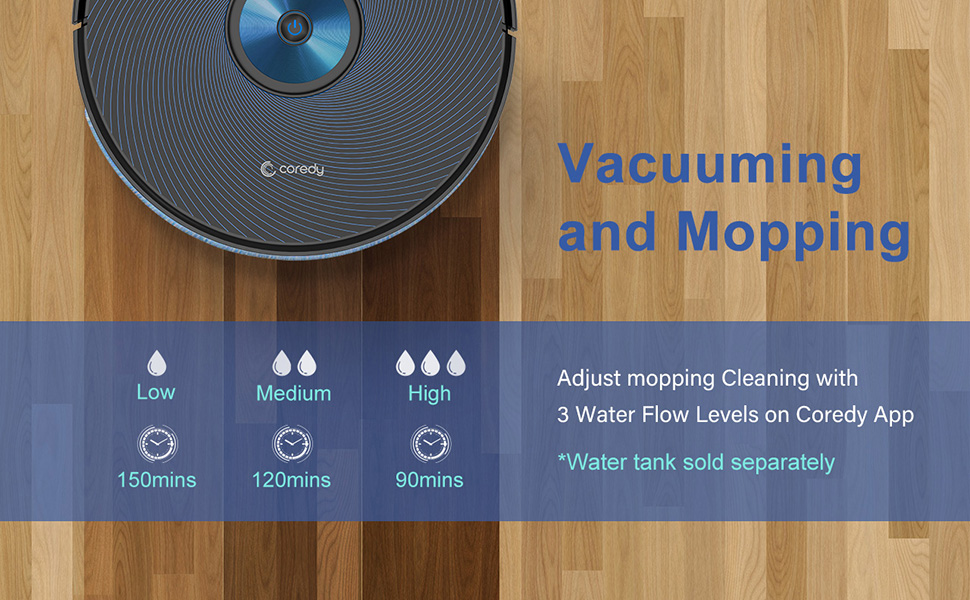
Image: The Coredy G850 Robot Vacuum in mopping mode, with an overlay showing options for Low, Medium, and High water flow levels and corresponding runtimes.
6. Maintenance
Regular maintenance ensures optimal performance and extends the lifespan of your Coredy G850. Always turn off the robot vacuum and unplug the charging base before performing any maintenance.
6.1 Dustbin and Filter Cleaning
- Press the dustbin release button and pull out the dustbin.
- Empty the dustbin contents into a trash can.
- Remove the filter and tap it gently to remove dust. Rinse the filter with water if necessary, but ensure it is completely dry before reinserting.
- Wipe the dustbin with a dry cloth.
6.2 Brush Cleaning
- Remove the main brush cover and lift out the main brush.
- Use the cleaning tool (often included) or scissors to cut and remove any hair or debris tangled around the brush.
- Pull off the side brushes and clean any hair or debris from them and their posts. Reattach them securely.
6.3 Sensor Cleaning
- Wipe the cliff sensors (located on the bottom of the robot) and the anti-collision sensors (on the bumper) with a clean, dry cloth.
- Clean the charging contacts on both the robot and the charging base.
7. Troubleshooting
| Problem | Possible Cause | Solution |
|---|---|---|
| Robot does not start or respond. | Main power switch is off; low battery. | Ensure the red ON button on the bottom of the robot is switched to ON. Place the robot on the charging base to charge. |
| Robot does not return to charging base. | Charging base is obstructed or not powered; robot is too far from base. | Ensure the charging base is plugged in and clear of obstacles. Manually place the robot closer to the base or guide it. |
| Poor cleaning performance. | Dustbin full; brushes tangled; filter clogged. | Empty the dustbin. Clean the main brush and side brushes. Clean or replace the filter. |
| App connection issues. | Incorrect Wi-Fi band; network instability. | Ensure your Wi-Fi is 2.4Ghz. Restart your router and the robot. Re-attempt connection in the app. |
| Short battery life. | Battery degradation; long cleaning cycles. | Ensure the robot is fully charged before each use. If battery life significantly decreases, consider contacting support for battery replacement options. |
8. Specifications
| Feature | Detail |
|---|---|
| Brand | Coredy |
| Model Name | G850 |
| Special Feature | Anti-Collision |
| Filter Type | Cartridge |
| Battery Life | 150.0, 70.0 minutes (depending on mode) |
| Power Source | Battery Powered |
| Control Method | Voice, App |
| Compatible Devices | Amazon Echo, Google Home |
| Form Factor | Robotic |
| UPC | 850027546056 |
| Package Dimensions | 17.28 x 13.7 x 4.72 inches |
| Item Weight | 8.98 pounds |
| Date First Available | January 12, 2021 |
9. Warranty and Support
For warranty information, technical support, or service inquiries, please contact Coredy customer support through their official website or the Coredy Robot app. Keep your purchase receipt and product serial number handy for faster assistance.
You can find more information and support resources on the official Coredy brand store: Coredy Brand Store.
Ask a question about this manual
Ask about setup, troubleshooting, compatibility, parts, safety, or missing instructions. Manuals+ will review the question and use this page’s manual context to help answer it.