
1. Introduction
This manual provides instructions for the JOUNIVO JV808 Omnidirectional USB Conference Microphone. Please read this manual thoroughly before using the product to ensure proper operation and to maximize its performance. This device is designed for clear audio capture in various communication scenarios.

Image 1.1: The JOUNIVO JV808 Omnidirectional USB Conference Microphone. This image displays the compact, hexagonal microphone unit with a USB cable attached, highlighting its sleek design and ready-to-use nature.
2. Product Features
The JOUNIVO JV808 microphone offers several key features designed for enhanced audio communication:
- Plug & Play Connectivity: No driver installation required. Simply connect via USB.
- Omnidirectional Pickup: Captures sound from all directions (360°) with a pickup distance of up to 10 feet (approximately 3 meters).
- Touch-Sensitive Mute Button: Easily mute or unmute the microphone with a soft touch.
- LED Indicator: A built-in blue indicator light shows the microphone's status (working, muted, or disconnected).
- Echo Cancellation & Noise Reduction: Designed to block noise and eliminate echo for clear sound.
- Wide Compatibility: Compatible with Windows and macOS operating systems, and various communication platforms like Zoom, Skype, GoToMeeting, WebEx, Hangouts, Google Meet, and VoIP.
- Durable Design: Constructed from sturdy ABS material with anti-slip mats on the base for stability.
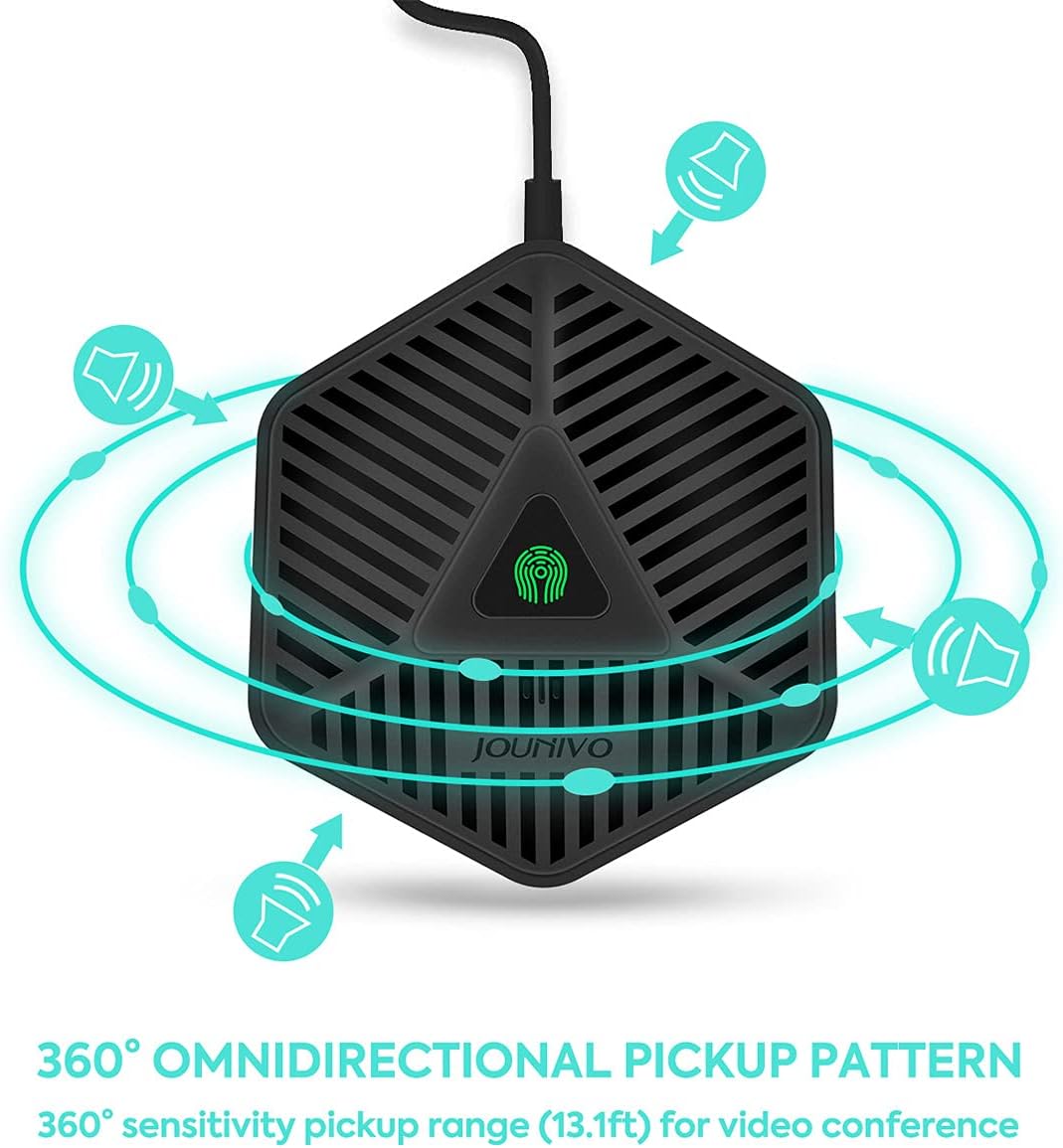
Image 2.1: Illustration of the 360° omnidirectional pickup pattern. This graphic shows sound waves emanating from all directions towards the microphone, indicating its ability to capture audio comprehensively.
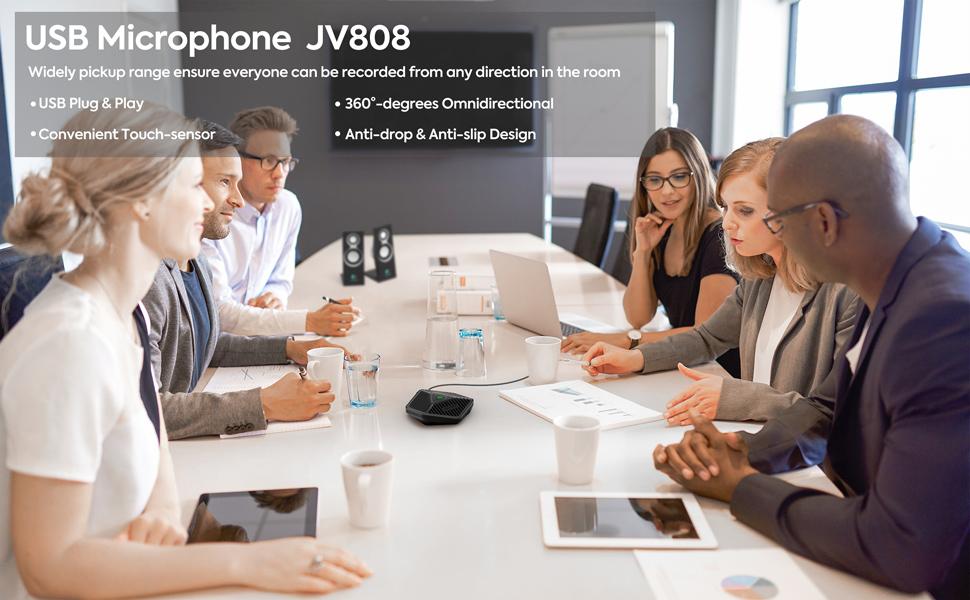
Image 2.2: The JOUNIVO JV808 microphone positioned centrally on a conference table during a meeting. This image demonstrates the microphone's intended use in a professional group setting, highlighting its discreet presence.
3. Setup Instructions
The JOUNIVO JV808 microphone is designed for simple plug-and-play operation.
- Connect the Microphone: Insert the USB connector of the microphone cable into an available USB port on your computer (PC or Laptop).
- System Recognition: Your operating system (Windows or macOS) will automatically detect and install the necessary drivers. This process usually takes a few seconds.
- Verify Connection: Once connected, the microphone's LED indicator will light up green, signifying it is active and ready for use.
- Select as Input Device: In your computer's sound settings or within your communication application (e.g., Zoom, Skype), select "JOUNIVO JV808" or a similar name as your audio input device.

Image 3.1: A user connecting the JOUNIVO JV808 microphone to a computer. This image illustrates the simple plug-and-play setup, showing the microphone connected to a PC with a user wearing headphones, emphasizing ease of use.
4. Operating Instructions
Using your JOUNIVO JV808 microphone is straightforward:
4.1 Mute Function
- To Mute: Gently touch the mute button located on the top center of the microphone. The LED indicator will change from green to red, indicating the microphone is muted.
- To Unmute: Touch the mute button again. The LED indicator will return to green, signifying the microphone is active.
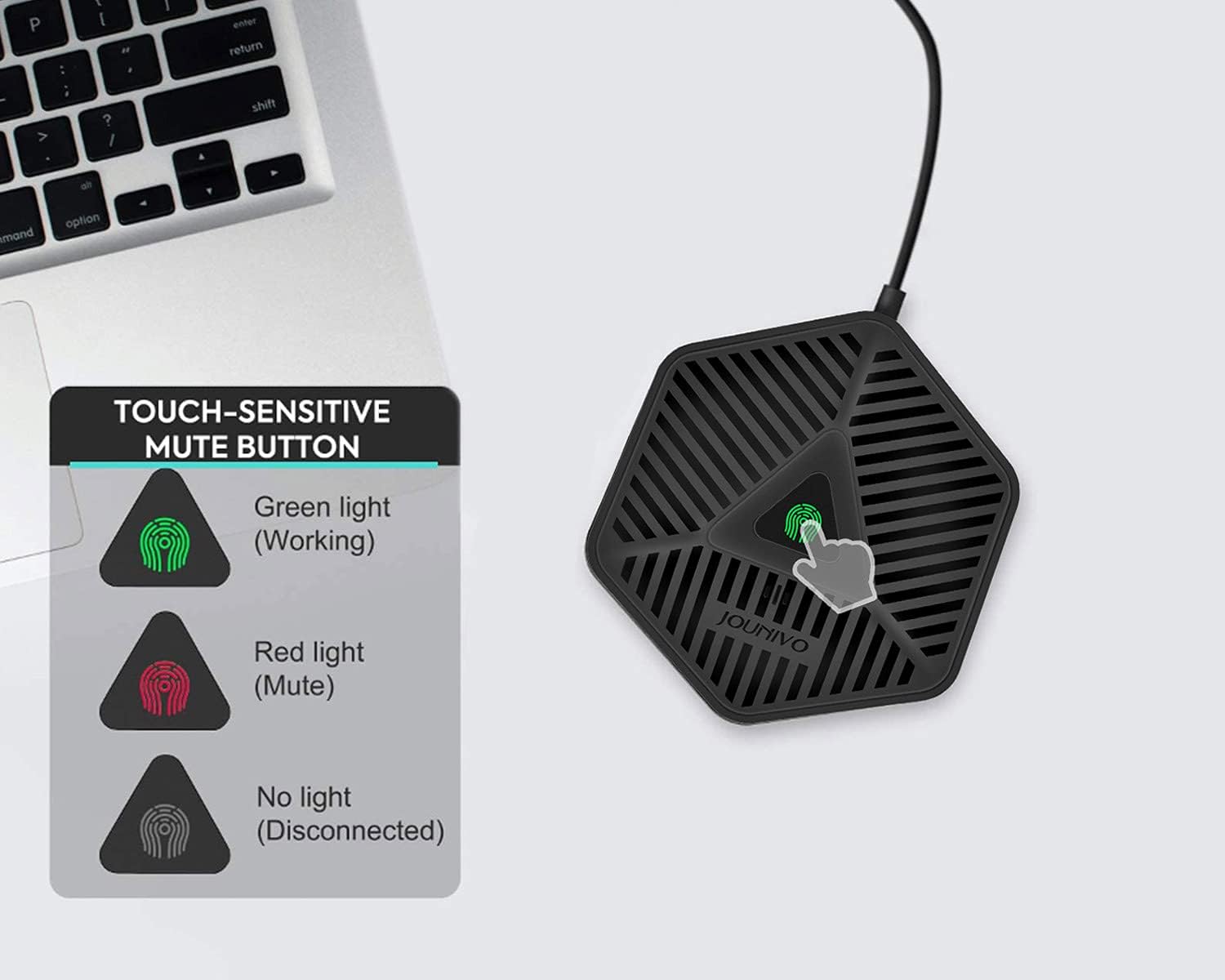
Image 4.1: Close-up of the microphone's touch-sensitive mute button and its LED indicators. This image visually explains the different LED states: green for working, red for muted, and no light for disconnected.
4.2 Compatibility
The microphone is compatible with a wide range of operating systems and communication software:
- Operating Systems: Windows, macOS.
- Applications: Zoom, Skype, GoToMeeting, WebEx, Hangouts, Google Meet, Fuze, VoIP, and other similar platforms.

Image 4.2: Icons representing various compatible software (Zoom, Skype, GoToMeeting, Hangouts, Google Meet, Webex) and operating systems (Windows, macOS), along with desktop and laptop computers. This image highlights the microphone's broad compatibility.
5. Maintenance
To ensure the longevity and optimal performance of your JOUNIVO JV808 microphone, follow these simple maintenance guidelines:
- Cleaning: Use a soft, dry cloth to wipe the microphone's surface. Avoid using liquid cleaners or abrasive materials, as they may damage the device.
- Storage: When not in use, store the microphone in a cool, dry place, away from direct sunlight and extreme temperatures.
- Handling: Handle the microphone with care. Avoid dropping it or subjecting it to strong impacts, which could damage internal components.
- Cable Care: Do not bend or crimp the USB cable excessively. Store it loosely coiled to prevent damage.
6. Troubleshooting
If you encounter issues with your JOUNIVO JV808 microphone, refer to the following common solutions:
| Problem | Possible Cause | Solution |
|---|---|---|
| Microphone not detected / No sound input |
|
|
| Poor sound quality / Echo / Background noise |
|
|
| Mute button LED stuck on red |
|
|
7. Specifications
| Feature | Detail |
|---|---|
| Model Number | JV-808 |
| Brand | JOUNIVO |
| Connectivity Technology | USB |
| Polar Pattern | Omnidirectional (360°) |
| Pickup Distance | Up to 10 ft (approx. 3 meters) |
| Special Features | Mute Function, Echo Cancellation, Noise Reduction |
| Compatible Devices | Laptop, Personal Computer |
| Operating Systems | Windows, macOS |
| Material | Acrylonitrile Butadiene Styrene (ABS) |
| Item Weight | 5.6 ounces |
| Package Dimensions | 6.1 x 5.2 x 1.46 inches |
| Included Components | USB Cable |
8. Warranty and Support
For warranty information and technical support, please refer to the documentation included with your purchase or visit the official JOUNIVO website. Keep your purchase receipt as proof of purchase for warranty claims.
For further assistance, you may contact JOUNIVO customer service through their official channels.