
ABASK J05
Abask J05 Dual 1080P Dash Cam User Manual
Your comprehensive guide to setting up and operating your Abask J05 Dash Cam.
1. Introduction
Thank you for choosing the Abask J05 Dual 1080P Dash Cam. This device is designed to provide reliable video evidence of your journeys, both from the front of your vehicle and inside the cabin. It features advanced functionalities such as night vision, G-sensor, loop recording, and parking monitoring to enhance your driving safety and peace of mind.
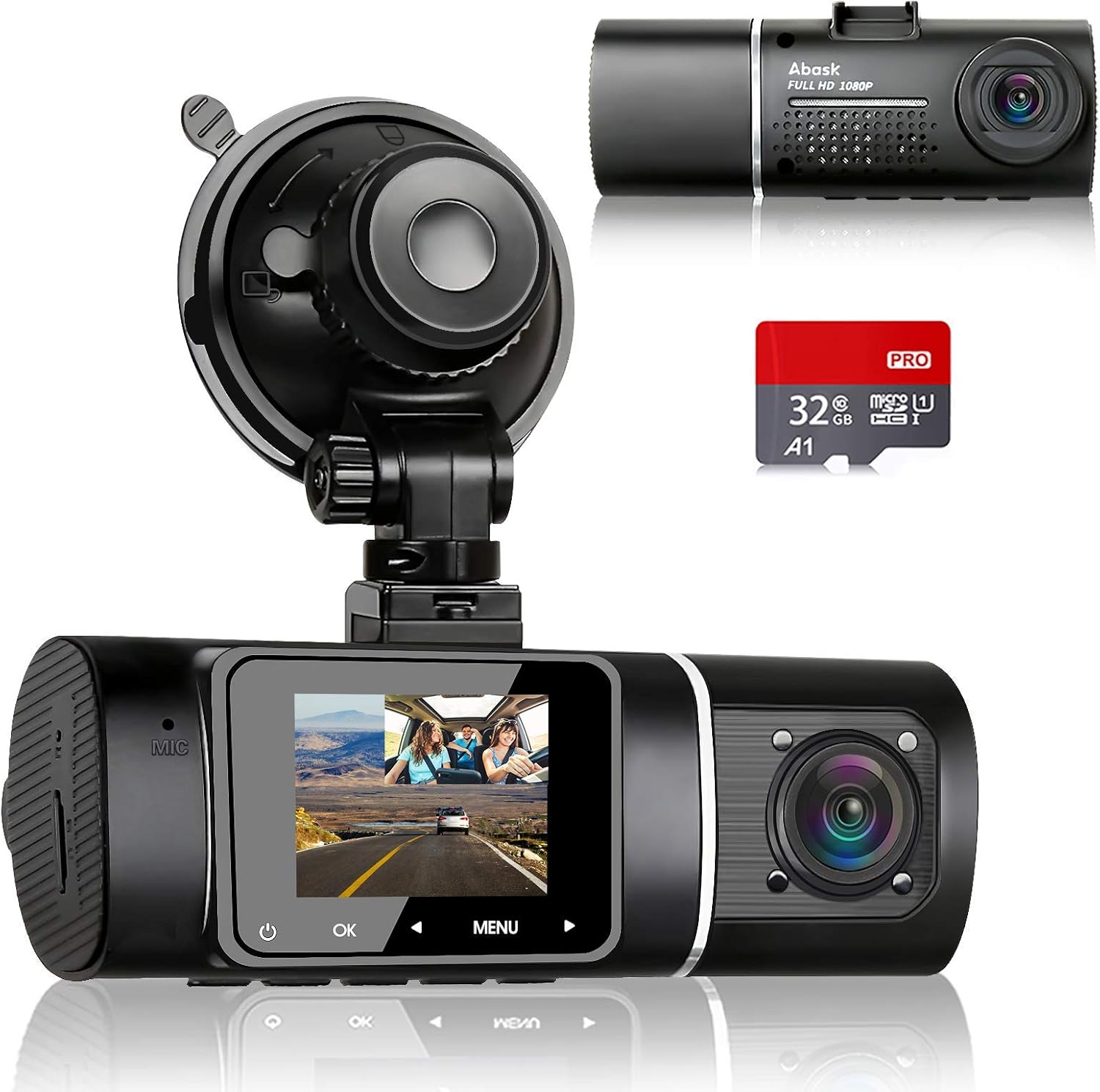
Image 1.1: The Abask J05 Dual Dash Cam, showing the front and interior cameras, the suction cup mount, and an included 32GB Micro SD card.
2. Package Contents
Please check the package for the following items:
- 1x Abask J05 Dashcam
- 1x 32GB Micro SD Card
- 1x Car Charger (3.5m)
- 1x USB Cable (0.5m)
- 1x User Manual
- 1x Suction Cup Mount
- 1x Crowbar (for cable routing)
- 4x Cable Clips
3. Product Features
3.1 Dual 1080P FHD Recording
The dash cam simultaneously records the road ahead and the vehicle's interior in 1080P Full HD resolution with clear audio. This provides comprehensive video evidence in case of incidents or disputes.

Image 3.1: Illustration of dual 1080p HD video recording, capturing both the road ahead and the vehicle's interior.
3.2 Wide-Angle Field of View
The front camera offers a 170-degree wide-angle view, while the interior camera provides a 140-degree view, ensuring a total 310-degree coverage. This captures a broad perspective of the road and the entire cabin.

Image 3.2: Visual representation of the 170-degree front and 140-degree interior wide-angle views.
3.3 Super Night Vision with IR Lights
Equipped with 4 discreet infrared (IR) lights, the interior camera captures clear video even in complete darkness. Combined with 1080P recording and HDR technology, both front and interior footage remain clear and detailed at night.

Image 3.3: Night vision capabilities of the dash cam, highlighting the IR lights for cabin recording.
3.4 G-Sensor & Loop Recording
The G-Sensor automatically detects sudden impacts or collisions, locking and saving the current video segment as evidence to prevent it from being overwritten. Loop recording ensures continuous recording by overwriting the oldest files when the memory card is full, except for locked emergency files.

Image 3.4: Explanation of G-sensor and loop recording, illustrating how important files are protected.
3.5 Parking Monitor & Motion Detection
When enabled, the dash cam will automatically power on and begin recording if it detects a shock or motion while your car is parked. This provides 24-hour surveillance for your vehicle. Note: For continuous parking mode functionality, a hardwire kit (sold separately) is required to connect the dash cam directly to your car's fuse box.
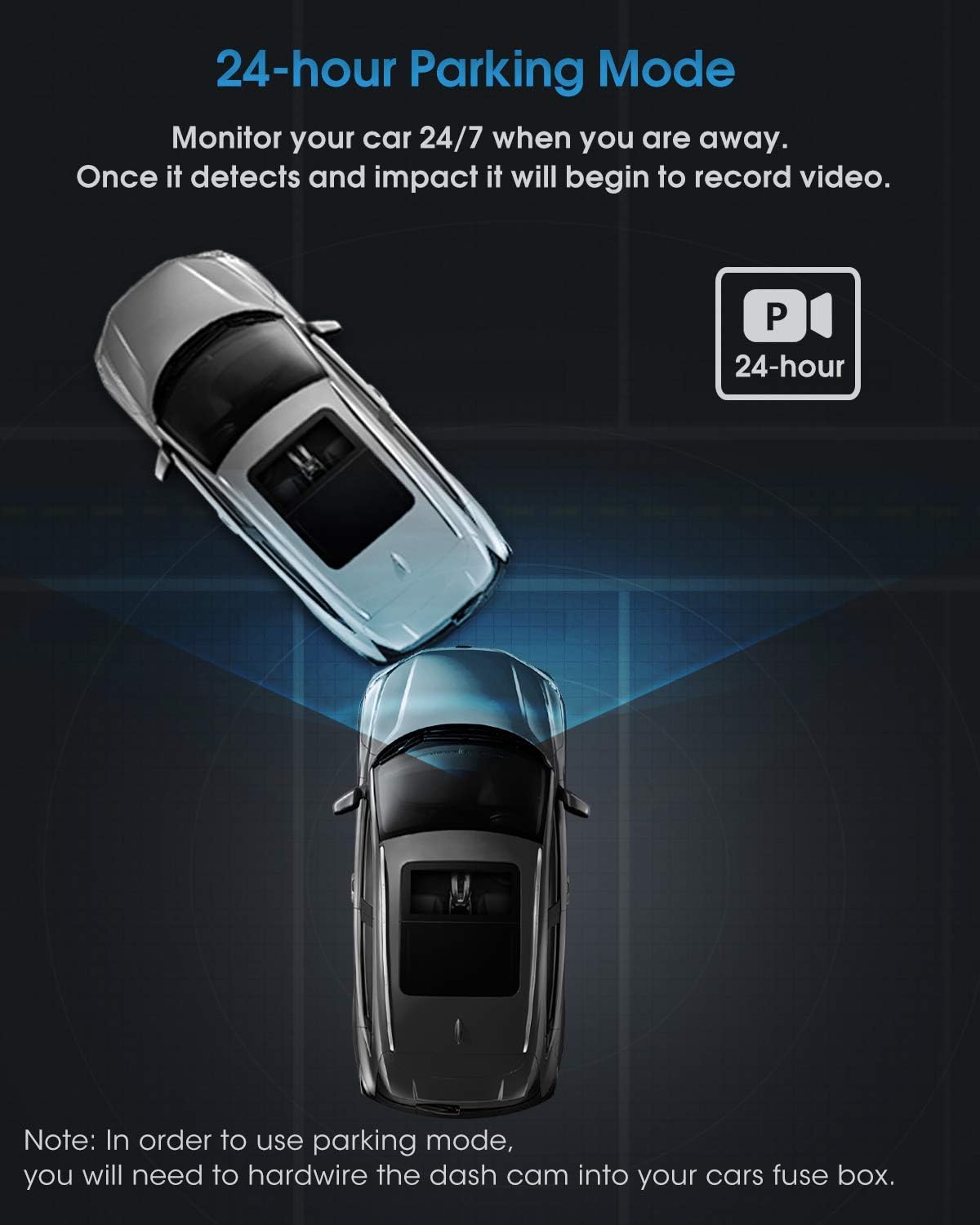
Image 3.5: Depiction of the 24-hour parking mode, indicating continuous monitoring.
4. Setup and Installation
Follow these steps for easy installation of your Abask J05 Dash Cam:
- Insert Micro SD Card: Gently insert the provided 32GB Micro SD card into the dash cam's card slot until it clicks into place. Ensure the card is inserted correctly.
- Mount the Dash Cam: Attach the suction cup mount to the dash cam. Clean a spot on your windshield, preferably near the rearview mirror, and firmly press the suction cup against the glass, then lock it into position. Adjust the camera angle to ensure a clear view of the road.
- Connect Power: Plug the car charger into your vehicle's cigarette lighter socket. Connect the other end of the cable to the dash cam's power input.
- Route Cables: Use the provided crowbar and cable clips to neatly tuck and hide the power cable along the edges of your windshield and dashboard. This ensures a clean installation and prevents obstruction of your view.
- Power On: Once connected, the dash cam will automatically power on and begin recording when your vehicle's ignition is turned on.

Image 4.1: Visual guide for easy installation, demonstrating how to route cables for a tidy setup.
5. Operating Instructions
5.1 Basic Operation
- Power On/Off: The dash cam typically powers on and off automatically with your car's ignition. You can also manually power it on/off by pressing and holding the power button.
- Recording: Once powered on, the dash cam will automatically start loop recording. A red indicator light or icon on the screen usually confirms recording is active.
- Menu Navigation: Use the 'MENU' button to access settings. Use the 'UP' and 'DOWN' arrows (or similar navigation buttons) to scroll through options and 'OK' to confirm selections.
5.2 Key Functions
- G-Sensor: In the event of a sudden impact, the G-Sensor will automatically lock the current video file, preventing it from being overwritten. The sensitivity of the G-Sensor can usually be adjusted in the settings.
- Loop Recording: Video files are recorded in segments (e.g., 1, 3, or 5 minutes). When the memory card is full, the oldest unlocked files are automatically overwritten.
- Parking Monitor: If enabled and properly hardwired, the dash cam will detect impacts or motion while parked and automatically record a short video.
- Playback: You can review recorded videos directly on the dash cam's screen by entering playback mode via the menu. For interior camera videos, it is recommended to view them on a computer for better clarity.
6. Maintenance
- Cleaning: Use a soft, dry cloth to clean the camera lenses and screen. Avoid using abrasive cleaners or solvents.
- SD Card Care: Regularly format the Micro SD card (at least once a month) within the dash cam's settings to maintain optimal performance and prevent data corruption. Use high-quality, high-speed (Class 10 or U1/U3) Micro SD cards.
- Temperature: Avoid exposing the dash cam to extreme temperatures for extended periods. If the car is parked in direct sunlight, consider removing the dash cam or shading it.
- Firmware Updates: Check the official Abask website periodically for any available firmware updates to ensure your dash cam has the latest features and bug fixes.
7. Troubleshooting
- Dash Cam Not Turning On:
- Ensure the car charger is properly connected to both the dash cam and the cigarette lighter socket.
- Check if the car's cigarette lighter socket is receiving power.
- Try a different USB cable or car charger if available.
- Dash Cam Not Recording:
- Ensure a Micro SD card is inserted correctly.
- Format the Micro SD card in the dash cam's settings.
- Check if the loop recording function is enabled in the settings.
- The SD card might be full of locked files. Delete unnecessary locked files or format the card.
- Video Footage is Blurry/Unclear:
- Clean the camera lenses with a soft cloth.
- Ensure the protective film has been removed from the lens.
- Check if the windshield is clean where the camera is mounted.
- Dash Cam Freezes/Crashes:
- Press the reset button (if available, usually a small pinhole) or disconnect and reconnect the power.
- Format the Micro SD card.
- Ensure you are using a genuine, high-speed Micro SD card.
- Parking Monitor Not Working:
- Verify that the parking monitor feature is enabled in the settings.
- Confirm that the dash cam is hardwired to the car's fuse box for continuous power. The standard cigarette lighter connection typically only provides power when the ignition is on.
8. Specifications
| Feature | Detail |
|---|---|
| Brand | ABASK |
| Model Name | J05 |
| Color | Dark Grey |
| Screen Size | 1.5 inches |
| Connectivity Technology | USB |
| Video Recording Resolution | 1080p |
| Field of View | 140 Degrees (Interior), 170 Degrees (Front) |
| Item Weight | 86 Grams |
| Mounting Type | Suction Mount |
| Battery | 1 Lithium-ion (included) |
| Rechargeable Battery | No |
9. Warranty and Support
9.1 Manufacturer's Warranty
The Abask J05 Dash Cam comes with a 2-year manufacturer's warranty. Please retain your proof of purchase for warranty claims.
9.2 Customer Support
If you encounter any issues or have questions regarding your Abask J05 Dash Cam, please refer to the troubleshooting section first. If the issue persists, contact Abask customer support for assistance. Contact details are typically provided in the product packaging or on the official Abask website.
Related documentsJ05


Ask a question about this manual
Ask about setup, troubleshooting, compatibility, parts, safety, or missing instructions. Manuals+ will review the question and use this page’s manual context to help answer it.