
Introduction
This user manual provides detailed instructions for the setup, operation, maintenance, and troubleshooting of your iFFALCON 43K71 4K Ultra HD Smart Android LED TV. Please read this manual thoroughly before using the television and retain it for future reference.

Image: Front view of the iFFALCON 43K71 4K Ultra HD Smart Android LED TV, showcasing its slim design and vibrant display.
Safety Information
Always adhere to the following safety precautions to prevent fire, electric shock, or injury:
- Do not expose the TV to rain or moisture.
- Ensure proper ventilation; do not block ventilation openings.
- Use only the power cord supplied with the TV.
- Do not open the TV cabinet; refer all servicing to qualified personnel.
- Keep the TV away from direct sunlight, heat sources, and strong magnetic fields.
- Place the TV on a stable, level surface or mount it securely to a wall.
What's in the Box
Verify that all components are present upon unpacking:
- 1 x iFFALCON 43K71 LED TV
- 1 x Remote Controller (with 2 AAA batteries)
- 2 x Table Stand components
- 1 x User Manual
- 1 x Warranty Card
- 1 x Audio Cable
Setup
1. Physical Installation
You can install your TV using the included table stands or by wall-mounting (wall mount bracket sold separately).
Table Stand Installation:
- Carefully place the TV face-down on a soft, flat surface to prevent screen damage.
- Attach the two table stand components to the designated slots on the bottom of the TV using the provided screws. Ensure they are securely fastened.
- Carefully lift the TV to an upright position on a stable, level surface.
Wall Mount Installation:
For wall mounting, consult a professional installer. Ensure the wall mount bracket is compatible with the TV's VESA mounting pattern and can support the TV's weight (approximately 6.9 kg).

Image: Top view of the iFFALCON 43K71 TV, showing its slim profile and stand attachment points.
2. Initial Power On and Network Connection
- Connect the power cord to the TV and then to a power outlet.
- Press the power button on the TV or the remote control to turn on the TV.
- Follow the on-screen instructions to complete the initial setup, including language selection, country, and network connection (Wi-Fi or Ethernet).
- Sign in with your Google account to access Android TV features and download apps.
Operating the TV
Remote Control
The supplied remote control allows you to navigate the TV's interface and access various functions.
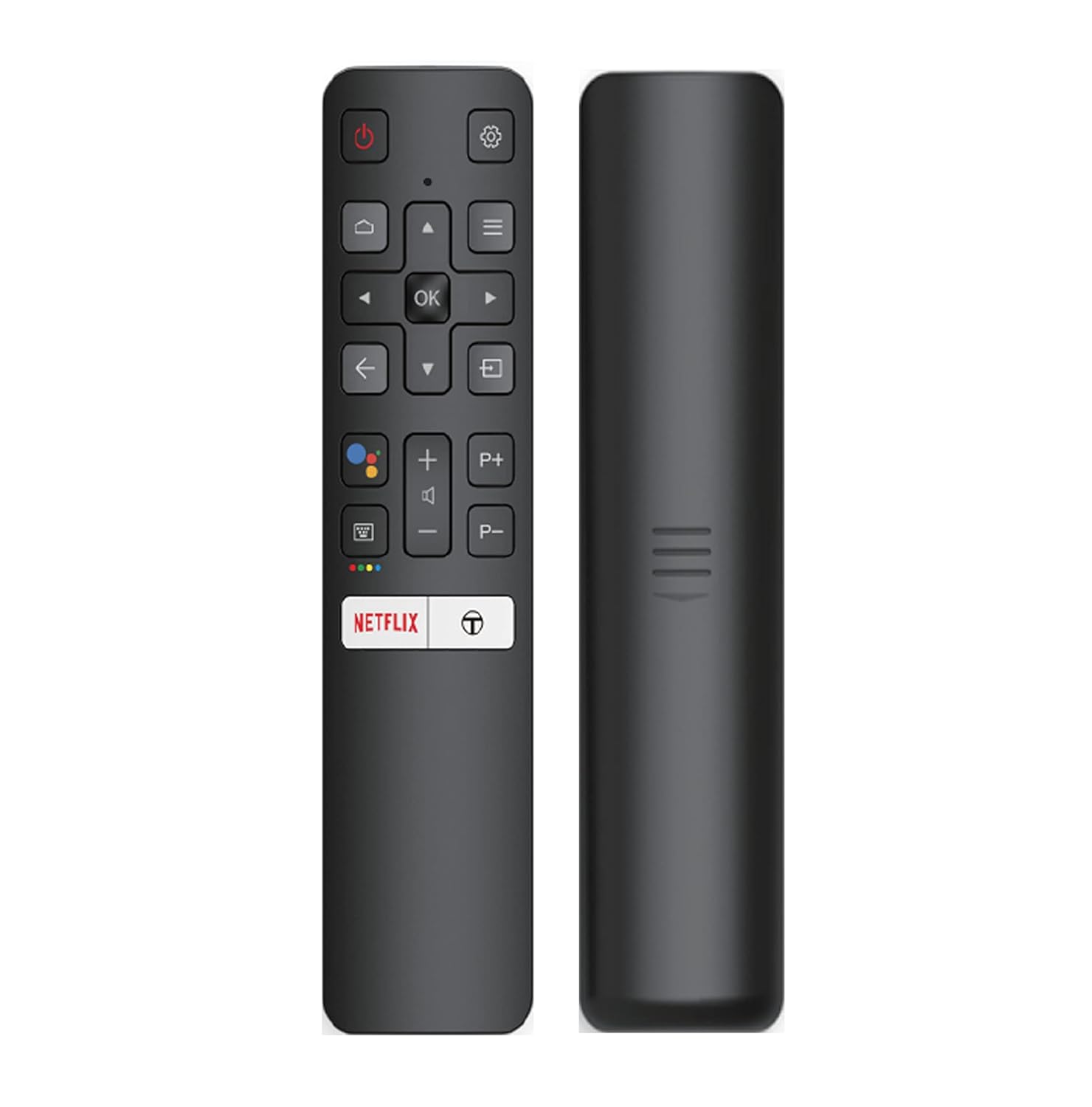
Image: The iFFALCON 43K71 remote control, featuring dedicated buttons for Netflix, Amazon Prime Video, Zee5, and Google Assistant.
Key buttons include:
- Power: Turns the TV on/off.
- Navigation (Up/Down/Left/Right/OK): Navigates menus and confirms selections.
- Back: Returns to the previous screen.
- Home: Accesses the Android TV home screen.
- Volume +/-: Adjusts volume.
- Channel P+/P-: Changes channels.
- Google Assistant: Activates voice control.
- Netflix, Prime Video, Zee5: Direct access buttons for streaming services.
Smart TV Features (Android TV)
Your iFFALCON 43K71 TV runs on Android 9.0, providing access to a wide range of applications and smart functionalities.

Image: The Android TV home screen on the iFFALCON 43K71, displaying various streaming apps like Netflix, YouTube, and Prime Video.
- Apps: Download and install apps from the Google Play Store, including Netflix, YouTube, Prime Video, Disney+Hotstar, and more.
- Hands-Free Voice Control: Use the built-in Google Assistant to control your TV, search for content, and manage smart home devices by speaking commands directly to the TV.
- Chromecast Built-in: Cast content from your smartphone, tablet, or computer directly to the TV screen.
- AI-IN: iFFALCON's AI-IN technology integrates with Google Assistant for enhanced smart home connectivity and personalized recommendations.
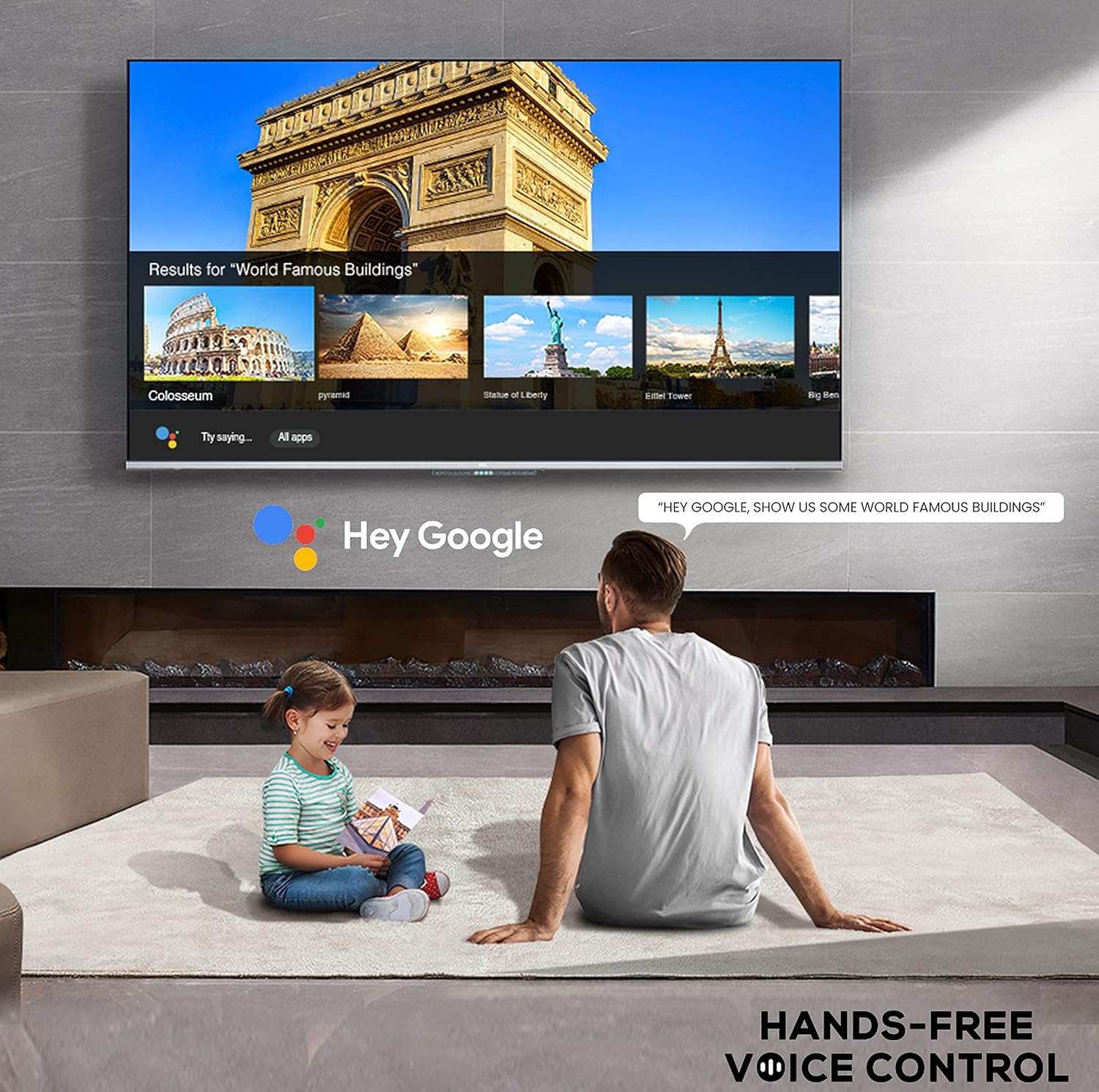
Image: A user interacting with the iFFALCON 43K71 using hands-free voice control, demonstrating the Google Assistant feature.
Connectivity
The TV offers various ports for connecting external devices:
- HDMI Ports (2): Connect set-top boxes, Blu-ray players, gaming consoles, etc.
- USB Port (1): Connect hard drives, USB flash drives for media playback.
- Bluetooth: Connect wireless headphones, soundbars, or other Bluetooth-enabled accessories.
- Wi-Fi: Connect to your home wireless network for internet access.
- Audio Cable: For external audio connections.
Picture and Sound Settings
Adjust picture and sound settings to optimize your viewing experience.
- Picture Modes: Select from various preset picture modes (e.g., Standard, Dynamic, Movie, Sport) or customize settings like brightness, contrast, color, and sharpness.
- 4K Ultra HD & HDR 10: Experience stunning detail and vibrant colors with 4K resolution and High Dynamic Range (HDR 10) support.
- Micro Dimming: Enhances contrast by analyzing video content in hundreds of separate zones and adjusting brightness and darkness independently.
- Sound Modes: Choose from preset sound modes (e.g., Standard, Music, Movie, Clear Voice) or adjust equalizer settings.
- Dolby Audio: Enjoy immersive audio with Dolby Audio processing, delivering rich, clear, and powerful sound from the 30 Watts speakers.
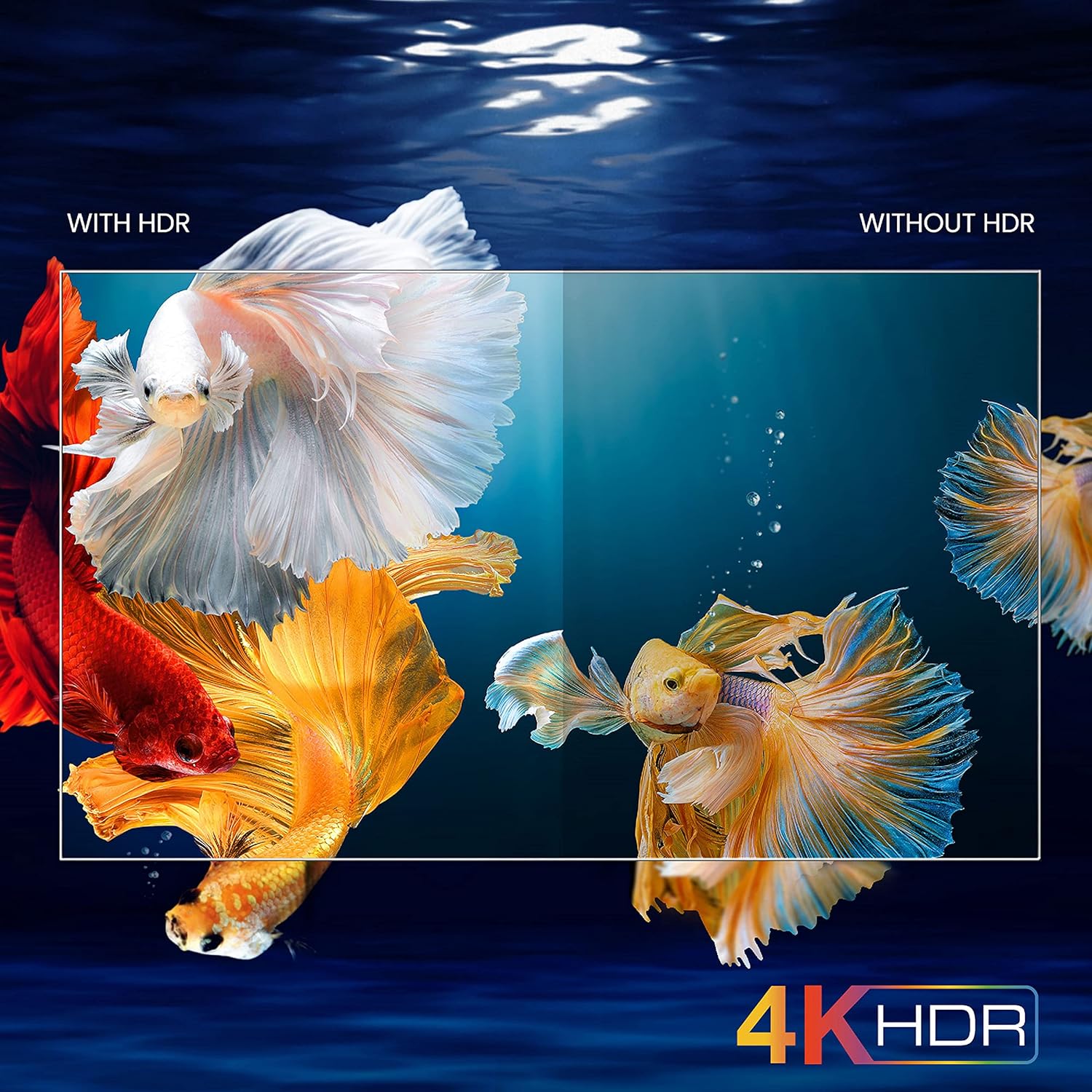
Image: A visual comparison demonstrating the enhanced color and contrast with 4K HDR enabled versus disabled on the iFFALCON 43K71 TV.
Maintenance
Cleaning
- Always unplug the TV before cleaning.
- Use a soft, dry cloth to wipe the screen and cabinet. For stubborn marks, lightly dampen the cloth with water or a mild, non-abrasive screen cleaner.
- Do not use alcohol, benzene, thinners, or other volatile substances.
Software Updates
The TV may receive software updates periodically to improve performance and add new features. Ensure your TV is connected to the internet to receive these updates automatically or check for them manually in the settings menu.
Troubleshooting
If you encounter issues, refer to the following common solutions before contacting support:
| Problem | Possible Solution |
|---|---|
| TV does not turn on. | Check if the power cord is securely plugged into the TV and the power outlet. Ensure the power outlet is working. Try pressing the power button on the TV itself. |
| No picture, but sound is present. | Check the input source. Ensure external devices are properly connected and powered on. Try restarting the TV. |
| No sound, but picture is present. | Check the volume level and ensure the TV is not muted. Verify audio output settings. If using external speakers, check their connections and power. |
| Remote control not working. | Replace the batteries (2 AAA). Ensure there are no obstructions between the remote and the TV's IR sensor. |
| Cannot connect to Wi-Fi. | Check your router and modem. Restart them if necessary. Ensure you are entering the correct Wi-Fi password. Try moving the TV closer to the router or using an Ethernet cable. |
| Slow performance or app crashes. | Close unused applications. Clear cache for problematic apps. Restart the TV. Consider a factory reset as a last resort (this will erase all data and settings). |
Specifications
Key technical specifications for the iFFALCON 43K71 TV:
| Feature | Detail |
|---|---|
| Model | 43K71 |
| Screen Size | 43 inches (108 cm) |
| Resolution | 4K Ultra HD (3840 x 2160 pixels) |
| Refresh Rate | 60 Hz |
| Operating System | Android 9.0 |
| RAM | 2 GB |
| Storage | 16 GB |
| Sound Output | 30 Watts (Dolby Audio Power Speakers) |
| HDMI Ports | 2 |
| USB Ports | 1 |
| Connectivity | Wi-Fi, Bluetooth |
| Dimensions (LxWxH) | 96 x 4.1 x 55.8 cm (without stand) |
| Item Weight | 6.9 kg |

Image: Diagram showing the physical dimensions of the iFFALCON 43K71 TV in centimeters and inches.
Warranty
The iFFALCON 43K71 TV comes with a 1-year warranty provided by the manufacturer from the date of purchase. Please retain your purchase receipt for warranty claims. For detailed terms and conditions, refer to the included Warranty Card.
Support
For further assistance, technical support, or service requests, please contact iFFALCON customer service. Contact details can typically be found on the manufacturer's official website or on the warranty card.
Product Overview Video
Video: A short preview video showcasing key features and visual enhancements of the iFFALCON 43K71 4K Ultra HD Smart Android LED TV, including 4K HDR, dynamic tone mapping, color enhancement, Android TV interface, and hands-free voice control.
