
1. Introduction
Thank you for choosing the Hama 8-in-1 Universal Remote Control. This remote is designed to simplify your home entertainment experience by allowing you to control up to eight different audio/video devices from a single unit. Please read this manual carefully to ensure proper setup and operation of your new remote control.
The Hama 8-in-1 Universal Remote Control is compatible with a wide range of brands and device types, including Televisions (TV), Digital Video Disc players (DVD), Satellite receivers (SAT), Cable boxes (CBL), Audio Amplifiers (AMP), Video Cassette Recorders (VCR), Digital Video Broadcasting - Terrestrial receivers (DVB-T), and Auxiliary devices (AUX).
2. Getting Started: Setup
2.1 Battery Installation
Before using your remote control, you must install two AAA Alkaline batteries (not included).
- Locate the battery compartment on the back of the remote control.
- Press down on the tab and slide the battery cover downwards to open it.
- Insert two AAA Alkaline batteries, ensuring the correct polarity (+ and -) as indicated inside the compartment.
- Slide the battery cover back into place until it clicks securely.
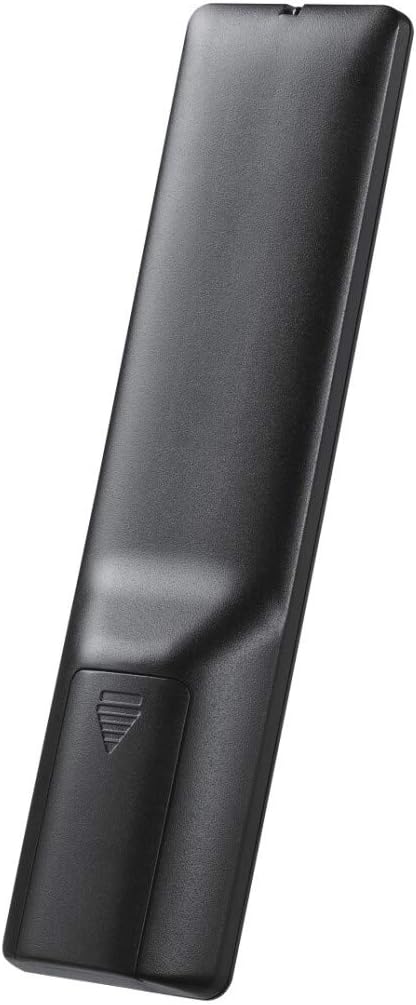
Image: Back view of the remote control with the battery compartment. To install batteries, slide the cover down and insert two AAA Alkaline batteries according to the polarity markings.
2.2 Programming the Remote Control
The Hama 8-in-1 Universal Remote Control can be programmed using either Direct Code Entry or Automatic Code Search.
2.2.1 Direct Code Entry (Recommended)
This method allows you to program the remote by entering a specific code for your device brand. A code list is typically provided with the remote (refer to the separate code list document).
- Turn on the device you wish to control (e.g., your TV).
- Press and hold the SETUP button until the red indicator light illuminates and remains lit.
- Press the device button corresponding to the device you want to program (e.g., TV, DVD, SAT). The red indicator light will flash once and then remain lit.
- Enter the 3-digit code for your device brand from the code list. As you enter each digit, the red indicator light will flash. After entering the last digit, the light will turn off.
- Point the remote at your device and test its functions (e.g., POWER, VOLUME +). If the device responds, the programming is successful.
- If the device does not respond, repeat the process with the next code listed for your brand.
2.2.2 Automatic Code Search
If you cannot find a suitable code in the code list, or if the direct code entry does not work, you can use the automatic code search function.
- Turn on the device you wish to control.
- Press and hold the SETUP button until the red indicator light illuminates and remains lit.
- Press the device button corresponding to the device you want to program (e.g., TV, DVD, SAT). The red indicator light will flash once and then remain lit.
- Press the POWER button once. The red indicator light will start flashing continuously, indicating that the remote is searching for a code.
- Point the remote at your device. The remote will send power signals every few seconds. As soon as your device turns off, immediately press the OK button to save the code.
- Test other functions (e.g., VOLUME +, CHANNEL +). If all functions work correctly, the programming is complete. If not, repeat the process, but press OK as soon as the device responds to any command, not just power off.
2.3 Device Selection
To control a specific device, press the corresponding device button at the top of the remote control (e.g., TV, DVD, SAT, CBL, AMP, VCR, DVB-T, AUX). The remote will then operate that device until another device button is pressed.

Image: Front view of the Hama 8-in-1 Universal Remote Control. The device selection buttons (TV, DVD, SAT, CBL, AMP, VCR, DVB-T, AUX) are located at the top of the remote.
3. Operating Your Remote Control
Once programmed, your Hama 8-in-1 Universal Remote Control functions similarly to your original remote controls. Below are common button functions:
- POWER: Turns the selected device on or off.
- TV/DVD/SAT/CBL/AMP/VCR/DVB-T/AUX: Selects the device to be controlled.
- VOL +/-: Adjusts the volume of the selected device.
- CH +/-: Changes channels on the selected device.
- MUTE: Mutes or unmutes the audio.
- 0-9 (Numeric Keypad): Direct channel selection or input for menus.
- MENU: Accesses the menu of the selected device.
- OK: Confirms selections in menus.
- Arrow Buttons (Up, Down, Left, Right): Navigates through menus and options.
- EXIT: Exits the current menu or function.
- GUIDE/EPG: Displays the electronic program guide.
- Playback Controls (Play, Pause, Stop, Rewind, Fast Forward, Record): Controls media playback on devices like DVD players or VCRs.
- SMART TV / APPS: Accesses smart TV features or applications (if supported by the programmed device).
4. Maintenance
4.1 Battery Replacement
When the remote control's range decreases or buttons become unresponsive, it is time to replace the batteries. Always replace both batteries at the same time with new AAA Alkaline batteries. Do not mix old and new batteries, or different types of batteries.
Dispose of used batteries according to local regulations. Do not dispose of batteries in household waste.
4.2 Cleaning
To clean your remote control, use a soft, dry cloth. For stubborn dirt, slightly dampen the cloth with water or a mild cleaning solution. Do not use abrasive cleaners, alcohol, or solvents, as these can damage the remote's surface or internal components. Ensure no liquid enters the remote control.
5. Troubleshooting
- Remote control does not work:
- Check if the batteries are inserted correctly with the correct polarity.
- Replace old batteries with new AAA Alkaline batteries.
- Ensure you have selected the correct device mode (e.g., TV for your television).
- Make sure there are no obstructions between the remote control and the device.
- Ensure the remote is pointed directly at the device's infrared receiver.
- Device does not respond to commands after programming:
- The entered code may be incorrect. Try another code from the code list for your device brand.
- Repeat the programming process using the Automatic Code Search method.
- Only some functions work, or buttons perform incorrect actions:
- The programmed code may be partially compatible. Try other codes for your device brand to find a more complete match.
- Some advanced functions may not be supported by all universal remote controls.
- Short operating range:
- Replace the batteries.
- Ensure there are no strong light sources (like direct sunlight) interfering with the infrared signal.
6. Specifications
| Feature | Description |
|---|---|
| Brand | Hama |
| Model | 8-in-1 Universal Remote Control |
| Connectivity Technology | Infrared |
| Compatible Devices | TV, DVD, SAT, CBL, AMP, VCR, DVB-T, AUX |
| Number of Devices Controlled | Up to 8 |
| Battery Type | 2 x AAA Alkaline (not included) |
| Maximum Range | 10 meters |
| Controller Type | Button Control |
7. Warranty and Support
For warranty information, technical support, or to download the latest code list, please visit the official Hama website or contact your local Hama dealer. Keep your purchase receipt as proof of purchase for any warranty claims.


