
1. Introduction
Thank you for choosing the MINIEYE C1 Dash Cam with Advanced Driver Assistance System (ADAS). This device is designed to enhance driving safety by providing real-time warnings and recording high-resolution video of your journeys. The C1 utilizes AI technology to detect vehicles, pedestrians, and lane markings, offering features such as collision warnings and lane departure alerts. This manual provides essential information for the proper installation, operation, and maintenance of your device.
2. Safety Information
- Important: This product is an aftermarket collision prevention 'warning' system. It does not control vehicle brakes or steering. Always maintain full control of your vehicle.
- Operational Limitations: Some functions may not operate normally depending on vehicle conditions, driving style, and environmental factors (e.g., weather, road markings, lighting).
- Responsibility: The manufacturer is not responsible for any accidents, damage, personal injury, or other incidents caused by over-reliance on this product. Always drive safely and attentively.
- Installation: Ensure the device is installed securely and does not obstruct the driver's view or interfere with vehicle operation.
3. Package Contents
Verify that all items are present in your package:
- MINIEYE C1 Main Unit
- Display Unit
- Car Charger
- Mounting Bracket/Adhesive
- Power Cable
- User Manual (this document)

Image: Overview of the MINIEYE C1 Dash Cam and its included accessories, such as the main camera unit, separate display, and car charger.
4. Product Overview
The MINIEYE C1 consists of a main camera unit and a separate 2.4-inch display unit. The main unit houses the camera, AI processing chip, GPS, and WiFi modules. The display unit provides visual feedback for ADAS warnings and real-time 3D mapping of detected objects.

Image: The MINIEYE C1 main camera unit (left) and its detached 2.4-inch display unit (right), showcasing their compact design.
5. Setup and Installation
5.1 Mounting the Main Unit
- Clean the windshield area where the main unit will be mounted. Ensure it does not obstruct the driver's view.
- Attach the main unit to the windshield using the provided adhesive mount. Position it centrally, ideally behind the rearview mirror, to ensure a clear view of the road ahead.
- Connect the power cable to the main unit.

Image: The MINIEYE C1 main camera unit securely mounted on the car's windshield, positioned to capture the road ahead.
5.2 Mounting the Display Unit
- Place the display unit on the dashboard in a position that is easily visible to the driver but does not obstruct the view of the road.
- Secure the display unit using its base.
- Connect the display unit to the main unit (if applicable) or to a power source as instructed.
5.3 Power Connection
- Route the power cable neatly along the windshield and dashboard edges to the car's cigarette lighter socket.
- Plug the car charger into the cigarette lighter socket and connect it to the power cable.
- The device will power on automatically when the vehicle starts.
5.4 Smartphone App Connection
- Download the official MINIEYE app from your smartphone's app store.
- Turn on the MINIEYE C1 device.
- On your smartphone, enable Wi-Fi and connect to the MINIEYE C1's Wi-Fi network (SSID and password can be found on the device or in the quick start guide).
- Open the MINIEYE app. You can now view live video, review recorded footage, adjust settings, and transfer data to your smartphone.
6. Operating Instructions
6.1 Automatic Recording
The MINIEYE C1 automatically begins recording when the vehicle's ignition is turned on. Footage is saved to the inserted memory card.
6.2 Advanced Driver Assistance System (ADAS)
The C1 features AI-powered ADAS functions to assist with safer driving. The system uses real-time 3D mapping to recognize various front vehicle types (compact cars, SUVs, minivans, trucks) and pedestrians, displaying them on the screen.

Image: The MINIEYE C1 display unit showing a real-time 3D representation of the road, detecting and mapping surrounding vehicles.

Image: A driver's perspective of the road, with the MINIEYE C1 dash cam mounted on the windshield and its display unit on the dashboard, showing detected vehicles.
ADAS Functions Include:
- Forward Collision Warning (FCW): Alerts you if you are approaching a vehicle too quickly.
- Lane Departure Warning (LDW): Warns if your vehicle drifts out of its lane without signaling.
- Pedestrian Collision Warning (PCW): Alerts you to potential collisions with pedestrians.
- Front Vehicle Departure Notification (FVDN): Notifies you when the vehicle in front starts moving from a stop.

Image: The MINIEYE C1 display unit indicating a forward collision warning, showing a critical distance of 0.8 meters to the vehicle ahead.
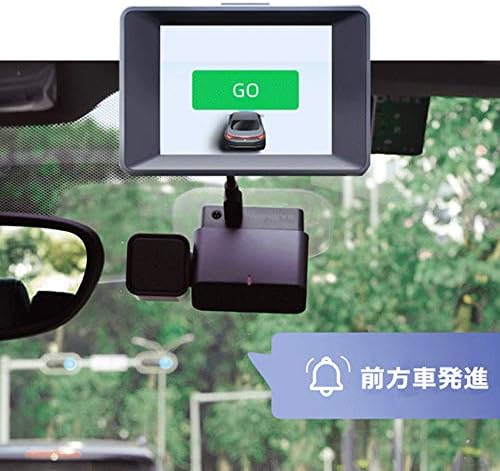
Image: The MINIEYE C1 display unit showing a 'GO' notification, indicating that the vehicle in front has started moving.
6.3 Video Resolution
Equipped with a SONY IMX335 sensor, the MINIEYE C1's front camera supports resolutions up to 1944P. This high resolution ensures clear recording of front vehicles, pedestrians, and road signs.
6.4 Voice Control
The device supports voice control for certain functions. Refer to the quick start guide for specific voice commands.
7. Maintenance
- Cleaning: Use a soft, dry cloth to clean the device. Do not use abrasive cleaners or solvents.
- Firmware Updates: Firmware updates are available via the smartphone app. Regularly check for updates to ensure optimal performance and access to new features.
- Memory Card: Periodically format the memory card to prevent data corruption and ensure continuous recording. Replace the memory card if it shows signs of degradation.
8. Troubleshooting
| Problem | Possible Cause | Solution |
|---|---|---|
| Device does not power on. | No power supply; faulty cable/charger. | Check power connection; ensure car charger is working. |
| ADAS warnings are inaccurate or frequent. | Poor camera calibration; environmental factors (heavy rain, fog, direct sunlight); dirty windshield. | Ensure camera is clean and properly calibrated via the app. Adjust sensitivity settings. |
| Cannot connect to smartphone app via Wi-Fi. | Incorrect Wi-Fi password; Wi-Fi interference; app issue. | Verify Wi-Fi password; restart device and phone; reinstall app. |
| Recording quality is poor. | Dirty lens; low light conditions; incorrect resolution settings. | Clean camera lens; adjust video settings in the app. |
9. Specifications
- Brand: MINIEYE
- Model: C1 (MINIEYE-C1)
- Compatible Vehicle Type: Car
- Connectivity: Wi-Fi
- Features: Built-in GPS, Built-in WiFi, ADAS (Forward Collision Warning, Lane Departure Warning, Pedestrian Collision Warning, Front Vehicle Departure Notification)
- Video Capture Resolution: Up to 1944p (also supports 1080p, 1600p)
- Image Sensor: SONY IMX335
- Included Components: Car charger
- Mounting Type: Dashboard (for display), Windshield (for main unit)
- Control Method: Voice
- Product Dimensions (D x W x H): 18 x 16 x 8 cm
- Screen Size: 2.4 inches
- Display Type: LCD
- Actual View Angle: 140 degrees
10. Warranty and Support
10.1 Warranty Information
The warranty period for the MINIEYE C1 is 1 year from the date of purchase. Please retain your proof of purchase for warranty claims.
Important: The manufacturer's warranty for this product is valid only for items purchased from authorized sellers, specifically those listed as 'MINIEYE Store' or 'PlayWingsPlus'. Purchases from other sellers may not be covered under the official manufacturer's warranty. Please confirm the seller before purchasing.
10.2 Customer Support
For technical assistance, troubleshooting, or warranty inquiries, please contact MINIEYE customer support through the official website or the contact information provided with your product packaging.