1. Introduction
This manual provides essential information for the safe and efficient use of your SAMSUNG Odyssey G3 Series 24-Inch FHD 1080p Gaming Monitor. Please read these instructions thoroughly before operating the device and retain them for future reference.
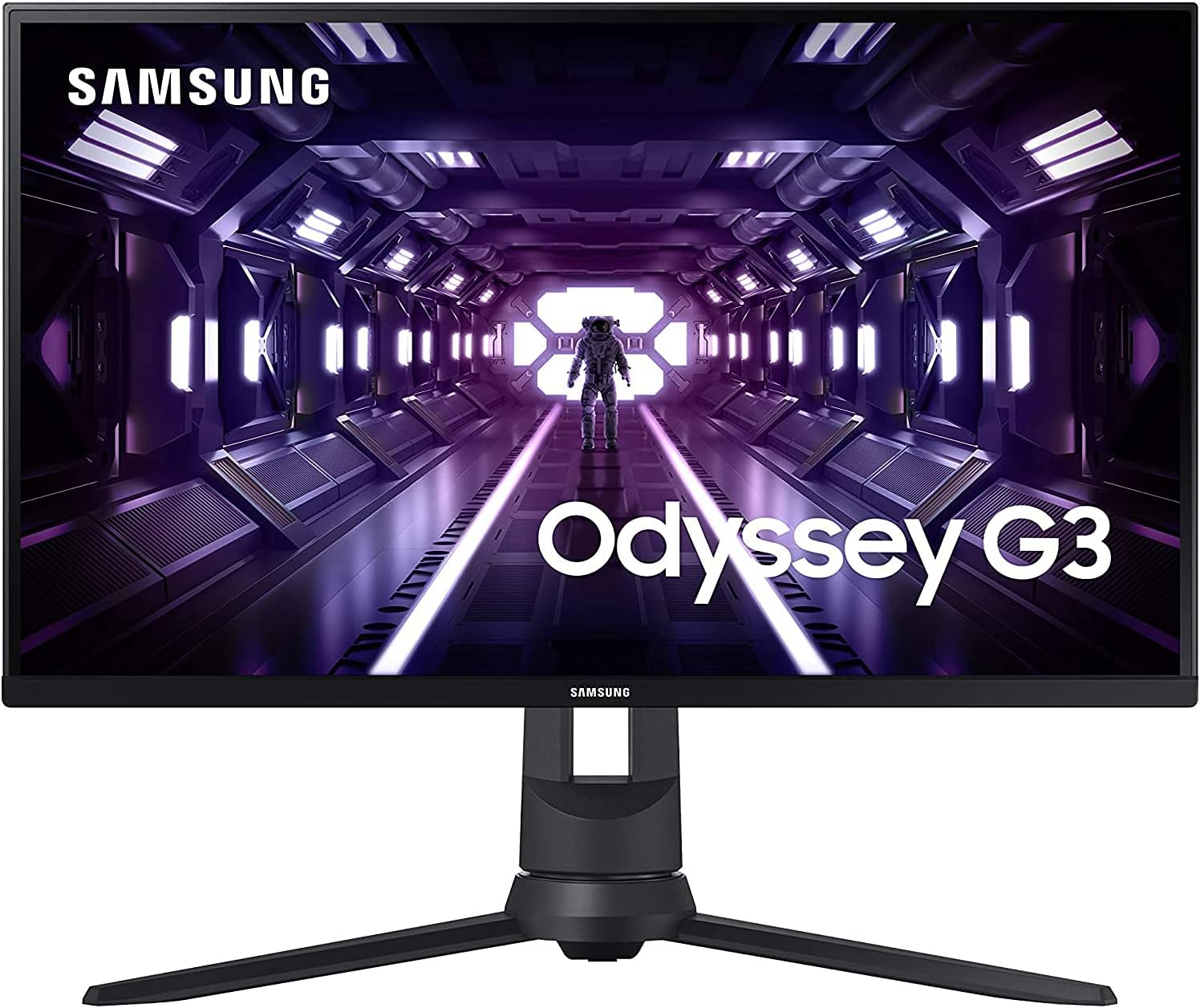
The SAMSUNG Odyssey G3 monitor is designed for an immersive gaming experience, featuring a 144Hz refresh rate, 1ms response time, and AMD FreeSync Premium technology. Its 3-sided borderless design enhances viewing, and the height-adjustable stand offers ergonomic flexibility.
2. Safety Information
Observe the following safety precautions to prevent damage to your monitor or injury to yourself:
- Do not expose the monitor to rain, moisture, or extreme temperatures.
- Ensure proper ventilation around the monitor to prevent overheating.
- Use only the power cable and adapters supplied by the manufacturer.
- Avoid placing heavy objects on the power cord or the monitor itself.
- Disconnect the power plug from the wall outlet if the monitor will not be used for an extended period.
- Do not attempt to disassemble or repair the monitor yourself. Refer all servicing to qualified personnel.
3. Package Contents
Verify that all items are present in your product package:
- SAMSUNG Odyssey G3 Series 24-Inch Monitor
- Power Cable
- Display Port Cable
- Monitor Stand (Base and Neck)
- Instruction Manual (this document)
4. Physical Setup
4.1 Assembling the Stand
- Carefully place the monitor face down on a soft, clean surface to prevent scratches.
- Attach the stand neck to the monitor's rear panel. Ensure it clicks securely into place.
- Connect the stand base to the stand neck. Tighten the screw at the bottom of the base to secure it.
4.2 Connecting Cables
- Connect the DisplayPort cable from your computer's graphics card to the DisplayPort input on the monitor. Alternatively, use an HDMI cable if your system supports it.
- Connect the power cable to the monitor's power input, then plug the other end into a wall outlet.
4.3 Ergonomic Adjustments
The monitor stand allows for various adjustments to optimize your viewing experience:
- Height Adjustment: Raise or lower the monitor to eye level.
- Tilt: Adjust the screen's vertical angle for comfortable viewing.
- Swivel: Rotate the monitor horizontally.
- Pivot: Rotate the screen to a portrait orientation.

4.4 VESA Mount Compatibility
The monitor is VESA compatible, allowing it to be mounted on a wall or an alternative monitor arm. Refer to the VESA mounting kit instructions for proper installation.
5. Operating Instructions
5.1 Powering On/Off
Press the power button located on the bottom center of the monitor to turn it on or off. The power indicator light will illuminate when the monitor is active.
5.2 On-Screen Display (OSD) Menu
Use the joystick button on the bottom center of the monitor to navigate the OSD menu. This menu allows you to adjust various display settings.
- Move Joystick Up/Down: Navigate through menu options.
- Move Joystick Left/Right: Adjust values or select sub-menus.
- Press Joystick: Confirm selection or enter a sub-menu.
5.3 Display Settings
Optimize your viewing experience through the OSD menu:
- Refresh Rate: The monitor supports up to 144Hz. Ensure your graphics card settings are configured to utilize this refresh rate for smoother visuals.
- Response Time: Set the response time to 1ms for minimal motion blur, crucial for fast-paced gaming.
- AMD FreeSync Premium: Enable this feature in the OSD and your graphics card control panel to synchronize the monitor's refresh rate with your GPU's frame rate, eliminating screen tearing and stuttering.
- Eye Saver Mode: Activate this mode to reduce blue light emissions, which can help decrease eye strain during extended use.
- Flicker Free Technology: This monitor incorporates Flicker Free technology to continuously remove tiring and irritating screen flicker, enhancing viewing comfort.


6. Maintenance
6.1 Cleaning the Monitor
- Always unplug the monitor before cleaning.
- For the screen, gently wipe with a soft, lint-free cloth. If necessary, use a screen-specific cleaning solution applied to the cloth, not directly to the screen.
- For the exterior, wipe with a soft, dry cloth. Avoid using abrasive cleaners or solvents.
6.2 Storage
When storing the monitor, ensure it is kept in a cool, dry place, away from direct sunlight and extreme temperatures. Use original packaging if available to protect it from dust and physical damage.
7. Troubleshooting
If you encounter issues with your monitor, refer to the following common problems and solutions:
| Problem | Possible Solution |
|---|---|
| No image on screen | Ensure the power cable is securely connected and the monitor is turned on. Verify the video cable (DisplayPort or HDMI) is firmly connected to both the monitor and your computer. Check the input source in the OSD menu. |
| Image is flickering or unstable | Check the video cable connections. Ensure your graphics card drivers are up to date. If using FreeSync, ensure it is enabled correctly in both the monitor OSD and your graphics card settings. |
| Ghosting or motion blur | Adjust the monitor's response time setting in the OSD menu to 1ms. Ensure your refresh rate is set to 144Hz in your computer's display settings. |
| Colors appear incorrect | Adjust color settings (brightness, contrast, gamma) in the OSD menu. Ensure your graphics card color settings are properly calibrated. |
8. Specifications
Key technical specifications for the SAMSUNG Odyssey G3 Series 24-Inch FHD 1080p Gaming Monitor:
| Feature | Specification |
|---|---|
| Screen Size | 24 Inches |
| Resolution | FHD 1080p (1920 x 1080 Pixels) |
| Refresh Rate | 144Hz |
| Response Time | 1ms |
| Aspect Ratio | 16:9 |
| Screen Surface | Flat |
| Brand | Samsung |
| Model Number | LF24G35TFWNXZA |
| Item Weight | 9.92 pounds |
| Product Dimensions (LxWxH) | 10.46 x 21.33 x 19.44 inches |
| Color | Black |
| Voltage | 110 Volts |

9. Warranty Information
Your SAMSUNG Odyssey G3 Series monitor is covered by a standard manufacturer's warranty. For detailed information regarding warranty terms, conditions, and registration, please refer to the warranty card included in your product packaging or visit the official Samsung support website.
10. Support
For further assistance, technical support, or to download the latest drivers and software, please visit the official Samsung support website:
You may also contact Samsung customer service for direct support.


