
1. Product Overview
The AWELOR 1296P HD Wireless Ear Otoscope is a versatile tool designed for visual inspection and cleaning of the ear canal. It features a high-definition camera and LED lighting, connecting wirelessly to your smartphone or tablet for real-time viewing. This device is suitable for various applications beyond ear inspection, including examining the nasal cavity, throat, teeth, scalp roots, and even for pet care.

Figure 1: AWELOR 1296P HD Wireless Ear Otoscope and its primary features.
2. Package Contents
Before using your AWELOR Wireless Smart Otoscope, please ensure all components are present in the package:
- Wireless Smart Otoscope device
- USB Type-C charging cable
- 2 high-quality ear wax spoons
- 8 differently sized ear curette cleaners
- 1 tiny cleaning brush
- User Manual

Figure 2: The Wireless Smart Otoscope device and included accessories.
3. Setup Guide
Follow these steps to set up your AWELOR Wireless Ear Otoscope:
- Charge the Device: Connect the provided Type-C charging cable to the otoscope and a USB power source. The indicator light will show charging status.
- Download the App: Scan the QR code provided in the manual or on the product packaging to download the "WALFRONT" application from your device's app store (available for iPhone, iPad, and Android Smart Phones).
- Power On: Remove the protective lid from the otoscope. The device will power on automatically, and the LED light will illuminate.
- Connect to Wi-Fi: Go to your phone's Wi-Fi settings. Locate and connect to the Wi-Fi network named "walfront-xxxxxx" (where xxxxxx is a unique identifier). Important: Connect to the product's Wi-Fi, not Bluetooth.
- Launch the App: Open the "WALFRONT" app. Once connected, you should see a confirmation message. Tap "Begin" to start the inspection.
- Attach Ear Pick: Before use, ensure the desired ear pick attachment is securely installed and fixed to the otoscope tip. Refer to Figure 3 for proper attachment.

Figure 3: Proper insertion of the eartip to the reference line for secure attachment.

Figure 4: Visual guide for connecting the otoscope to your smart device.
4. Operating Instructions
Once set up, the otoscope provides a clear view of the ear canal and other areas. Always operate with caution.
- Select Ear: In the WALFRONT app, select whether you are inspecting the left or right ear.
- Gentle Insertion: Carefully and slowly insert the otoscope tip into the ear canal. The 3.9mm ultra-slim lens is designed to reach the eardrum comfortably.
- Observe and Clean: View the live feed on your connected device. Use the attached ear pick to gently remove earwax. The 6 LED lights and 1296P HD camera provide a 360° wide-angle view for precise cleaning.
- Multiple Applications: The device can also be used to inspect other body parts such as the nasal cavity, throat, teeth, and scalp roots. It is also suitable for examining pets.
- Rotating Ear Pick: The ear pick can be rotated for effective wax removal.
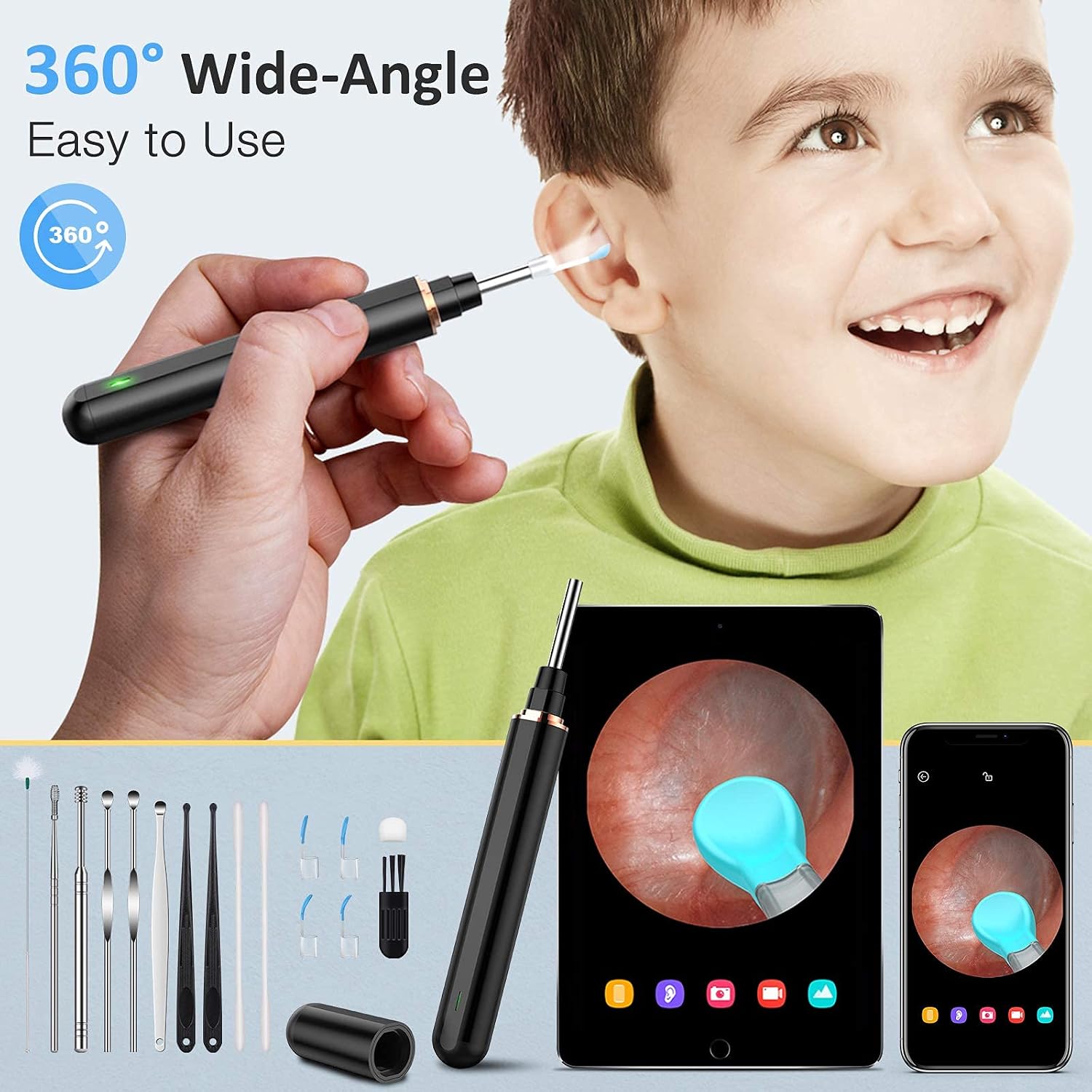
Figure 5: Demonstrating the 360-degree wide-angle view during ear inspection.

Figure 6: Visualizing earwax removal with the otoscope.

Figure 7: The otoscope's versatility for multiple inspection and cleaning tasks.
Video 1: Official product video demonstrating the AWELOR Ear Wax Removal Ear Cleaner with Camera.
5. Maintenance
Proper maintenance ensures the longevity and hygiene of your device:
- Cleaning the Lens: The otoscope lens is IP67 waterproof. It can be cleaned with water or wiped with alcohol. Ensure the lens is dry before storage.
- Cleaning Ear Picks: Use the included tiny brush to clean the ear picks after each use. The ear picks are washable.
- Storage: Recap the otoscope after use to turn it off and protect the lens. Store all components in their designated cases to prevent damage.

Figure 8: Cleaning the IP67 waterproof lens under running water.
6. Troubleshooting
If you encounter issues with your AWELOR Wireless Ear Otoscope, refer to the following common solutions:
- Device Not Powering On: Ensure the device is fully charged. Remove and re-attach the protective lid to activate the power-on function.
- Connection Issues (Wi-Fi):
- Verify that your phone is connected to the otoscope's dedicated Wi-Fi network ("walfront-xxxxxx"), not your home Wi-Fi or Bluetooth.
- Ensure the otoscope is within close proximity to your smart device.
- Restart both the otoscope (by recapping and uncapping) and your smart device.
- Lagging or Pixelated Video: A poor Wi-Fi signal between the otoscope and your device can cause video lag. Try moving closer to the otoscope or ensuring no obstructions are interfering with the signal.
- Image Not Clear: Ensure the otoscope lens is clean and free from debris or moisture.
- Ear Pick Not Secure: Always ensure the ear pick is firmly attached to the otoscope tip before use to prevent it from detaching during operation.
7. Specifications
| Feature | Detail |
|---|---|
| Model Number | HH17001-BLKUS |
| Camera Resolution | 1296P HD (5.0MP lens) |
| LED Lights | 6 LED lights |
| Lens Diameter | 3.9mm ultra-slim |
| Waterproof Rating | IP67 (lens only) |
| Battery Capacity | 270mAh Lithium Polymer |
| Continuous Working Time | Up to 90 minutes |
| Standby Time | Up to 60 days |
| Charging Port | Type-C |
| Compatibility | iPhone, iPad, Android Smart Phones |

Figure 9: Details of the 1296P HD camera and LED lighting.
8. Safety Information
Please read and adhere to the following safety guidelines:
- Always ensure the ear pick is securely attached before inserting the device into any body cavity.
- Use the device gently and avoid excessive force to prevent injury.
- Keep the device out of reach of children. Adult supervision is recommended when used on children.
- The main body of the device is not waterproof; only the lens and attached tubes are. Avoid submerging the entire device in water.
- If you experience any discomfort, pain, or unusual symptoms during use, discontinue immediately and consult a medical professional.
- This device complies with Part 15 of the FCC rules. Operation is subject to the following two conditions: 1) This device may not cause harmful interference; 2) This device must accept any interference received, including interference that may cause undesired operation.
- This product is in compliance with Directive 2011/65/EU (ROHS compliance) on the restriction of the use of certain hazardous substances in electrical and electronic equipment.
9. Warranty and Support
AWELOR is committed to providing high-quality products and customer satisfaction. For any questions, concerns, or technical support, please refer to the contact information provided in your product packaging or visit the official AWELOR website. Our customer service team is available to assist you with any issues you may encounter.