
1. Introduction
This manual provides essential instructions for setting up, operating, maintaining, and troubleshooting your Lenovo ThinkPad T14s Gen 1 laptop, model 20T00021US. The ThinkPad T14s Gen 1 is a 14-inch slim and lightweight business laptop featuring powerful Intel processing, a Full HD display, and robust security features, designed for professionals requiring portability and performance.
2. Setup
2.1. Unpacking
Carefully remove your ThinkPad T14s Gen 1 and its accessories from the packaging. Ensure all components listed in the packing slip are present. Retain the packaging for future transport or service needs.
2.2. Connecting Power
Before initial use, connect the USB-C power adapter to the laptop and a power outlet. The laptop can be used while charging.
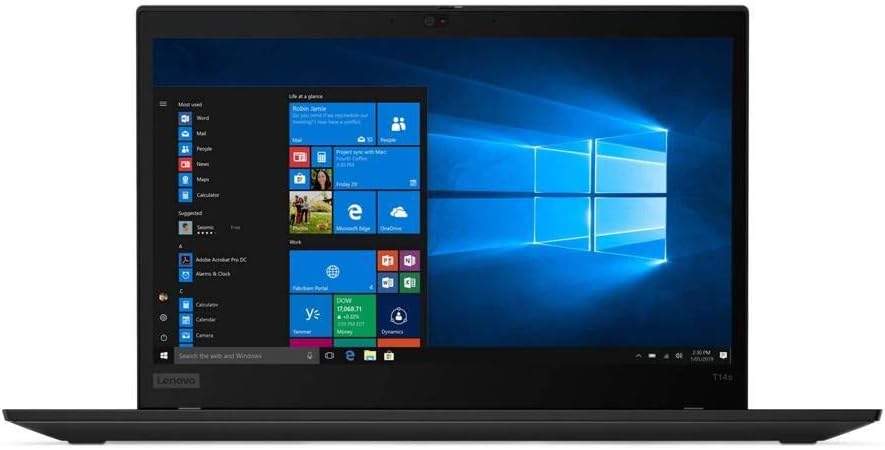
Figure 2.2.1: The Lenovo ThinkPad T14s Gen 1 laptop with its display showing the Windows 10 operating system desktop. This image illustrates the laptop in an operational state, ready for use after connecting power.
2.3. Initial Boot-up
Press the power button to turn on the laptop. Follow the on-screen instructions to complete the Windows 10 Pro setup, including language selection, network connection, and user account creation.
3. Operating Your ThinkPad T14s Gen 1
3.1. Power On/Off
- Power On: Press the power button located on the side of the laptop.
- Power Off: Click the Start button in Windows, then select Power > Shut down.
- Sleep Mode: Close the lid or select Power > Sleep from the Start menu.
3.2. Keyboard and TrackPoint
The ThinkPad T14s Gen 1 features a full-sized keyboard and the iconic TrackPoint pointing device for precise cursor control.

Figure 3.2.1: A top-down view of the Lenovo ThinkPad T14s Gen 1 keyboard, highlighting the red TrackPoint in the center of the keyboard and the associated mouse buttons below the spacebar. This image demonstrates the primary input devices for navigation and typing.
- TrackPoint: Use the red cap in the center of the keyboard to move the cursor.
- TrackPoint Buttons: The three buttons below the spacebar function as left-click, scroll, and right-click for the TrackPoint.
- Function Keys: Use the Fn key in combination with F1-F12 for various system functions (e.g., volume, brightness, Wi-Fi).
3.3. Touchpad
The multi-touch touchpad allows for intuitive navigation and gesture control.
- Single-finger tap: Left-click.
- Two-finger tap: Right-click.
- Two-finger scroll: Scroll through documents or web pages.
- Pinch-to-zoom: Zoom in or out on content.
3.4. External Ports
The ThinkPad T14s Gen 1 offers a variety of ports for connecting peripherals and external displays.

Figure 3.4.1: The left side of the Lenovo ThinkPad T14s Gen 1, displaying its various ports including USB-C (Thunderbolt 3), USB-C (Power Delivery), USB 3.2 Gen 1, HDMI, and a headphone/microphone combo jack. This view highlights the connectivity options available on this side of the laptop.
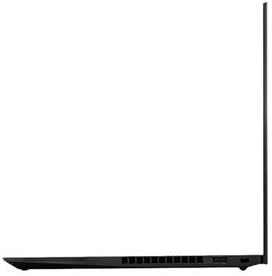
Figure 3.4.2: The right side of the Lenovo ThinkPad T14s Gen 1, showing additional ports such as a USB 3.2 Gen 1 port and the power button. This image provides a clear view of the connectivity and controls located on the right side of the device.
- USB 3.2 Gen 1 (Always On): For connecting USB devices and charging mobile devices even when the laptop is off.
- USB 3.2 Gen 1: Standard USB port for peripherals.
- USB-C 3.2 Gen 1/DisplayPort (Power Delivery): Multi-functional port for data, video output, and charging.
- USB-C 3.2 Gen 2/Thunderbolt 3/DisplayPort (Power Delivery): High-speed port for data, video, and power, supporting Thunderbolt 3 accessories.
- HDMI: For connecting to external displays or projectors.
- Headphone/microphone combo jack: For audio input and output.
- Lenovo Ethernet extension connector: For wired network connection (requires adapter, sold separately).
4. Maintenance and Care
Proper care ensures the longevity and optimal performance of your ThinkPad T14s Gen 1.
- Cleaning the Screen: Use a soft, lint-free cloth lightly dampened with water or a screen cleaner. Do not spray liquid directly onto the screen.
- Cleaning the Keyboard: Use compressed air to remove dust and debris from between keys. A soft brush can also be used.
- Battery Care: To maximize battery life, avoid extreme temperatures. For long-term storage, charge the battery to about 50-60% and store the laptop in a cool, dry place.
- Software Updates: Regularly update your operating system and drivers to ensure security and performance.
5. Troubleshooting Common Issues
This section addresses common problems you might encounter with your ThinkPad T14s Gen 1.
- Laptop does not power on:
Ensure the power adapter is securely connected to both the laptop and a working power outlet. Try a different outlet. If the battery is completely drained, it may take a few minutes of charging before the laptop can power on. - Screen is blank or black:
Check if the laptop is powered on. Press the Fn + F7 keys (or the appropriate function key for display toggle) to ensure the display is not turned off. Connect an external monitor to check if the issue is with the laptop's internal display. - Wi-Fi connection issues:
Ensure Wi-Fi is enabled (check the Wi-Fi icon in the taskbar or settings). Restart your router and modem. Update your wireless network drivers. - Keyboard or TrackPoint not responding:
Restart the laptop. Check for any physical obstructions. Ensure drivers are up to date. - Laptop is running slow:
Close unnecessary applications. Check Task Manager for processes consuming high CPU or RAM. Ensure sufficient free space on the SSD. Run a virus scan.
6. Technical Specifications
| Feature | Specification |
|---|---|
| Model Number | 20T00021US |
| Processor | 10th Gen Intel Core i5-10210U (1.6 GHz, up to 4.2 GHz, 4 cores) |
| Graphics | Intel UHD Graphics (Integrated) |
| Display | 14-inch IPS Full HD (1920 x 1080) LED backlight, anti-glare |
| RAM | 8 GB DDR4 SDRAM 2666MHz |
| Storage | 256 GB SSD M.2 PCIe |
| Operating System | Windows 10 Pro 64-bit |
| Wireless Connectivity | Intel Wi-Fi 6 AX 201 (802.11a/b/g/n/ac/ax), Bluetooth 5.0 |
| Ports | USB 3.2 Gen 1 (x2), USB-C 3.2 Gen 1/DisplayPort (PD), USB-C 3.2 Gen 2/Thunderbolt 3/DisplayPort (PD), HDMI, Headphone/mic combo jack, Lenovo Ethernet extension connector |
| Weight | Approximately 2.98 pounds (1.35 kg) |
| Color | Black |
7. Warranty and Support
Your Lenovo ThinkPad T14s Gen 1 comes with a standard manufacturer's warranty. For detailed warranty information, please refer to the warranty card included with your product or visit the official Lenovo support website. For technical assistance, driver downloads, or service requests, please contact Lenovo customer support or visit their online support portal.
Lenovo Support Website: support.lenovo.com