
Socobeta DVP5982C1
Socobeta Universal DVD Player Remote Control User Manual
Model: DVP5982C1
1. Introduction
Thank you for purchasing the Socobeta Universal DVD Player Remote Control. This remote is designed as a high-quality replacement for specific Philips DVD Player models, offering seamless control over your entertainment system. Please read this manual carefully to ensure proper setup and operation of your new remote control.
2. Product Overview
The Socobeta DVP5982C1 remote control features a comprehensive set of buttons for managing your DVD player functions. Its ergonomic design ensures comfortable handling.
2.1 Remote Control Layout

Image: A clear view of the remote control, highlighting the button layout including power, navigation, playback, and numeric keys.
2.2 Key Features
- Infrared Connectivity: Reliable communication with your DVD player.
- Durable Construction: Made of ABS material for longevity.
- Wide Compatibility: Specifically designed for Philips DVD Player models DVP5982C1/37B, DVP3350K, DVP3386K, DVP3310K.
- Optimal Range: Effective operating distance of up to 8 meters (26 feet).

Image: The remote control shown with its approximate dimensions: 150 x 46 x 24 mm (5.90 x 1.81 x 0.94 inches).
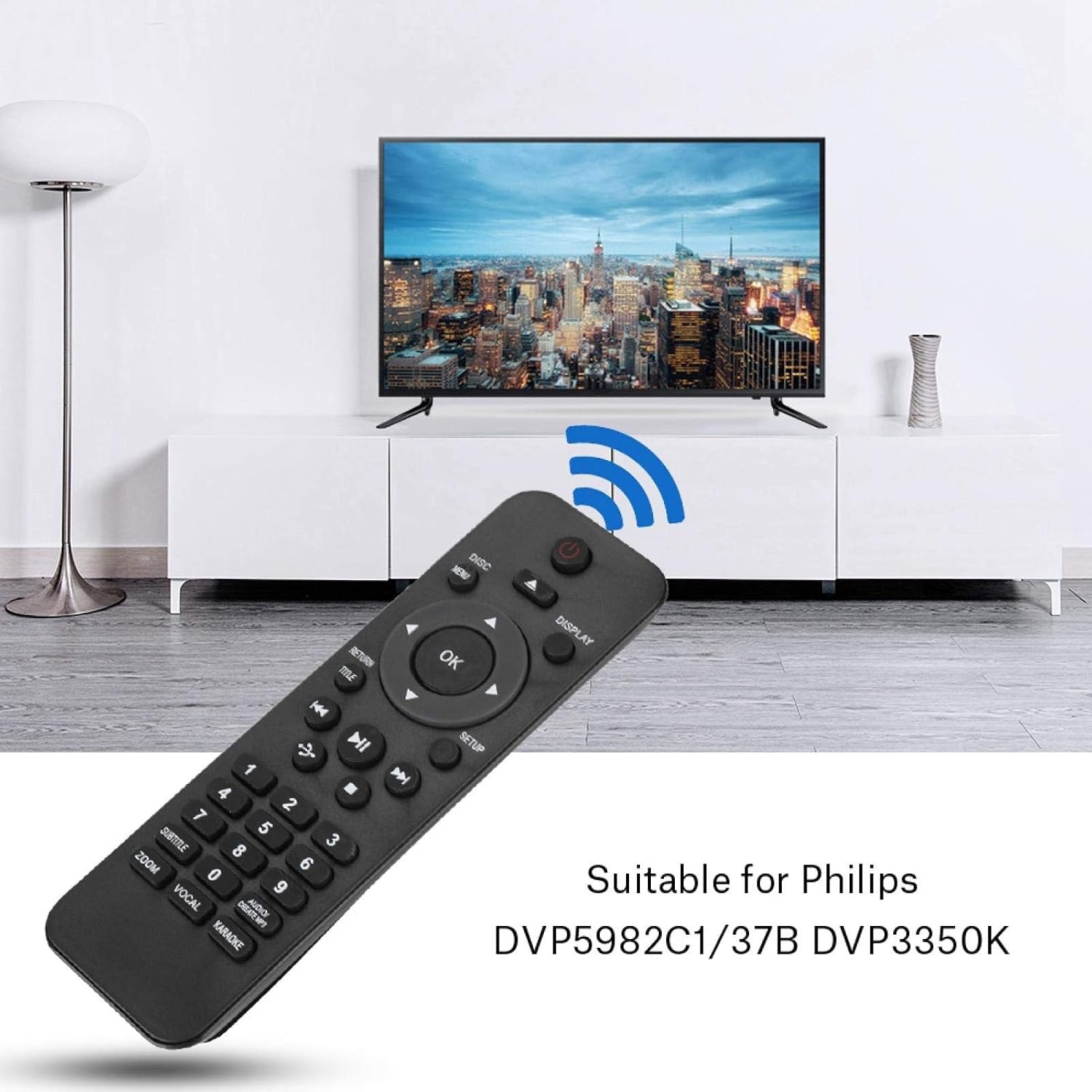
Image: The remote control positioned in front of a television, illustrating its intended use and highlighting its compatibility with specific Philips DVD player models.

Image: A hand demonstrating the use of the remote control, emphasizing its effective operating range of over 8 meters.

Image: The remote control, highlighting its construction from durable ABS material, which contributes to its wear resistance and longevity.

Image: A comparison of the 'New Type' and 'Old Type' models of the remote control, indicating that either version may be shipped randomly.
3. Setup
This remote control is designed as a direct replacement for the specified Philips DVD Player models. No complex programming or code entry is typically required for these compatible devices. Simply install the batteries and begin use.
3.1 Battery Installation
- Locate the battery compartment on the back of the remote control.
- Slide open the battery compartment cover.
- Insert two (2) AAA batteries, ensuring the positive (+) and negative (-) terminals align correctly with the markings inside the compartment.
- Close the battery compartment cover securely.
Note: Always use new batteries and replace both batteries at the same time. Do not mix old and new batteries or different types of batteries.
4. Operating Instructions
Point the remote control directly at the infrared receiver on your DVD player. Ensure there are no obstructions between the remote and the player.
4.1 Basic Functions
- Power (⑂): Turns the DVD player on or off.
- DISC MENU: Accesses the main menu of the DVD disc.
- DISPLAY: Shows on-screen information about the current playback.
- OK / Navigation (▲▼◄►): Use the arrow keys to navigate menus and the OK button to confirm selections.
- RETURN: Goes back to the previous menu or screen.
- TITLE: Returns to the disc's title menu.
- SETUP: Accesses the system setup menu of the DVD player.
- Playback Controls (▶/⏸, ■, ⏮, ⏭): Play/Pause, Stop, Previous Track/Chapter, Next Track/Chapter.
- Numeric Buttons (0-9): Directly select tracks, chapters, or input numbers.
4.2 Special Functions
- SUBTITLE: Cycles through available subtitle languages.
- ZOOM: Adjusts the screen zoom level.
- VOCAL: Controls vocal settings (if supported by the DVD player and disc).
- KARAOKE: Activates or controls karaoke functions (if supported).
- AUDIO / CREATE MP3: Switches audio tracks or accesses MP3 creation features (if supported).
5. Maintenance
Proper care will extend the life of your remote control.
- Cleaning: Wipe the remote control with a soft, dry cloth. For stubborn dirt, slightly dampen the cloth with water or a mild cleaning solution, then wipe dry immediately. Do not use abrasive cleaners or solvents.
- Battery Replacement: Replace batteries when the remote's response becomes sluggish or it stops working. Remove batteries if the remote will not be used for an extended period to prevent leakage.
- Storage: Store the remote in a cool, dry place away from direct sunlight, extreme temperatures, and high humidity.
- Avoid Drops: Protect the remote from physical impact, as drops can damage internal components.
6. Troubleshooting
If you experience issues with your remote control, try the following steps:
| Problem | Possible Cause | Solution |
|---|---|---|
| Remote not working | Dead or incorrectly inserted batteries. | Replace batteries with new AAA batteries, ensuring correct polarity. |
| Remote not working | Obstruction between remote and DVD player. | Ensure a clear line of sight to the DVD player's infrared receiver. |
| Remote not working | Remote is not compatible with your DVD player model. | Verify your DVD player model is listed as compatible (DVP5982C1/37B, DVP3350K, DVP3386K, DVP3310K). This remote is a replacement, not a universal programmable remote. |
| Limited range | Weak batteries. | Replace batteries. |
| Limited range | Interference from other electronic devices or bright light sources. | Move away from potential sources of interference. |
7. Specifications
| Feature | Detail |
|---|---|
| Brand | Socobeta |
| Model Number | DVP5982C1 |
| Connectivity Technology | Infrared (IR) |
| Compatible Devices | Philips DVP5982C1/37B, DVP3350K, DVP3386K, DVP3310K |
| Maximum Range | 8 Meters (approx. 26 feet) |
| Battery Type | 2 x AAA batteries (not included) |
| Number of Buttons | 20 |
| Material | ABS |
| Dimensions (L x W x H) | Approx. 150 x 46 x 24 mm (5.90 x 1.81 x 0.94 inches) |
| Country of Origin | China |
8. Warranty and Support
Information regarding specific warranty terms and customer support for this product is not available in the provided data. Please refer to the seller or retailer from whom you purchased the product for details on warranty coverage and support options.
Related documentsDVP5982C1


Ask a question about this manual
Ask about setup, troubleshooting, compatibility, parts, safety, or missing instructions. Manuals+ will review the question and use this page’s manual context to help answer it.