1. Introduction
This manual provides comprehensive instructions for the setup, operation, and maintenance of your seenda Backlit Wireless Keyboard. Designed for comfort and efficiency, this ultra-slim, rechargeable keyboard offers a seamless 2.4GHz wireless connection and illuminated keys for enhanced visibility in various lighting conditions. Please read this manual thoroughly before using the product to ensure optimal performance and longevity.
2. Package Contents
- 1 x seenda Backlit Wireless Keyboard
- 1 x USB-C Charging Cable
- 1 x 2.4G USB Receiver (typically stored in the keyboard's battery compartment or a dedicated slot)
- 1 x User Manual (this document)
3. Product Overview

Front view of the seenda Backlit Wireless Keyboard in Rose Gold, showcasing its full layout including the numeric keypad and function keys. The compact USB receiver is visible in the foreground, ready for connection.

The seenda Backlit Wireless Keyboard in Rose Gold positioned on a desk next to a computer monitor, illustrating its slim profile and how it integrates into a typical workspace setup.

Detail of the keyboard's LED indicators located above the numeric keypad. These indicators provide visual cues for charging status, low power warnings, Caps Lock activation, and Num Lock activation.

Close-up view of a keycap, revealing the underlying scissor switch mechanism. This design feature contributes to a smooth, quiet, and responsive typing experience.
4. Setup Instructions
- Charge the Keyboard: Before first use, fully charge the keyboard using the provided USB-C cable. Connect the USB-C end to the keyboard's charging port (located on the top edge) and the USB-A end to a computer's USB port or a USB wall adapter. The charging indicator LED will illuminate during charging and turn off when fully charged. A full charge takes approximately 2 hours.
- Locate the USB Receiver: The 2.4G USB receiver is typically stored in a dedicated slot on the keyboard itself for safekeeping during transport. Carefully remove it.
- Connect the Receiver: Plug the 2.4G USB receiver into an available USB port on your computer, laptop, Smart TV, or other compatible device.
- Power On the Keyboard: Locate the power switch on the keyboard (usually on the top edge, near the charging port) and slide it to the "ON" position.
- Automatic Connection: The keyboard should automatically connect to your device within a few seconds. No additional drivers are typically required for most operating systems (Windows 10/8/7, PC, Mac, Surface, Smart TV).

Image illustrating the compact 2.4G USB receiver and the wireless connection range of up to 10 meters, emphasizing the easy plug-and-play setup for the keyboard.
5. Operating Instructions
5.1 Power Management
- Power On/Off: Use the power switch located on the top edge of the keyboard to turn it on or off. Turning off the keyboard when not in use helps conserve battery life.
- Charging: When the low power indicator LED flashes, it's time to recharge the keyboard. Connect the USB-C cable as described in the Setup section. The keyboard features a 1600 mAh battery, providing up to 800 hours of continuous work without the backlight.
5.2 Backlight Control
The keyboard features a white LED backlight for improved visibility in low-light environments.
- Turn On/Off Backlight: Press the Fn key simultaneously with the light icon key (usually F10 or a dedicated key with a light bulb symbol) to toggle the backlight on or off.
- Adjust Backlight Brightness: Press the Fn key simultaneously with the +/- keys (often F11/F12 or dedicated brightness keys) to cycle through different brightness levels or turn the backlight off.
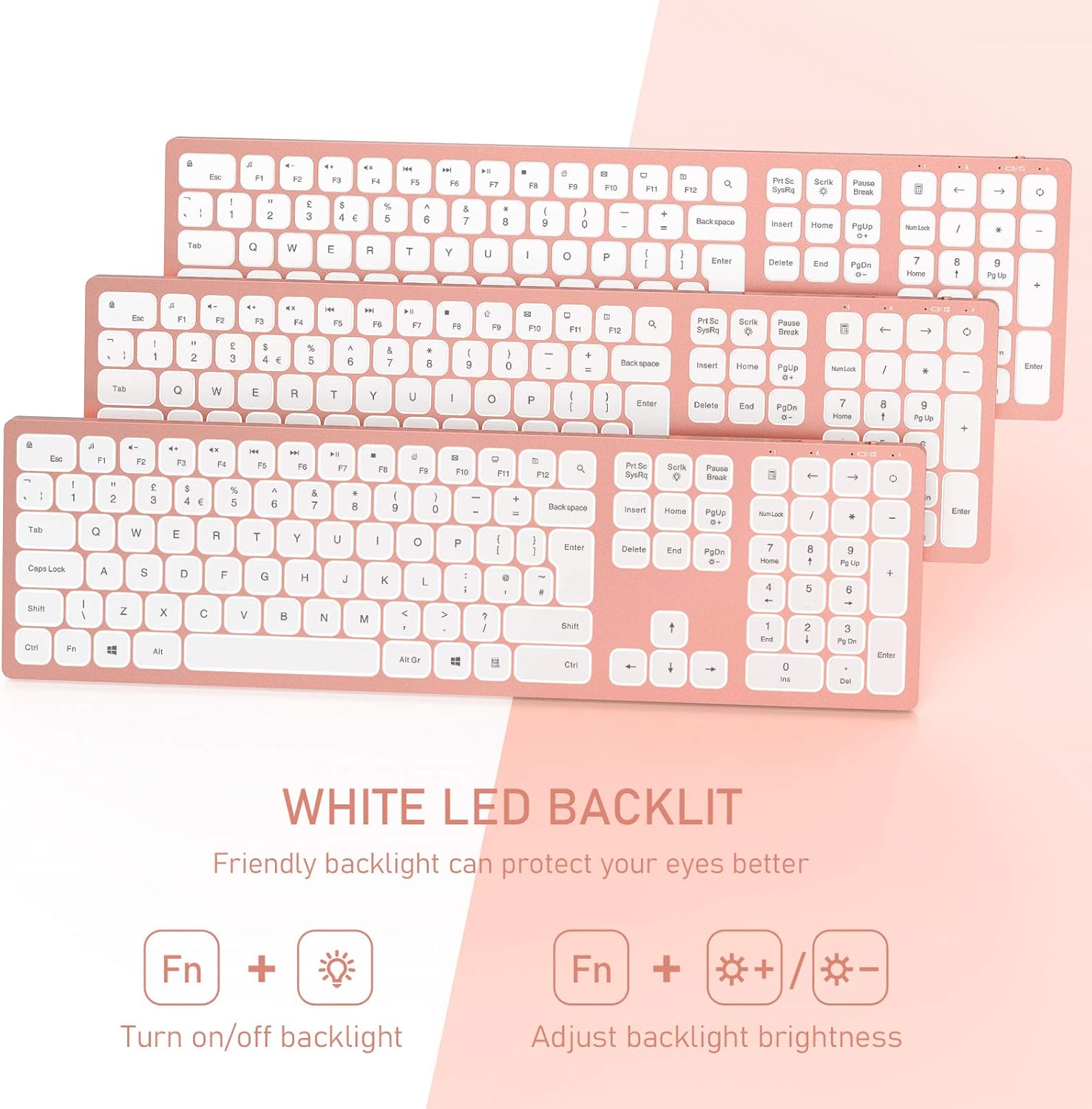
Illustration demonstrating the backlight functionality of the seenda keyboard. It highlights the 'Fn + light icon' combination to turn the backlight on/off and 'Fn + +/-' to adjust brightness, indicating a friendly white LED backlight designed to protect your eyes.

Close-up view of the keyboard's USB-C charging port and power switch. Text overlays indicate a 2-hour charge time, 1600 mAh battery capacity, and up to 800 hours of continuous use without backlight, highlighting its rechargeable nature.
5.3 Indicator Lights
- Charging Indicator: Illuminates when charging, turns off when fully charged.
- Low Power Indicator: Flashes when the battery is low, indicating a need for recharging.
- Caps Lock Indicator: Illuminates when Caps Lock is active.
- Num Lock Indicator: Illuminates when Num Lock is active.
6. Maintenance
- Cleaning: Use a soft, dry, lint-free cloth to clean the keyboard. For stubborn dirt, slightly dampen the cloth with water or a mild cleaning solution. Avoid using harsh chemicals or abrasive materials.
- Storage: When not in use for extended periods, turn off the keyboard to conserve battery life. Store it in a cool, dry place away from direct sunlight and extreme temperatures.
- Battery Care: To prolong battery life, avoid fully discharging the keyboard frequently. Recharge it when the low power indicator appears.
- USB Receiver: Keep the USB receiver in a safe place, preferably in its designated slot on the keyboard, to prevent loss.
7. Troubleshooting
| Problem | Possible Cause | Solution |
|---|---|---|
| Keyboard not responding | Keyboard is off Low battery USB receiver not connected or loose Interference | Ensure keyboard is ON. Charge the keyboard fully. Ensure USB receiver is firmly plugged into a working USB port. Try a different USB port. Move keyboard closer to the receiver. Avoid placing metal objects between keyboard and receiver. |
| Backlight not working | Backlight is off Low battery | Press Fn + light icon key to turn on/off. Charge the keyboard. Backlight may be disabled when battery is critically low. |
| Keys are sticky or unresponsive | Dirt or debris under keys Physical damage | Clean the keyboard as per maintenance instructions. If physical damage is suspected, contact customer support. |
| Connection drops frequently | Distance from receiver Interference | Ensure keyboard is within 10 meters of the receiver. Minimize other 2.4GHz wireless devices nearby. |
8. Specifications
| Feature | Detail |
|---|---|
| Model Number | B08S2T99GY |
| Connectivity Technology | 2.4GHz Wireless |
| Wireless Range | Up to 10 meters (33 feet) |
| Compatible Devices | Laptop, Smart TV, Desktop PC, Surface (Windows 10/8/7) |
| Keyboard Description | Ergonomic, Full-size with Numeric Keypad |
| Special Features | Backlighting (White LED), Rechargeable, Ultra-Slim |
| Battery Capacity | 1600 mAh |
| Charging Time | Approximately 2 hours |
| Continuous Work Time (No Backlight) | Up to 800 hours |
| Power Source | USB Powered (via USB-C cable) |
| Product Dimensions | 16.82 x 4.84 x 0.48 inches |
| Item Weight | 1.65 pounds |
| Color | Rose Gold |
| Manufacturer | seenda |
9. Warranty and Support
seenda products are designed and manufactured to the highest quality standards. For specific warranty information, please refer to the warranty card included with your product or visit the official seenda website. If you encounter any issues or have questions regarding your seenda Backlit Wireless Keyboard, please contact seenda customer support through their official channels for assistance.
Manufacturer: seenda
Website: Visit the seenda Store on Amazon


