
Introduction
This manual provides instructions for the Azpen A1080KB Keyboard Case, designed specifically for the Azpen A1080 10.1-inch tablet. This accessory combines a protective case with an integrated keyboard to enhance your tablet's functionality. The keyboard connects via a Micro USB cable. Ensure your tablet is the Azpen A1080 model and is 10.1 inches in size for proper fit and functionality.
Setup
Follow these steps to set up your Azpen A1080KB Keyboard Case:
- Insert the Tablet: Open the case and align your Azpen A1080 tablet with the designated frame within the case. Gently press the tablet into the frame, ensuring all edges are securely seated. Verify that all ports and buttons on your tablet are accessible through the case's cutouts.
- Connect the Keyboard: Locate the Micro USB cable attached to the keyboard. Connect the Micro USB plug into the corresponding Micro USB port on your Azpen A1080 tablet. The tablet should recognize the keyboard automatically. No additional drivers are typically required.

Image showing the Azpen A1080 tablet securely placed within the keyboard case, highlighting the accessible power button, volume button, headphone jack, MicroSD slot, and Micro USB port on the tablet's side.
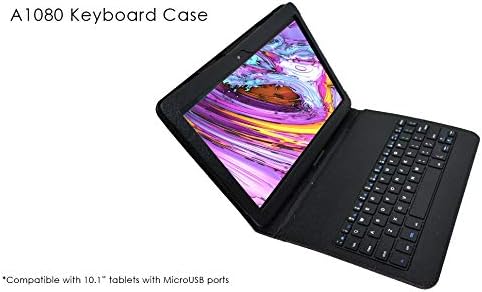
Image of the Azpen A1080KB keyboard case with a tablet inserted, showing the keyboard connected via Micro USB and ready for use.
Operating Instructions
Once the keyboard is connected, it functions like a standard external keyboard. You can use it for typing, navigation, and executing shortcuts supported by your tablet's operating system. The case can also be folded to prop up the tablet for comfortable viewing and typing.

Image demonstrating the Azpen A1080KB keyboard case folded into a stand configuration, allowing the tablet to be propped up for viewing and typing.
Maintenance
Proper care ensures the longevity of your keyboard case:
- Cleaning: To clean the case, use a soft, slightly damp cloth. Avoid using abrasive cleaners, solvents, or harsh chemicals, as these can damage the material.
- Connector Care: Keep the Micro USB connector free from dust and debris to ensure a reliable connection.
- Storage: Store the case in a dry environment away from extreme temperatures and direct sunlight.
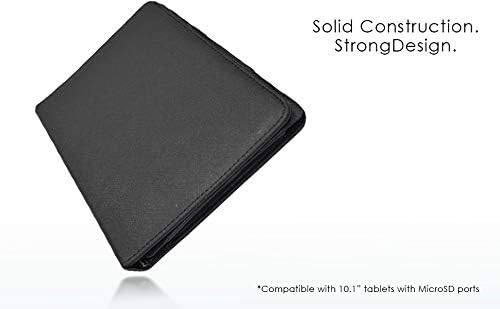
Image of the closed Azpen A1080KB keyboard case, highlighting its solid construction and protective design.
Troubleshooting
If you encounter issues with your keyboard case, refer to the following solutions:
- Keyboard Not Responding:
- Ensure the Micro USB cable is securely connected to both the keyboard and the tablet.
- Restart your tablet to refresh the connection.
- Check your tablet's settings to confirm external keyboard support is enabled, if applicable.
- Tablet Does Not Fit:
- This case is designed exclusively for the Azpen A1080 10.1-inch tablet. Verify your tablet model and size.
- Ensure the tablet is correctly oriented and aligned with the case's frame.
Specifications
| Brand | Azpen |
| Model Number | A1080KB |
| Compatible Devices | Azpen A1080 (10.1-inch tablet) |
| Connectivity Technology | Micro USB |
| Keyboard Description | Integrated Standalone |
| Special Feature | Ergonomic |
| Color | Black |
| Material | Acrylonitrile Butadiene Styrene |
| Number of Keys | 84 |
| Keyboard Layout | QWERTY |
| Item Weight | 8 ounces |
| What's in the Box | USB Cable |
Warranty and Support
Warranty: This Azpen A1080KB Keyboard Case comes with a One Year Warranty covering both labor and parts from the date of purchase.
Support: For technical assistance, warranty claims, or any product-related inquiries, please contact Azpen customer support. Refer to the official Azpen website (Azpen Store) for the most current contact information and support resources.