
1. Introduction
The Logitech M500s Advanced Corded Mouse is designed for enhanced productivity and comfort. Featuring hyper-fast scrolling, customizable buttons, and high-precision tracking, it offers a versatile and reliable experience for various computing tasks. This manual provides essential information for setting up, operating, maintaining, and troubleshooting your M500s mouse.

Image: Top view of the Logitech M500s mouse, showcasing its ergonomic design and central scroll wheel.
2. Setup
The M500s mouse is designed for simple plug-and-play operation, requiring no complex installation or batteries.
2.1 Connecting Your Mouse
- Locate an available USB-A port on your computer.
- Insert the USB connector of the M500s mouse firmly into the USB port.
- Your computer should automatically detect and install the necessary drivers. This process may take a few moments.
The mouse is compatible with Windows, macOS, Chrome OS, and Linux operating systems.
3. Operating Your Mouse
3.1 Hyper-Fast Scrolling
The M500s features a dual-mode scroll wheel. In hyper-fast mode, you can flick the scroll wheel to effortlessly navigate through long documents and web pages. To switch to click-to-click (ratchet) mode for precise navigation, press the scroll wheel down.

Image: The Logitech M500s mouse highlighting its hyper-fast scrolling and tilt wheel capabilities.
3.2 Customizable Buttons
The M500s is equipped with 7 programmable buttons, including the standard left/right clicks, scroll wheel click, and two thumb buttons. These buttons can be customized using the Logitech Options software to perform various functions, such as back/forward navigation, copy/paste, or media controls.

Image: Close-up of the Logitech M500s mouse, indicating the presence of 7 customizable buttons.
3.3 High-Precision Tracking and DPI Adjustment
The optical sensor provides precise cursor control. The DPI (Dots Per Inch) can be adjusted between 400 and 4000 DPI to suit your preference for cursor speed and accuracy. Use the dedicated DPI switch button located near the scroll wheel to cycle through preset DPI levels or customize them via Logitech Options software.

Image: The Logitech M500s mouse in a typical desktop setup, emphasizing its fast and precise cursor control with adjustable DPI.
3.4 Ergonomic Design
The M500s features a sculpted design with soft side rubber grips, providing enhanced palm support and control for extended periods of use.

Image: A hand comfortably resting on the Logitech M500s mouse, illustrating its contoured design for comfort.
4. Customization with Logitech Options Software
To unlock the full potential of your M500s mouse, including button customization and advanced scroll settings, download and install the Logitech Options software.
4.1 Software Installation
- Visit the official Logitech support website.
- Search for "Logitech Options" and download the version compatible with your operating system.
- Follow the on-screen instructions to complete the installation.
4.2 Customization Options
Once installed, Logitech Options allows you to:
- Assign specific functions to each of the 7 programmable buttons.
- Adjust horizontal and vertical scroll speeds.
- Fine-tune DPI settings.
- Create application-specific settings.
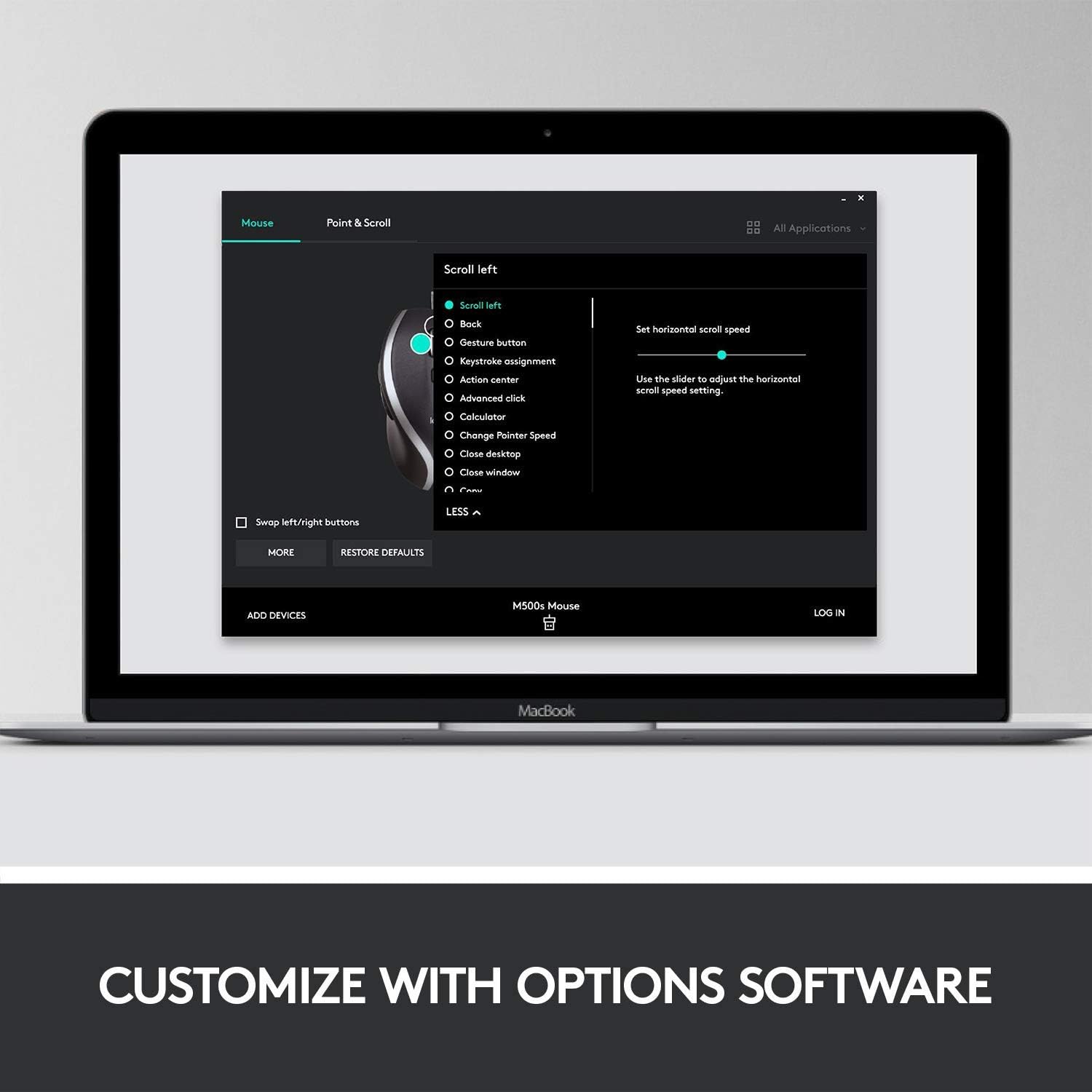
Image: A screenshot of the Logitech Options software interface, demonstrating the customization capabilities for the mouse.
5. Maintenance
Proper care will ensure the longevity and optimal performance of your M500s mouse.
- Cleaning: Use a soft, lint-free cloth slightly dampened with water or a mild cleaning solution to wipe the surface of the mouse. Avoid harsh chemicals or abrasive materials.
- Sensor Care: Keep the optical sensor on the underside of the mouse clean and free from dust or debris.
- Cable Management: Avoid sharp bends or excessive pulling on the USB cable to prevent damage.
6. Troubleshooting
If you encounter issues with your M500s mouse, try the following steps:
- Mouse Not Responding:
- Ensure the USB cable is securely plugged into a working USB port on your computer.
- Try plugging the mouse into a different USB port.
- Restart your computer.
- Test the mouse on another computer to determine if the issue is with the mouse or your system.
- Erratic Cursor Movement:
- Clean the optical sensor on the bottom of the mouse.
- Ensure you are using the mouse on a clean, non-reflective, and uniform surface.
- Check for any software conflicts or outdated drivers. Reinstall Logitech Options if necessary.
- Buttons Not Working/Customizing:
- Ensure Logitech Options software is installed and running.
- Check the button assignments within the Logitech Options software.
- Restart the Logitech Options application.
7. Specifications
| Feature | Detail |
|---|---|
| Model | M500s |
| Connectivity | Wired USB-A |
| Tracking Technology | Optical |
| DPI Range | 400 - 4000 DPI (adjustable) |
| Buttons | 7 customizable buttons |
| Scrolling | Hyper-fast scrolling with tilt |
| Dimensions (L x W x H) | 4.96 x 2.72 x 1.65 inches |
| Weight | 6.4 ounces (approx. 181g) |
| Cable Length | Standard USB cable |
| Compatibility | Windows, macOS, Chrome OS, Linux |

Image: Diagram illustrating the physical dimensions of the Logitech M500s mouse.

Image: Detailed diagram highlighting key features and components of the Logitech M500s mouse.
8. Warranty and Support
Logitech products are manufactured to high quality standards. For information regarding warranty coverage, technical support, and frequently asked questions, please visit the official Logitech support website. You will find resources including drivers, software downloads, and contact information for customer service.
Note: This product is listed as "Renewed." Please refer to the specific terms and conditions of the Amazon Renewed Guarantee for details on replacement or refund eligibility.


