
1. Introduction
This manual provides instructions for the proper setup, operation, and maintenance of your Decdeal J900 USB Wired Gaming Mouse. Please read this manual thoroughly before using the product to ensure optimal performance and longevity.
2. Product Features
- Adjustable DPI: Supports 800/1600/2400/3200/4800/6400 DPI settings for precise control.
- RGB Backlight: Features 7 programmable RGB backlight modes for customizable visual effects.
- Ergonomic Design: Engineered for comfortable hand feel, reducing fatigue during extended use.
- Honeycomb Hollow Design: Promotes ventilation and cooling, preventing hot hands and palms.
- Plug and Play: USB powered, no additional drivers required for operation.
- Durable Switches: Equipped with switches rated for 20 million clicks.

Figure 2.1: Side profile of the Decdeal J900 mouse, detailing its ergonomic design, maximum 6400 DPI, customizable RGB lighting, 5G laser sensor, and 1000Hz polling rate for responsive performance.
3. Setup
- Unpack the Decdeal J900 USB Wired Gaming Mouse from its packaging.
- Locate an available USB port on your computer (desktop or laptop).
- Insert the USB connector of the mouse into the USB port.
- The mouse is plug-and-play; no additional software or drivers are required for basic functionality. The operating system will automatically detect and install the necessary components.
4. Operating Instructions
4.1. DPI Adjustment
The Decdeal J900 mouse features six adjustable DPI levels to suit various tasks and preferences. The DPI can be cycled through using the dedicated DPI button located on the top of the mouse, behind the scroll wheel.
- Press the DPI button to cycle through the available settings: 800, 1600, 2400, 3200, 4800, and 6400 DPI.
- Each DPI level may correspond to a specific LED color indicator (refer to Figure 4.1 for details).

Figure 4.1: This diagram shows the six adjustable DPI levels (800, 1600, 2400, 3200, 4800, 6400) of the Decdeal J900 mouse, indicating how to cycle through them.
4.2. RGB Backlight Modes
The mouse offers 7 programmable RGB backlight modes. These modes can be changed using the RGB light mode switch located on the underside of the mouse.
- Flip the mouse over to locate the RGB light mode switch.
- Press the switch to cycle through different lighting effects, including Rainbow, DPI Color Breath, Keep Light On, Close, Random Leisure, Random Sleep, and Random Sport modes.
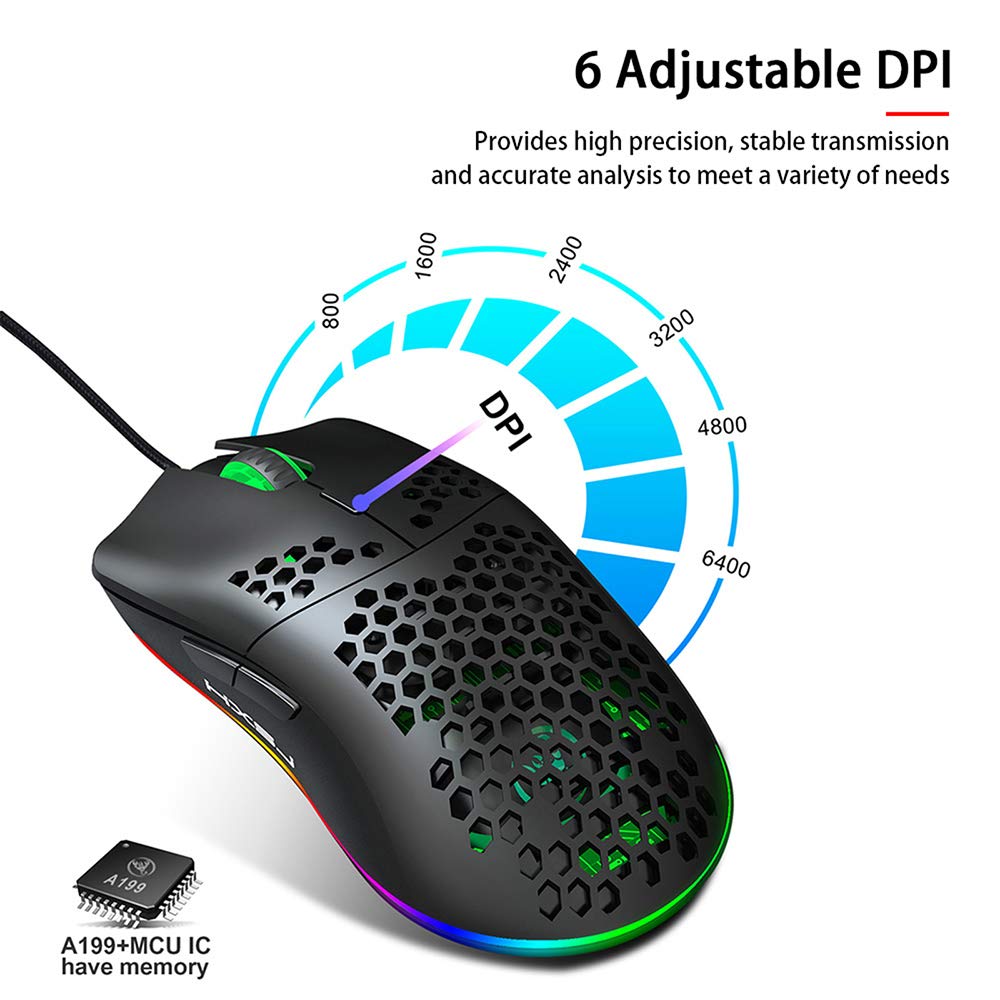
Figure 4.2: A hand is shown pressing the dedicated RGB light mode switch located on the underside of the Decdeal J900 mouse, demonstrating how to change lighting effects.

Figure 4.3: This image illustrates the adjustable DPI settings and various LED light modes available on the Decdeal J900 mouse.
5. Maintenance
To ensure the longevity and optimal performance of your Decdeal J900 mouse, follow these maintenance guidelines:
- Cleaning: Use a soft, dry cloth to wipe the surface of the mouse. For stubborn dirt, a slightly damp cloth can be used, ensuring no moisture enters the internal components. Avoid harsh chemicals or abrasive cleaners.
- Cable Care: Avoid bending or twisting the USB cable excessively. Do not pull the cable to disconnect the mouse; always grasp the USB connector.
- Storage: When not in use, store the mouse in a clean, dry environment away from extreme temperatures and direct sunlight.
6. Troubleshooting
If you encounter issues with your Decdeal J900 mouse, refer to the following common solutions:
- Mouse Not Responding:
- Ensure the USB cable is securely connected to your computer's USB port.
- Try connecting the mouse to a different USB port.
- Restart your computer.
- Test the mouse on another computer to determine if the issue is with the mouse or the computer.
- DPI Not Changing:
- Ensure you are pressing the correct DPI adjustment button.
- Check if the mouse is properly connected and powered.
- RGB Lights Not Working/Changing:
- Verify the RGB light mode switch on the underside of the mouse is being pressed correctly.
- Ensure the mouse is receiving power via the USB connection.
7. Specifications
| Brand | Decdeal |
| Model | J900 |
| Connectivity Technology | USB Wired |
| Movement Detection Technology | Optical |
| Adjustable DPI | 800/1600/2400/3200/4800/6400 |
| Backlight | RGB (7 modes) |
| Hand Orientation | Right Hand |
| Product Dimensions | 15 x 10 x 5 cm |
| Item Weight | 150 g |
| Compatible Operating Systems | Linux, Windows 7, Windows XP (and newer versions) |

Figure 7.1: An exploded diagram of the Decdeal J900 mouse, revealing its internal components such as the left button, Gundam 6400DPI sensor, transparent roller, ten-million-life microswitch, PCB circuit board, tail logo, RGB marquee glow ring, hollow base, and UPE foot sticker.
8. Warranty and Support
The Decdeal J900 USB Wired Gaming Mouse comes with a standard manufacturer's warranty. For specific warranty terms, duration, and support inquiries, please refer to the warranty card included with your product or contact Decdeal customer service directly. Keep your purchase receipt as proof of purchase for warranty claims.