
1. Introduction
This manual provides detailed instructions for the installation, operation, and troubleshooting of your Hommie AC1200 Dual-Band WiFi 5 PCI-E Card with Bluetooth 4.2. This adapter is designed to provide high-speed wireless internet connectivity and Bluetooth functionality to your desktop computer, enhancing your PC's capabilities for networking and peripheral connections.
2. Package Contents
Please verify that all items listed below are included in your package:
- Hommie AC1200 Wireless LAN Card (PCI-E)
- 2 x 6dBi High-Gain Antennas
- Bluetooth Data Cable
- Low Profile Bracket (for small form factor PCs)
- Full Height Bracket (pre-installed)
- Screwdriver
- Driver CD
- User Manual

Figure 2.1: Contents included in the Hommie AC1200 WiFi card package.
3. Product Overview and System Requirements
The Hommie AC1200 PCI-E card integrates an Intel 7265 AC chip, offering dual-band Wi-Fi (2.4GHz and 5GHz) and Bluetooth 4.2 connectivity. It supports various PCI-E slots and is compatible with multiple operating systems.
3.1. Key Features
- Dual-Band Wi-Fi: Supports 2.4GHz (up to 300Mbps) and 5GHz (up to 867Mbps) for flexible and high-speed wireless connections.
- Bluetooth 4.2: Enables connection to a wide range of Bluetooth peripherals.
- Intel 7265 AC Chip: Provides stable and efficient wireless performance.
- PCI Express Interface: Compatible with PCI-E x1, x4, x8, and x16 slots.
- High-Gain Antennas: Two 6dBi antennas for improved signal reception and range.
3.2. System Requirements
- Operating System: Windows 7, Windows 8, Windows 8.1, Windows 10, Linux 4.2+
- Available Slot: One PCI-E x1, x4, x8, or x16 slot on the motherboard.
- Available Header: One 9-pin USB header on the motherboard for Bluetooth functionality.

Figure 3.1: Hommie Wireless LAN Card with PCI-E slot compatibility and supported operating systems.

Figure 3.2: Hommie AC1200 WiFi card installed in a desktop computer.
4. Specifications
| Feature | Specification |
|---|---|
| Brand | Hommie |
| Model | PW0 |
| Hardware Interface | PCI Express, Bluetooth |
| Compatible Devices | Desktop Computer |
| Data Link Protocol | IEEE 802.11ac, Bluetooth 4.2 |
| Wi-Fi Data Transfer Rate | Up to 1200 Mbps (2.4GHz: 300Mbps, 5GHz: 867Mbps) |
| Antennas | 2 x 6dBi Detachable Antennas |
| Chipset | Intel 7265 AC |
5. Installation Guide
5.1. Hardware Installation
- Power Off Your PC: Completely shut down your computer and unplug the power cord from the wall outlet.
- Open PC Case: Remove the side panel of your computer case to access the motherboard.
- Locate a PCI-E Slot: Find an available PCI Express slot (x1, x4, x8, or x16) on your motherboard.
- Remove Slot Cover: Carefully remove the metal bracket cover from the chosen PCI-E slot on the back of your PC case. If your PC case requires a low profile bracket, replace the pre-installed full height bracket on the WiFi card with the provided low profile bracket.
- Insert WiFi Card: Align the gold contacts of the WiFi card with the PCI-E slot. Gently but firmly push the card into the slot until it is fully seated.
- Secure the Card: Use a screw to secure the WiFi card's bracket to the PC case.
- Connect Bluetooth Cable: Connect one end of the provided Bluetooth data cable to the Bluetooth header on the WiFi card. Connect the other end to an available 9-pin USB header on your motherboard. This connection is essential for Bluetooth functionality.
- Attach Antennas: Screw the two 6dBi antennas onto the connectors on the back of the WiFi card. Adjust their orientation for optimal signal reception.
- Close PC Case: Replace the side panel of your computer case.
- Power On: Plug the power cord back into the wall outlet and power on your computer.
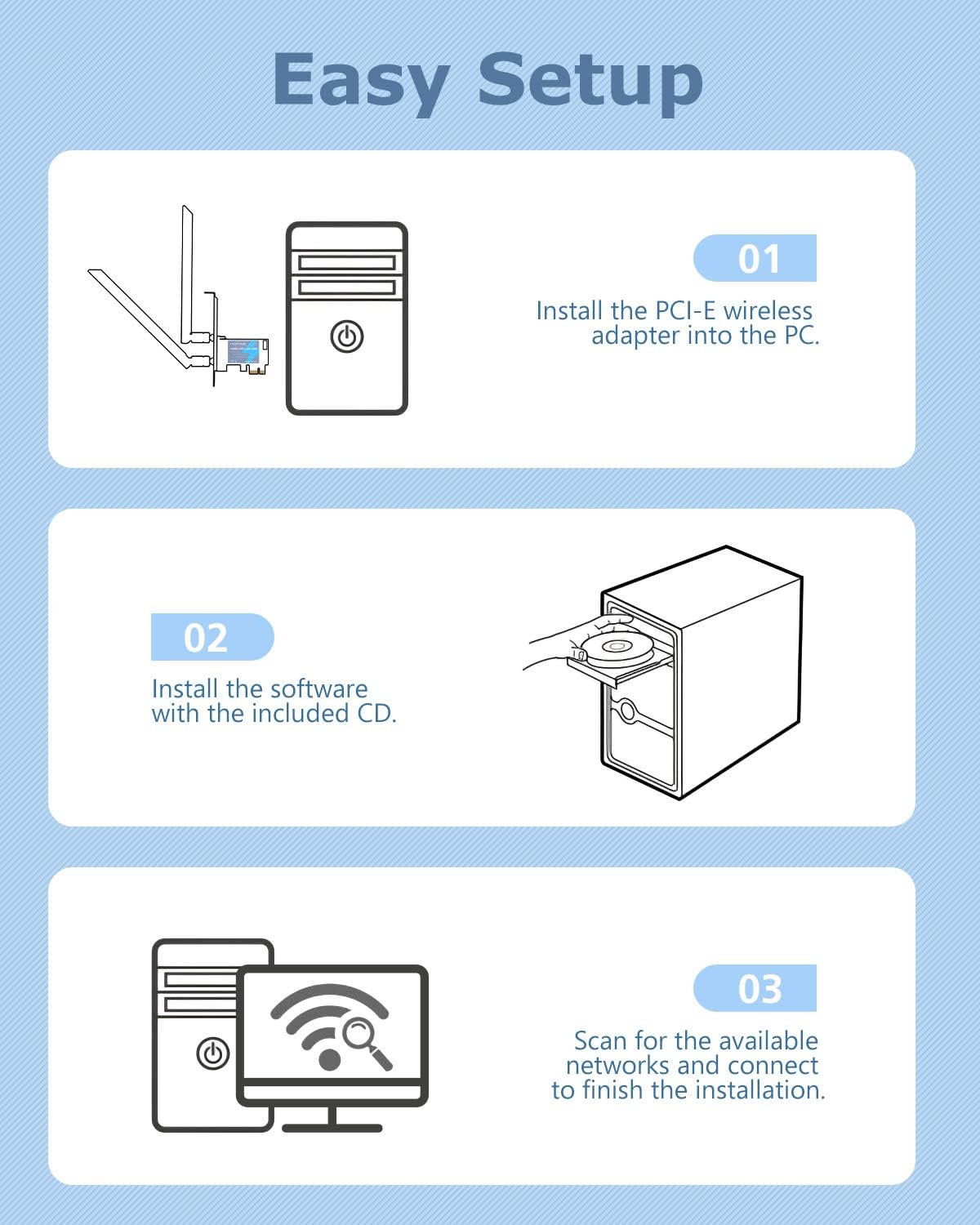
Figure 5.1: Overview of the easy setup process, including hardware installation.
Figure 5.2: Hommie Wireless LAN Card with Bluetooth data cable connection point.
5.2. Driver Installation
After hardware installation, you need to install the necessary drivers for the WiFi and Bluetooth functions to work correctly.
- Using the Driver CD: Insert the provided driver CD into your computer's optical drive. Follow the on-screen instructions to install the drivers. If an auto-run window does not appear, navigate to the CD drive in 'My Computer' or 'This PC' and run the setup file manually.
- Downloading Drivers (Alternative): If your computer does not have an optical drive or if you prefer to use the latest drivers, visit the official Hommie support website. Locate the drivers for model PW0 and download them. Run the downloaded executable file and follow the installation prompts.
Figure 5.3: Driver installation using the included CD.
6. Operating Instructions
6.1. Connecting to Wi-Fi
- After successful driver installation, your operating system should recognize the new wireless adapter.
- Click on the Wi-Fi icon in your system tray (Windows) or network settings (Linux).
- A list of available Wi-Fi networks will appear. Select your desired network (either 2.4GHz or 5GHz band).
- Enter the network security key (password) if prompted, then click 'Connect'.
- Your computer should now be connected to the internet wirelessly.

Figure 6.1: Illustration of 6dBi antenna coverage for enhanced Wi-Fi signal.
6.2. Using Bluetooth
- Ensure the Bluetooth data cable is correctly connected to both the WiFi card and your motherboard's 9-pin USB header.
- Enable Bluetooth in your operating system's settings. (e.g., in Windows, go to Settings > Devices > Bluetooth & other devices).
- Put your Bluetooth device (e.g., headset, mouse, keyboard, gamepad, speaker, printer) into pairing mode.
- On your computer, search for new Bluetooth devices and select your device from the list to pair.
- Follow any on-screen prompts to complete the pairing process.

Figure 6.2: Examples of Bluetooth devices connectable to your PC.
7. Troubleshooting
If you encounter issues with your Hommie AC1200 WiFi card, refer to the following common problems and solutions:
7.1. Card Not Recognized / WLAN Not Available
- Check Slot: Ensure the card is fully seated in a compatible PCI-E x1 / x4 / x8 / x16 slot. Try installing it in a different PCI-E slot.
- Reinstall Driver: Uninstall any existing drivers for the device, then reinstall the drivers from the provided CD or the official website.
- BIOS Settings: Check your motherboard's BIOS settings to ensure the PCI-E slot is enabled and configured correctly.
7.2. Bluetooth Not Working
- Bluetooth Cable Connection: Verify that the Bluetooth data cable is securely connected to the WiFi card and an available 9-pin USB header on your motherboard. This connection is mandatory for Bluetooth functionality.
- Driver Installation: Ensure Bluetooth drivers are correctly installed. Reinstall if necessary.
7.3. Bluetooth Delay or Instability
- Wi-Fi Band: When using Bluetooth, connect to a 5GHz Wi-Fi network if possible. The 2.4GHz band can sometimes cause minor interference with Bluetooth signals.
- Reinstall Driver: Try reinstalling the Bluetooth drivers.
7.4. Slow Network Speed
- Driver Update/Reinstallation: Uninstall any currently installed drivers and then install the latest drivers from the provided CD or the official Hommie website.
- Router Proximity: Being too far from your Wi-Fi router or having multiple walls/obstacles between your PC and the router can significantly affect network speed. Try to position your PC closer to the router or minimize obstructions.
- Antenna Placement: Ensure the antennas are not obstructed or placed in a corner, which can degrade signal quality. Adjust the antenna orientation for better reception. Consider using an antenna extension cable if optimal placement is difficult.
8. Maintenance
To ensure optimal performance and longevity of your Hommie AC1200 WiFi card, consider the following maintenance tips:
- Driver Updates: Regularly check the Hommie official website for the latest driver versions. Keeping your drivers updated can improve performance, stability, and security.
- Antenna Security: Ensure the antennas are securely attached to the card. Periodically check that they are not loose or damaged.
- Cleanliness: Keep the interior of your PC case clean to prevent dust buildup on the WiFi card, which can affect its cooling and performance.
9. Support Information
For further assistance, technical support, or warranty inquiries, please refer to the Hommie official website or contact their customer support channels. When contacting support, please have your product model (PW0) and purchase details readily available to facilitate quicker service.