
K-Snake KS-BM600-B
K-Snake Rechargeable Lightweight Gaming Mouse
User Manual
Model: KS-BM600-B | Brand: K-Snake
1. Introduction
Thank you for choosing the K-Snake Rechargeable Lightweight Gaming Mouse. This manual provides essential information for setting up, operating, and maintaining your new gaming mouse. Designed for optimal performance, this wireless mouse features advanced 2.4GHz wireless transmission technology, a lightweight honeycomb shell, and customizable RGB backlighting, ensuring a stable connection and an enhanced gaming experience.

Image 1.1: The K-Snake Rechargeable Lightweight Gaming Mouse, showcasing its ergonomic design and included USB receiver.
2. Package Contents
Please verify that all items are present in your package:
- 1 x K-Snake Wireless Gaming Mouse
- 1 x USB Receiver (located in the bottom slot of the mouse)
- 1 x Charging Cable
3. Product Features
- Lightweight Honeycomb Design: Ergonomic hollow perforated shell for reduced weight and improved heat dissipation, ensuring comfort during extended use.
- Adjustable DPI: Three adjustable DPI levels (1200/1800/2400) for precise control, with a response rate of up to 1000Hz.
- RGB LED Backlight: Multiple lighting patterns and side flow effects, controllable via a dedicated button on the mouse bottom.
- 2.4GHz Wireless Technology: Stable and flexible wireless connection up to 10 meters. Supports wired mode for charging and simultaneous use.
- Rechargeable Battery: Built-in 400mAh lithium polymer battery for long-term standby and automatic power-saving sleep mode.
- Universal Compatibility: Plug-and-play USB receiver, compatible with Windows 2000/XP/Vista/7/8/10/11 and MAC OS.

Image 3.1: The mouse's lightweight design and vibrant RGB lighting effects.

Image 3.2: Illustration of the mouse's internal professional game-grade IC chip.
4. Setup Instructions
- Charge the Mouse: Before first use, connect the provided charging cable to the mouse and a USB power source (e.g., computer USB port, USB wall adapter). The mouse can be used while charging.

Image 4.1: The mouse connected for charging.
- Locate USB Receiver: The nano USB receiver is stored in a slot on the bottom of the mouse. Gently remove it.
- Connect USB Receiver: Plug the USB receiver into an available USB port on your computer.
- Power On the Mouse: Locate the power switch on the bottom of the mouse. Slide it to the "ON" position. The mouse will automatically connect to your computer.
- Driver Installation: No additional software or drivers are required. The mouse is plug-and-play.
5. Operating Your Mouse
5.1 DPI Adjustment
The mouse features three adjustable DPI levels: 1200, 1800, and 2400. To change the DPI, press the dedicated DPI button, usually located behind the scroll wheel. Each press will cycle through the available DPI settings.
5.2 RGB Backlight Control
The RGB backlight can be customized. A dedicated light adjustment button is located on the bottom of the mouse. Press this button to cycle through different lighting patterns and effects. To turn off the backlight, adjust the power switch on the bottom of the mouse to the appropriate position (often labeled "OFF" or a specific backlight off setting if available, otherwise turn off the mouse completely).
5.3 Power Saving Mode
To conserve battery life, the mouse will automatically enter sleep mode if not used for 5 minutes. To wake the mouse, simply press any button.
6. Maintenance
- Cleaning: Use a soft, dry cloth to clean the surface of the mouse. For stubborn dirt, a slightly damp cloth can be used, ensuring no moisture enters the internal components. Avoid harsh chemicals or abrasive cleaners.
- Battery Care: The mouse has a built-in rechargeable battery. For optimal battery life, avoid fully discharging the mouse frequently. Recharge when the mouse's response becomes slow or erratic.
- Storage: When not in use for extended periods, turn off the mouse to conserve battery. Store in a cool, dry place.
7. Troubleshooting
- Mouse response is slow or not working properly:
This often indicates a low battery. Connect the mouse to a power source using the charging cable. The issue should resolve after charging.
- Mouse not connecting to computer:
- Ensure the mouse is turned "ON" using the power switch on its bottom.
- Verify the USB receiver is securely plugged into a working USB port on your computer.
- Try plugging the USB receiver into a different USB port.
- Ensure the mouse is within the 10-meter wireless range of the receiver.
- RGB backlight not working:
Check if the mouse is powered on. Press the light adjustment button on the bottom of the mouse to cycle through lighting modes. Ensure the battery is sufficiently charged.
8. Specifications
| Feature | Detail |
|---|---|
| Brand | K-Snake |
| Model | KS-BM600-B |
| Connection Type | 2.4G Wireless, USB (for charging/wired use) |
| Number of Buttons | 6 buttons + 1 power switch + 1 RGB control switch |
| DPI Settings | 1200 / 1800 / 2400 |
| Movement Detection Technology | Optical |
| Battery Type | Rechargeable Lithium Polymer (400mAh) |
| Power Source | Corded Electric (via USB charging) |
| Operating Systems Supported | Windows 98/2000/ME/NT/XP/VISTA/7/8/10/11, MAC OS |
| Special Features | Ergonomic Design, Lightweight Honeycomb Shell, RGB Backlight, Auto Sleep Mode |
| Hand Orientation | Ambidextrous |
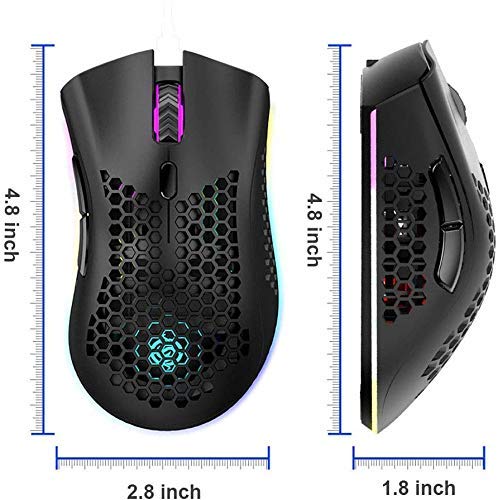
Image 8.1: Physical dimensions of the K-Snake Gaming Mouse.
9. Warranty and Support
K-Snake products are manufactured to high-quality standards. For information regarding warranty coverage, please refer to the warranty card included with your purchase or visit the official K-Snake website.
If you encounter any issues or have questions not covered in this manual, please contact K-Snake customer support through the retailer where the product was purchased or via the contact information provided on the official K-Snake website.
Ask a question about this manual
Ask about setup, troubleshooting, compatibility, parts, safety, or missing instructions. Manuals+ will review the question and use this page’s manual context to help answer it.