
1. Introduction
This manual provides detailed instructions for the installation, operation, and maintenance of your WESECUU 3MP Wireless Security Camera. This camera is designed as an expansion unit for an existing wireless security camera system. Please read this manual thoroughly before use to ensure proper functionality and safety.
Important Note: This camera is an expansion unit and requires an existing WESECUU wireless security camera system (NVR) for operation. A power adapter is NOT included with this camera and must be purchased separately or supplied by your existing system.
2. Product Features
- 3MP High Definition: Captures clear and detailed video footage.
- Human Detection: Advanced AI human detection minimizes false alarms.
- Integrated Floodlight: Provides illumination and acts as a deterrent for intruders.
- Two-Way Audio: Built-in microphone allows for audio monitoring.
- Mobile App Alerts: Receive real-time notifications on your smartphone.
- IP66/IP67 Weatherproof: Durable design for outdoor use in various weather conditions.
- Color Night Vision: Enhanced night vision capabilities with floodlight activation.
- Auto Pair & Plug&Play: Simplifies connection to your existing WESECUU NVR.
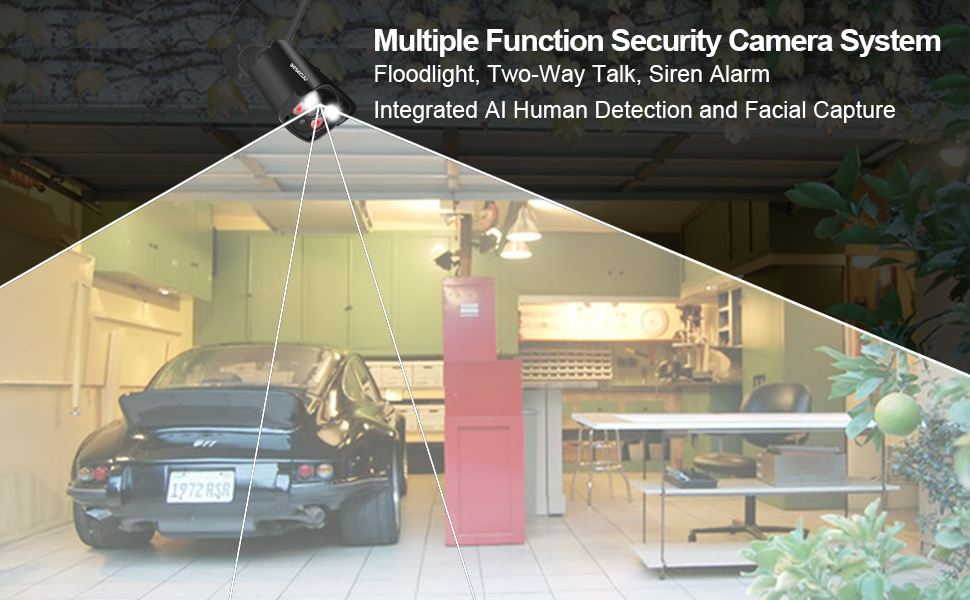
Image: WESECUU 3MP Wireless Security Camera with integrated floodlight. This camera features human detection to reduce false alarms and a floodlight to deter intruders.
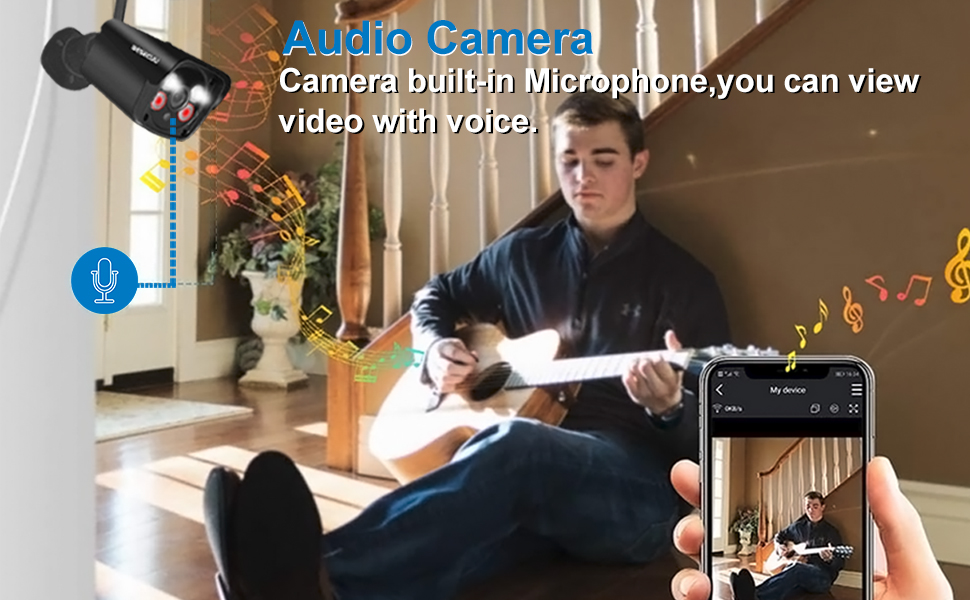
Image: The security camera includes a built-in microphone, enabling audio monitoring alongside video.
3. Setup Instructions
3.1 Powering the Camera
- Connect the camera to a compatible 12V DC power adapter (not included).
- Ensure the power source is stable and provides sufficient power for the camera.
3.2 Pairing with NVR (Auto Pair-Plug&Play)
The WESECUU camera is designed for automatic pairing with your existing WESECUU NVR system. Follow these general steps:
- Ensure your NVR system is powered on and functioning correctly.
- Power on the new camera. The camera will automatically attempt to connect to the NVR.
- If the camera does not appear on your NVR display within a few minutes, refer to your NVR's manual for specific instructions on adding new cameras or initiating a manual pairing process.

Image: Diagram illustrating the Auto Pair-Plug&Play setup, showing the camera wirelessly connecting to the NVR for local viewing and remote access via a 2.4GHz router.
3.3 Mobile App Setup (XMEye App)
To view your camera remotely and receive alerts, download and configure the XMEye app.
- Download the XMEye App from your smartphone's app store (iOS or Android).
- Register an account and log in.
- Add your NVR device to the app by scanning the QR code on the NVR or entering its device ID.
- Once the NVR is added, the connected cameras will be accessible through the app.
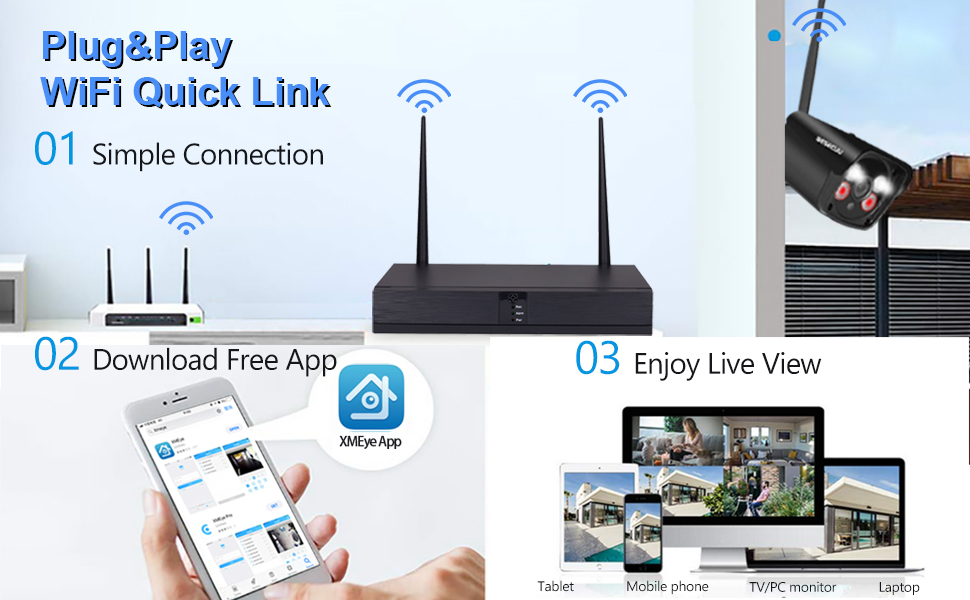
Image: Steps for Plug&Play WiFi Quick Link, including simple connection, downloading the XMEye App, and enjoying live view on mobile phones, tablets, TV/PC monitors, and laptops.
4. Operating Instructions
4.1 Live View and Recording
Access live video feeds and recorded footage through your NVR monitor or the XMEye mobile app.
- NVR: Use the NVR interface to select cameras, view live feeds, and playback recordings.
- Mobile App: Open the XMEye app, select your device, and tap on the camera to view its live feed. You can also access recorded events.
4.2 Human Detection and Alerts
The camera's human detection feature is designed to reduce false alarms caused by pets or inanimate objects.
- When human motion is detected, the camera can trigger the floodlight and send an instant alert to your XMEye app.
- Configure alert settings and sensitivity within the NVR system or the XMEye app.

Image: The camera's humanoid detection system helps avoid false alarms, while the integrated floodlights can deter intruders.
4.3 Floodlight and Color Night Vision
The integrated floodlight enhances visibility and enables color night vision.
- The floodlight can be activated automatically upon human detection or manually through the app/NVR.
- With the floodlight, the camera can capture full-color video even in low-light conditions.
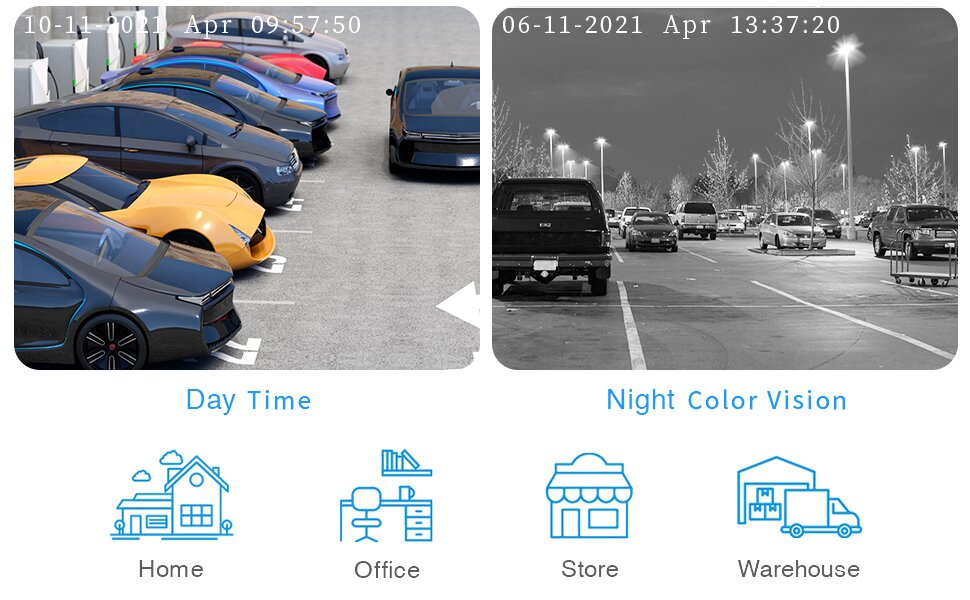
Image: Comparison of day and night vision, highlighting the camera's ability to provide color night vision with floodlight assistance.
5. Maintenance
Regular maintenance ensures optimal performance and longevity of your security camera.
- Lens Cleaning: Periodically clean the camera lens with a soft, damp cloth to remove dust, dirt, or water spots. Avoid abrasive cleaners.
- Housing Inspection: Check the camera housing for any signs of damage or wear. Ensure all seals are intact to maintain its waterproof rating.
- Cable Connections: Verify that all power cables are securely connected and free from damage.
- Firmware Updates: Check the WESECUU website or the XMEye app for any available firmware updates for your NVR and cameras to ensure the latest features and security patches.
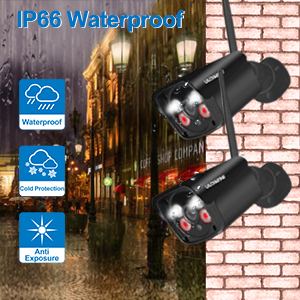
Image: The camera is rated IP66 waterproof, offering protection against rain, cold, and sun exposure for outdoor reliability.
6. Troubleshooting
If you encounter issues with your WESECUU 3MP Wireless Security Camera, refer to the following common solutions:
- No Video Feed:
- Ensure the camera is properly powered. Check the power adapter and cable connections.
- Verify the camera is within range of the NVR and has a strong wireless signal.
- Restart both the camera and the NVR system.
- Check the NVR's camera management settings to ensure the camera is added and enabled.
- Poor Image Quality:
- Clean the camera lens.
- Ensure there are no obstructions in the camera's field of view.
- Check the wireless signal strength; a weak signal can affect video quality.
- No Mobile App Alerts:
- Confirm that motion detection and alert settings are enabled in the XMEye app and on the NVR.
- Check your phone's notification settings for the XMEye app.
- Ensure your phone has an active internet connection.
- Camera Not Pairing:
- Ensure the camera is powered on and the NVR is also on.
- Move the camera closer to the NVR during the pairing process.
- Consult your NVR's specific manual for manual pairing instructions or troubleshooting network issues.
For further assistance, please contact WESECUU customer support.
7. Specifications
| Feature | Detail |
|---|---|
| Brand | WESECUU |
| Model | 3MP Wireless Security Camera |
| Resolution | 3 Megapixels |
| Power Source | Battery Powered (Note: Power adapter not included, requires existing system power or separate purchase) |
| Connectivity Technology | Wireless (to NVR) |
| Alert Type | Motion Only (Human Detection) |
| Control Method | App (XMEye) |
| Weatherproof Rating | IP66/IP67 |
| Antenna Location | Outdoor |
| UPC | 794590641285 |
| ASIN | B08RRQKQ4Z |
8. Warranty and Support
8.1 Warranty Information
For specific warranty terms and conditions, please refer to the documentation included with your complete WESECUU security system or visit the official WESECUU website. Warranty coverage typically applies to manufacturing defects and may vary by region.
8.2 Customer Support
If you require technical assistance, have questions about your product, or need to report an issue, please contact WESECUU customer support through the following channels:
- Email: Refer to your NVR manual or the WESECUU website for the support email address.
- Online Resources: Visit the WESECUU official website for FAQs, troubleshooting guides, and product information.


