
1. Product Overview
The Geeni A19 Smart White LED Bulb offers convenient lighting control for your home. These non-dimmable 60W equivalent bulbs integrate directly with your existing 2.4 GHz Wi-Fi network, eliminating the need for a separate hub. Control them individually or group them for unified management via the Geeni app or voice commands through Google Assistant or Microsoft Cortana. They are designed for energy efficiency, with an estimated annual energy cost of $1.08 based on typical usage.

Image: Geeni A19 Smart White LED Bulb 3-Pack showing packaging and the three bulbs.
Key Features
- No hub required: Wi-Fi is built directly into the bulb.
- Group bulbs by room or fixture for easy operation through the app or voice.
- Voice control compatibility with Google Assistant and Microsoft Cortana.
- Energy-efficient design with low estimated annual energy cost.
- Ability to set schedules for automated on/off times.
- Compatible with your existing 2.4 Ghz Wi-Fi network.
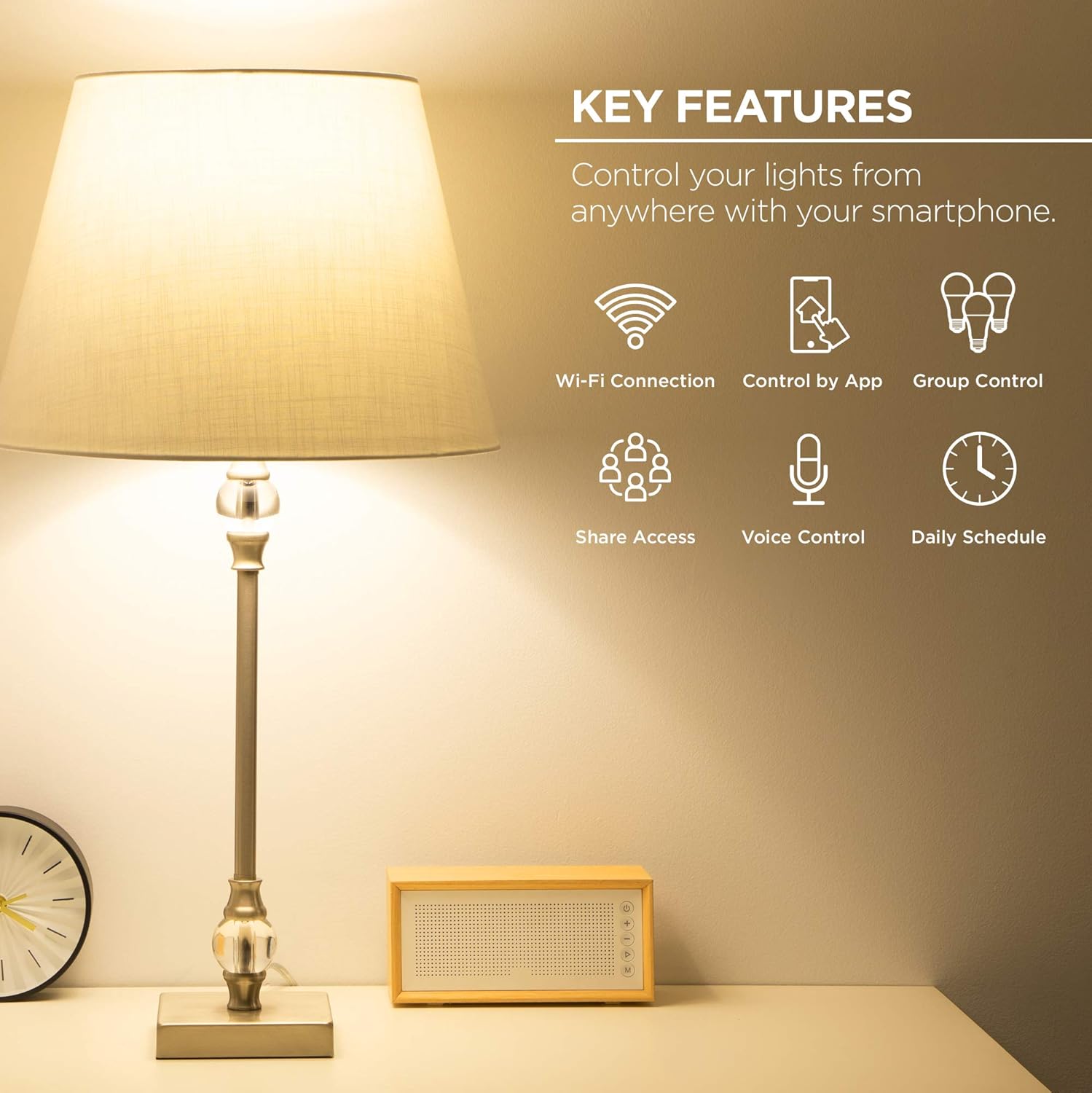
Image: A graphic highlighting the key features of the smart bulbs, such as Wi-Fi connectivity, app control, group control, shared access, voice control, and daily scheduling.
2. Setup Guide
What's Included
- Geeni A19 Smart White LED Bulb (3-Pack)
- Quick Start Guide (not included in this manual, but typically provided)
Installation Steps
- Download the Geeni App: Search for "Geeni" in the Apple App Store or Google Play Store and download the application to your smartphone.
- Install the Bulb: Screw the Geeni Smart LED Bulb into any standard E26 light socket. Ensure the power to the fixture is turned off before installation.
- Connect to Wi-Fi:
- Turn on the power to the light fixture. The bulb should begin blinking rapidly, indicating it's in pairing mode.
- Open the Geeni app and follow the on-screen instructions to add a new device.
- Select the Smart Bulb from the device list.
- Enter your 2.4 GHz Wi-Fi network credentials when prompted. The bulb is not compatible with 5 GHz networks.
- Once connected, the bulb will stop blinking and appear in your app.

Image: A visual guide demonstrating the simple setup process: downloading the app, installing the bulb, and connecting it to your Wi-Fi network.
3. Operating Your Smart Bulbs
App Control
Control your Geeni Smart Bulbs from anywhere using the Geeni app. You can turn lights on or off, group multiple bulbs together, and manage schedules directly from your smartphone.

Image: A smartphone displaying the Geeni app interface, showing how to remotely turn lights on or off for added security or convenience.

Image: The Geeni app demonstrating group control, allowing users to manage multiple lights in a room simultaneously.
Voice Control
Integrate your Geeni Smart Bulbs with voice assistants like Google Assistant or Microsoft Cortana for hands-free control. Simply link your Geeni account within the voice assistant's app.
- "Hey Google, turn on the bedroom lights."
- "Hey Cortana, turn off the living room."
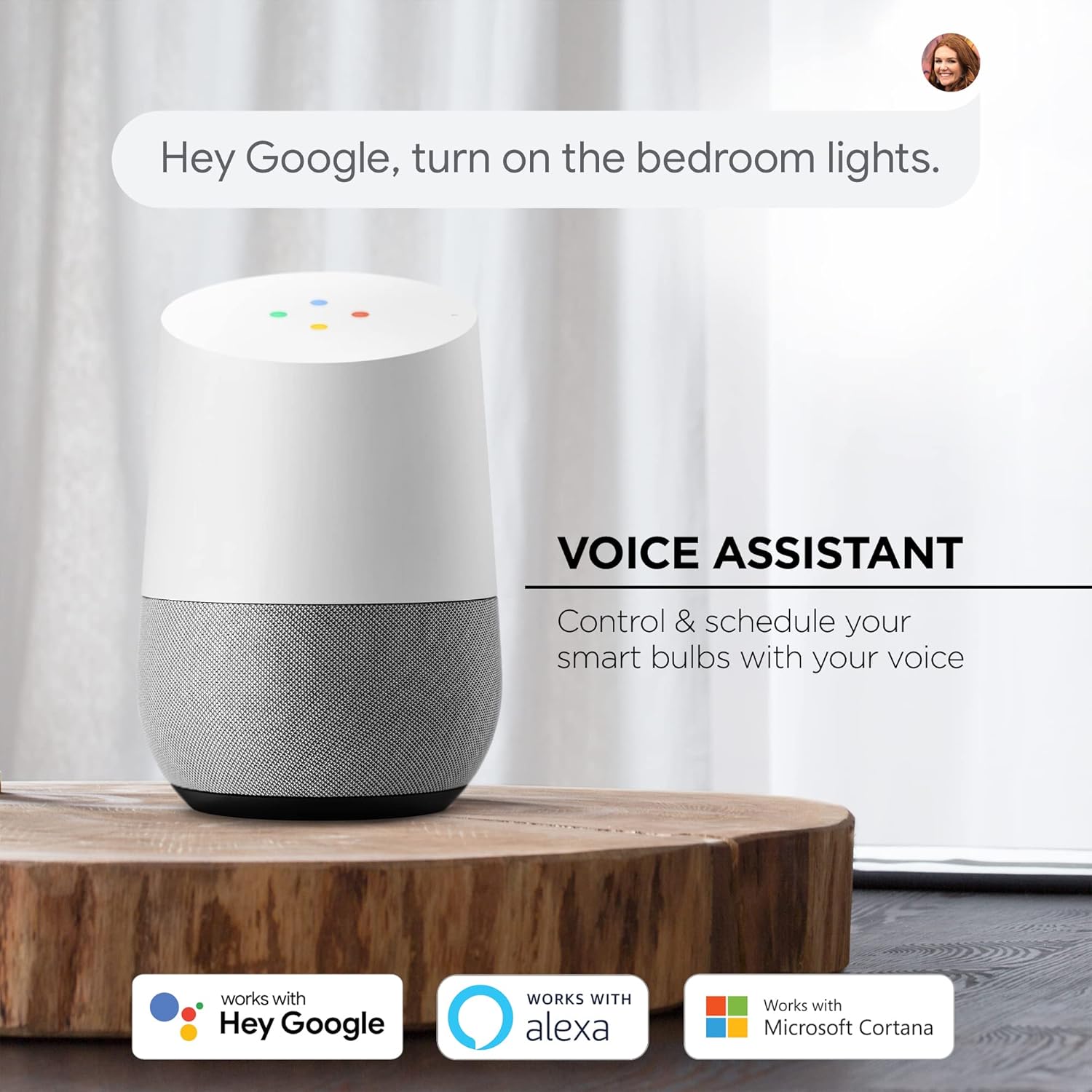
Image: A Google Home device illustrating the smart bulb's compatibility with various voice assistants for convenient control.
Scheduling
Set custom schedules for your bulbs to automatically turn on or off at specific times. This feature is ideal for waking up to light, simulating occupancy when away, or ensuring lights are off at bedtime.

Image: A visual representation of setting a daily schedule for the smart bulbs, showing a lamp turning on automatically in the morning.
4. Maintenance
Geeni Smart LED Bulbs are designed for long-lasting performance and require minimal maintenance.
- Cleaning: Ensure the bulb is cool and the power is off before cleaning. Wipe the bulb with a soft, dry cloth. Do not use liquid cleaners or abrasive materials.
- Storage: If storing the bulbs, keep them in a cool, dry place away from direct sunlight and extreme temperatures.
- Disposal: Dispose of the bulbs according to local electronic waste regulations.
5. Troubleshooting
| Problem | Solution |
|---|---|
| Bulb not connecting to Wi-Fi. |
|
| Bulb frequently disconnects from the app/Alexa. |
|
| Voice control not working. |
|
| Bulb is not dimmable. | This model (A19 Smart White LED Bulb) is explicitly non-dimmable. If you require dimming functionality, please consider a different model. |
6. Technical Specifications
| Specification | Value |
|---|---|
| Brand | Geeni |
| Model Number | MI_BW320-999W |
| Light Type | LED |
| Bulb Shape Size | A19 |
| Bulb Base | E26 |
| Wattage | 9 Watt-hours |
| Incandescent Equivalent Wattage | 60 Watts |
| Brightness | 800 Lumens |
| Light Color | White |
| Color Temperature | 2700 Kelvin |
| Voltage | 120 Volts |
| Connectivity Technology | Wi-Fi (2.4 GHz) |
| Control Method | App, Voice (Amazon Alexa, Google Assistant, Microsoft Cortana) |
| Indoor/Outdoor Usage | Indoor |
| Average Life | 22.3 Years |
| Special Feature | No hub required, Non-Dimmable, Uses existing Wi-Fi network |
7. Warranty and Support
For warranty information and technical support, please refer to the official Geeni website or contact their customer service directly. Keep your purchase receipt for warranty claims.
Geeni Support: www.mygeeni.com/support