1. Product Overview
The Muvit® Rechargeable Wireless Mouse is designed for comfort and efficiency, featuring RGB LED backlighting, silent click buttons, and adjustable DPI settings. Its ergonomic design ensures a comfortable grip for extended use, making it suitable for laptops, PCs, and various other devices.
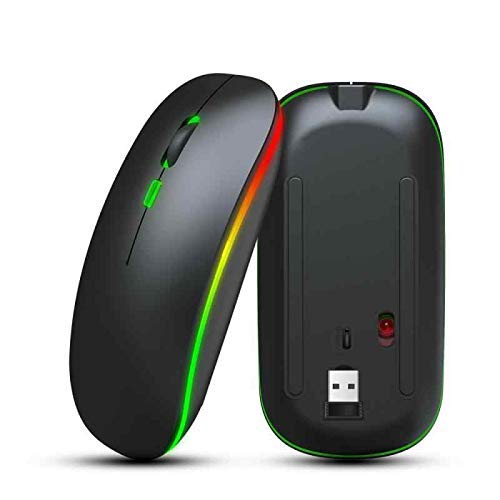
Image: Top and bottom view of the Muvit Rechargeable Wireless Mouse, showcasing its sleek design and the USB receiver slot on the underside.
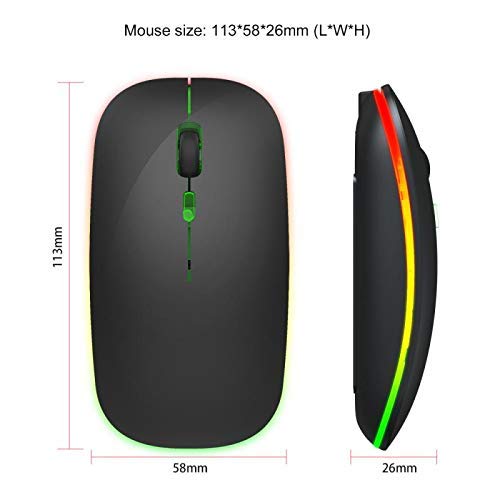
Image: Diagram illustrating the dimensions of the Muvit Rechargeable Wireless Mouse: 113mm (Length), 58mm (Width), and 26mm (Height).
2. Package Contents
Please check the package for the following items:
- 1 x Muvit® Rechargeable Wireless Mouse
- 1 x USB Wireless Receiver
- 1 x Micro USB Charging Cable
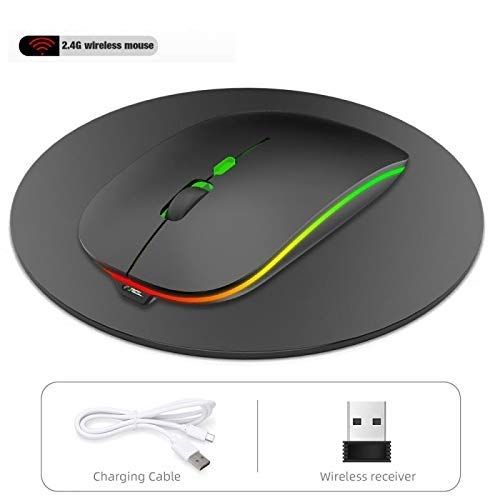
Image: The Muvit Rechargeable Wireless Mouse alongside its included Micro USB charging cable and the compact USB wireless receiver.
3. Setup Guide
3.1 Charging the Mouse
Before first use, it is recommended to fully charge the mouse. Connect the Micro USB charging cable to the mouse's charging port and the other end to a USB power source (e.g., computer USB port, USB wall adapter). The LED indicator will show charging status.

Image: An illustration demonstrating how to charge the Muvit wireless mouse using the Micro USB cable, highlighting its built-in rechargeable battery.
3.2 Connecting to Your Device
- Locate the USB wireless receiver. It is typically stored in a compartment on the underside of the mouse.
- Plug the USB wireless receiver into an available USB port on your computer or device.
- Turn on the mouse using the power switch located on its underside.
- The mouse should automatically connect to your device. No additional drivers are usually required.
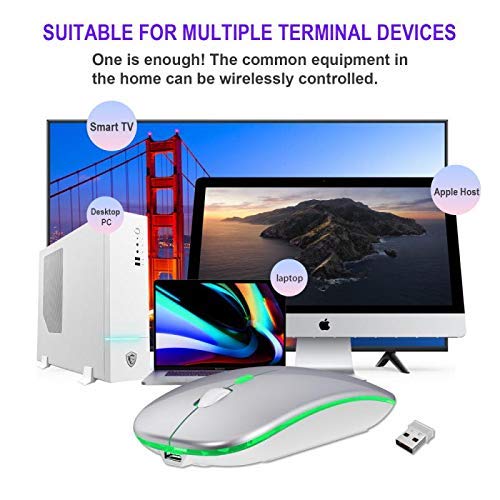
Image: The Muvit wireless mouse shown in a setup with various devices including a Smart TV, Desktop PC, Laptop, and Apple Host, demonstrating its wide compatibility.
4. Operating Instructions
4.1 Button Functions
The Muvit wireless mouse features standard buttons for intuitive control:
- Left Button: Primary click function.
- Right Button: Secondary click function, typically opens context menus.
- Mid Button (Scroll Wheel): Click for middle-click function, scroll for vertical navigation.
- DPI Loop +/- Button: Adjusts mouse sensitivity (DPI).
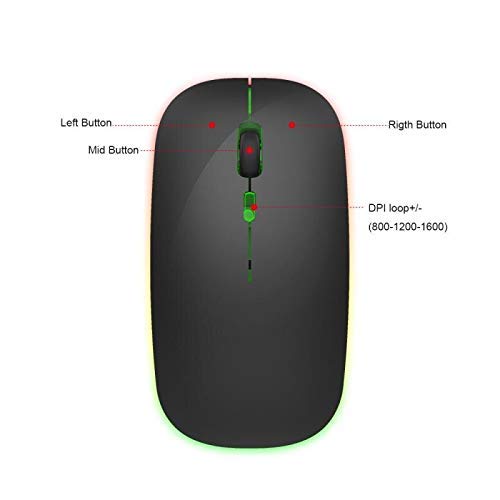
Image: An overhead view of the Muvit wireless mouse, clearly labeling the Left Button, Right Button, Mid Button (scroll wheel), and the DPI loop +/- button.
4.2 Adjusting DPI (Sensitivity)
The mouse supports multiple DPI levels (800-1200-1600 DPI) to suit different tasks and preferences. Press the DPI button (located below the scroll wheel) to cycle through the available sensitivity settings.

Image: An illustration showing the three adjustable DPI levels (800, 1200, 1600) and indicating the button to press to switch between them.
4.3 RGB LED Backlighting
The mouse features a dynamic RGB LED backlight with 7 synchronized breathing light colors, enhancing your workspace aesthetics. The lighting automatically cycles through colors.
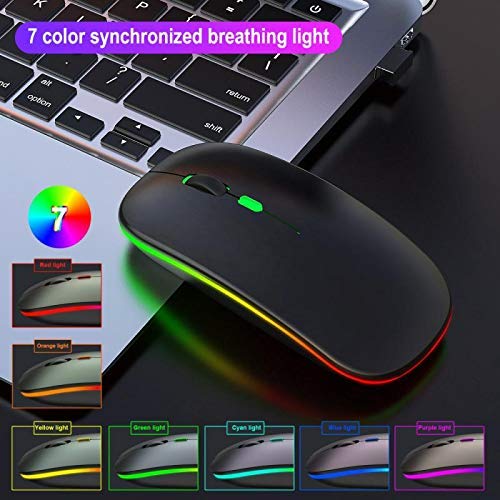
Image: The Muvit wireless mouse displaying its 7-color synchronized breathing light feature, with examples of red, orange, yellow, green, cyan, blue, and purple light.
4.4 Silent Click Feature
Experience a quieter working environment with the mouse's silent click design. This feature reduces click noise, allowing for better concentration without disturbing others.

Image: An illustration highlighting the noiseless click feature of the Muvit wireless mouse, indicating reduced sound from button presses.
4.5 Ergonomic Design
The mouse is designed with an ergonomic, ultra-thin profile to provide a comfortable grip, reducing strain during prolonged use.
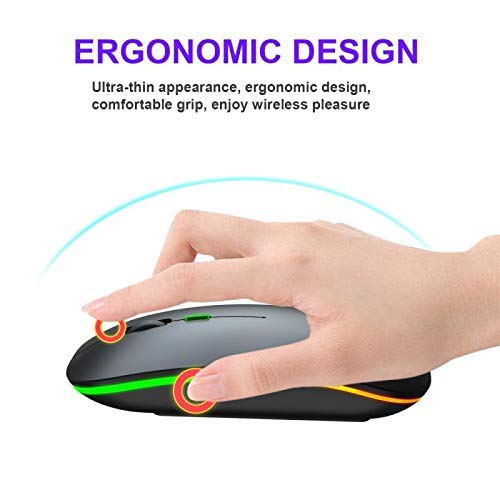
Image: A hand demonstrating the comfortable grip on the Muvit wireless mouse, emphasizing its ergonomic and ultra-thin design.
5. Maintenance
5.1 Cleaning
To clean the mouse, gently wipe its surface with a soft, dry, or slightly damp cloth. Avoid using harsh chemicals or abrasive materials, as they may damage the finish.
5.2 Battery Care
- Charge the mouse regularly to maintain optimal battery performance.
- Avoid fully discharging the battery frequently.
- If storing the mouse for an extended period, charge it to about 50% and store in a cool, dry place.
6. Troubleshooting
6.1 Mouse Not Responding
- Ensure the mouse is turned on.
- Check if the USB wireless receiver is securely plugged into a working USB port. Try a different USB port.
- Verify the mouse battery is charged. Connect the charging cable and allow it to charge for a few minutes.
- Restart your computer or device.
6.2 Erratic Cursor Movement
- Clean the optical sensor on the underside of the mouse.
- Ensure you are using the mouse on a suitable surface (non-reflective, non-transparent). A mouse pad is recommended.
- Check for any interference from other wireless devices.
6.3 RGB Lights Not Working
- Ensure the mouse is powered on and connected.
- The lights are automatic and should function when the mouse is active. If they do not, ensure the battery is not critically low.
7. Specifications
| Feature | Detail |
|---|---|
| Brand | Muvit |
| Model | RGB Wireless Rechargeable Mouse |
| Connectivity Technology | USB Wireless (2.4G) |
| Movement Detection Technology | Optical |
| DPI Levels | 800 / 1200 / 1600 DPI |
| Buttons | 3 (Left, Right, Mid/Scroll, DPI) |
| Special Features | Ergonomic Design, Lightweight, Portable, Rechargeable, Soundless Click, RGB LED Backlit |
| Power Source | Rechargeable Lithium Ion Battery |
| Battery Average Life | Up to 2 Months (approx.) |
| Operating System Compatibility | Linux, Windows 10, Windows 8, Windows XP, Vista, 7, ME, Mac OS |
| Item Weight | 150 g |
| Package Dimensions | 15 x 10.4 x 5 cm |
8. Warranty and Support
For any product inquiries, technical support, or warranty claims, please contact Muvit customer service through the retailer where you purchased the product or refer to the contact information provided on the product packaging or Muvit's official website.
Please retain your proof of purchase for warranty purposes.


