
1. Introduction
The Autel MaxiBAS BT608 is an advanced touchscreen Battery & Electrical System analyzer. It utilizes Adaptive Conductance technology for precise examination of a battery’s cold cranking ability and reserve capacity, crucial for determining overall battery health. This device operates on an Android 9.0 system, featuring a 5.5-inch LCD touch screen with 720x1280 resolution and 32GB of storage. As an upgraded version, it incorporates comprehensive diagnostic functions comparable to other Autel diagnostic tools.
2. Product Overview
The MaxiBAS BT608 is designed for both in-vehicle and out-of-vehicle testing of passenger vehicle batteries and 12V/24V cranking/charging systems. It offers a range of functionalities for comprehensive vehicle electrical system analysis.

Image: The Autel MaxiBAS BT608 device displaying its main interface, alongside a summary of its key features including all available systems diagnostic, re-initialize vehicle systems, one-touch battery registration, battery positioning and testing guide, test reports printing, quick display of battery specs through VIN scan, cranking & charging system service & tests, and in-vehicle & out-of-vehicle testing.
Key Features:
- Adaptive Conductance Technology: Reduces battery misjudgment and improves accuracy for 99% of battery types (100-3000 CCA 6V and 12V batteries, including FLOODED, AGM, AGM SPIRAL, EFB, and GEL).
- All System Diagnostics: Functions comparable to Autel MX808/MK808 series, including read/erase codes, live data, and freeze frame data.
- Auto VIN Technology: Automatically identifies vehicle information for efficient diagnostics.
- Cranking and Charging System Test: Provides detailed analysis of starting voltage, current, time, and generator status for 12V and 24V systems.
- Electric Appliance Reset: Re-initializes or restores learned values for vehicle systems such as sunroof reset, lane-departure warning, and pre-collision systems.
- Cloud Report Management: Allows uploading diagnostic reports to the Autel cloud for expanded storage and faster processing.
- Built-in Thermal Printer: Enables immediate printing of test reports.
- Wi-Fi Connectivity: For software updates and report sharing.
3. Setup
Before initial use, ensure the MaxiBAS BT608 is adequately charged. The device comes with a V200 Bluetooth VCI Unit for wireless communication with the vehicle.
Initial Device Setup:
- Charge the Device: Connect the BT608 to a power source using the provided charging cable until fully charged.
- Power On: Press and hold the power button to turn on the device.
- Connect VCI: Plug the V200 Bluetooth VCI Unit into the vehicle's OBDII port. Ensure the vehicle's ignition is off before connecting.
- Pairing: The BT608 will automatically attempt to pair with the VCI unit via Bluetooth. Follow any on-screen prompts to confirm the connection.
- Software Update: Connect the BT608 to a Wi-Fi network and perform a software update to ensure access to the latest features and vehicle coverage.

Image: The Autel MaxiBAS BT608 device demonstrating wireless connection capabilities with the V200 Bluetooth VCI Unit and highlighting its built-in thermal printer for report generation.
4. Operating Instructions
4.1. Battery Test
The BT608 performs comprehensive battery tests using Adaptive Conductance technology, providing accurate results for various battery types and capacities.

Image: The Autel MaxiBAS BT608 device, its protective carrying case, and a close-up of the device screen displaying battery test results, including State of Health, State of Charge, Battery Type, Voltage, Nominal Value, and Measured Capacity.
Supported Battery Types and Standards:
- Battery Types: FLOODED, AGM, AGM SPIRAL, EFB, GEL.
- CCA Range: 100-3000 CCA.
- Standards: CCA, SAE, CA, EN, EN2, IEC, DIN, JIS, MCA, BCI, GB.

Image: A visual representation of the five common car battery types supported by the Autel MaxiBAS BT608: AGM, Flooded, AGM Spiral, EFB, and GEL Cell, demonstrating the device's broad compatibility.
Performing a Battery Test:
- From the main menu, select 'In-vehicle test' or 'Out-vehicle test' depending on the battery's location.
- Connect the test clamps to the battery terminals: red clamp to positive (+), black clamp to negative (-).
- The device will automatically detect the battery type and parameters via Auto VIN or prompt for manual input.
- Follow the on-screen instructions to complete the test. Results will display State of Health, Voltage, and Measured Capacity.

Image: The Autel MaxiBAS BT608 connected to a 6V or 12V car battery (100-3000 CCA), displaying a 'Good & Recharge' status with 98% State of Health, illustrating the device's battery testing capabilities.
4.2. Cranking and Charging System Test
This function evaluates the performance of the vehicle's starter and generator systems.
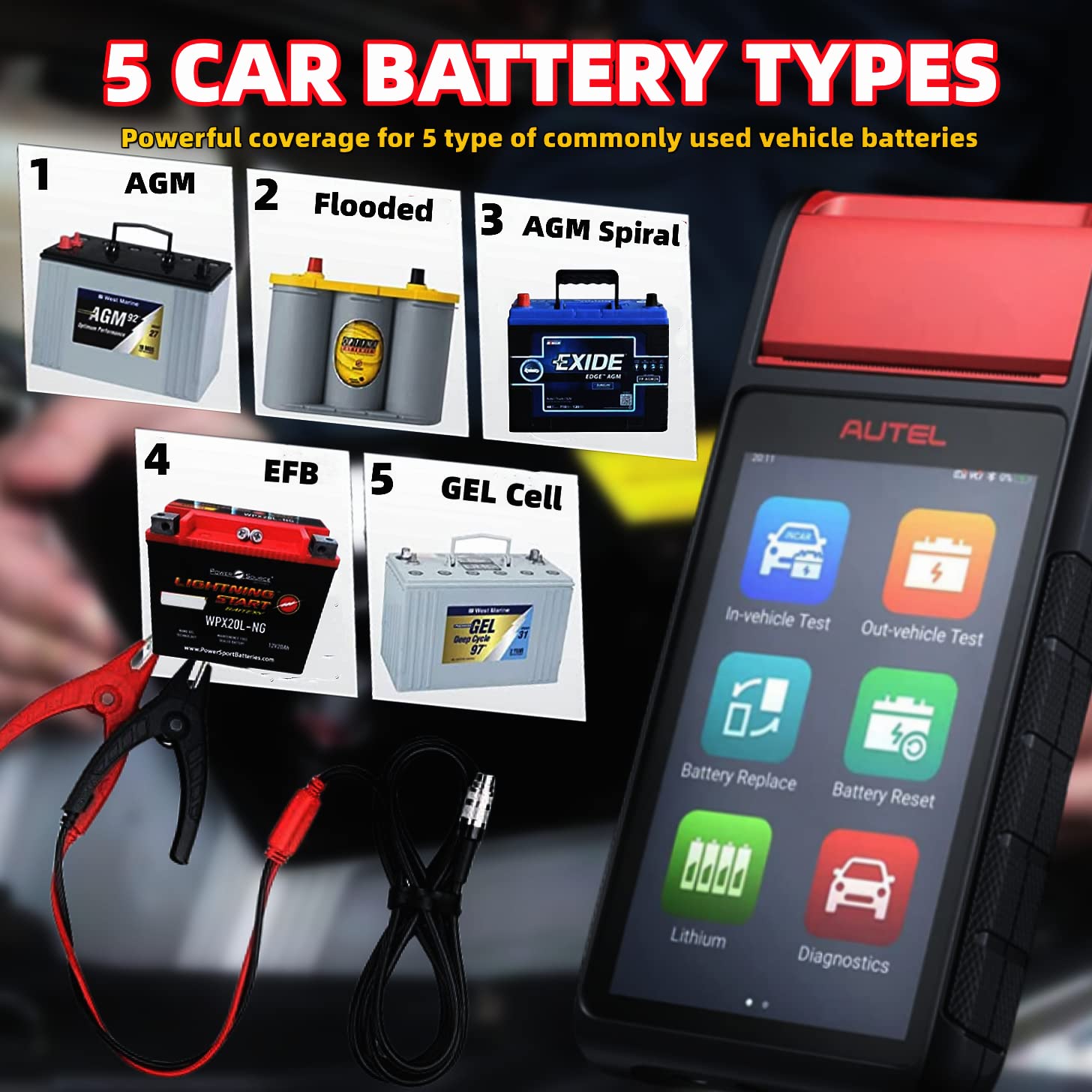
Image: The Autel MaxiBAS BT608 screen showing results for cranking and generator tests. The cranking test displays starting voltage, current, and time, while the generator test shows ripple, off-load voltage, load voltage, off-load current, and load current, indicating normal charging status.
Performing Cranking/Charging System Test:
- From the main menu, select 'Cranking Test' or 'Charging Test'.
- Follow the on-screen prompts, which may include starting the engine or revving it to a specific RPM.
- The device will display results such as starting voltage, starting current, starting time, ripple, off-load voltage, and load voltage, indicating the system's operational status.
4.3. All System Diagnostics
The BT608 provides comprehensive diagnostic capabilities for all available vehicle systems, similar to other professional Autel diagnostic tools.
Diagnostic Functions:
- Read/Erase Codes: Retrieve and clear diagnostic trouble codes (DTCs) from various control modules.
- Live Data: View real-time data streams from vehicle sensors and components.
- Freeze Frame Data: Capture a snapshot of sensor values at the moment a DTC was set.
- Auto VIN: Automatically identify vehicle make, model, and year for faster diagnostics.
4.4. Electric Appliance Reset
This feature allows for the re-initialization or restoration of learned values for various vehicle systems.
Examples of Resets:
- Sunroof reset.
- Lane-departure warning system calibration.
- Pre-collision system adjustments.

Image: The Autel MaxiBAS BT608 screen illustrating the steps for efficient battery management, including preparation, battery type selection, battery replacement, new battery registration, battery test, and cloud-based battery information management.
4.5. Cloud Report Management and Printing
The BT608 supports uploading diagnostic reports to the Autel cloud, providing an expanded memory solution and facilitating report sharing. Test reports can also be printed directly using the built-in thermal printer.
Steps for Cloud Management and Printing:
- After completing a test or diagnostic session, select the 'Report' option on the screen.
- To upload to cloud, ensure Wi-Fi is connected and select the cloud upload option.
- To print, select the 'Print' option. Ensure thermal paper is loaded correctly in the built-in printer.
5. Maintenance
Proper maintenance ensures the longevity and optimal performance of your MaxiBAS BT608.
General Care:
- Keep the device clean and free from dust and moisture. Use a soft, damp cloth for cleaning the exterior.
- Avoid exposing the device to extreme temperatures or direct sunlight.
- Store the device in its protective case when not in use.
- Regularly check the test leads and clamps for any signs of wear or damage.
Software Updates:
The Autel BT608 comes with lifetime free software updates. Regularly update the software to ensure the device has the latest features, vehicle coverage, and bug fixes.
- Connect the device to a stable Wi-Fi network.
- Navigate to the 'Update' section in the device's menu.
- Follow the on-screen instructions to download and install available updates.
6. Troubleshooting
If you encounter issues with your MaxiBAS BT608, refer to the following common troubleshooting tips:
- Device not powering on: Ensure the battery is charged. Connect to a power source and try again.
- VCI not connecting: Ensure the VCI is securely plugged into the OBDII port and the vehicle's ignition is on (if required for communication). Check Bluetooth settings on the BT608.
- Inaccurate test results: Ensure test clamps are securely connected to clean battery terminals. Verify correct battery type and CCA input.
- Printer not working: Check if thermal paper is loaded correctly and if the paper roll needs replacement.
- Software issues: Perform a software update. If problems persist, contact Autel technical support.
7. Specifications
| Feature | Specification |
|---|---|
| Model Number | BT608 |
| Product Dimensions | 3.54 x 1.25 x 8.02 inches |
| Item Weight | 2.88 Kilograms (6.35 Pounds) |
| Batteries | 1 Lithium Polymer battery required |
| Power Source | Battery Powered |
| Display | 5.5'' LCD Touch Screen, 720*1280 resolution |
| Operating System | Android 9.0 |
| Storage | 32GB |
| Supported Battery Types | FLOODED, AGM, AGM SPIRAL, EFB, GEL |
| CCA Range | 100-3000 CCA |
| Connectivity | Bluetooth (VCI), Wi-Fi |
| Language | English |
8. Warranty and Support
The Autel MaxiBAS BT608 comes with a 1-Year Warranty from the date of purchase, covering manufacturing defects and workmanship.
For technical assistance, troubleshooting, or warranty claims, please contact Autel customer support. Ensure you have your product model number (BT608) and purchase details available when contacting support.


