
1. Product Overview
The ANNKE 32 Channel 12MP PoE Network Video Recorder (NVR) is designed for advanced surveillance systems, supporting up to 32 IP cameras with resolutions up to 12MP 4K Ultra HD. This NVR features H.265+ video compression for efficient storage, AI-powered motion and face detection capabilities, and flexible connectivity options for comprehensive security monitoring.
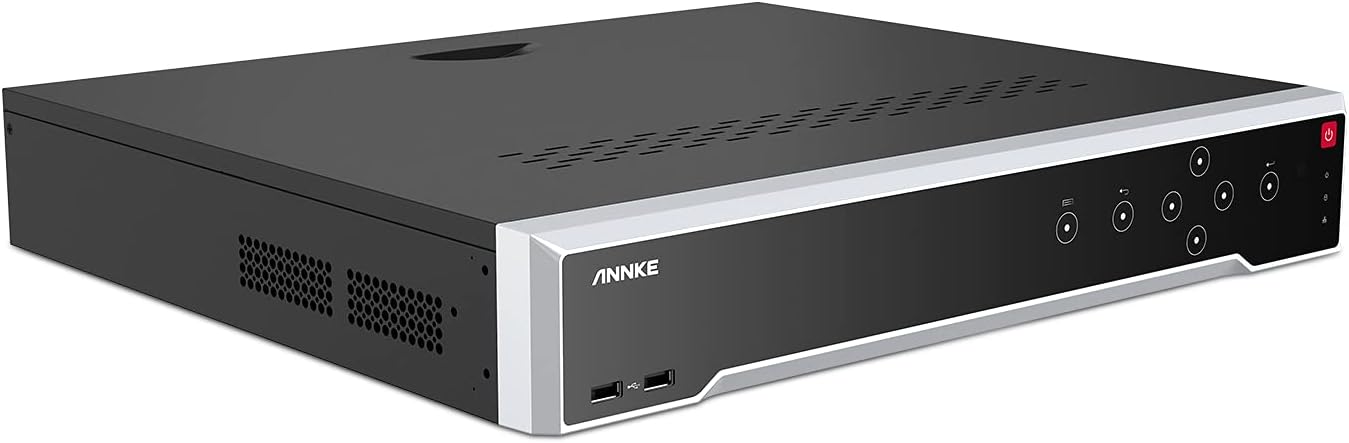
Image 1.1: Front view of the ANNKE 32 Channel 12MP PoE Network Video Recorder.
1.1 Package Contents
Verify that all items are present in the package:
- 1x 16 Ports NVR (Hard Drive Not Included)
- 1x Power Supply
- 1x HDMI Cable
- 1x Network Cable
- 1x USB Mouse
- 1x User Manual
1.2 NVR Interface Introduction
Familiarize yourself with the ports and connections on the rear panel of the NVR.

Image 1.2: Rear panel connections of the NVR, including Ethernet ports, audio input/output, HDMI/VGA outputs, USB ports, and power input.
- Ethernet Ports: For connecting IP cameras (PoE ports) and network router.
- Audio Input/Output: For external audio devices.
- HDMI/VGA Output: For connecting to a monitor or display.
- USB Ports: For mouse, USB backup, or external storage.
- Power Adapter Input: For connecting the power supply.
2. Setup
2.1 Hard Drive Installation (Optional)
The NVR supports up to four hard disk drives, with a maximum capacity of 10TB each (40TB total). Hard drives are not included and must be installed separately for recording functionality.
- Unscrew and remove the NVR's top cover.
- Connect the SATA data and power cables from the NVR to the hard drive(s).
- Secure the hard drive(s) to the NVR chassis using the provided screws.
- Replace the top cover and secure it with screws.
2.2 Connecting Cameras
The NVR features 16 built-in PoE ports for direct camera connection. For additional cameras, an external PoE switch is required.
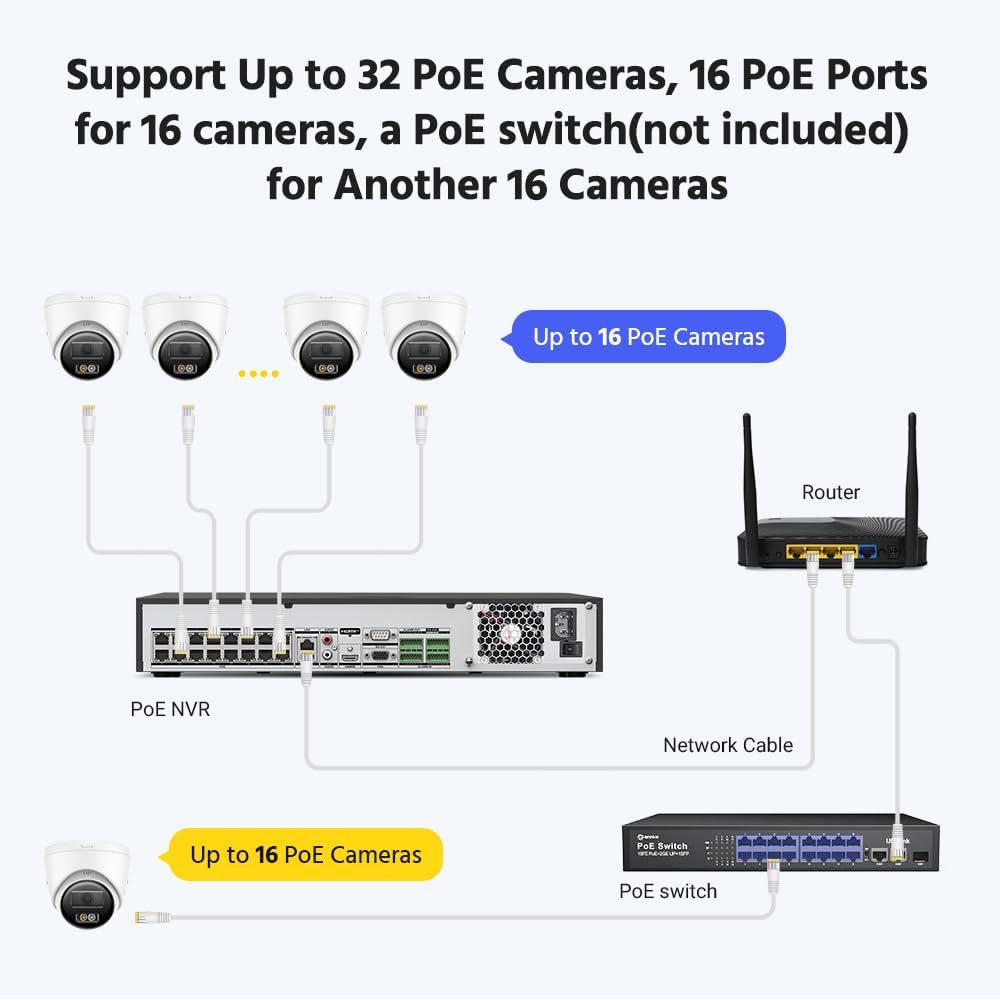
Image 2.1: Connection diagram illustrating how to connect up to 16 PoE cameras directly to the NVR and an additional 16 cameras using an external PoE switch.
- Connect your PoE IP cameras directly to the NVR's PoE ports using Ethernet cables.
- If connecting more than 16 cameras (up to 32 total), connect the additional cameras to a separate PoE switch.
- Connect the PoE switch to the NVR's network port using an Ethernet cable.
2.3 Connecting to a Display
Connect the NVR to a monitor or TV for local viewing and configuration.

Image 2.2: The NVR offers both 4K HDMI and 1080p VGA output options for connecting to a display.
- Connect an HDMI cable from the NVR's HDMI output to your monitor's HDMI input for 4K resolution.
- Alternatively, connect a VGA cable from the NVR's VGA output to your monitor's VGA input for 1080p resolution.
- Connect the included USB mouse to a USB port on the NVR.
2.4 Powering On
- Connect the power adapter to the NVR's power input.
- Plug the power adapter into a power outlet. The NVR will power on automatically.
- Follow the on-screen prompts for initial setup, including setting a password and network configuration.
3. Operating
3.1 Live View and Recording
The NVR supports high-resolution video streams and efficient recording.

Image 3.1: Visual representation of different video resolutions, highlighting the clarity of 12MP Ultra HD (4000x3000).
- Ultra HD Stream: View live footage from your cameras in resolutions up to 12MP (4K).
- 24/7 Recording: Configure continuous recording to ensure no details are missed.
3.2 Video Compression
The NVR utilizes H.265+ video compression technology to optimize storage space without compromising video quality.

Image 3.2: H.265+ compression significantly reduces storage requirements compared to H.264, occupying only 18% of the space for the same video quality.
- H.265+ offers improved compression efficiency, allowing for longer recording times with the same hard drive capacity.
3.3 AI Motion and Face Detection
Leverage advanced AI features for intelligent monitoring and reduced false alarms.

Image 3.3: The NVR supports AI person/vehicle detection and 1-channel facial recognition for enhanced security alerts.
- Person/Vehicle Detection: Configure specific zones for detecting human or vehicle presence, minimizing alerts from irrelevant movements.
- Face Detection: The NVR supports 1-channel facial recognition for video streams or 4-channel facial recognition for face pictures, enabling specific alerts based on detected faces.
3.4 Smart Search and Playback
Efficiently review recorded footage using smart search functionalities.

Image 3.4: Smart search allows users to define custom search areas and detect motion within those areas for quick event retrieval.
- Customized Search Area: Define specific regions within the video frame to search for motion events.
- Event Playback: Quickly locate and play back recordings triggered by motion or other events.
3.5 Remote Access
Access your NVR and camera feeds remotely using the ANNKE Vision App.

Image 3.5: The ANNKE Vision App enables remote viewing and management of your security system from mobile devices.
- Download the ANNKE Vision App on your iPhone, Android smartphone, or tablet.
- Register an account and add your NVR using its serial number or QR code.
- View live feeds, play back recordings, and receive notifications from anywhere with an internet connection.
4. Maintenance
- Hard Drive Management: Regularly check the status of your hard drives. Format or replace drives as needed to ensure continuous recording.
- Firmware Updates: Periodically check the ANNKE official website for firmware updates. Updating firmware can improve performance, add new features, and enhance security.
- Cleaning: Keep the NVR free from dust and debris. Use a soft, dry cloth to clean the exterior. Ensure ventilation openings are not blocked to prevent overheating.
- Password Security: Regularly change your NVR and app passwords to strong, unique combinations to protect against unauthorized access.
5. Troubleshooting
- No Video Output: Ensure HDMI/VGA cables are securely connected to both the NVR and the monitor. Verify the monitor is set to the correct input source.
- Cameras Not Displaying: Check that cameras are properly powered and connected to the NVR's PoE ports or the external PoE switch. Verify network connectivity for IP cameras.
- No Recording: Confirm that a hard drive is installed and properly formatted. Check recording schedules and ensure sufficient storage space is available.
- Remote Access Issues: Ensure the NVR is connected to the internet and network settings are correctly configured. Verify your mobile device has a stable internet connection.
- Forgotten Password: Refer to the NVR's on-screen options for password reset or contact ANNKE technical support for assistance.
6. Specifications
| Brand | ANNKE |
| Model Number | 32CH 12MP |
| Number of Channels | 32 |
| Max Resolution Support | 12MP (4K Ultra HD) |
| PoE Ports | 16 |
| Video Compression | H.265+ |
| Hard Drive Support | Up to 4 x 10TB HDD (Not Included) |
| Connectivity Technology | HDMI, USB, VGA |
| Compatible Devices | IP Cameras |
7. Warranty and Support
ANNKE products typically come with a limited warranty. Please refer to the warranty card included with your product or visit the official ANNKE website for detailed warranty terms and conditions.
For technical support, product inquiries, or warranty claims, please contact ANNKE customer service through their official website or the contact information provided in your product documentation.
Online Resources:
- Visit the ANNKE Store on Amazon for product information.
- Check the official ANNKE website for support articles, FAQs, and firmware downloads.