
eero eero Beacon
eero Beacon Mesh WiFi Range Extender
Instruction Manual
1. Introduction
The eero Beacon is a mesh WiFi range extender designed to expand the coverage of an existing eero WiFi system. It integrates seamlessly into your eero network to provide reliable internet access throughout your home. This device plugs directly into a wall outlet, offering a compact solution for extending your WiFi signal.
The eero Beacon also features a built-in nightlight that automatically adjusts its brightness based on ambient light conditions.
2. Setup
Setting up your eero Beacon is a straightforward process that requires an existing eero network and the eero mobile application.
- Prepare Your Network: Ensure your primary eero network is already set up and functioning correctly. The eero Beacon requires an existing eero system to operate.
- Choose a Location: Select a wall outlet in an area where you want to extend WiFi coverage. For optimal performance, place the eero Beacon roughly halfway between your primary eero device and the area needing improved signal.
- Plug In the eero Beacon: Insert the eero Beacon directly into a standard wall outlet. The device is designed to plug in vertically, minimizing obstruction.
- Open the eero App: Launch the eero application on your supported iOS or Android device.
- Add a Device: Follow the on-screen instructions within the eero app to add a new eero Beacon to your network. The app will guide you through the pairing process.
- Confirmation: Once successfully added, the eero app will confirm that your network has been extended.

Image: A hand plugging the eero Beacon into a wall outlet. This illustrates the physical connection step during setup.
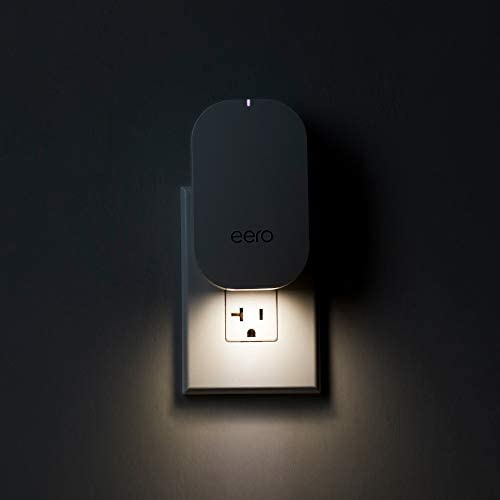
Image: A hand holding a smartphone displaying the eero app setup completion screen, indicating the network is up and running. This shows the final step of the app-guided setup.
3. Operating
The eero Beacon operates as an integral part of your eero mesh WiFi system, extending coverage and maintaining a consistent signal.
- Mesh Network Integration: The eero Beacon utilizes proprietary TrueMesh technology to create a seamless network. Devices automatically connect to the strongest available eero point as you move around your home.
- Automatic Updates: Your eero Beacon automatically receives software updates overnight. These updates provide the latest security enhancements and new features without requiring manual intervention.
- Nightlight Functionality: The built-in 10 Lumen LED nightlight automatically adjusts its brightness. It dims or brightens based on the ambient light in the room, providing subtle illumination when needed.
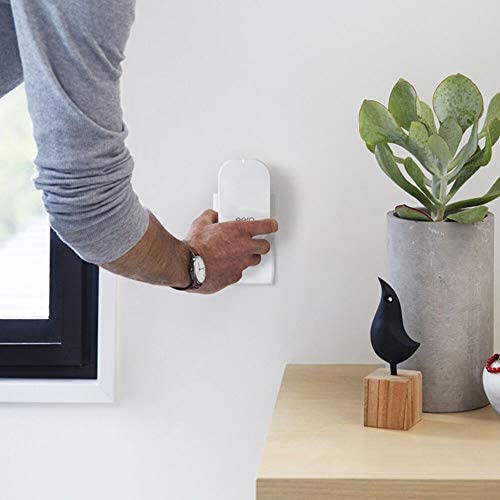
Image: An eero Beacon plugged into a wall outlet, emitting a soft glow from its nightlight in a dimly lit room. This demonstrates the nightlight feature in operation.
4. Maintenance
The eero Beacon is designed for minimal user maintenance.
- Software Updates: The device automatically downloads and installs software updates. This ensures your network remains secure and benefits from the latest performance improvements. No manual action is typically required for updates.
- Cleaning: To clean the device, gently wipe the exterior with a soft, dry cloth. Do not use liquid cleaners or abrasive materials.
5. Troubleshooting
If you encounter issues with your eero Beacon, consider the following steps:
- Check eero App: The eero app provides real-time status updates for your network and connected devices. It can often identify and suggest solutions for common issues.
- Restart Device: Unplug the eero Beacon from the wall outlet, wait 10 seconds, and then plug it back in. Allow a few minutes for it to reconnect to your network.
- Relocate Beacon: If a specific area still has weak signal, try moving the eero Beacon to a different outlet, ensuring it is within reasonable range of another eero device.
- Verify Primary eero: Ensure your main eero router is online and functioning correctly. The Beacon relies on the primary eero for internet connectivity.
- Contact Support: If problems persist, refer to the eero support page for further assistance.
6. Specifications
| Title | Certified Refurbished Amazon eero Beacon mesh WiFi range extender (add-on to eero WiFi systems) |
| Dimensions | eero Beacon: 4.76in (121mm) x 2.91in (74mm) x 1.18in (30mm) |
| WiFi Connectivity | eero Beacon: Dual-band WiFi radios, simultaneous 2.4GHz and 5GHz wireless 2x2 MU-MIMO, beamforming, IEEE 802.11a/b/g/n/ac |
| Electrical Requirements | 100-240V AC, 50-60 Hz |
| Processor, Memory, and Storage | 700 MHz quad-core processor, 512MB RAM, 4GB flash storage |
| Network Security and Services | WPA2 encryption, Family Profiles, DHCP, IPV6, NAT, VPN Passthrough, UPnP, Static IP, and Port Forwarding |
| Required for Setup | Supported iOS or Android device and internet service (with cable or DSL modem, if required). |
| Environmental Requirements | Operating: 0C - 35C; Storage: -25C - 60C; Relative Humidity Operating: 20%-90% non-condensing; Altitude Operating: 3000m |
| Wired Connectivity | None |
| Smart Home Connectivity | Thread 1.1 Border Router, Bluetooth® LE 4.2 |
| Nightlight | eero Beacon: 10 Lumen LED nightlight, with automated dimming |
| Generation | eero Home WiFi System 2nd Generation – 2017 release |
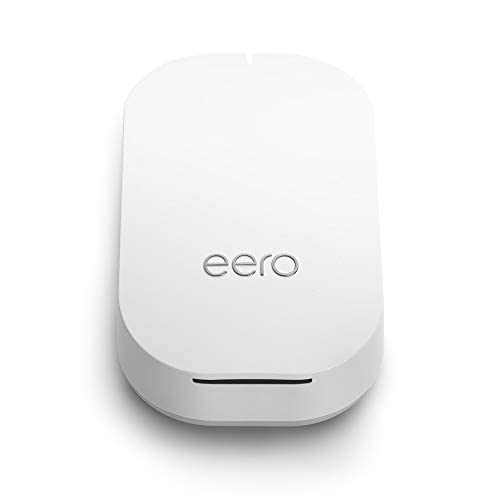
Image: Top-down view of the eero Beacon device, highlighting its compact design.
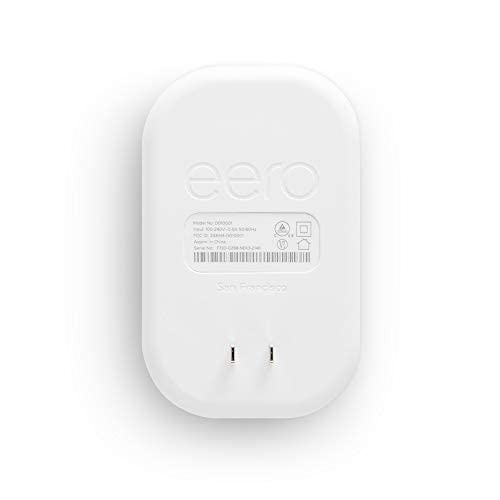
Image: Rear view of the eero Beacon, displaying the electrical plug and product details.
7. Warranty and Support
The eero Beacon comes with a 1-year limited warranty and service. This device receives the same limited warranty as a new device.
For additional information and support, please visit the official eero support page:
Important Safety and Compliance Information is also available at the provided link.
Related documentseero Beacon


Ask a question about this manual
Ask about setup, troubleshooting, compatibility, parts, safety, or missing instructions. Manuals+ will review the question and use this page’s manual context to help answer it.